Table of Contents
This guide provides a clear, practical overview of steps to perform regression analysis in Windows 11/10, with useful context, important details, and straightforward takeaways for everyday readers.
In this article, Tipsmake will discuss different ways to perform Regression Analysis on Windows 11/10 PC. You don't need to do anything manually. Simply import the dataset, select the input variables, and visualize the results. Find out below!
How to perform Regression Analysis in Windows 11/10
Here are the methods that you can use to perform Regression Analysis on your dataset in Windows 11/10.
Method 1: Perform Regression Analysis in Microsoft Excel
You can perform Regression Analysis using the Microsoft Excel application. The Data Analysis ToolPak- specific ToolPak add- on in Excel allows you to perform Regression Analysis and some other data analysis. You will have to manually activate this add-in to use its functions. Let's look at the process of using Excel's Data Analysis ToolPak add-in to perform Regression Analysis.
Here are the main steps to perform Regression Analysis in Microsoft Excel:
Step 1. Launch the Microsoft Excel application.
Step 2. Go to File > Options > Add-ins tab .
Step 3. Click the Go button .
Step 4. Activate the Data Analysis ToolPak add-in and return to the main Excel screen.

Step 5. Enter the dataset and select the input data with dependent and independent variables.
Step 6. Scroll to the Data tab .
Step 7. Click the Data Analysis button .

Step 8. Select Regression and press the OK button .

Step 9. Enter the input range X (independent variable) and Y (dependent variable), as well as other output options, for which you want to perform Regression Analysis.

Step 10. Click the OK button to view the Regression Analysis results.
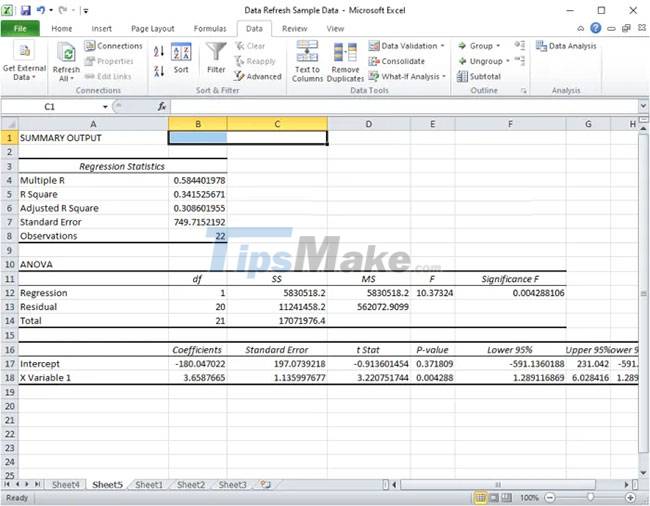
You can save the results in the same Excel sheet or print the results if you want.
Similarly, you can also perform analyzes including ANOVA test, covariance, descriptive statistics, power continuous, Fourier integration, histogram, moving average, sampling, t-test -test etc.
Method 2: Use free software JASP to perform Regression Analysis
You can use free third-party software to perform Regression Analysis on a set of data. There is a number of free software that allows you to analyze the data. Here, the article will use free software called JASP and Statcato. Using these two free software you can perform Regression Analysis and many other data analysis
1. JASP
JASP is dedicated free statistical analysis software for Windows 11/10. Using it, you can perform Regression Analysis, descriptive test, T-test, ANOVA, frequency test, principal component analysis, exploratory factor analysis, meta-analysis, summary statistics shortcut, SEM, visual modeling and confirmatory factor analysis. JASP provides a dedicated Regression tab where you can perform Linear, Correlated and Logistic Regression Analysis.
Here are the main steps to perform Regression Analysis in JASP:
Step 1: Download and install JASP.
Step 2: Launch the software.
Step 3: Import your dataset.
Step 4: Go to the Regression tab .
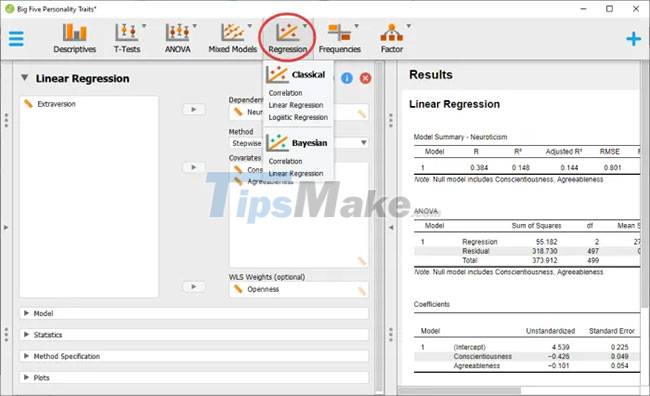
Step 5: Choose Classical or Bayesian regression type .
Step 6: Select dependent and independent variables, as well as customize other parameters.
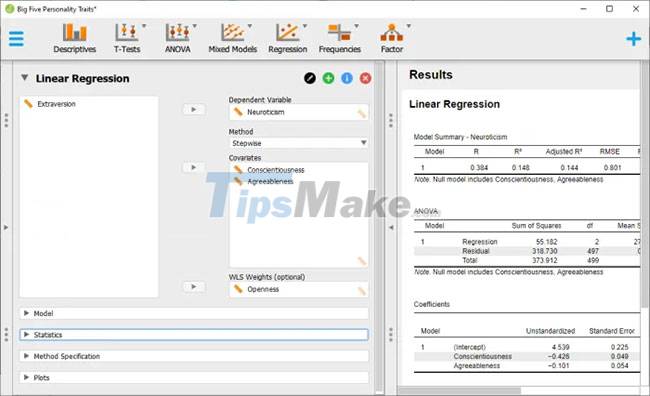
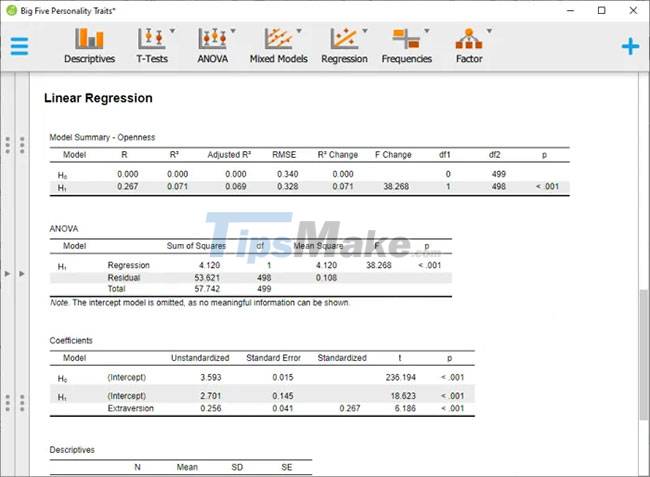
Step 7: View and export the results.
2. Statcato
Another free software that you can try to perform Regression Analysis is Statcato. It is a free and open source software for performing statistical analyses. Statcato allows you to perform Regression Analysis as well as several other types of data analysis. Several methods of data analysis are provided which include hypothesis testing, ANOVA, descriptive statistics, normal distribution test, sample size, non-parametric test, etc.
Statcato allows you to perform Linear Regression, Multiple Regression, Correlation Matrix, Non-Linear Regression, etc. main steps to perform regression analysis in Statcato:
Step 1: Download Statcato software.
Step 2: Launch the Jar file.
Step 3: Import or create an input dataset.
Step 4: Go to the Statistics menu .
Step 5: Click on Correlation and Regression option.
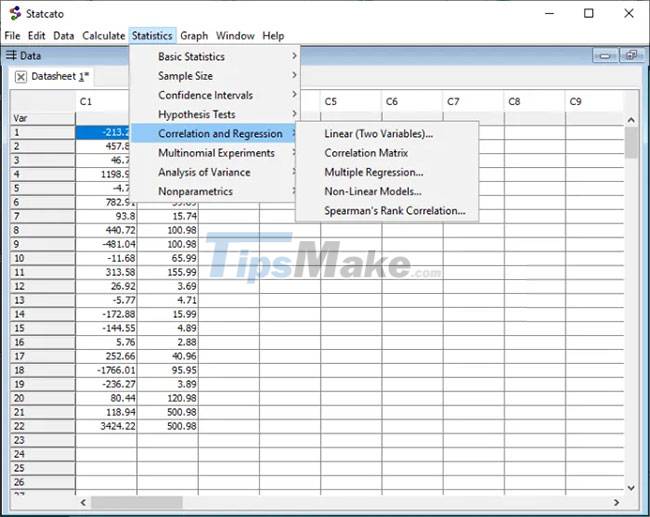
Step 6: Select the desired regression type.
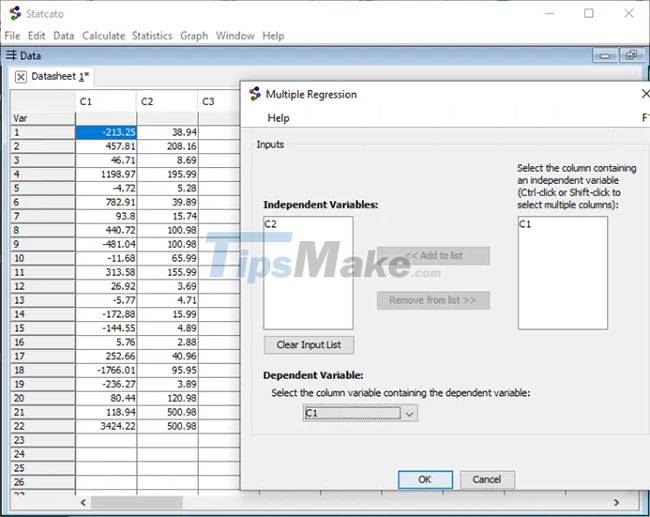
Step 7: Select dependent and independent variables.
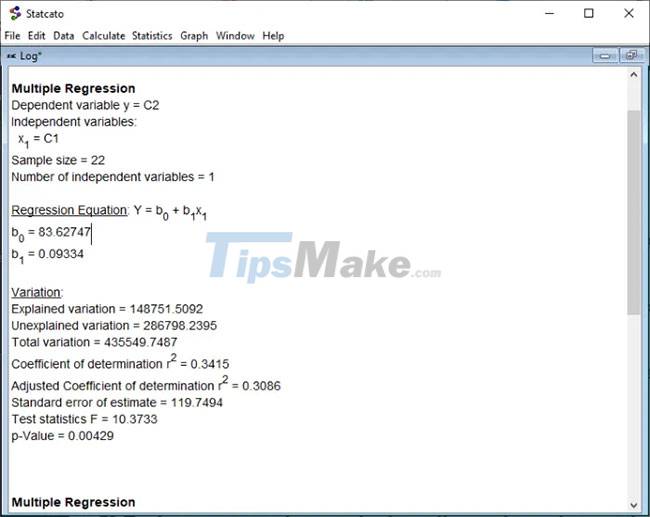
Step 8: View and save the regression analysis.
Method 3. Perform Regression Analysis Online Using Free Web Service
You can also perform regression analysis online using a dedicated free web service. Here, the article will use a web service called socscistosystem It allows you to perform linear analysis and many regression analyzes online. In addition, you can also find other statistical tools on this website. Below are the main steps to perform an online regression analysis using socsciststatistics.
Step 1. Open a web browser.
Step 2. Navigate to the socscistosystem . website
Step 3. Now you need to navigate to the Multiple Regression Calculator or Linear Regression Calculator page , depending on which regression analysis technique you want to use.
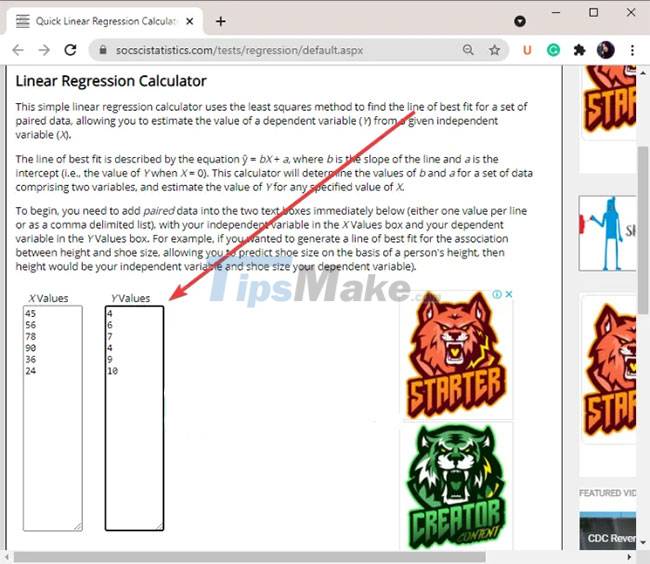
Step 4. Next, enter the corresponding input values in the X (independent) and Y (dependent) columns . You can also enter estimated values.
Step 5. Click the Calculate the Regression Equation option .
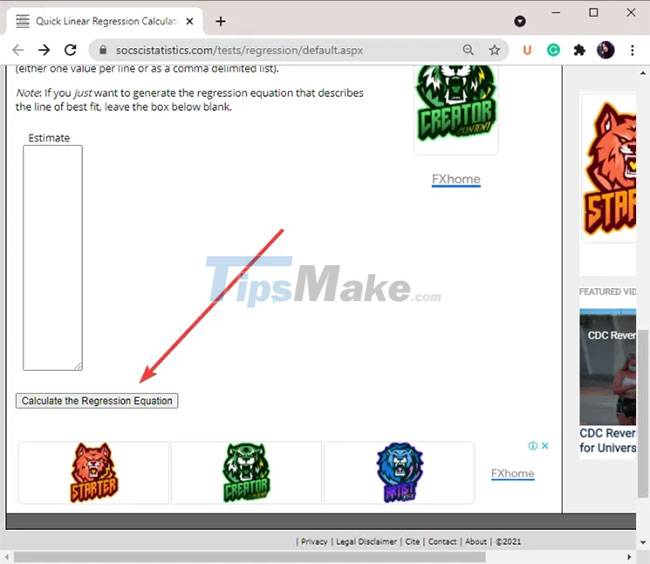
Step 6. Then, the results of the regression analysis will be displayed in the same window.
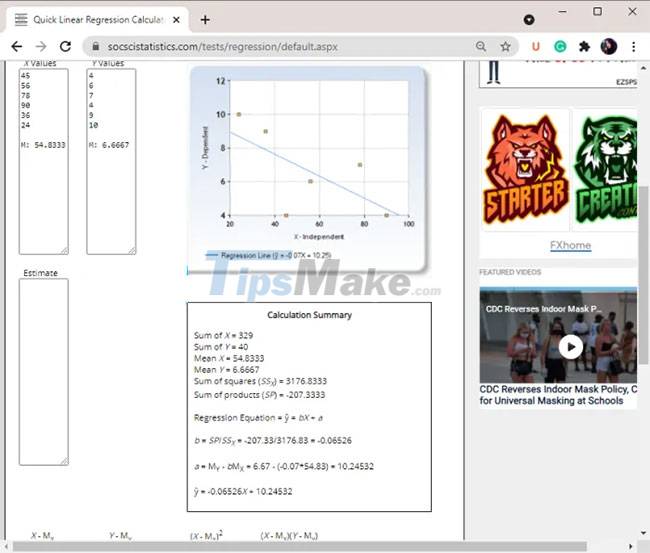
Regression analysis results include graphs, regression equations, sum of squares, sum of products, mean, etc.
Hope you are succesful.
Key Takeaways
Use the information above as a practical reference for steps to perform regression analysis in Windows 11/10. Review each step carefully, confirm any requirements, and choose the option that best fits your situation.
FAQ
What does this guide explain about Steps to Perform Regression Analysis in Windows 11/10?
It explains the main concepts, practical considerations, and useful steps related to steps to perform regression analysis in Windows 11/10 without requiring advanced knowledge.
Who can benefit from learning about Steps to Perform Regression Analysis in Windows 11/10?
This information is useful for readers who want a clear overview, practical guidance, and reliable steps related to steps to perform regression analysis in Windows 11/10.
What should I check before applying this information?
Review the requirements, confirm that your device, software, or situation matches the instructions, and back up important data before making major changes.
Related Articles
 How to Run Regression Analysis in Microsoft Excel4 minutes read
 Linear Regression in Machine Learning3 minutes read
 12 Top Keyword Analysis Tools: Top Picks and Buying Guide10 minutes read
 Linear Graphs in Machine Learning: Explained4 minutes read
 How to Use Matlab to Solve Matrix Equations and Perform9 minutes read
 What Is Malware Analysis? How Are the Steps Taken?7 minutes read
Reader Comments 0
Sign in with email or Google to join the discussion.