Table of Contents
This updated guide explores stop these 4 bad habits that slow down your laptop with practical details, clear explanations, and useful takeaways. You will find many advantages to using a laptop. it is incredibly portable, meaning you can take your work with you wherever you go. Still, if you're not careful, you can pick up some really bad habits that can slow down your laptop and make it a pain to use.
- What happens when I restart my computer?
- How to check password strength
- Ways to set USB password to protect data
4. Skip Software Updates
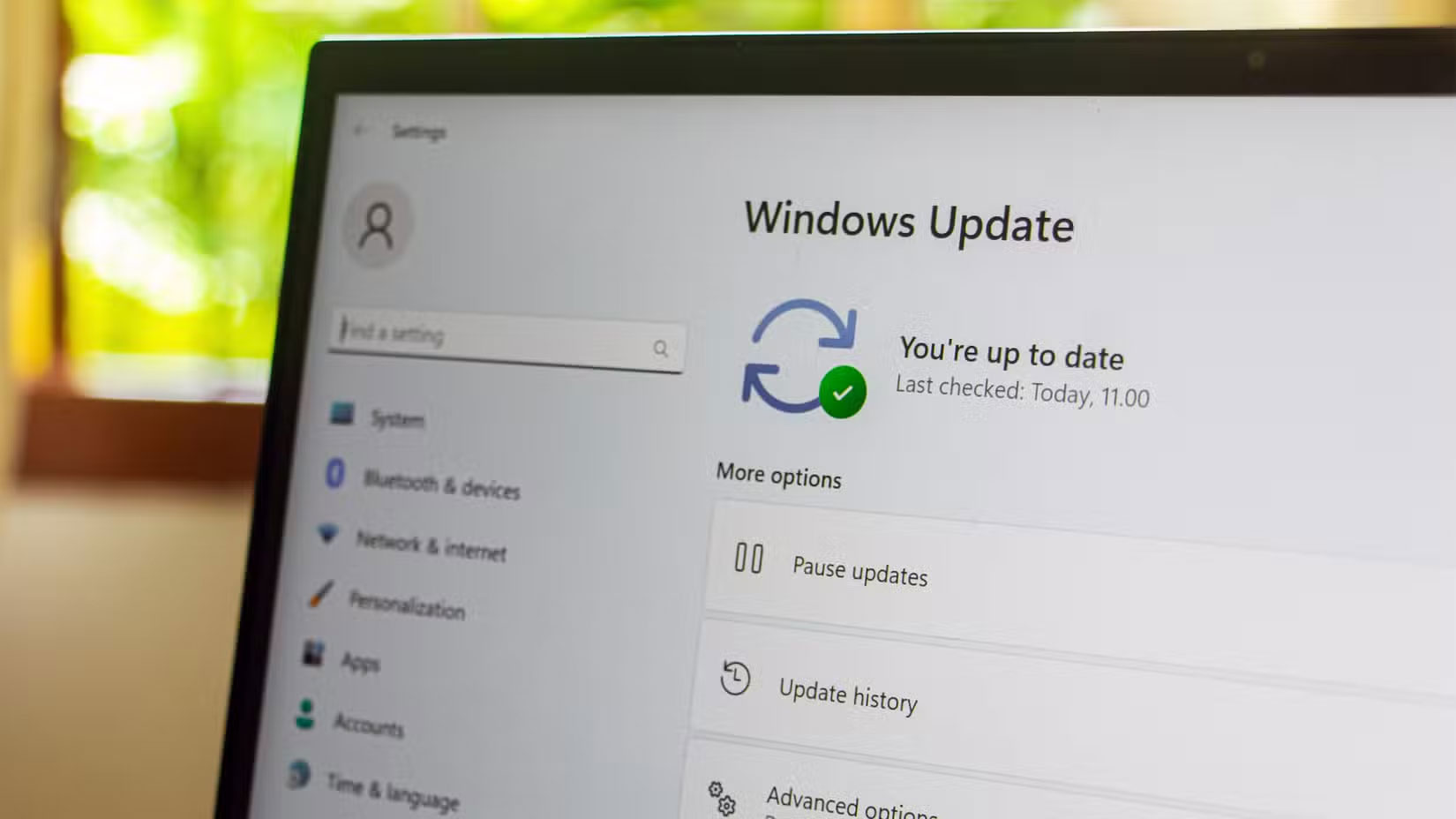
There are times when it makes sense to avoid Windows updates, especially since they sometimes cause annoying bugs. Still, doing so over time can actually slow down your computer's performance and put it at risk from bad guys.
Many times, the updates Microsoft releases are based on both delivering new features and security features. Sometimes they also come with new optimization changes that can help your PC run smoother.
Therefore, avoiding installing these updates can slow down your PC, especially if you use it on a daily basis. It is best to always keep an eye on new updates as they come out to ensure they do not cause any major problems. If they do, you can delay installing them or even roll back to a previous version if you've just made a backup of your PC.
Microsoft offers a few different options for managing Windows updates, but there's really no way to disable OS updates forever. You're going to have to install the updates eventually anyway, so there's no point in delaying them for too long.
- The best "cloud" data storage services today
3. Let Unused Apps Accumulate
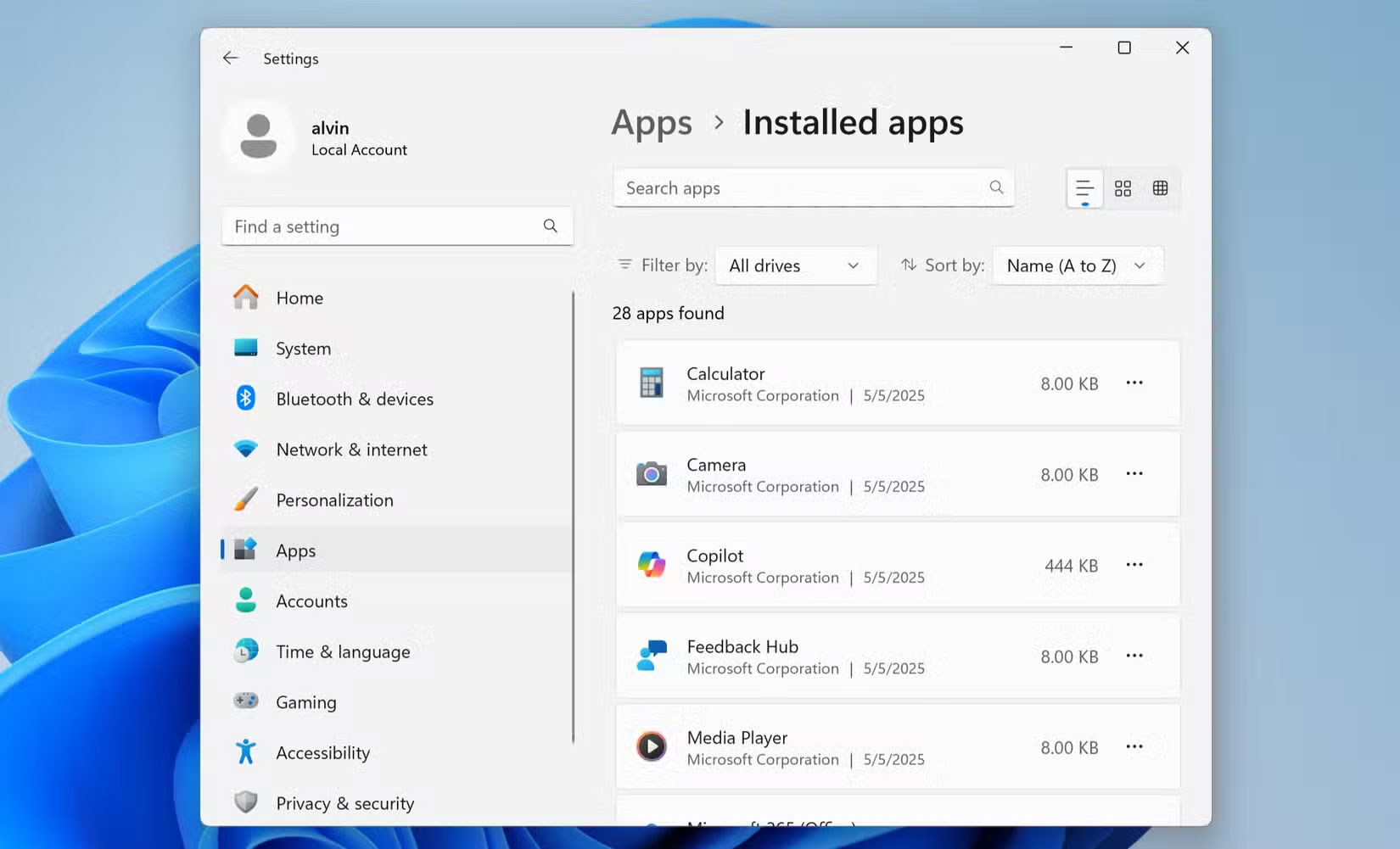
it is easy to download an app onto your laptop and then completely forget about it, not opening it for months or even years. But not only does this take up important storage space on your laptop's hard drive or SSD, it can take up resources if the app is running in the background.
For this reason, It is best to clean your PC at least once a year. This is part of your regular laptop maintenance routine, helping you keep track of your apps and storage. The easiest way to clean your PC is to do a clean install of Windows 11, completely removing everything.
That does not always work for everyone, though, so It is best to at least open your app list by navigating to Settings > Apps > Apps & features . Go through the list and figure out which apps you haven't used in a while. If you think you do not need an app anymore, uninstall it and reclaim some storage space.
- 7 Simple Steps to Make Your Laptop Clean Like New
2. Leaving Too Many Tabs Open
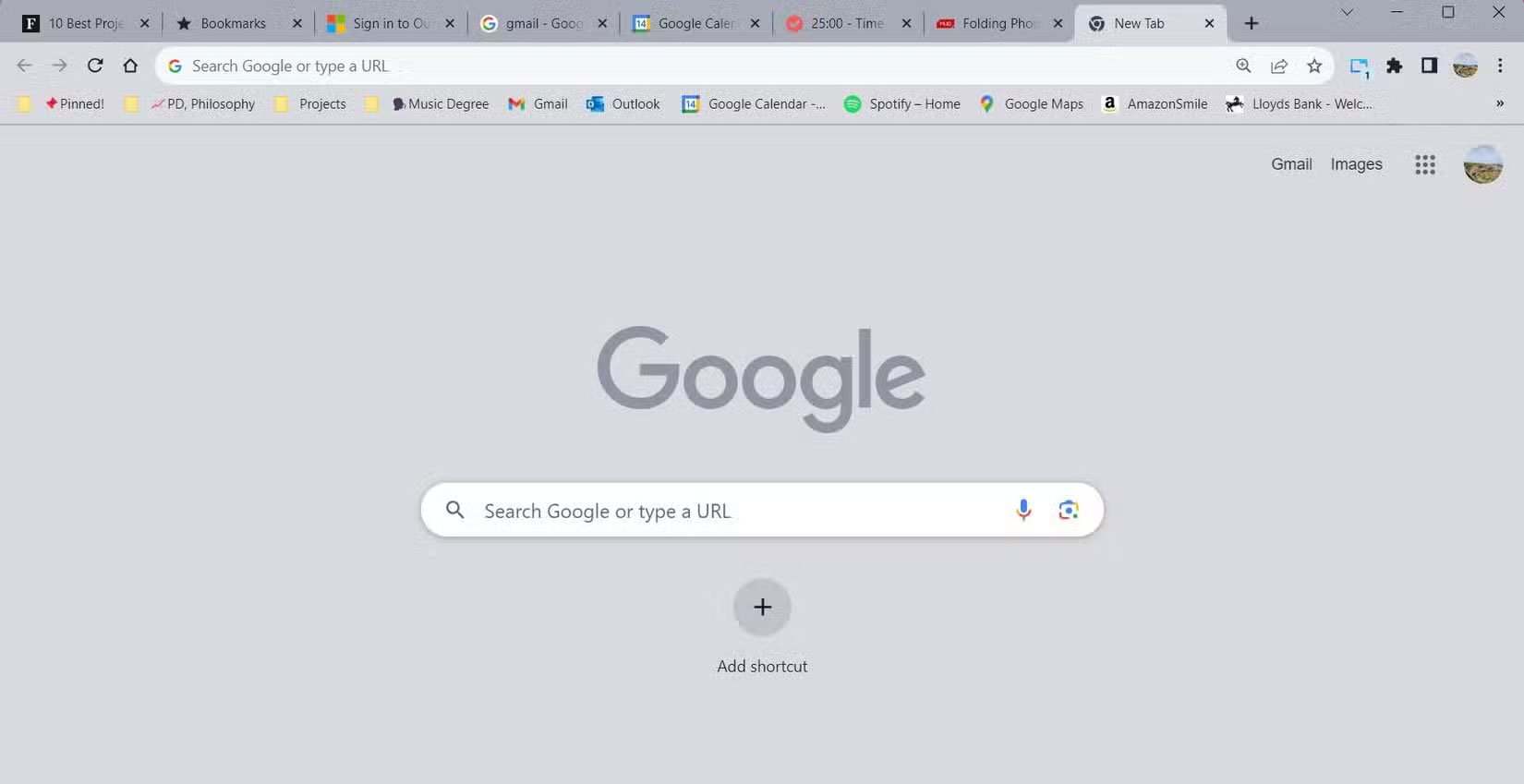
Believe it or not, the browser you're using to read this article is one of the most resource-hungry programs on your laptop or PC, especially if it is Chrome. Still, things can get even more complicated on your laptop if you have a bad habit of keeping too many browser tabs open.
Having 10 tabs open may not seem like much, especially with newer systems that have more RAM and better processors. But, every little bit counts when it comes to keeping your laptop running as smoothly as possible.
Try consolidating your browser tabs and shutting down any tabs or browser windows you do not really need. Yes, some browsers have new features that put tabs to sleep when you haven't used them for a while. But those features do not always work reliably, so it is best to get into the habit of shutting down things when you do not need them.
One useful trick that many people use is tab groups, which allows users to set up all related tabs in one group. You can then open and close them all as needed. This helps cut down on the amount of resources those tabs take up, as well as taking up less space on your browser's taskbar.
- Tips to protect your eyes when sitting at the computer
1. Neglecting Regular Maintenance
One bad habit that many people have with their laptops is not doing regular maintenance. This can be as basic as uninstalling unused applications or as deep as deleting unused files that you no longer need.
To help you avoid falling into this bad habit, try setting up a routine to delete various settings, files, or apps every few weeks. do not overwhelm yourself by trying to do it all at once. Start small, like managing your PC's startup applications; opening too many applications at startup can slow down Windows significantly.
From there, start doing other regular maintenance. Clear out your downloads folder one week, then review your unneeded documents the next. Over time, the changes you make will add up, making your system run smoother. It is best to also consider uninstalling bloatware from Windows 11, as this will remove many apps you do not need.
Each of these bad habits is easy to fall into, especially if you do not keep track of them. But if you want your laptop to run as smoothly as possible, It is best to break them Once possible.
Good luck!
See also:
- 6 things to do to sell your Android phone for a good price
- Things to do before parting with your iPhone
- Basic computer skills - effective
- 13 things It is best to not do when using a computer
- Useful computer tips and tricks everyone should know
FAQ
What is the main takeaway about Stop These 4 Bad Habits That Slow Down Your Laptop?
The key is to understand the core idea, compare the available options, and apply the practical guidance that matches your situation.
What should beginners know about Stop These 4 Bad Habits That Slow Down Your Laptop?
Start with the essential steps and terminology. Avoid changing advanced settings until you understand how they affect performance, privacy, cost, or compatibility.
How can I use this information in practice?
Follow the relevant section in order, test one change at a time, and confirm the result before moving to the next step or recommendation.
Related Articles
 Please Stop These 6 Habits, if You Want to Be More Wonderful8 minutes read
 10 Bad Habits in Technology You Should Stop Working in 20199 minutes read
 Habits Are 'Killing' Your Laptop8 minutes read
 Fix Asus Laptop Running Slow in Windows 10/11: Key Facts10 minutes read
 Don't Charge Your Phone Using Your Laptop, Here's Why: Explained7 minutes read
 If Money Is Keeping You up at Night, These Financial Habits Can Help6 minutes read
Reader Comments 0
Sign in with email or Google to join the discussion.