Table of Contents
This updated guide explores reasons to use the font browser feature in photoshop with practical details, clear explanations, and useful takeaways. Font indecision is real. Help is just a few clicks away, because Adobe has a time-saving feature built into Photoshop. it is called the Font Browser, and it is designed to solve users' biggest typography headaches.
What Is Photoshop Font Browser?
Photoshop's font list is now more flexible. Imagine you have a catalog of 25,000 fonts to choose from. But instead of scrolling through a long list of unfamiliar fonts, options let you preview, filter, and compare fonts in real time.
Unlike the old font drop-down list, you can quickly try out similar typefaces and choose one. The freedom and choice seems similar to many free font download sites.
But instead of having to look elsewhere, you can find and activate Adobe fonts in Photoshop.
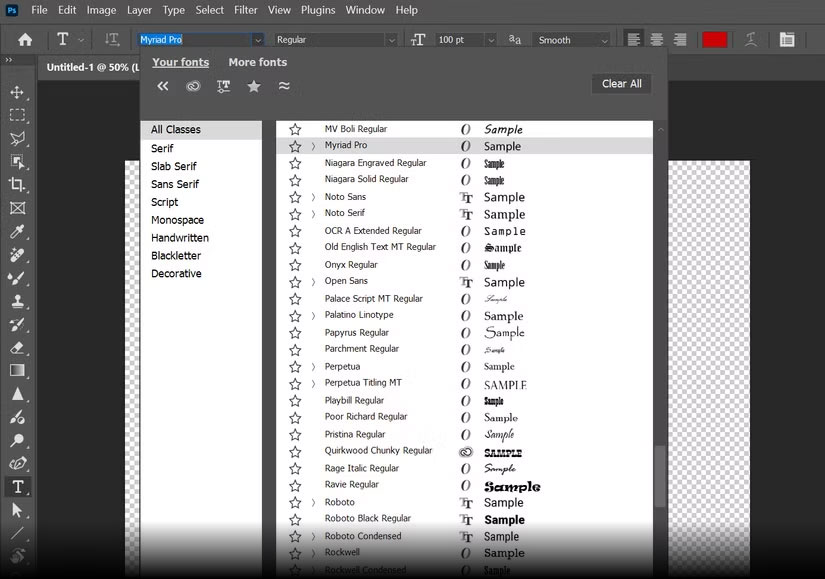
Note : All 25,000 fonts are not pre-installed. This number is the total number of fonts available on Adobe Fonts. You must activate the fonts you want from Adobe Fonts through Creative Cloud.
Why Haven't You Realized That Yet?
The Font Browser is in plain sight. But it is easy to miss because Photoshop's interface isn't minimalist. People do not realize how powerful the Font Menu is until they explore its features beyond the standard drop-down list.
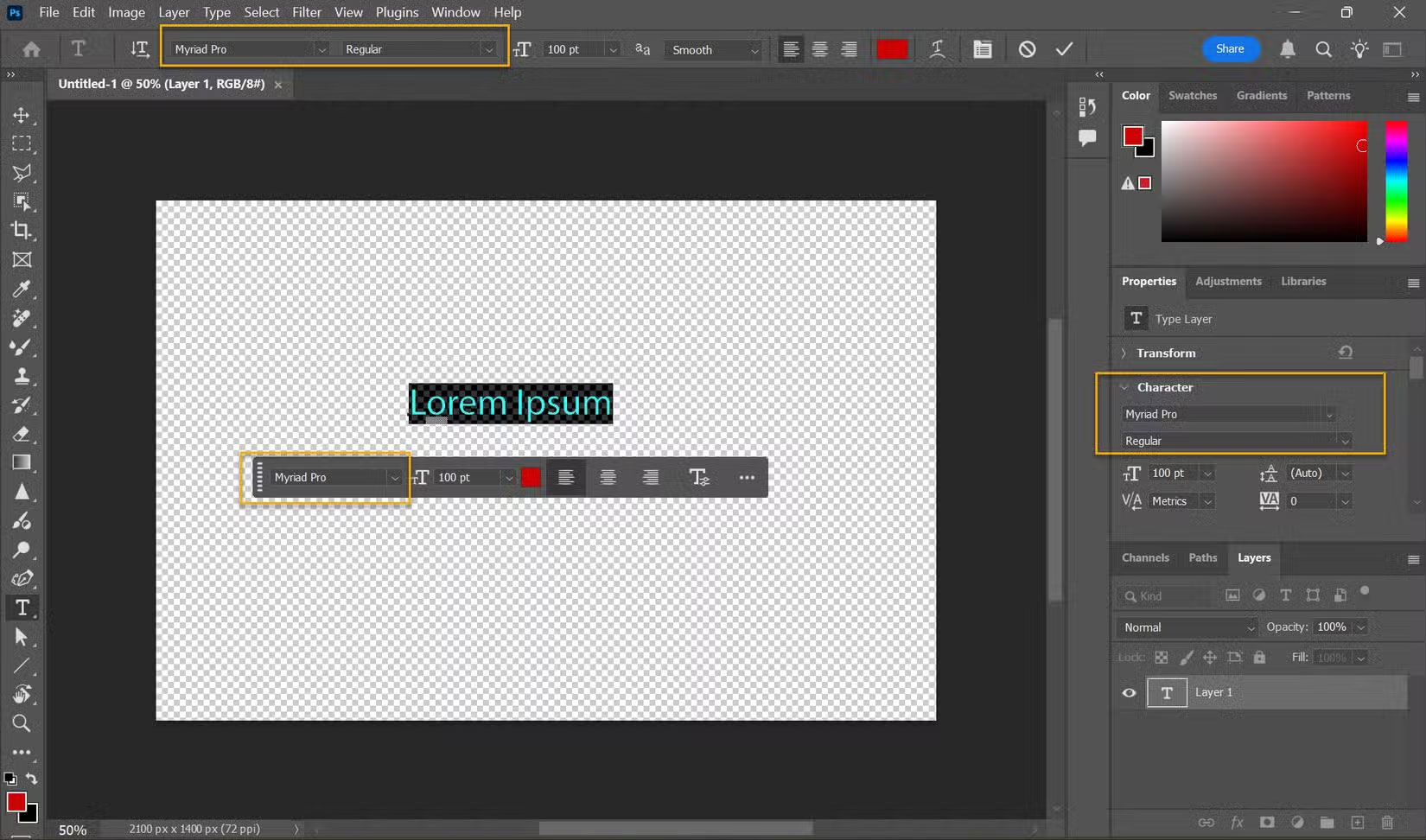
The extended font list is available in 3 places after you select the Type Tool:
- Options Bar
- Contextual Task Bar
- Properties panel (when on the Type layer)
When it first started, font selection features helped people break away from default choices — for instance, pairing different fonts with Calibri.
Tip : Want to stay up to date on all the font choices available? Visit Adobe Fonts on the web and see what's new.
How Does Font Browser Work?
Font Browser makes choosing and pairing multiple fonts a lot easier. You do not have to be a typography expert to enhance your designs. Here's how to find your perfect font and feel like a pro.
- open the Character panel or Options bar .
- Enter the text you want to format and preview different fonts in context.
- Hover your cursor over a font name in the drop-down list to see a real-time preview applied to your text.
- Filter your options. Use categories like serif, sans-serif, artistic, or handwritten to narrow down your choices.
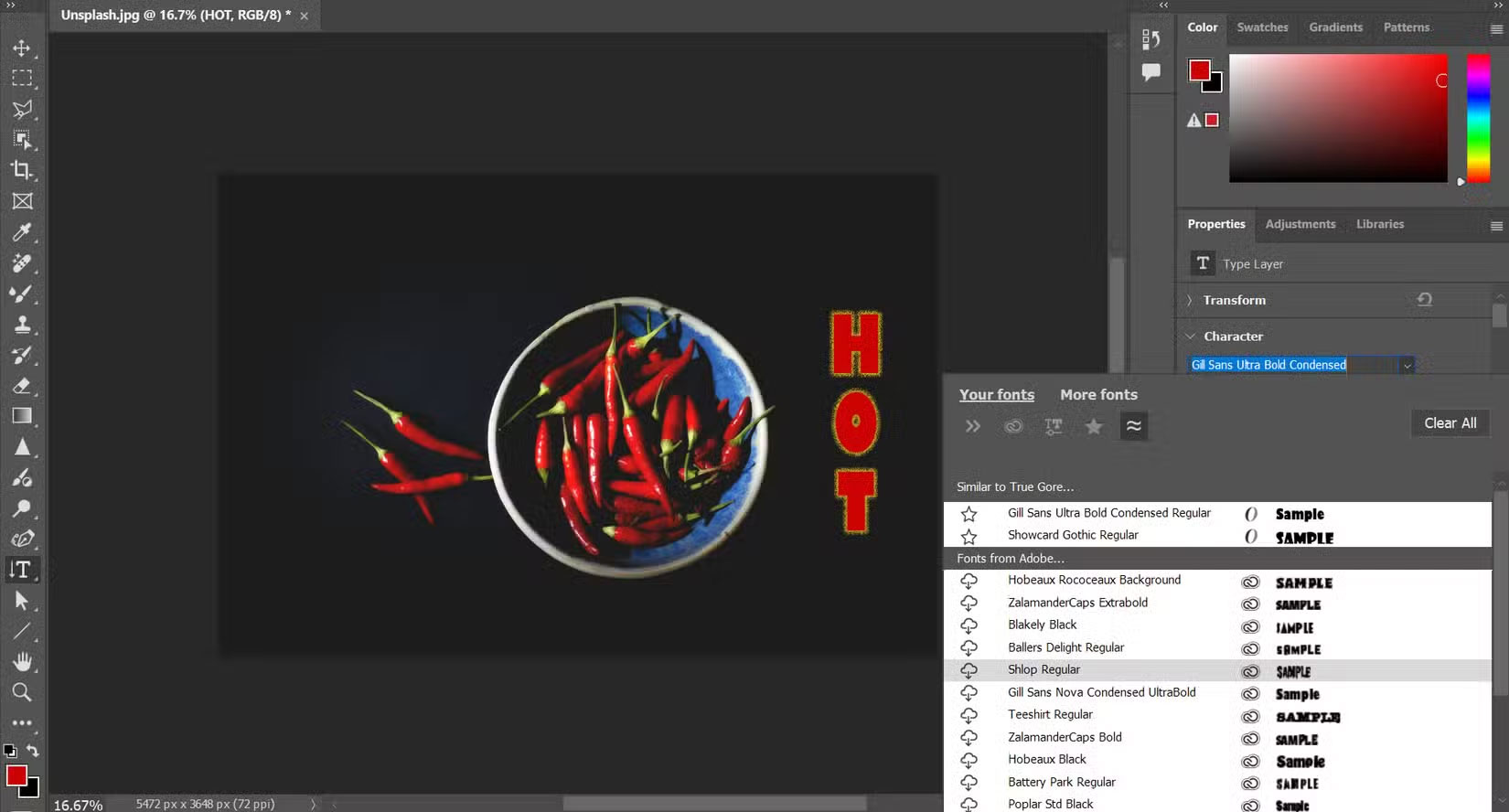
- Use the Font Similarity tool if you like an Adobe font but want some minor changes.
- Enable Adobe Fonts. If you have a Creative Cloud subscription, enable additional fonts directly from the Font Browser.
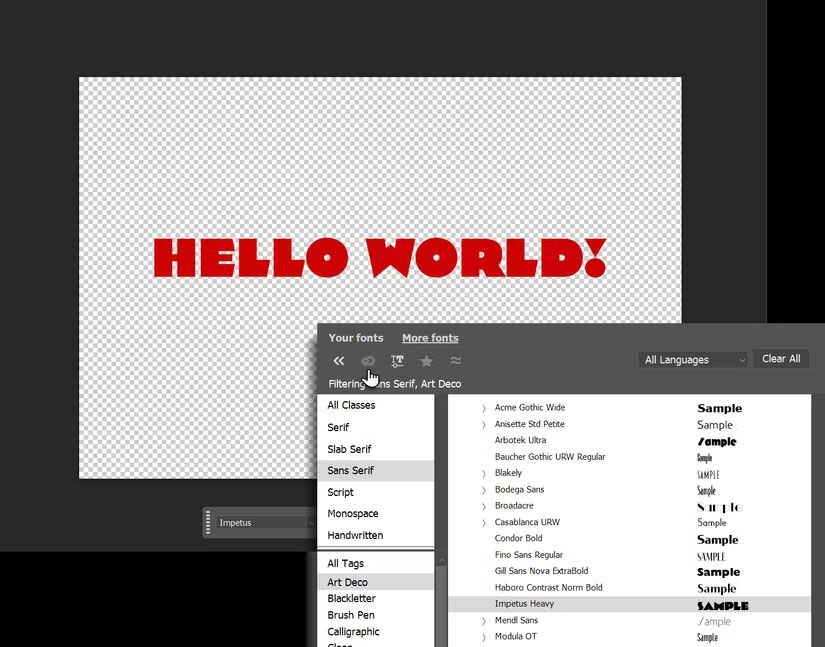
Tip : Bookmark Favorites and use Recent Fonts . Save time by quickly adding frequently used fonts to favorites or accessing recent selections.
Why Should You Start Using This Feature Today?
it is safe to say that the text tools are the most used in Photoshop. The Font Browser is an interface that gives us a variety of ways to work with fonts and manage them. Let's take a quick look at the benefits.
- Huge library of 25000 typeface choices expands your creative options.
- Save time because searching, downloading, and installing Adobe fonts happens within Photoshop.
- You can preview fonts directly on the canvas and make design decisions faster.
- Font Browser helps organize your fonts, with options to filter by various categories and mark favorites.
- New fonts are added seamlessly across all your devices using Photoshop and other Creative Cloud desktop apps.
Font Browser makes it easy to find the perfect font using filters.
for instance, you can filter by categories such as Serif, Script, and Handwritten. Or search for fonts (especially Adobe Fonts) that look similar to your first choice. Thanks to the large library, you will not have to search for copyright-free fonts for your projects anymore.
You may notice how quickly you can experiment with different font pairings and get ideas for new designs. No more staring at a list of boring font names. Instant visual previews help trigger an intuitive response to a particular font.
Tip : When you open a file with a missing font, Photoshop will automatically enable it for the web. This helps you collaborate with team members who may be using different fonts. You'll see a blue sync icon on the Type layer in the Layers panel. This only works if the missing font is available through Adobe Fonts and not a third-party font.
Use Font Browser for Everyday Projects
You may not be a Photoshop expert or have extensive knowledge of typography concepts. Font Browser is a great tool to help you make your font choices look more professional.
Try these practical everyday uses:
- Send a personalized Thank You card : Use the All Tags filter in the left sidebar to match the font to the recipient's personality or the occasion.
- Design standout office presentations : Use the Similar Fonts feature in the Font Browser to find visually related fonts for a more coordinated look.
- Create a simple motivational poster for your PC or desk : The right font can add mood or emotion to any photo. A "Pay Taxes" reminder poster in True Gore font is more appealing than a sticky note.
- Adjust fonts to fit into smaller spaces: Select the Show Variable Fonts filter to narrow down your font choices to a wide variety of font styles. Variable fonts give you more weight, width, and style, and make them easier to read.
- Use for educational projects : Look for the School tag in the Font Browser. The Adobe Fonts library has nearly 48 fonts that are ideal for designing projects for kids or teaching them with fun images.
- Get help identifying fonts : Like a particular font in an image? open Type > Match Font and identify that beautiful font. It may be available for you to use in the Photoshop catalog.
- Experiment with Generative AI : Using Generative AI with beautiful fonts opens up many creative options. for instance, you can create a prototype to print on a T-shirt or stamp a unique design on any other product.
The old font toolbar has served its purpose for years. The redesigned font browser is a much more interactive place to experiment. Even if you're not a professional Photoshop designer, the Font Browser will help you go from "What font is this?" to "This is the font".
FAQ
What is the main takeaway about Reasons to Use the Font Browser Feature in Photoshop?
The key is to understand the core idea, compare the available options, and apply the practical guidance that matches your situation.
What should beginners know about Reasons to Use the Font Browser Feature in Photoshop?
Start with the essential steps and terminology. Avoid changing advanced settings until you understand how they affect performance, privacy, cost, or compatibility.
How can I use this information in practice?
Follow the relevant section in order, test one change at a time, and confirm the result before moving to the next step or recommendation.
Related Articles
 How to Change the Font Color in Photoshop3 minutes read
 What Is Web Font in CSS: Use Web Font in CSS7 minutes read
 How to Change the Font Size of Safari Mac OS Browser4 minutes read
 Top 20 New Features in Photoshop Cc 20203 minutes read
 How to Insert Text in Photoshop: Step-by-Step Guide9 minutes read
 Photoshop Is Now Available for Mobile Devices12 minutes read
Reader Comments 0
Sign in with email or Google to join the discussion.