Table of Contents
This guide provides a clear, practical overview of "Quick Settings to Make Your Old iPhone Fast Again". It organizes the most useful details, explains important considerations, and highlights the steps or choices that matter most.
Set Touch Interval to Fast
You may have heard people say that you shouldn't update iOS immediately on your older iPhone unless absolutely necessary, as Apple is known to slow down older models over time. While that may be true, many people are impatient and tend to upgrade their devices to the latest iOS on release day.
If you have a phone that's nearly 10 years old, has been repaired a million times, and is still used every day, then of course it's not as fast as it used to be. Luckily, one tweak that can completely change how fast your phone feels is changing the Touch Interval setting.
This setting lets you control how long context previews, actions, and pop-up menus appear when you tap and hold them. It's a small change that makes your phone run significantly faster, especially on older models.
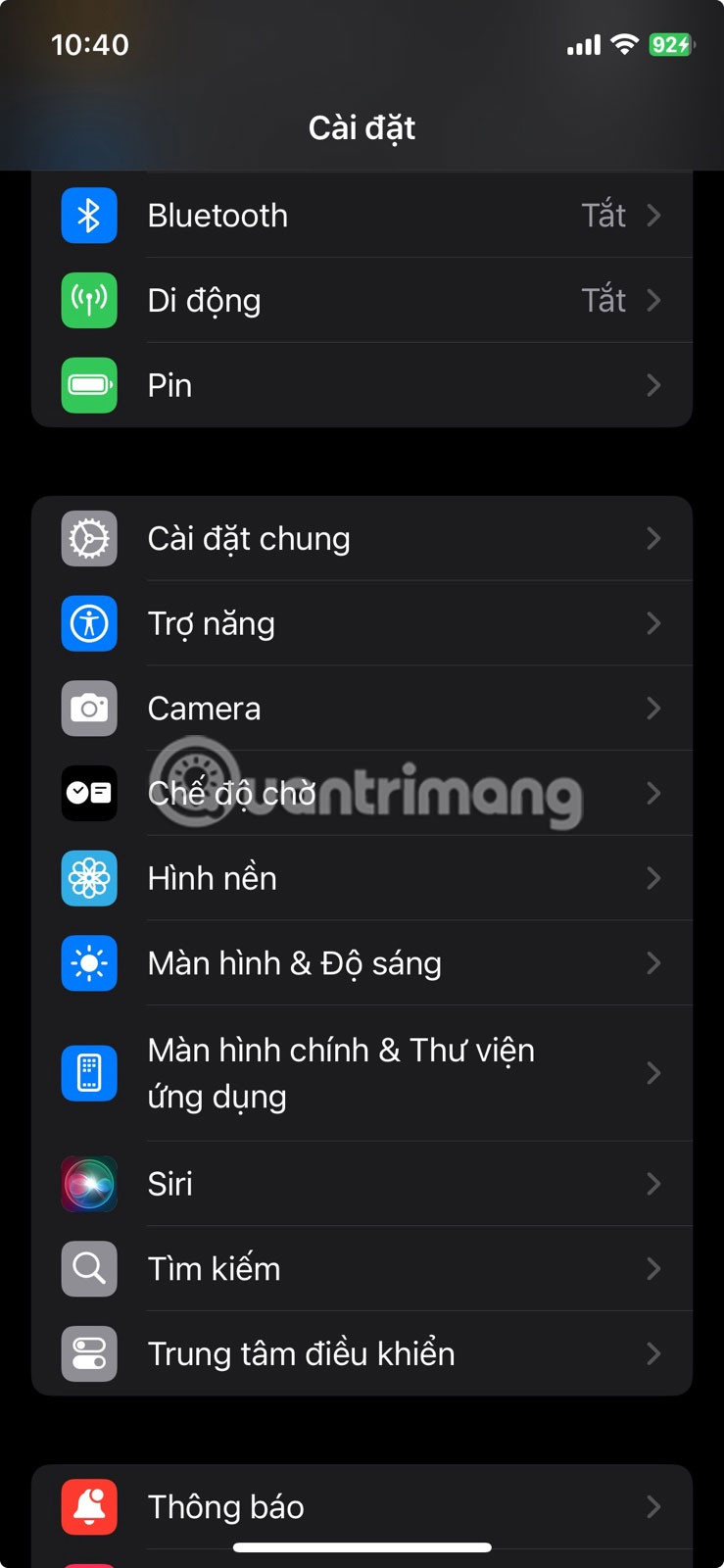
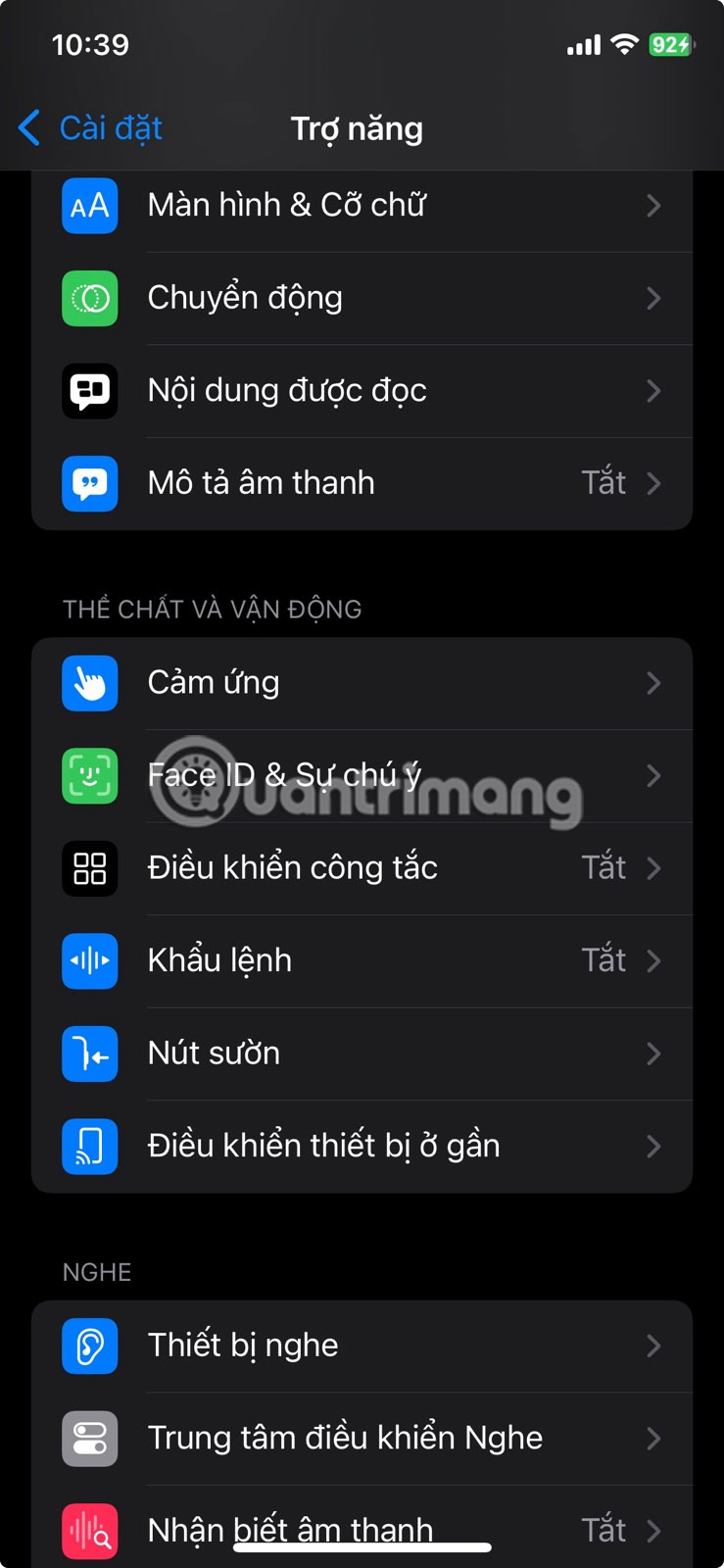
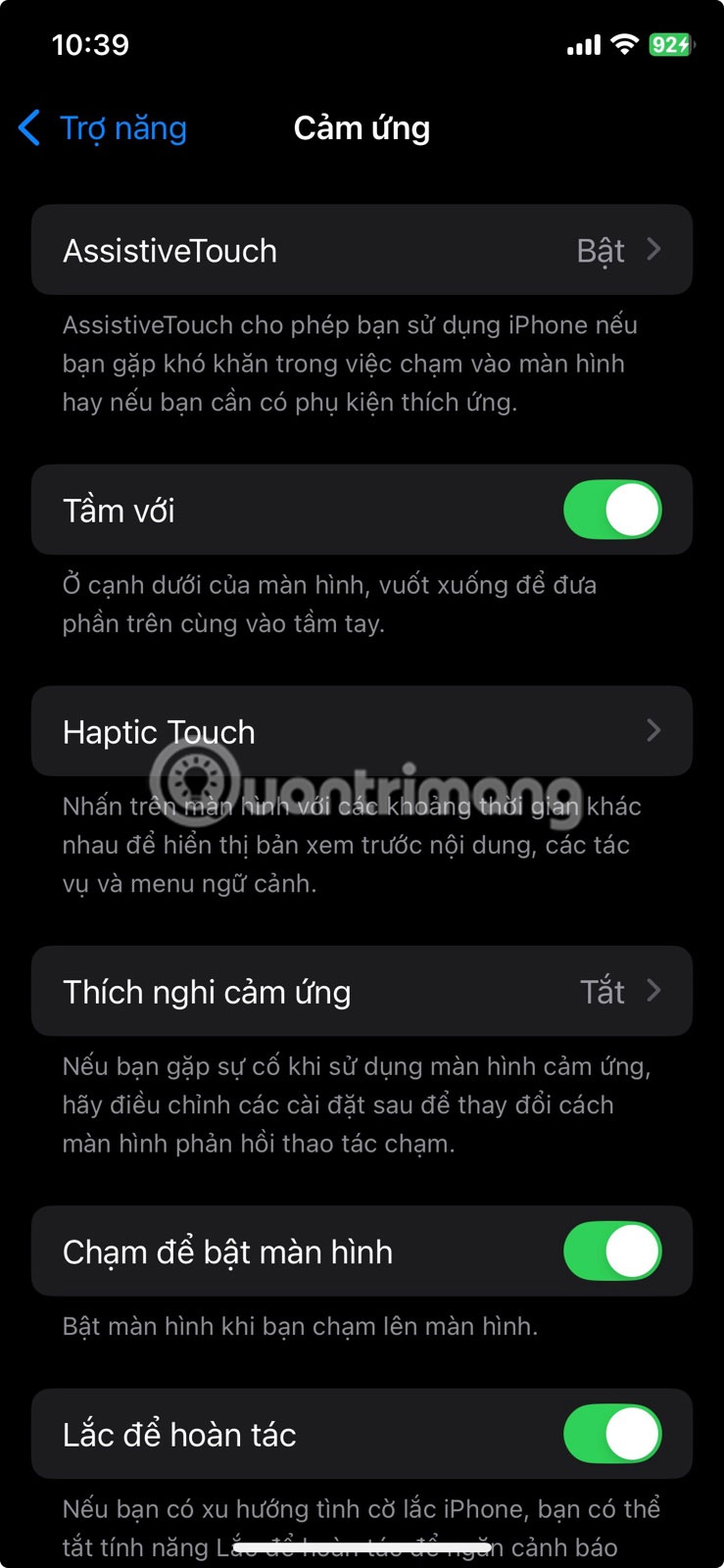
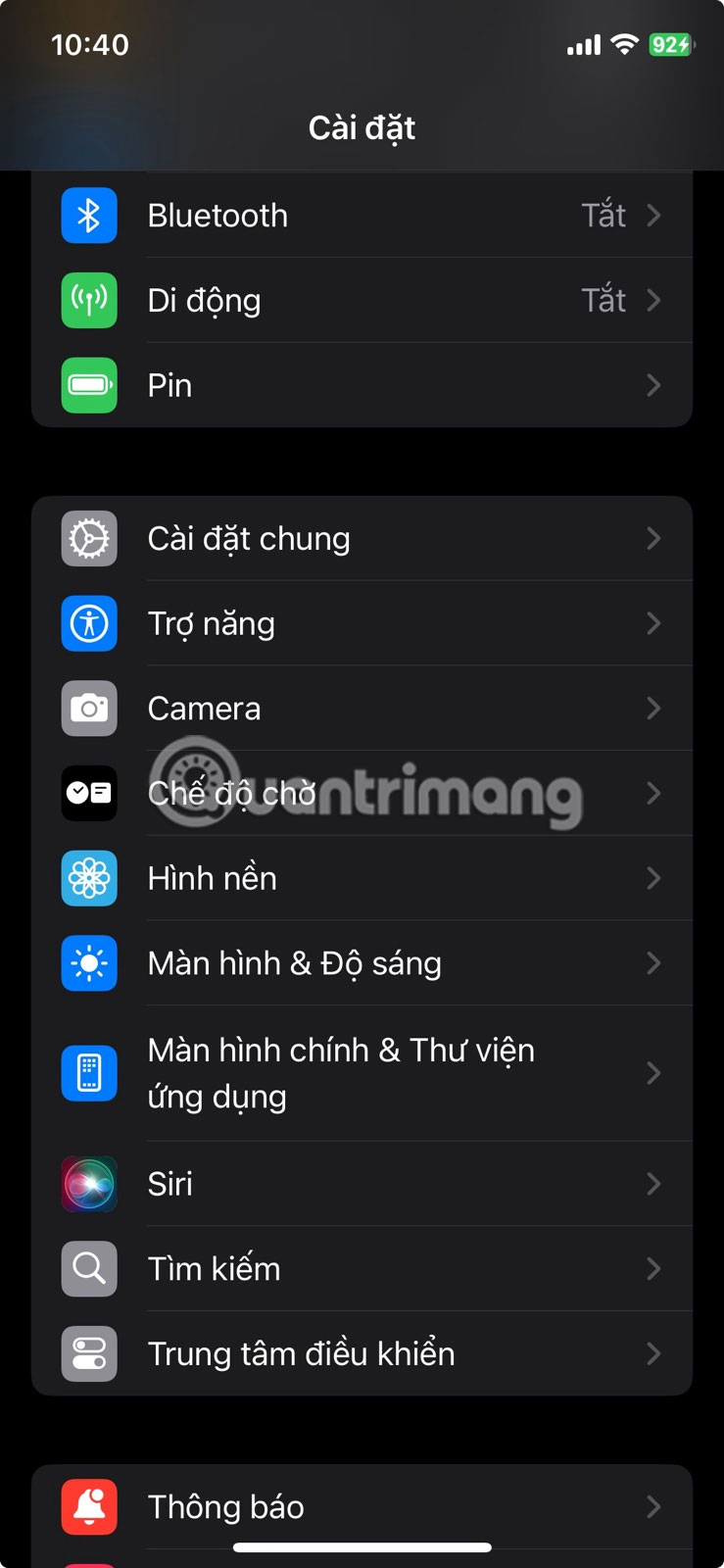
You can adjust this by going to Settings > Accessibility , then tapping on Touch under the Physical & Kinesthetic heading. Next, tap on Haptic Touch (or 3D & Haptic Touch on older iPhones). You'll now see two options under Touch Duration : Fast or Slow. Select Fast and you're good to go. You can experiment with this on the example image if you want to feel the difference right away.

Turn on Reduce Transparency to Increase Readability
Another underrated setting that can make your iPhone run faster is Reduce Transparency . Turning this on will remove some of the transparency effects in the menus and background. We've included an example below to clearly demonstrate the difference.
The image on the left shows what the context menu looks like when you long-press the Phone app with the Reduce Transparency option turned off (the default option). Compare that to the image on the right, which shows what it looks like when the setting is turned on.
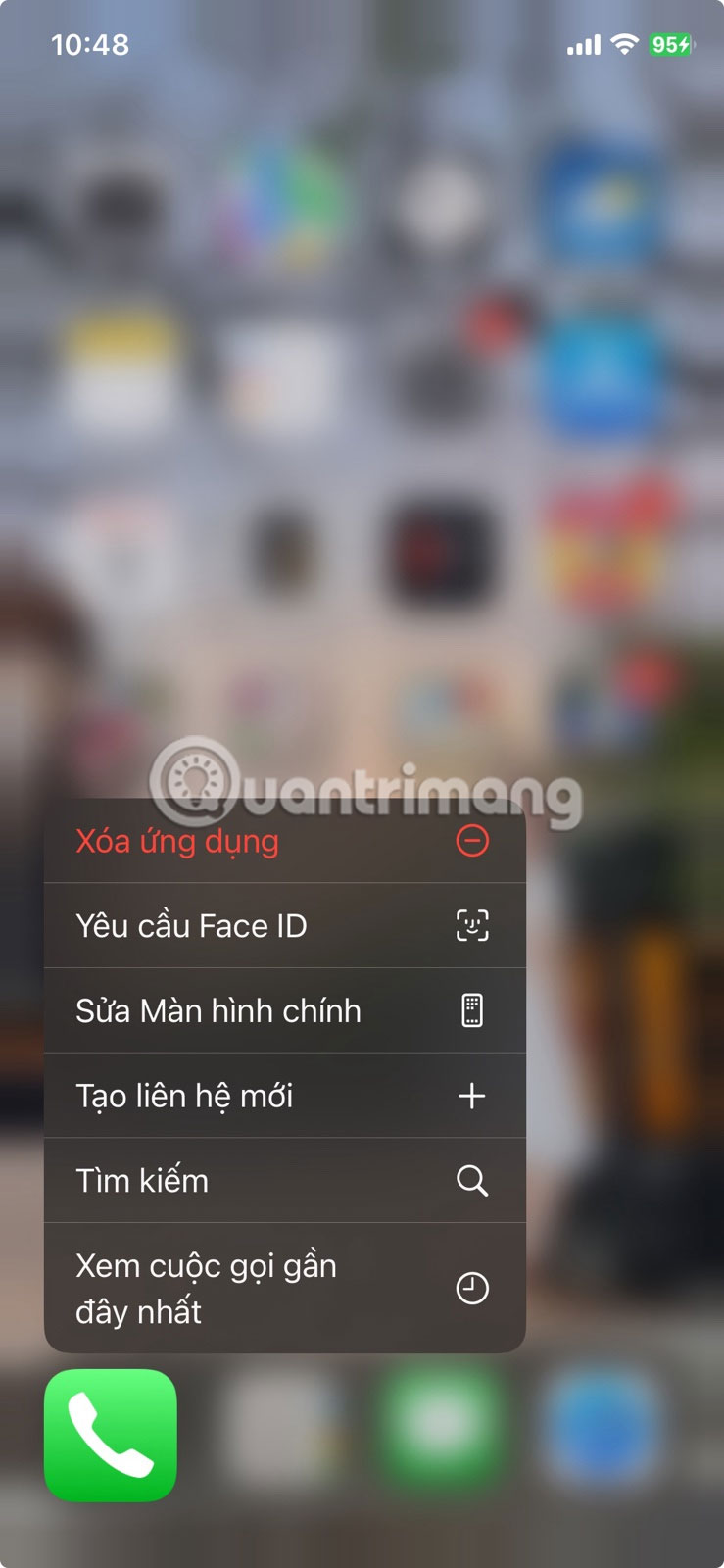
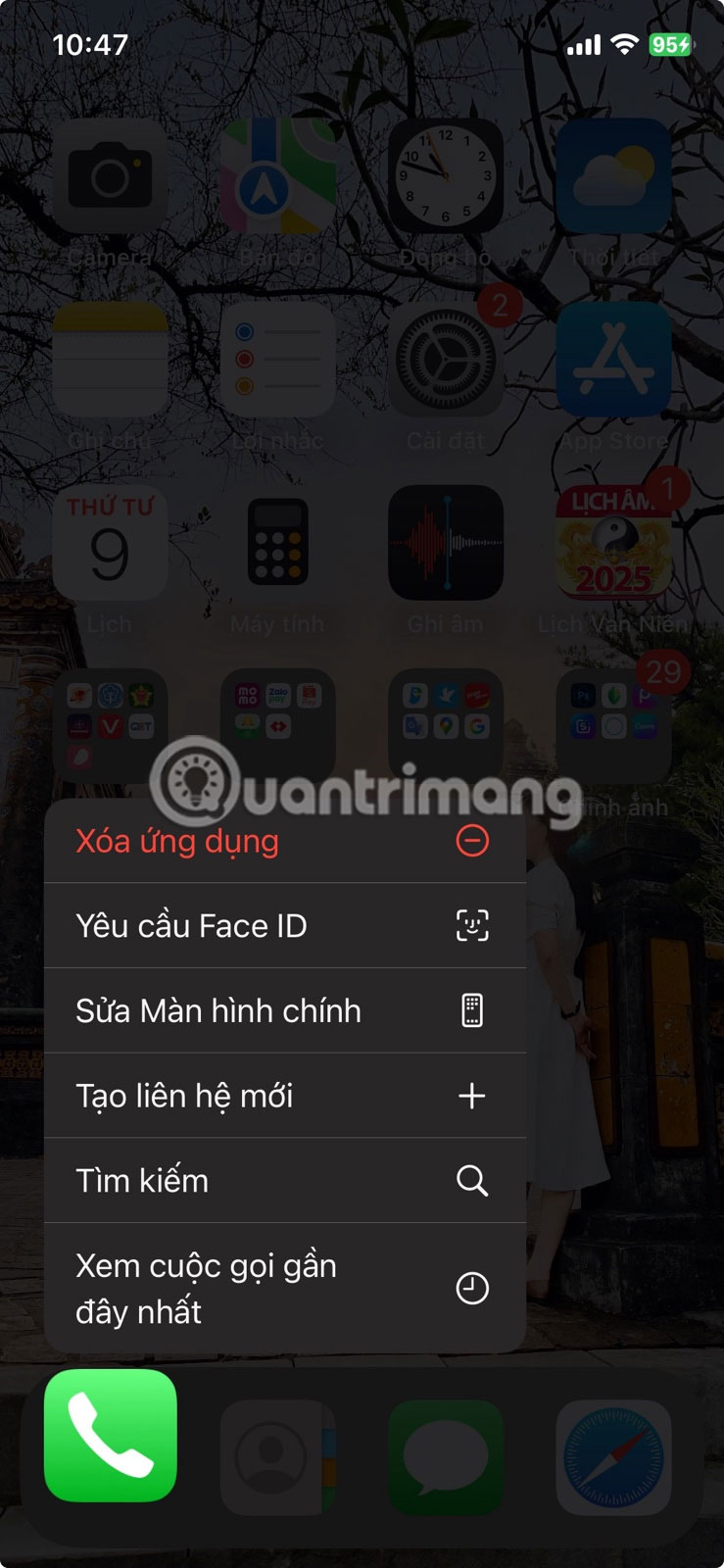
Adjusting this toggle makes it much easier to read what's on your phone's screen, and it also reduces the visual load on your iPhone, which can be a game-changer for older models. You can enable this setting by going to Settings > Accessibility , then tapping Display & Font Size under the Vision heading.
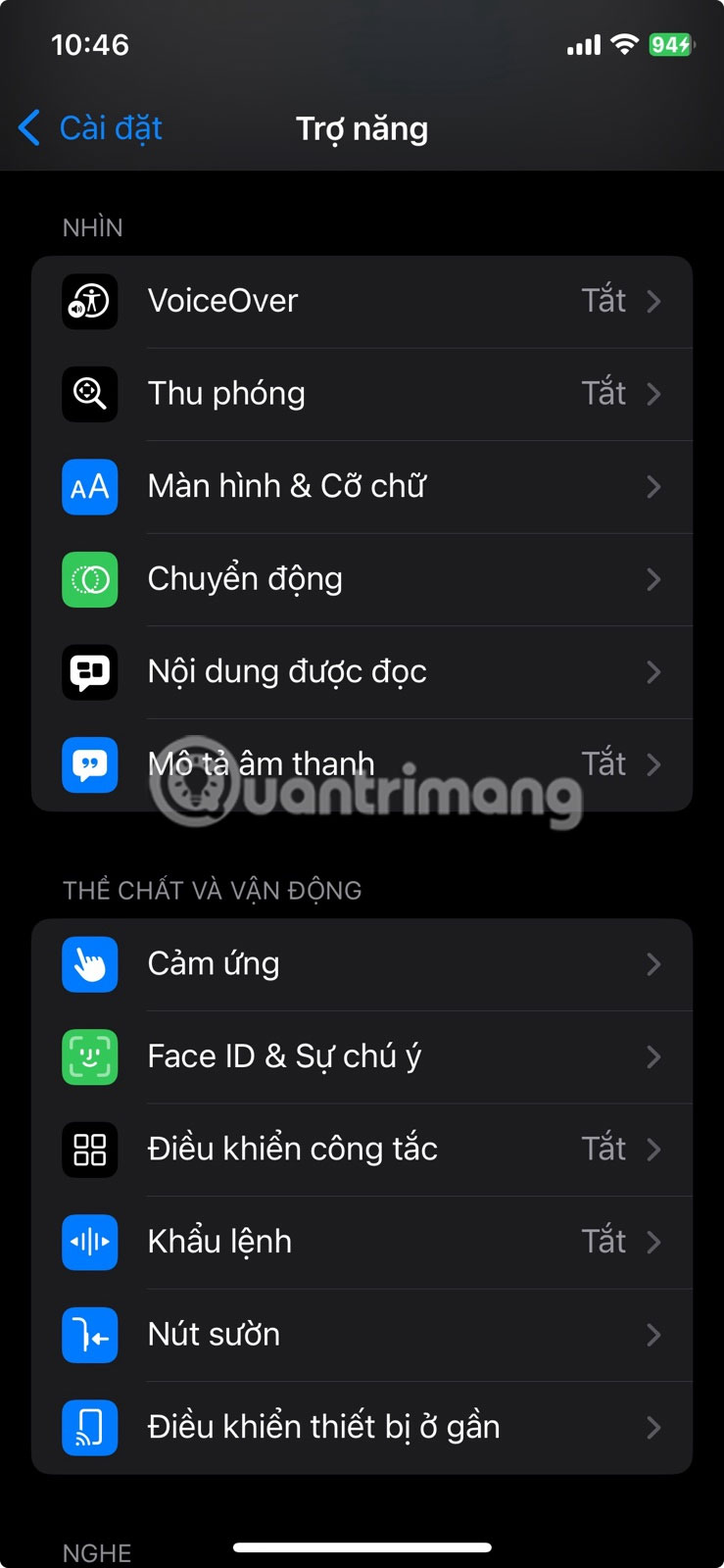
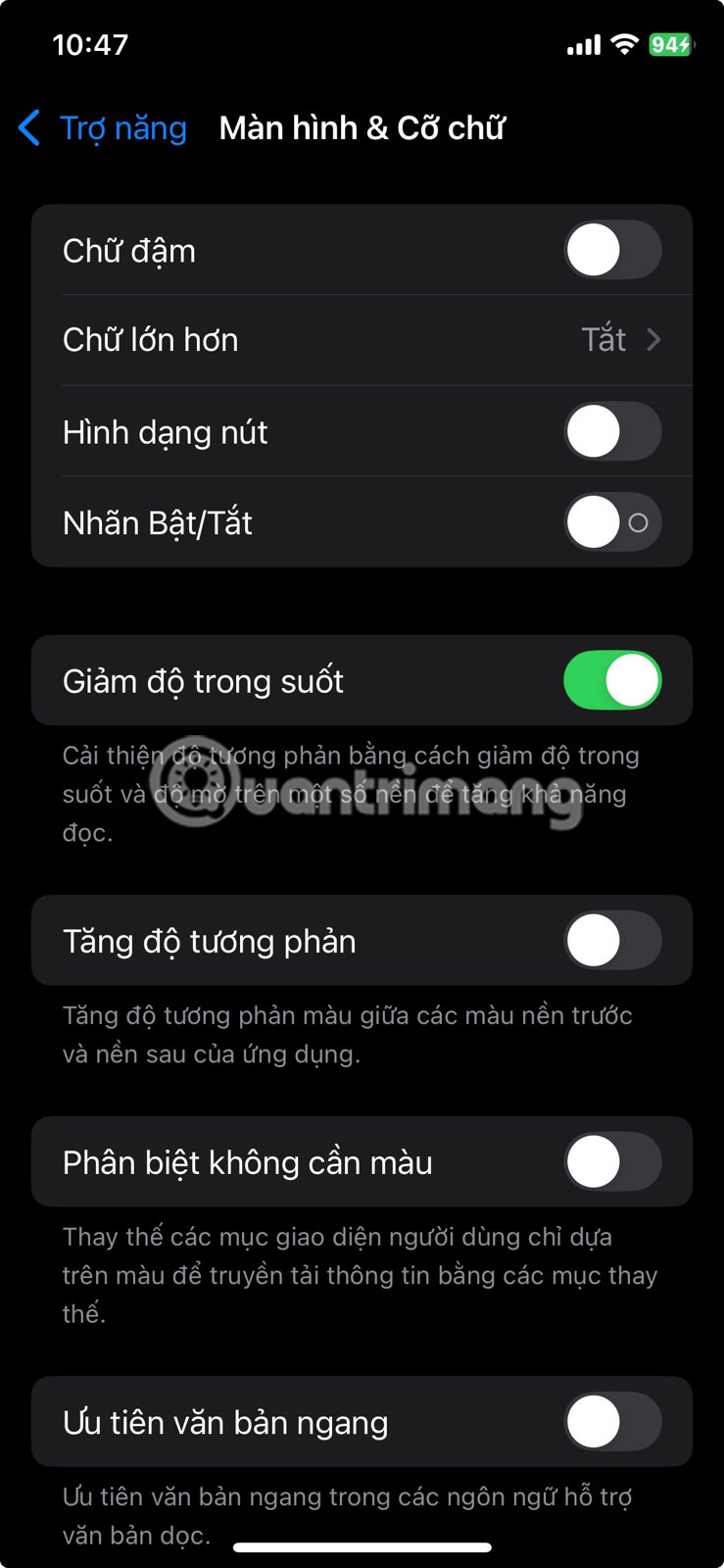
All you need to do is turn on the switch next to Reduce Transparency .
Turn on Reduce Motion to turn off some screen effects
What slows down older iPhones and makes them buggy the most is that UI elements constantly bounce and slide when switching apps or opening menus.
While I like this feature and feel like it makes the overall experience a little more intuitive and enjoyable, it also introduces a bit of lag, especially on older hardware. Thankfully, there's a setting you can toggle to turn off the motion effects that Apple devices use to make these transitions feel more dynamic.
All you need to do is go to Settings > Accessibility , tap Motion under Vision and turn on the switch next to Reduce Motion .
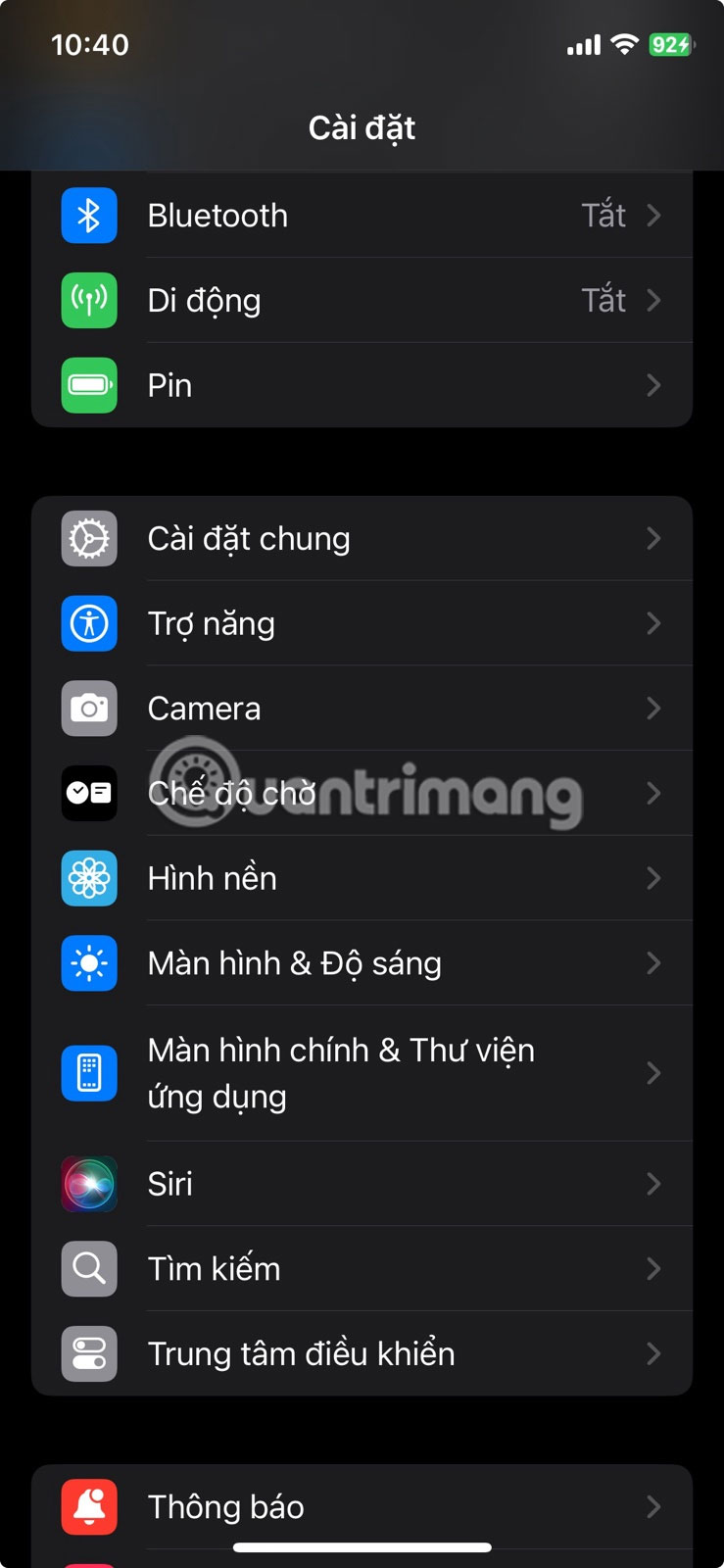
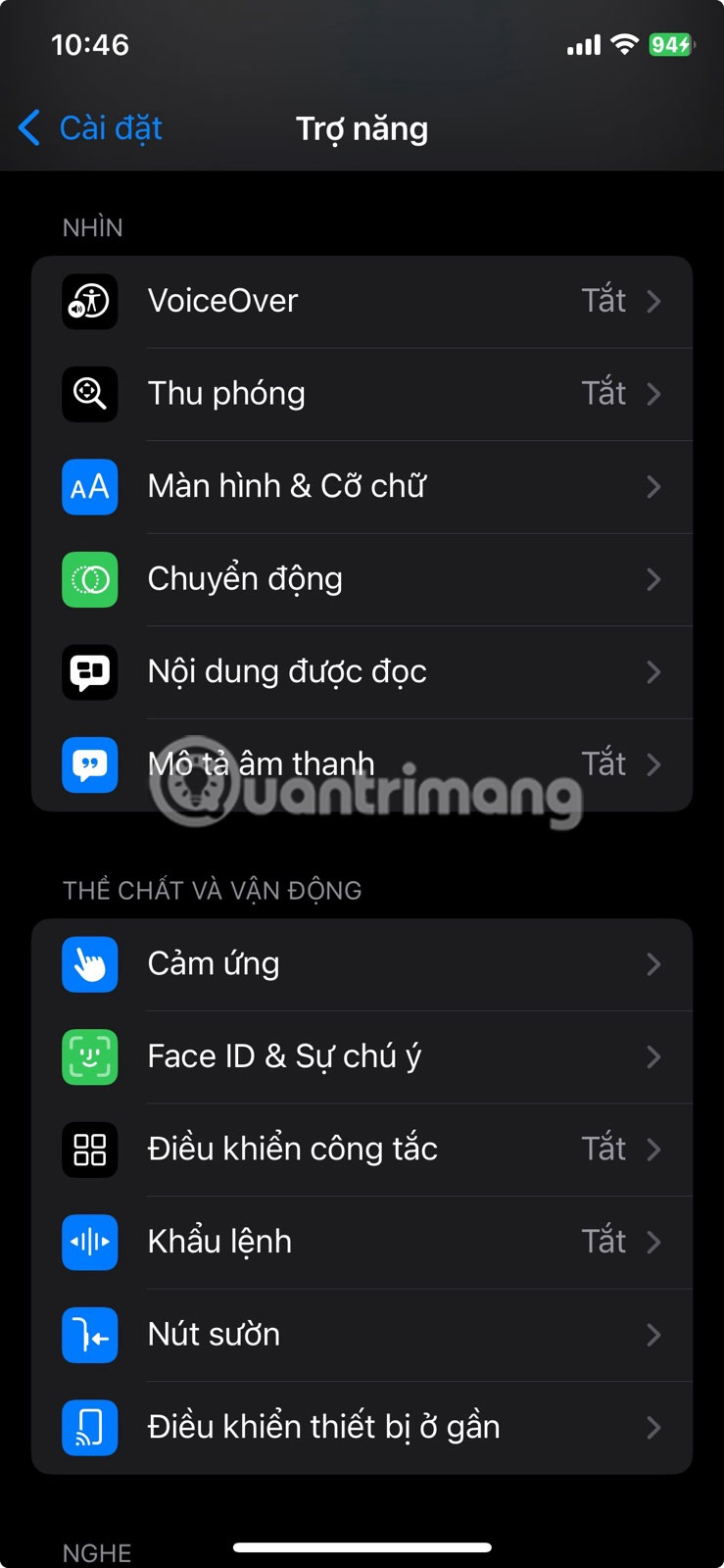
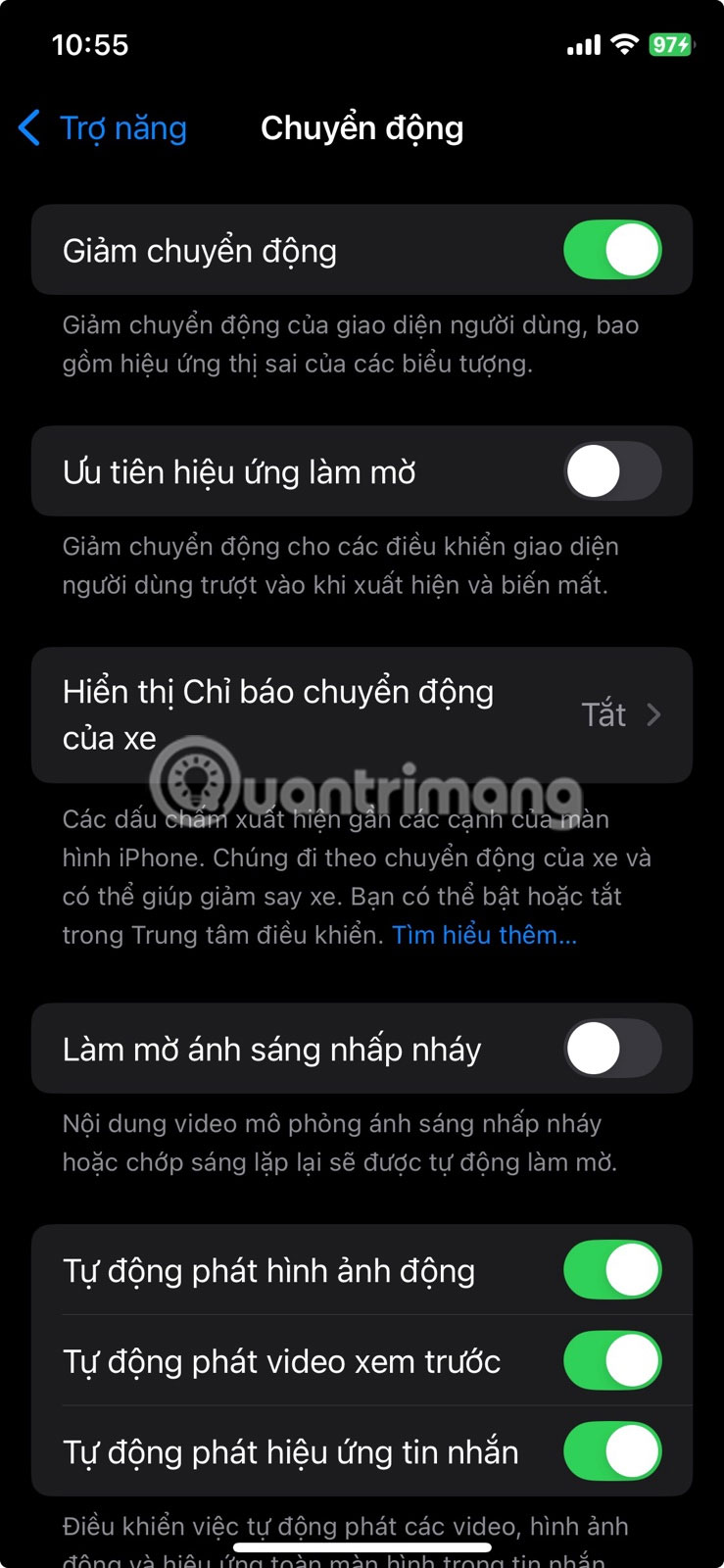
Doing so will change or turn off some screen effects. For example, instead of the zoom effect you normally see when opening or closing apps or the slide effect used when navigating between screens (like swiping through pages on the home screen), your iPhone will use a dissolve effect.
This effect is a simple transition effect that instantly dims the screen without any animation. It also disables the parallax effect, where wallpapers, apps, and notifications move or shift slightly when you tilt your device. Finally, it disables animations and effects in some apps, making overall performance faster and more responsive.
While these three tweaks won't make your iPhone as fast as it was when you first bought it, they will make it feel a lot more responsive. Small tweaks like these can make everyday tasks smoother, especially for people who like to use their devices for as long as possible before upgrading.
FAQ
What should you know about set Touch Interval to Fast?
You may have heard people say that you shouldn't update iOS immediately on your older iPhone unless absolutely necessary, as Apple is known to slow down older models over time. While that may be true, many people are impatient and tend to upgrade their devices to the latest iOS on release day.
What should you know about turn on Reduce Transparency to Increase Readability?
Another underrated setting that can make your iPhone run faster is Reduce Transparency. Turning this on will remove some of the transparency effects in the menus and background. We've included an example below to clearly demonstrate the difference.
What should you know about turn on Reduce Motion to turn off some screen effects?
What slows down older iPhones and makes them buggy the most is that UI elements constantly bounce and slide when switching apps or opening menus.
Related Articles
 How to Fast Charge Iphone 113 minutes read
 9 iPhone Settings to Change for Privacy and Convenience9 minutes read
 7 Annoying iPhone Settings to Change8 minutes read
 How to Bring Android's Quick Settings to iPhone5 minutes read
 Test the Ability of Fast Charging Iphone 11 Pro, Superior to the4 minutes read
 Quick Charging Way iPhone X5 minutes read
Reader Comments 0
Sign in with email or Google to join the discussion.