Table of Contents
Start with what someone can see on your locked screen and what your apps can access. Then check your phone’s theft protections before you need them. Menu names vary by Android version and manufacturer, so search Settings for the feature name if a path differs.
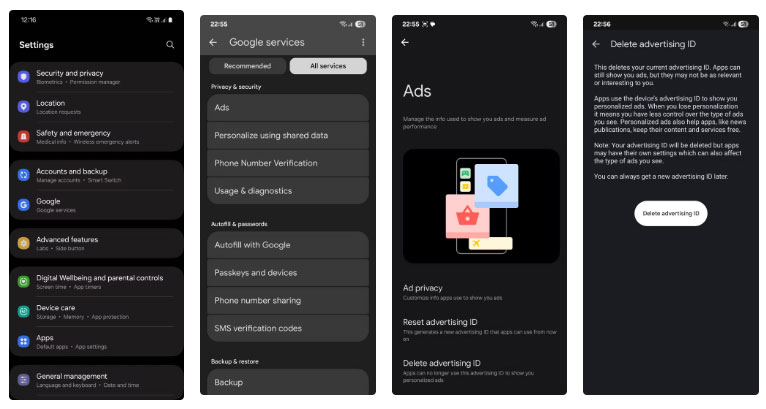
1. Limit use of the advertising ID
Search Android Settings for Ads or Advertising ID. If available, delete the ID to limit an identifier apps can use for ads. Resetting it creates a fresh ID. Ads can still appear, and your Google account has separate ad settings.
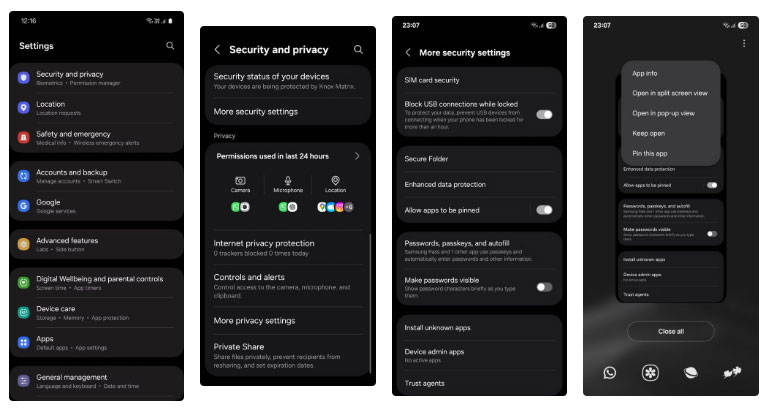
2. Pin an app before handing over your phone
Search Settings for App pinning or Allow apps to be pinned. Enable it and require your screen lock to unpin. Open Recents, tap the app icon, and choose Pin if offered. Try unpinning yourself before lending the phone.
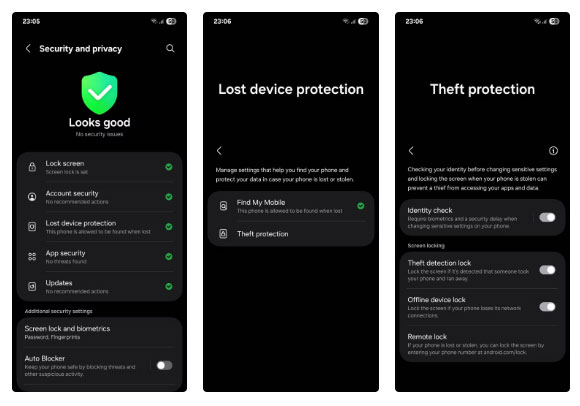
3. Turn on available theft protections
Search Settings for Theft protection. Enable supported options such as Theft Detection Lock or Remote Lock. Automatic detection can miss some events. Review Google’s requirements and check how you would lock the device if it went missing.
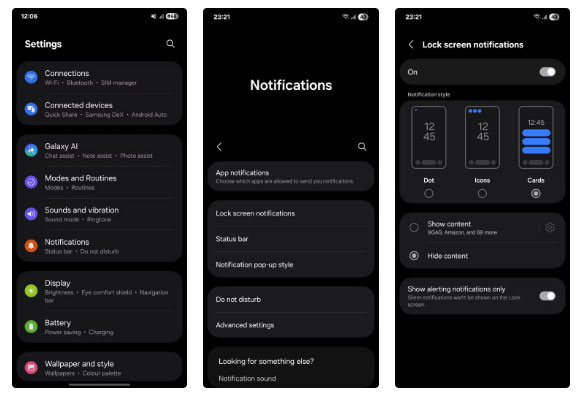
4. Hide notification text on the lock screen
Under Settings → Notifications, look for lock-screen notifications and hide sensitive content. Send yourself a test message, then lock the phone and check what appears.
5. Give approximate location where it is enough
In your location permission settings, choose an app and turn off Use precise location where available. Save precise location for tools that need it, such as turn-by-turn navigation.
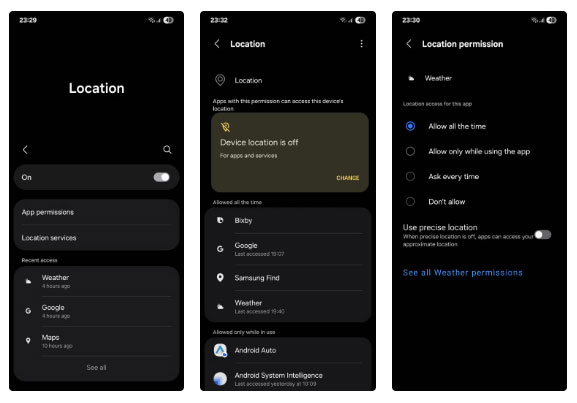
6. Share only selected photos
In the permission manager, review Photos and videos. On supported Android versions, give an app access to selected photos when that option appears. See how to review app permissions for other data types.
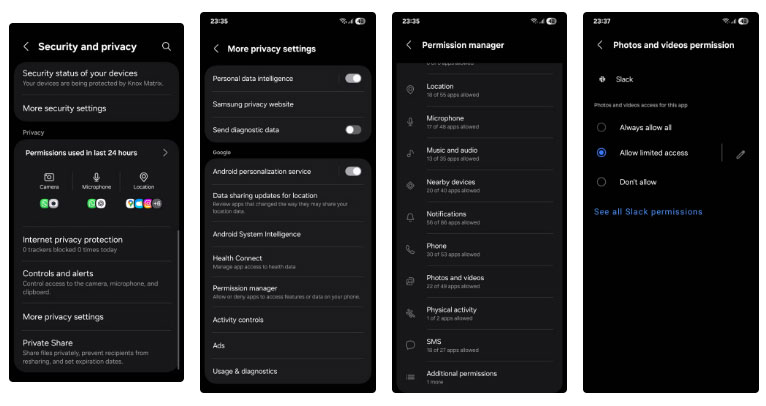
7. Keep selected apps in a separate space
Supported Android devices may offer Private Space. Galaxy devices may offer Secure Folder. Set up the feature with a lock you can recover or remember, and check what it backs up before moving important files. Availability and behavior differ by device.
Related Articles
 5 Android Settings to Review for Privacy and Convenience
 6 Privacy Tweaks Every Samsung User Needs to Make Right Now
 Android Phone Default Settings Are a Privacy Nightmare: Here's What to Change Now!
 6 iPhone Privacy Settings to Review and What They Control
 Claude Privacy Settings to Review: Location, Training, Incognito, and Memory
 Facebook has just updated its privacy checker, here are four things you need to know to protect your account
Reader Comments 0
Sign in with email or Google to join the discussion.