Table of Contents
This practical guide explains how to turn off screenshot preview on iOS 26. Follow the steps in order, review the requirements first, and use the troubleshooting notes when a setting or option does not work as expected.
How to turn off screenshot preview on iPhone
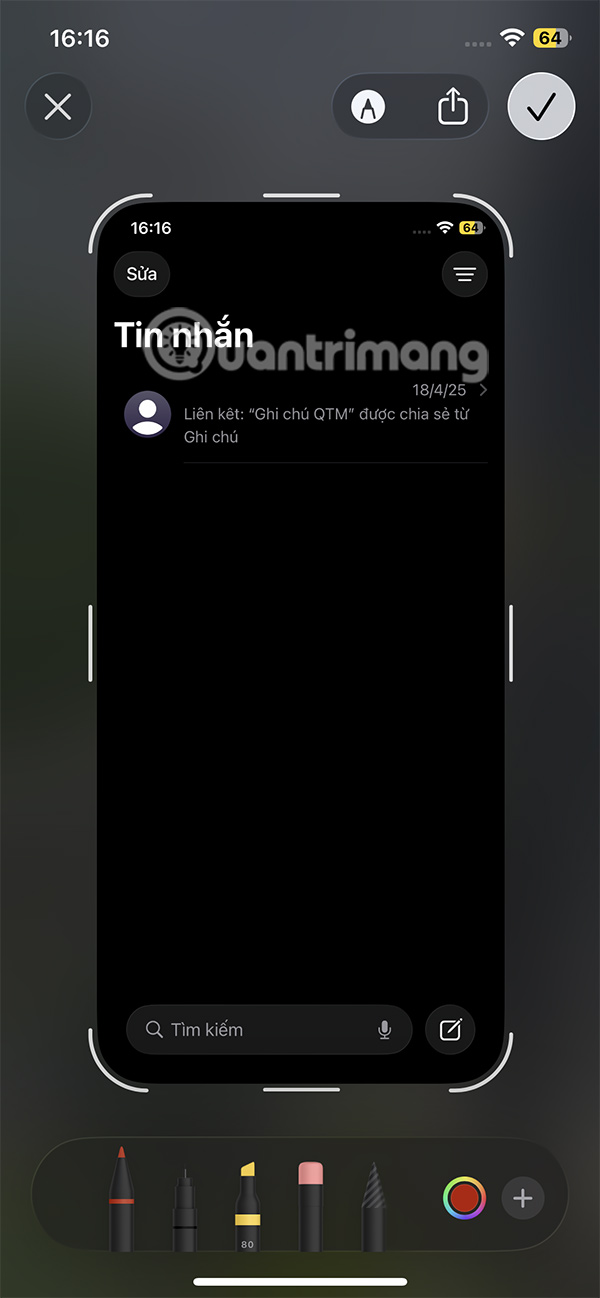
The screenshot preview on iPhone will look like this. Here are the photo editing tools, and you have to add the v action to save the screenshot.
Step 1:
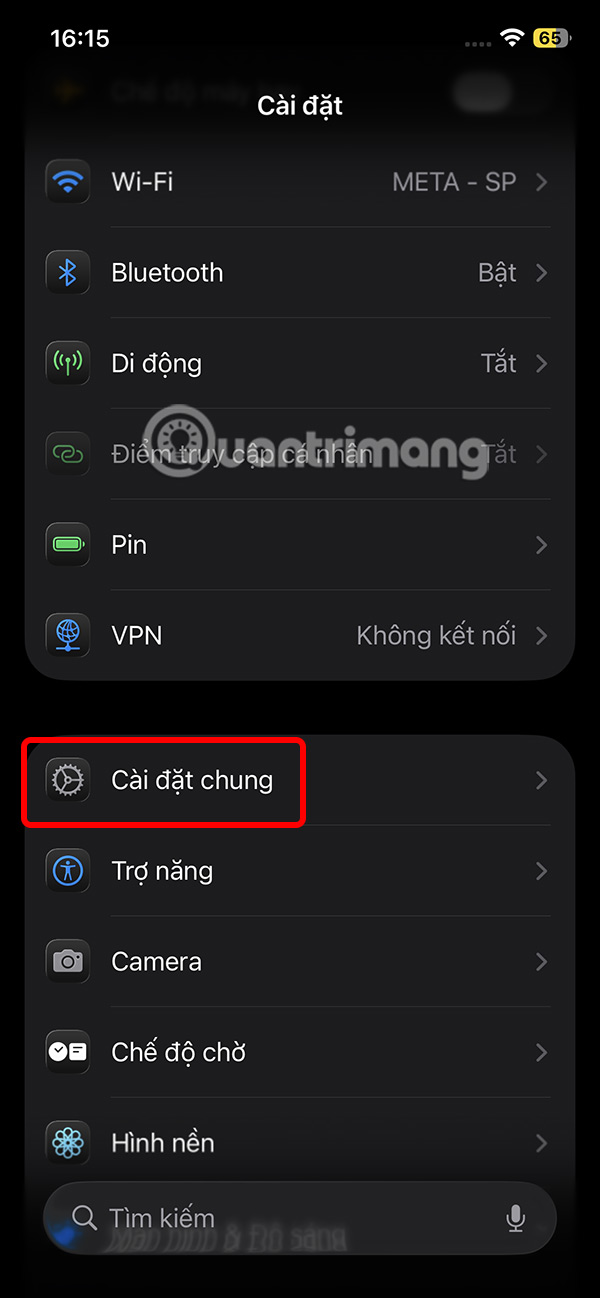
Go to Settings on your iPhone and then select General Settings to make adjustments.
Step 2:
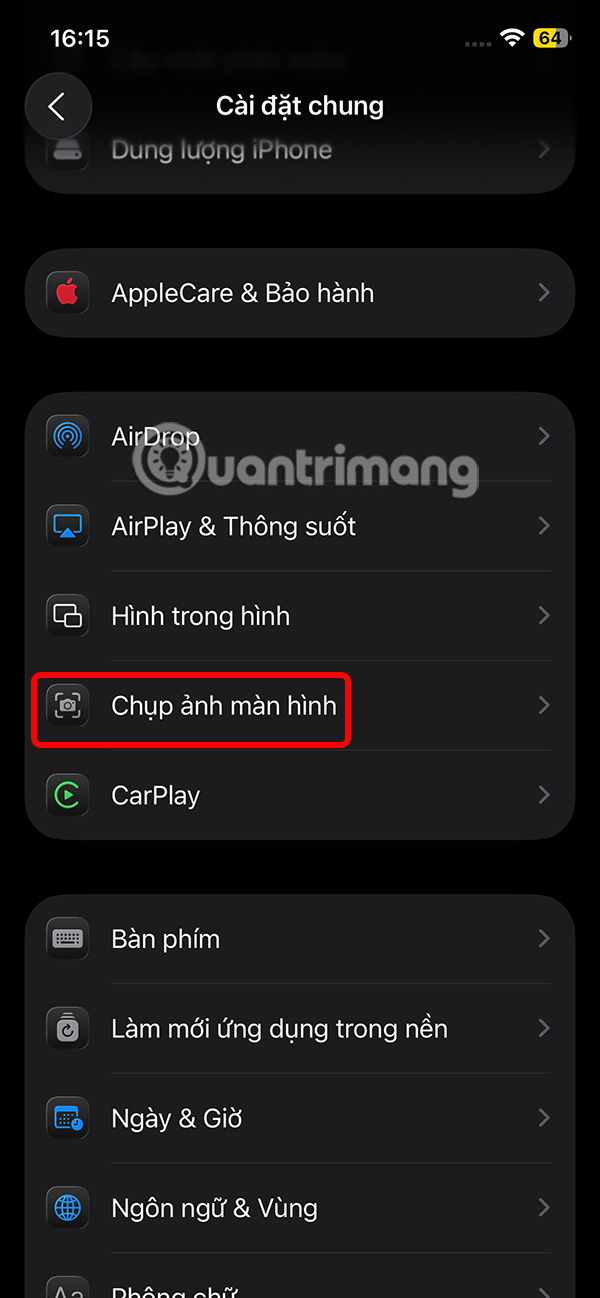
Moving to the next interface, the user clicks on Take Screenshot to adjust the settings for screenshots on iPhone. Here you need to turn off Full Screen Preview mode .
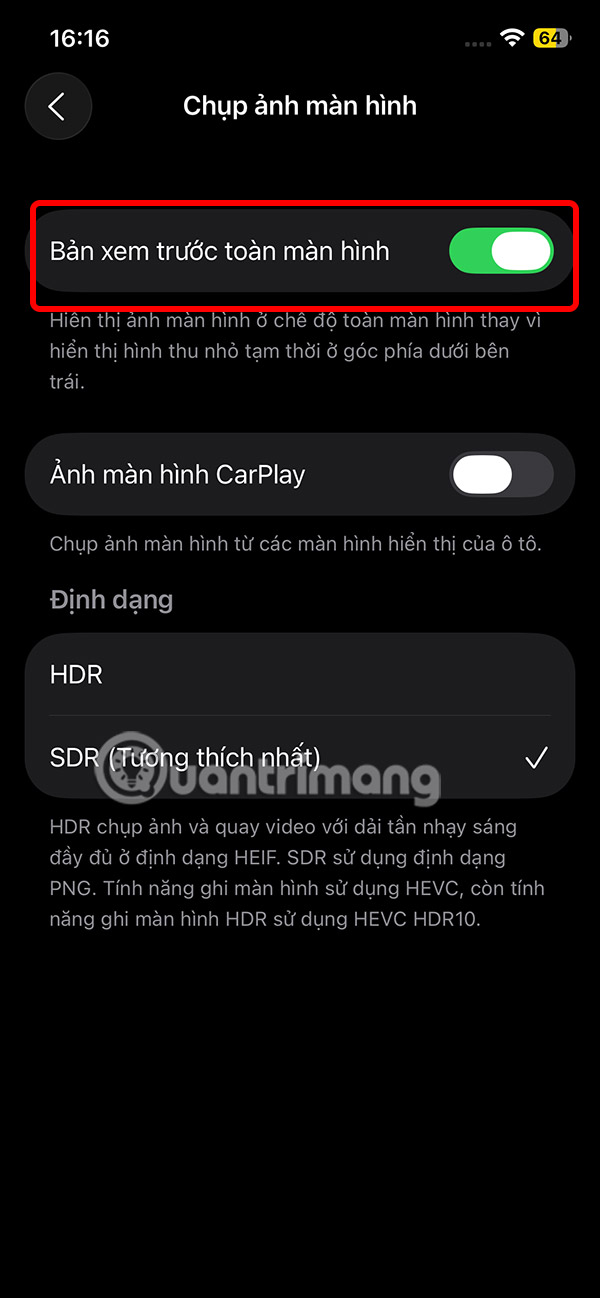
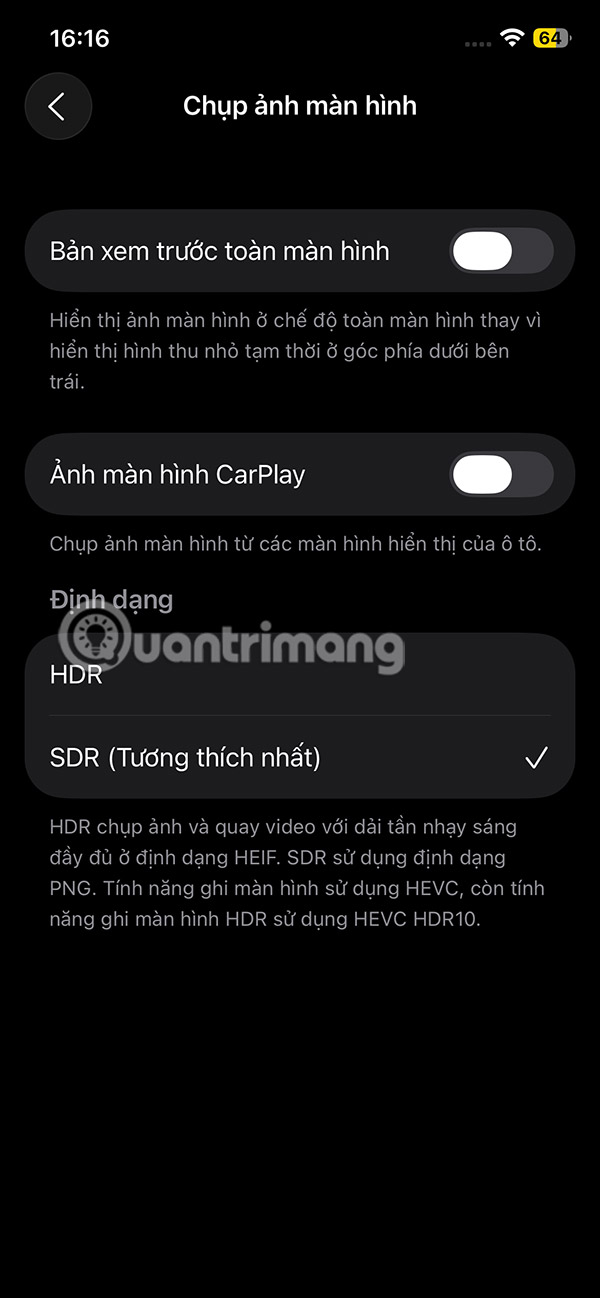
The screenshot result will be displayed in miniature mode in the lower left corner of the iPhone screen and automatically saved to the photo album without the user having to perform additional saving operations as before.
FAQ
How to turn off screenshot preview on iPhone?
The screenshot preview on iPhone will look like this. Here are the photo editing tools, and you have to add the v action to save the screenshot.
What does this guide cover?
This guide explains turn off screenshot preview on iOS 26, including the main steps, important details, and practical considerations.
Who is this guide for?
It is designed for readers who want a clear, practical overview and a reliable process they can follow without unnecessary complexity.
Related Articles
 How to Turn Off Link Preview in Safari iOS 133 minutes read
 How to Turn Off or Show the Preview URL Link on Skype: Skype Tips3 minutes read
 How to Turn Off the Preview of Mail Content for Windows 103 minutes read
 Instructions for Turning Off Tab Preview on Chrome: Main Insights5 minutes read
 The Chrome Preview Tab: How to Enable Tab Preview on Chrome4 minutes read
 How to Disable Notification Preview Feature on iOS 114 minutes read
Reader Comments 0
Sign in with email or Google to join the discussion.