Table of Contents
The n8n Code node lets you use JavaScript when expressions and built-in transformation nodes cannot express the required logic clearly. It is useful for reshaping nested JSON, validating records, aggregating items, or preparing data for an API or AI node.
Use code selectively. A standard node such as Edit Fields, Aggregate, Filter, or Date & Time is easier for teammates to inspect and maintain when it already covers the task.
Add a JavaScript Code node
- Open an existing workflow or create a test workflow with a Manual Trigger and a sample input node.
- Select Add node, search for Code, and add the core Code node.
- Set Language to JavaScript.
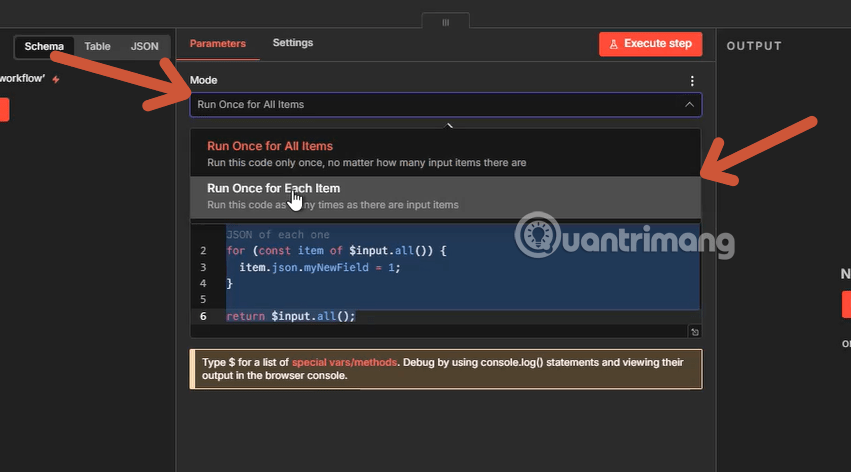
- Choose the execution mode before writing code.
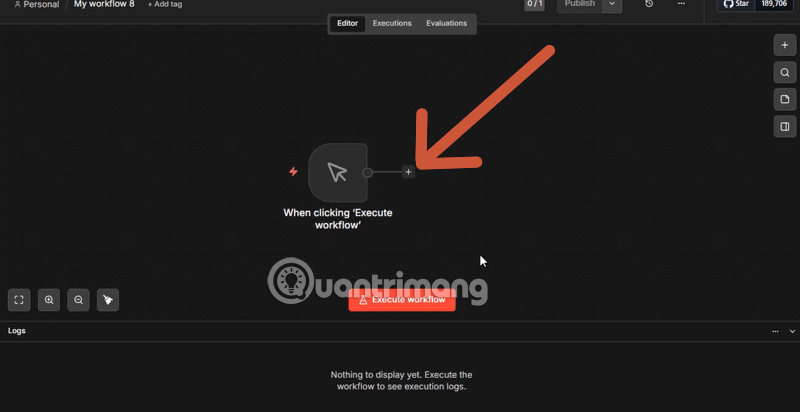
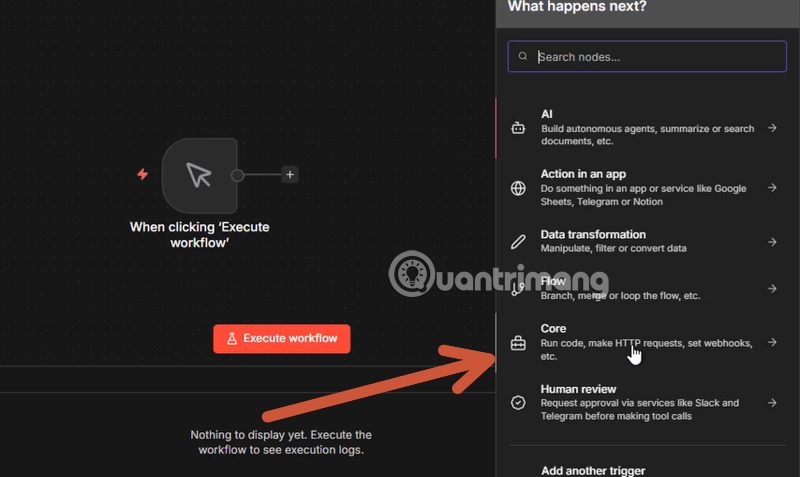
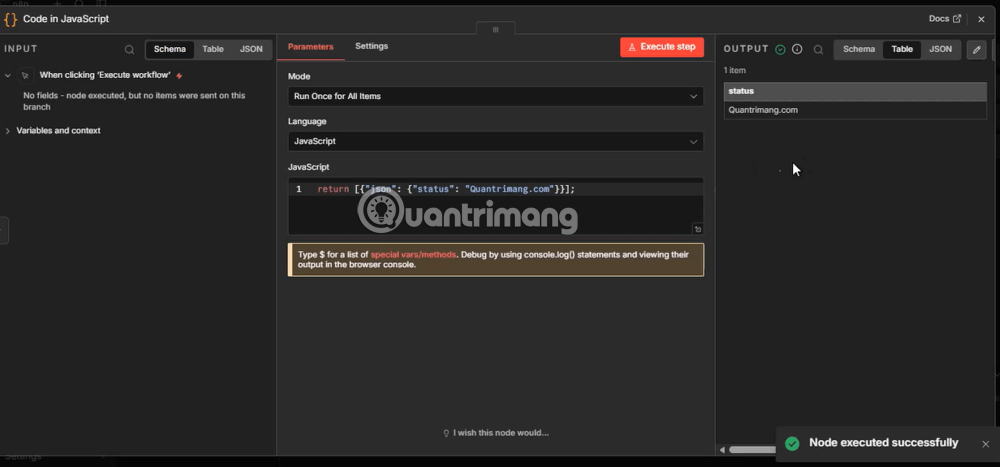
The current behavior and available helpers are documented in n8n's official Code node guide. Check the documentation for your deployed version because settings can change between releases.
Choose the execution mode
Run Once for All Items
This is the default mode. The code runs once and can read the full input array with $input.all(). Use it for totals, grouping, sorting, deduplication, or any calculation that depends on several records.
const items = $input.all();

const total = items.reduce((sum, item) => {
  const amount = Number(item.json.amount);
  return sum + (Number.isFinite(amount) ? amount : 0);
}, 0);

return [{
  json: {
    total,
    count: items.length
  }
}];
This example converts values explicitly instead of relying on JavaScript's automatic type coercion. Without conversion, values such as "10" can produce an unexpected string instead of a numeric total.
Run Once for Each Item
This mode runs the code separately for every input item. Use it when each record can be transformed independently. In this mode, read the current input with $input.item.
const item = $input.item;
const name = String(item.json.name ?? "").trim();

return {
  json: {
    ...item.json,
    name_uppercase: name.toUpperCase(),
    name_length: name.length
  }
};
Both modes must return data in n8n's item structure. Each output item needs a json object; binary data follows additional rules. If the next node receives no items or reports an invalid output shape, inspect the returned value first.
Test the node before connecting live actions
Select Execute step and compare the input and output panels. Test normal records as well as missing values, empty arrays, invalid dates, zero values, and unexpectedly large inputs. Pin safe sample data while developing so repeated tests do not call live services.
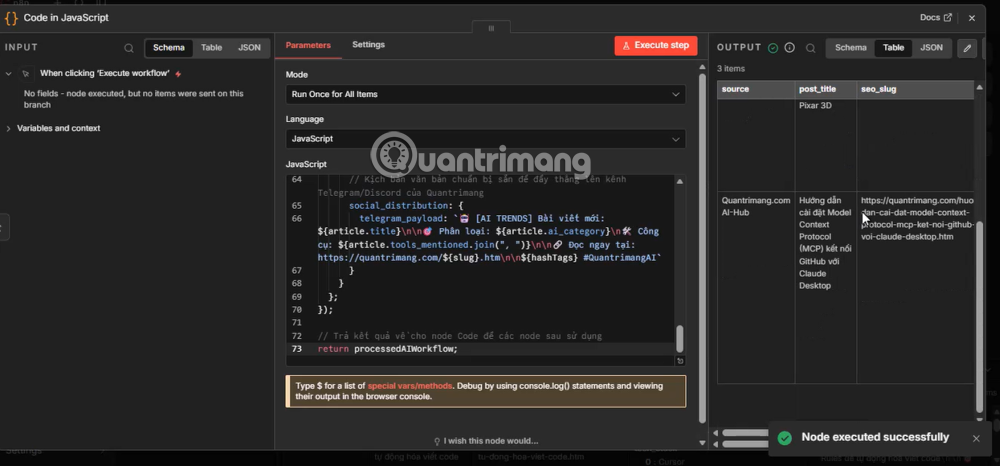
For database automation, TipsMake's n8n and Supabase guide shows where validation and transformation can fit before a write operation. If n8n is not the right deployment model, compare the main n8n alternatives before adding more custom code.
Practical transformations
Filter invalid records
const valid = $input.all().filter((item) => {
  const email = String(item.json.email ?? "").trim();
  return email.includes("@") && item.json.active === true;
});

return valid;
This is only a basic screening example, not complete email validation. Preserve the original fields unless downstream nodes explicitly require a smaller object.
Normalize nested API data
const rows = $input.all().flatMap((item) => {
  const orders = Array.isArray(item.json.orders) ? item.json.orders : [];

  return orders.map((order) => ({
    json: {
      customer_id: item.json.customer_id ?? null,
      order_id: order.id ?? null,
      amount: Number(order.amount) || 0
    }
  }));
});

return rows;
Prepare structured input for an AI step
A Code node can remove unused fields, cap array length, normalize labels, and build a predictable object before an LLM node. After the model responds, another Code node can validate its JSON before the workflow stores or sends anything. Do not assume model output is valid merely because it looks structured.
Modules, task runners, and security
The Code node includes JavaScript's standard language features, but importing Node.js built-in modules or external npm packages is restricted by default. Self-hosted administrators can allow selected modules through n8n configuration; users of managed environments must work within the modules the service exposes. Allow only what the workflow needs.
Modern n8n deployments use task runners to execute Code node jobs in an isolated environment. Isolation reduces risk to the main n8n process, but it does not make arbitrary code harmless. Code can still expose input data, consume resources, or produce damaging output for later nodes. Review untrusted snippets, apply workflow timeouts, restrict credentials, and test with non-production data.
Common problems
- “Code doesn't return items properly”: return an item or array of items with a
jsonobject. - Undefined values: confirm the property path in the input panel and use optional chaining or defaults where appropriate.
- Unexpected totals: convert numeric strings and decide how to handle null, blank, and invalid values.
- Too much memory or slow execution: reduce input size, avoid repeated full-array scans, or move heavy processing to a dedicated service.
- Module import fails: check the deployment's allowlist and task-runner configuration instead of trying to install packages inside the node.
The Code node works best as a small, well-tested transformation step. Keep the logic focused, name intermediate values clearly, document assumptions, and leave authentication, retries, and service-specific behavior to the dedicated n8n nodes whenever possible.
Related Articles
 Node. What Is Js? Download Node Js for Computers and Laptops8 minutes read
 What Is Currying in Javascript? How to Use Currying in Javascript5 minutes read
 What Is Node.js Hosting? Instructions for Installation and Effective Use15 minutes read
 Schema Validation in Node.js Using Joi9 minutes read
 Javascript Code to Generate Error Charts & Graphs2 minutes read
 Components of Node.js: What Is Node.js?5 minutes read
Reader Comments 0
Sign in with email or Google to join the discussion.