Table of Contents
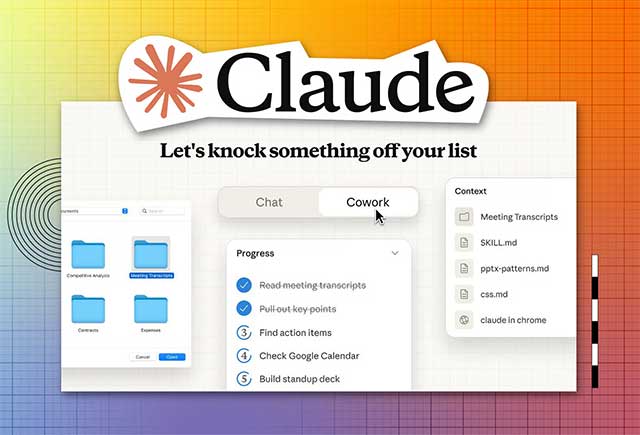
Claude Cowork is designed for tasks that involve several steps, files, or connected services. Instead of exchanging one prompt and one answer, you describe a deliverable—such as a report, organized folder, or presentation—and Claude plans the work, uses the resources you authorize, and produces an output for review.
Cowork is available to paid Claude users on desktop, web, and mobile. The surfaces are not identical: Claude Desktop provides access to approved local folders and supported computer applications, while web and mobile can run cloud-based work without access to files that exist only on your computer.
What Claude Cowork can do
Cowork uses the agentic architecture behind Claude Code in an interface intended for general knowledge work. According to Anthropic's current Cowork setup guide, it can work with files, connected services, and multi-step tasks, while showing progress so you can redirect or stop the work.
Good use cases have a clear input and a reviewable output:
- Combine meeting notes into a decision log and action list.
- Inspect a collection of documents and draft a sourced report.
- Clean and summarize spreadsheet exports.
- Turn a brief and supporting files into a document or presentation.
- Sort copied files into a proposed folder structure.
- Create a recurring digest from connected calendars, email, or metrics.
If you mainly need a conversational comparison, see Claude vs. ChatGPT. Developers deciding between general Cowork tasks and coding agents may also want TipsMake's guide to alternatives to GitHub Copilot.
Set up a safe first project
1. Choose the right surface
Use the latest Claude Desktop app when the job requires local folders or desktop applications. Web or mobile is sufficient when the inputs come from uploads, URLs, or supported cloud services. Interface details can change, so update the app if Cowork controls are missing.
2. Start with copies, not production files
Create a test folder containing copies of representative documents. Grant access only to the folder needed for the task. Do not begin with a whole drive, an active accounting folder, or irreplaceable source files. Keep a backup and use version history where available.
3. Add project context and instructions
A Cowork project can hold its own context, instructions, memory, and scheduled tasks. Add a short context file that defines the goal, audience, terminology, file naming rules, output format, and facts Claude must not infer. Use project instructions for rules that apply repeatedly, such as “cite the source file and page for every claim” or “never overwrite an input file.”
Write outcome-focused task instructions
Describe the result, constraints, and acceptance criteria. A vague request such as “analyze these files” leaves too many choices unstated. A stronger prompt is:
Review the Q2 sales workbook and the regional notes in this project. Create a DOCX report with an executive summary, revenue by region, three trends supported by figures, and a final table of data-quality issues. Cite the source filename for each figure. Do not change the input files. Before creating the report, show me your plan and ask about any ambiguous column.
An outcome-focused prompt does not mean giving Claude unlimited discretion. State what it may read, what it may create or modify, whether it can use connected services, and which actions require confirmation.
Review the plan and supervise the run
For complex or high-impact work, ask Cowork to propose a plan first. Check that the right files, filters, and output format are included. During execution, review the displayed steps and redirect the task if it starts using the wrong source or making an unsupported assumption.
Inspect every final file before sharing it. Verify calculations against the source, open generated documents to check formatting, test links, and confirm that no confidential data was copied into the wrong output. Treat claims and summaries as drafts unless the supporting evidence has been checked.
Use connectors selectively
Connectors can let Cowork retrieve context from services your account or organization enables. Add only the services required for a defined workflow, review requested permissions, and use the least-privileged account available. A connection to email, calendars, or team workspaces may expose far more information than a single local folder.
Start with read-oriented tasks such as summarizing selected material. Before allowing messages, file changes, or other external actions, test the workflow on low-risk data and require review at the action boundary.
Set up recurring tasks carefully
Cowork can create scheduled tasks from the Scheduled section. Current schedules can run in the cloud even when your computer is off, although a task still cannot reach local-only resources that are unavailable to the cloud session. Define the frequency, model if offered, prompt, and approval mode, then inspect the first several runs.
Useful schedules include a weekday calendar brief or a weekly metrics summary. Avoid an open-ended instruction such as “handle my inbox.” Specify which messages qualify, what the output should contain, and whether Cowork may only draft or may also take action. Pause or remove schedules that are no longer needed.
Practical safety checklist
- Use copied sample files before granting access to live work.
- Keep input and output folders separate when possible.
- Do not expose secrets, credentials, or unrelated personal records.
- Request a plan for multi-step or irreversible work.
- Require confirmation before deletion, sending, purchasing, publishing, or changing accounts.
- Review source citations, calculations, and generated files.
- Check connector permissions and active schedules regularly.
Cowork is most valuable when the task is bounded and the output is easy to verify. Clear acceptance criteria and limited permissions give the agent enough freedom to do useful work without turning a convenience into an uncontrolled automation.
Related Articles
 How to Use Claude Cowork to Run Your Business with AI12 minutes read
 What Is Claude Cowork?: What You Need to Know8 minutes read
 Setting up and Running Claude Cowork for the First Time5 minutes read
 Things to Know About Claude Cowork11 minutes read
 How to Build a Plugin from Scratch in Claude Cowork9 minutes read
 How to Customize Plugins in Claude Cowork8 minutes read
Reader Comments 0
Sign in with email or Google to join the discussion.