When your computer is no longer compatible with existing applications in the operating system or experiences BIOS errors, you need to upgrade the BIOS. This article from TipsMake will guide you through the process.
If you already knew how in the previous lesson.

Instructions on how to upgrade the BIOS for your computer.
A few things to note when upgrading.
When upgrading your computer or laptop, you must ensure that the power supply is always adequate to avoid errors that could significantly affect the motherboard and other applications in the machine.
For new devices, you don't need to perform an upgrade because the upgrade is only for compatibility with the new application, and compatibility is generally guaranteed on new devices.
Check the specifications of your current motherboard.
Method 1: Using built-in system utilities
- Go to Run and type dxdiag

- A detailed operating system information table will appear; you can check the BIOS section for more details.
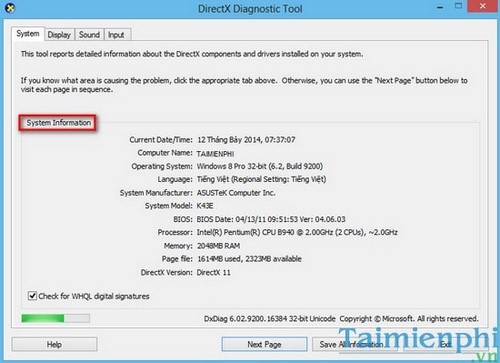
Method 2: You can use supporting software such as CPU-Z to view more details.
Download and install the upgrade tool.
Once you know the exact type of motherboard (in this case, ASUS), you can go to the motherboard manufacturer's website to find information about the BIOS.
Step 1: If your motherboard is from Asus, go here and enter your specifications in the search box.

Step 2: Once you're here, scroll down to the BIOS section in the statistics tool.

Step 3: Select the BIOS version with the highest version , as this is the latest version, and then download it to your computer.
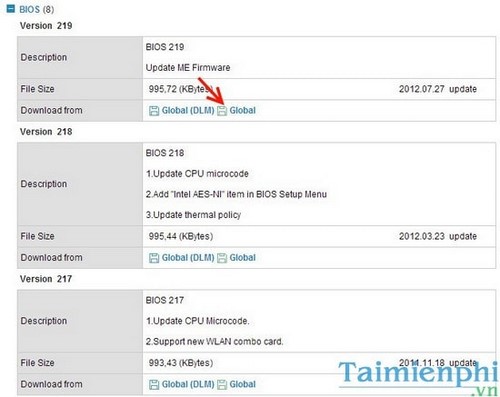
Step 4: Next, after the download is complete, simply extract the Winrar file --> run the setup.exe file as administrator and proceed with the normal installation process.
Then, restart your computer and wait for the BIOS update to finish. That should be it.
Step 5: If the exe file cannot be run, go back to the manufacturer's website and find the correct BIOS for your motherboard. If it still doesn't work, you will definitely need to downgrade to an older version.
Above are all the steps to guide you on how to upgrade to the latest BIOS that you can apply to update the BIOS for your computer system.
Related Articles
 How to Upgrading Bios13 minutes read
 Instructions for Entering BIOS on Different Computers6 minutes read
 BIOS - Basic Information for Beginners29 minutes read
 Should I Update the BIOS? 5 Important Notes When Updating8 minutes read
 5 Tips for Using the BIOS to Help You Master Your Computer8 minutes read
 How to Update BIOS Safe and Correct for Laptop or Desktop6 minutes read
Reader Comments 0
Sign in with email or Google to join the discussion.