Table of Contents
Ninja Lead is an Android endless-runner in which you steer a scooter through busy streets, avoid traffic, collect coins and use Nitro. You can play it on a Windows PC through an Android emulator; the steps below use LDPlayer 9.
Before you install Ninja Lead on PC
- Download LDPlayer only from its official website.
- Make sure Windows has enough free storage and that hardware virtualization is enabled if the emulator asks for it.
- You will need a Google account to install the game from Google Play.
Ninja Lead is also listed for Google Play Games on PC in some regions. If it appears in the Google Play Games catalog for your account, that is a simpler native Google option. Otherwise, use the emulator method below.
How to install Ninja Lead with LDPlayer 9
- Open the official LDPlayer page for Ninja Lead, download LDPlayer 9 and run the installer.
- Launch LDPlayer. On the home screen, select LD Store.
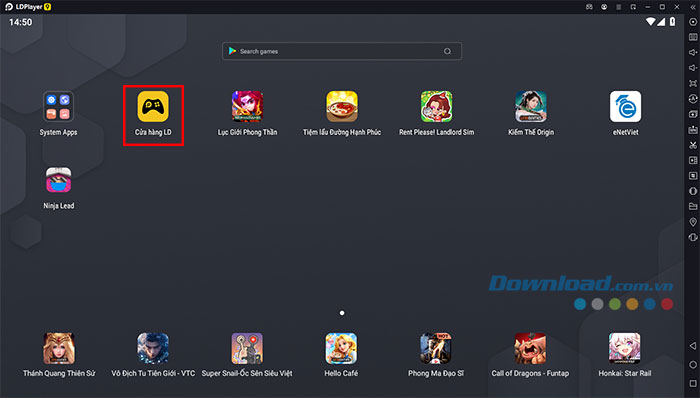
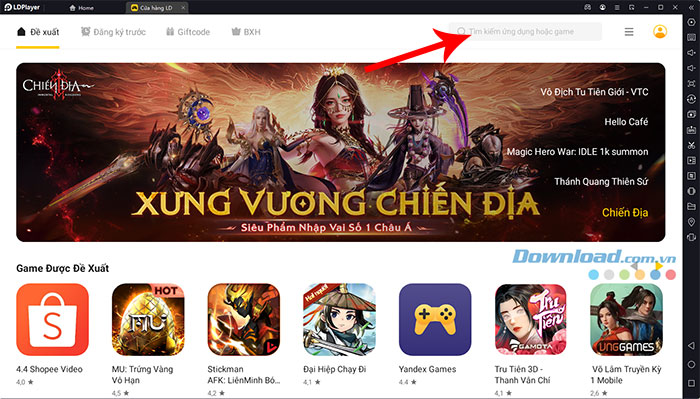
- Select the search box in the upper-right corner.
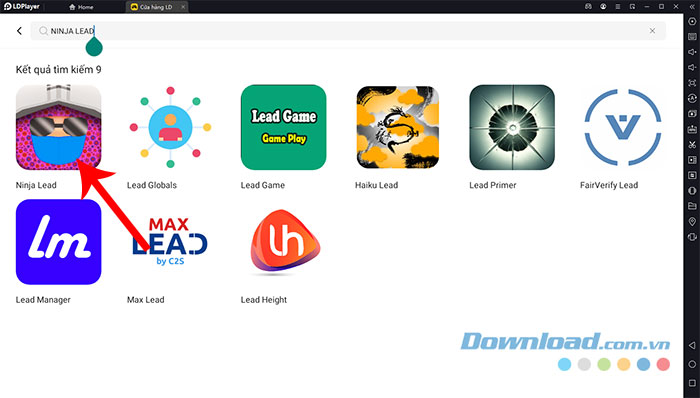
- Enter Ninja Lead, then select the matching game published by FakeMG.
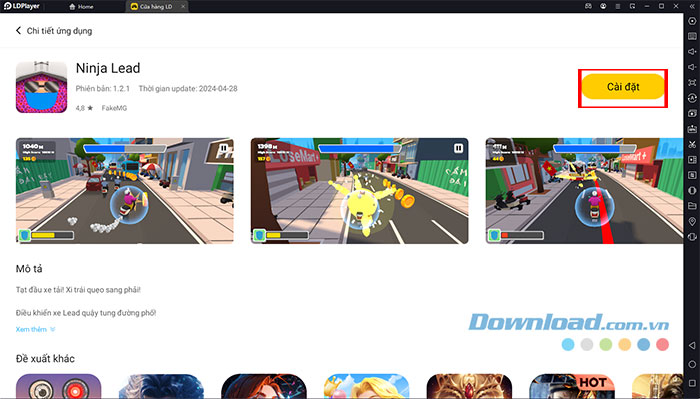
- Select Install from LD Store.
- If LDPlayer redirects you to Google Play, sign in and choose Install there. Avoid downloading the game from an unknown APK site.
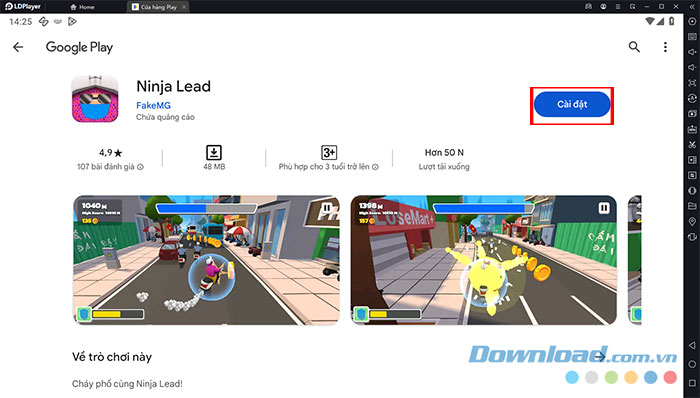
- When installation finishes, return to the emulator home screen and open Ninja Lead.
Set up keyboard controls
LDPlayer can map touch controls to keys. Start the game, open the emulator's keyboard-mapping panel, place controls over the on-screen steering and Nitro buttons, assign keys, and save the layout. The exact icons may differ by LDPlayer version.
Test the controls in a run before changing several settings at once. If a key does not respond, reopen the mapping panel and make sure its control point still sits over the correct on-screen button.
Fix common installation and performance problems
- The game does not appear: confirm the spelling, check Google Play directly, and verify that the title is available for your account and region.
- Google Play will not sign in: restart LDPlayer, check the PC's date and time, and try clearing Google Play Store data inside Android settings.
- The game lags: close demanding background apps, enable virtualization, and lower the emulator resolution or frame-rate setting.
- Black screen or graphics errors: update the graphics driver, then try the alternate OpenGL/DirectX renderer in LDPlayer settings.
Basic Ninja Lead tips
- Watch the traffic ahead rather than focusing only on the scooter.
- Do not take a risky line merely to collect every coin.
- Save Nitro for a clear stretch of road until you are comfortable with the faster steering.
- Use early runs to learn recurring vehicle patterns and how quickly the scooter changes lanes.
Once the game and key mapping work reliably, adjust graphics settings gradually. Stable controls and a consistent frame rate matter more than maximizing every visual option.
Related Articles
 Experience Training AI with Ninja Game, Do You Want to Try?3 minutes read
 Tips to Play Ninja Arashi 2 for Newbies9 minutes read
 Instructions to Enter the Code and the Latest Ninja Legends Codes4 minutes read
 Latest Ninja Battlegrounds Codes and How to Redeem3 minutes read
 Guide to Folding Super-simple Ninja Darts4 minutes read
 Latest Ninja Giftcode and How to Redeem Code4 minutes read
Reader Comments 0
Sign in with email or Google to join the discussion.