Table of Contents
n8n workflows can be exported as JSON for quick copying or versioning, but a workflow file is not a complete instance backup. A recoverable self-hosted backup may also need the database, credential-encryption key, binary data, configuration, and custom or community nodes.
Use the manual method below for a single workflow. Use a database- and host-level backup plan when you need disaster recovery for the entire n8n installation.
Back up one workflow from the n8n editor
1. Save and open the workflow
Open the workflow you want to protect and save its latest changes. Record the n8n version and any required community nodes if the workflow depends on them.

2. Download the workflow JSON
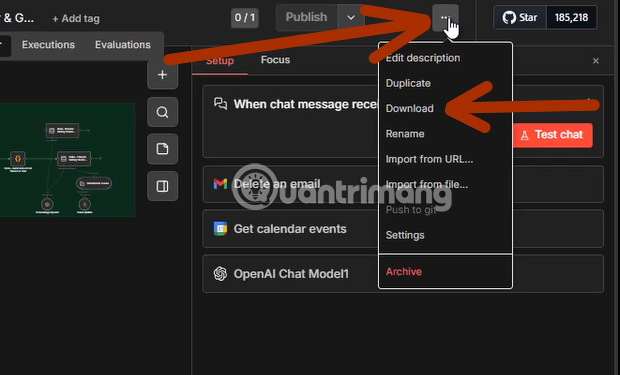
Open the workflow menu in the upper-right corner and choose Download. n8n saves the current workflow as a JSON file.
3. Store the export with useful metadata
Use a consistent filename such as customer-onboarding_2026-08-12.json. Store it in a protected backup location rather than leaving the only copy in Downloads.
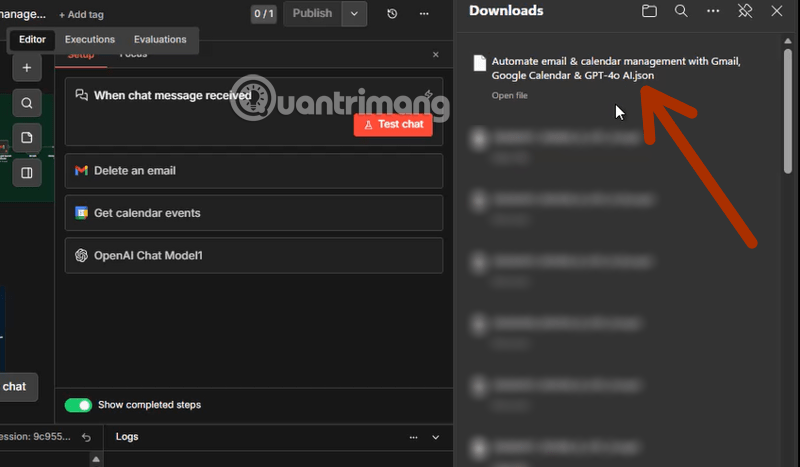
Exported workflow JSON can contain node configuration, expressions, URLs, code, and credential names or IDs. It does not provide the underlying credential secrets, but the remaining configuration may still reveal sensitive architecture. Review the file before placing it in a repository or sharing it.
Restore a workflow JSON file
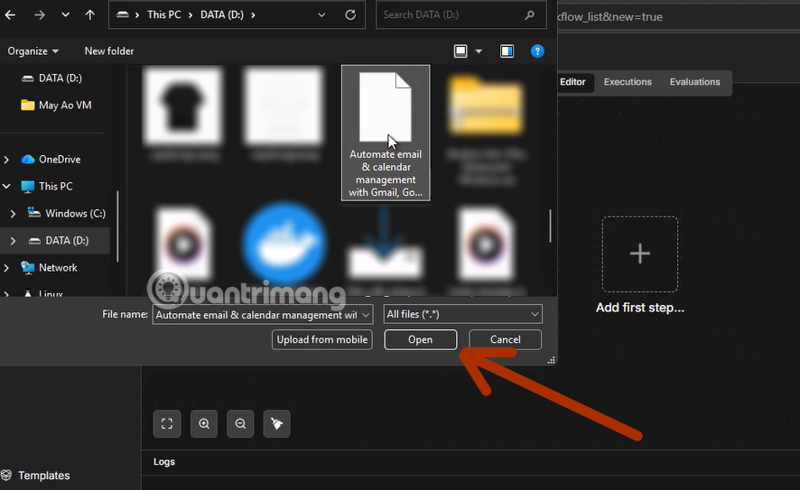
Create or open the target workflow, open its menu, and choose Import from File.

Select the saved JSON file and open it.
After import, reconnect credentials, verify environment variables and sub-workflows, inspect nodes marked outdated or missing, and run the workflow with safe test data. Importing a JSON file should not be treated as proof that the workflow is operational.
Back up all workflows on a self-hosted instance
For self-hosted n8n, the CLI can export workflows into separate files:
n8n export:workflow --backup --output=backups/Run the command in the same environment and with access to the same n8n configuration and database as the instance. The exact container command or path depends on how n8n is deployed. See the official n8n CLI documentation for current options.
Recent n8n versions also support workflow export/import packages for preserving related project and folder references. Check the current export and import documentation before choosing a format.
What a full n8n backup must cover
| Component | Why it matters |
|---|---|
| Database | Stores workflows, credentials, users, projects, settings, and other instance data. |
| Encryption key | Required to decrypt credentials from the restored database. |
| Binary-data storage | May contain files used or produced by executions, depending on configuration. |
| Configuration and environment | Controls URLs, database access, encryption, execution mode, and integrations. |
| Custom/community nodes | Workflows may not load or run correctly without the same node packages. |
| External secrets and services | API keys or secret-manager entries are not recreated by a workflow JSON export. |
n8n generates and stores an encryption key for credentials unless you supply one. Back up that key securely and separately from routine workflow exports. The n8n encryption-key guide explains its role.
Automate backups without creating a single point of failure
Schedule the backup from the host, container platform, or an independent backup service when possible. A workflow running inside the same n8n instance cannot back anything up if that instance or its database is unavailable.
- Create a consistent database snapshot using the method recommended for your database.
- Export workflow files if you also want human-readable or versionable copies.
- Copy the backup to an encrypted destination separate from the n8n host.
- Apply retention rules so that accidental corruption or deletion does not immediately replace every good copy.
- Monitor job failures and available storage.
A private Git repository can be useful for reviewed workflow JSON files, but do not commit credential exports, encryption keys, database dumps, or unreviewed files containing sensitive URLs or code. For server-side storage options, compare these open-source Linux backup utilities.
Test the restore process
- Restore into an isolated test environment, not production.
- Use the same n8n version first, then test upgrades separately.
- Confirm that credentials decrypt and required nodes are installed.
- Disable production triggers while testing.
- Run representative workflows with non-production data.
- Record the recovery steps and the time required.
If restoring reveals broader platform limitations, TipsMake also compares alternatives to n8n.
Minimum backup checklist
- Workflow exports are current and readable.
- The database and encryption key are both protected.
- Backups exist outside the n8n host.
- Retention includes more than the latest copy.
- A recent restore test succeeded.
- Access to backup locations is limited and logged.
Related Articles
 The Essentials and Basic Uses of Apple's New Free App5 minutes read
 TOP AI Tools for Creating the Best Workflows6 minutes read
 Build a Claude Dispatch Workflow on Your Mobile Device14 minutes read
 TOP best n8n alternatives in 202618 minutes read
 Instructions on Importing Pre-Made Templates into Workspace on N8n8 minutes read
 How to Build an LLM Workflow with Promptflow and OpenAI (with Review and Tracing)11 minutes read
Reader Comments 0
Sign in with email or Google to join the discussion.