Table of Contents
The best Android AI app depends on the task: choose Gemini for device-assistant integration, ChatGPT for a general-purpose conversational workspace, Grammarly for writing suggestions across apps, Notion for AI inside notes and projects, Canva for visual creation, Perplexity for source-led web research, and Comet if you want AI built into a browser.
Features, limits, and subscriptions change frequently. Download the official app from the verified publisher, review permissions before enabling assistant or keyboard access, and confirm current pricing in Google Play rather than relying on an old monthly figure.
Quick comparison
| App | Best for | Main limitation |
| Google Gemini | Android assistant, Google services, voice and camera tasks | Device controls and extensions vary by phone, account, and region |
| ChatGPT | Writing, analysis, files, images, voice, and multi-step work | Tool access and limits vary by plan |
| Grammarly | Grammar, clarity, and rewriting while typing | Requires broad text-entry access to work across apps |
| Notion | Notes, project pages, summaries, and workspace search | Most useful only when your information already lives in Notion |
| Comet | Page summaries and browser-based research or actions | Mobile availability and agent features can vary by rollout |
| Canva | Social graphics, presentations, short videos, and image tools | Many advanced AI and brand features have plan limits |
| Perplexity | Web research with linked sources | Citations still need to be opened and checked |
Google Gemini: best for Android integration
Gemini can serve as the primary mobile assistant on eligible Android devices. It supports conversational questions, voice, images, planning, and connections to selected Google apps. When configured as the default assistant, it can perform supported device actions such as working with alarms, messages, utilities, or app content.
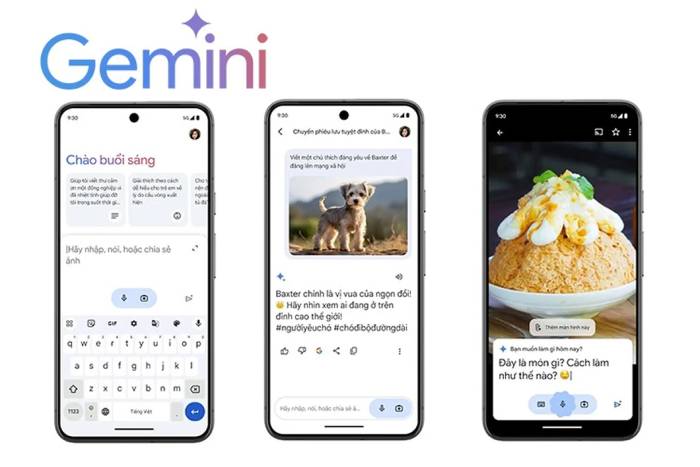
Choose it if: you use Gmail, Calendar, Maps, or other Google services and want assistant access from the power button or voice activation.
Check first: Some Google Assistant actions are not identical in Gemini, and lock-screen or notification access can expose private information. Review each permission individually.
ChatGPT: best general-purpose AI workspace
ChatGPT is suited to brainstorming, drafting, code explanation, document and image analysis, web research, and voice conversations. Depending on the account, mobile features can include projects, file uploads, image creation, memory, and tool-based work.
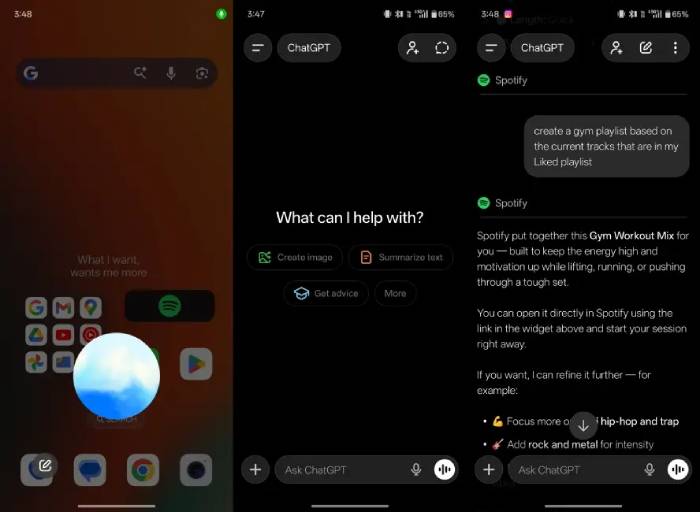
Choose it if: you want one conversational app for varied work rather than the deepest device integration.
Check first: Verify the Google Play publisher is OpenAI. Do not upload confidential files until you understand the relevant account and workspace data controls.
Grammarly: best for writing across Android apps
Grammarly provides spelling, grammar, clarity, tone, and rewrite suggestions while you type in supported apps. Current Android versions can work alongside common keyboards rather than requiring users to compose everything inside a separate editor.
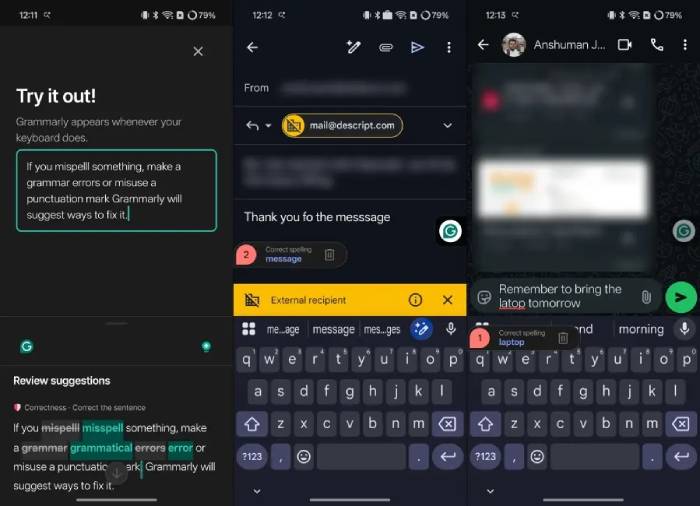
Choose it if: you write frequent emails, messages, and posts in English and want inline editing.
Check first: A writing assistant may need accessibility or text-input permissions. Exclude password, banking, health, and other sensitive fields, and review the app's privacy settings.
Notion: best for AI inside notes and projects
Notion combines documents, databases, tasks, and team pages. Its AI features can summarize pages, rewrite text, extract action items, and help users find information in a connected workspace.
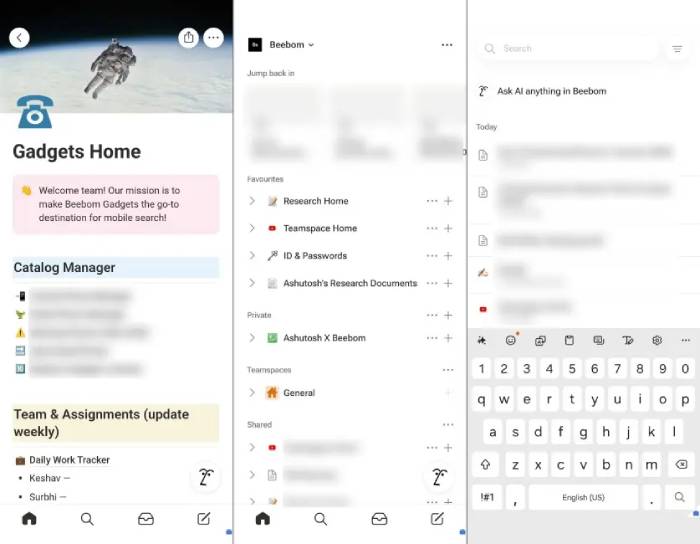
Choose it if: your notes and project data already live in Notion.
Check first: The Android app is useful for capture and review, but building large databases or complex layouts is usually easier on a larger screen. AI access can depend on the workspace plan.
Comet: best for AI-assisted browsing
Comet is Perplexity's Chromium-based browser with AI features for summarizing pages, researching topics, and completing supported browser tasks. Perplexity advertises Android availability, but mobile access and individual capabilities may still vary by country, account, or staged release.
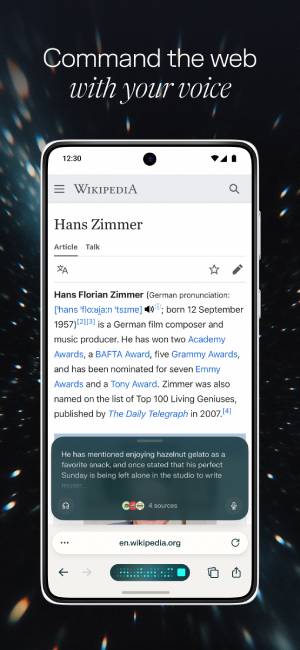
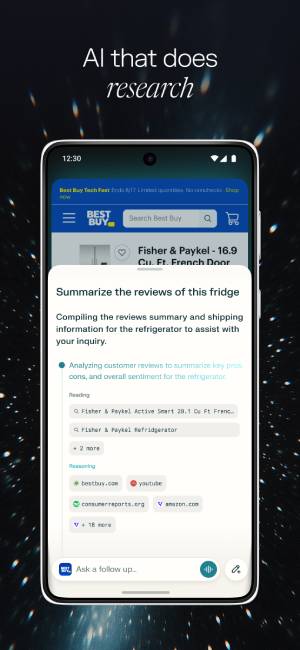
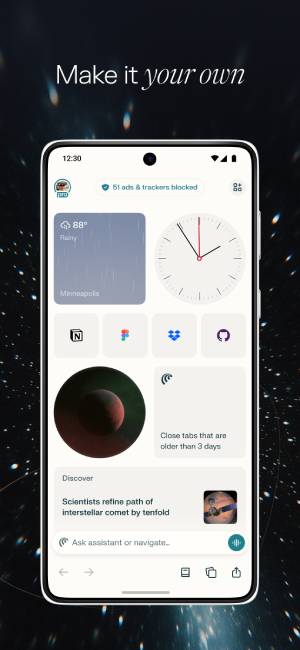
Choose it if: you want AI help in the same app where you browse.
Check first: An agentic browser can see page content and may act on logged-in sites. Review every requested action, especially purchases, messages, financial pages, and account settings.
Canva: best for fast visual content
Canva offers templates and editing tools for social posts, invitations, presentations, short videos, and marketing graphics. AI-assisted features can generate or transform images and text, remove backgrounds, resize designs, and create captions, subject to plan and usage limits.
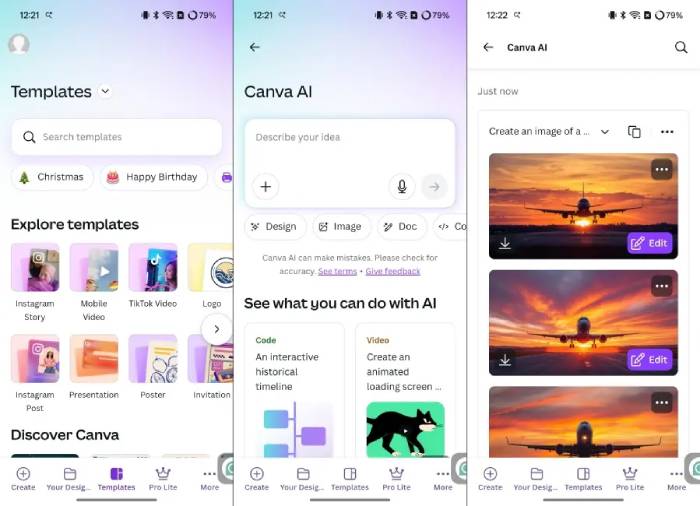
Choose it if: you need publishable visuals quickly and prefer templates over a blank canvas.
Check first: Review generated images, names, dates, and captions manually. AI output can contain visual artifacts or inaccurate text.
Perplexity: best for source-led web research
Perplexity answers web questions with links to the pages it used, making it useful for initial research, current events, comparisons, and follow-up questions. Voice input can make quick mobile searches convenient.
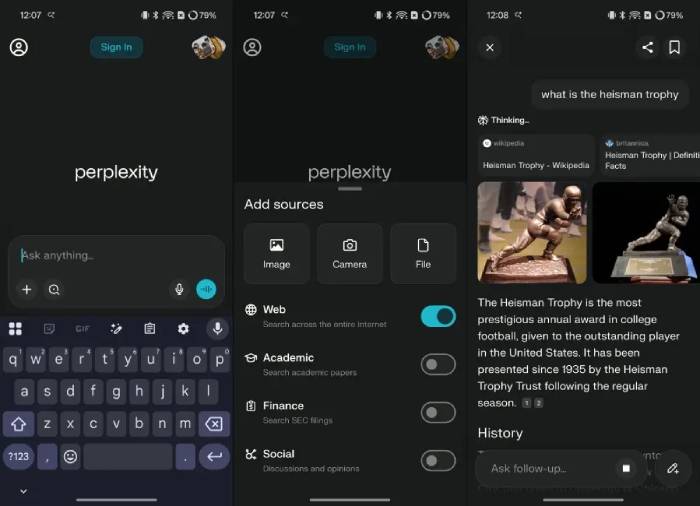
Choose it if: you want a short synthesis with sources you can inspect.
Check first: A citation does not guarantee that the source supports every sentence. Open the original page, confirm its date and authority, and use primary sources for important decisions.
How to choose safely
- Define one main task: device help, writing, research, notes, browsing, or design.
- Install only the official Play Store listing and verify the publisher name.
- Start with the free tier and test a real workflow before subscribing.
- Grant the minimum camera, microphone, files, contacts, notification, or accessibility access required.
- Review training, history, memory, and connected-app settings.
- Check generated facts, citations, and visual text before sharing the result.
Most users do not need all seven apps. A sensible combination is one general assistant, one specialist for the work you do most, and no duplicate app with unnecessary permissions.
Related Articles
 The Best Android Apps9 minutes read
 Why Are Android Tablet Apps So Bad: Key Facts7 minutes read
 10 Open Source Android Apps You Can't Live Without8 minutes read
 Series of Fake Android Apps You Should Remove from Your Device Immediately6 minutes read
 Detects Many Malicious Android Applications That Hide Icons4 minutes read
 Great Apps Only Available on Android11 minutes read
Reader Comments 0
Sign in with email or Google to join the discussion.