Table of Contents
An obby is an obstacle course where players jump between platforms and avoid hazards to reach a finish. In Roblox Studio, start with a suitable obby template or build a small course from parts, anchor the fixed platforms, and playtest each jump before adding more difficulty.
The screenshots below use an older template. Its conveyor and hazard controls may not exist in a blank Baseplate project.
1. Install and open Roblox Studio
Get Studio through the official Roblox Creator site, install it on a supported computer, and sign in. Studio is the creation tool; playing Roblox on a phone is not the same as running the Studio editor.
The Roblox Studio introduction explains the main editing tools.
2. Choose a starting project
Create a new project and choose an obby template offered by the current Studio version or official tutorial. If the older Obby template is not listed, use the publisher's current building tutorial or a Baseplate project.
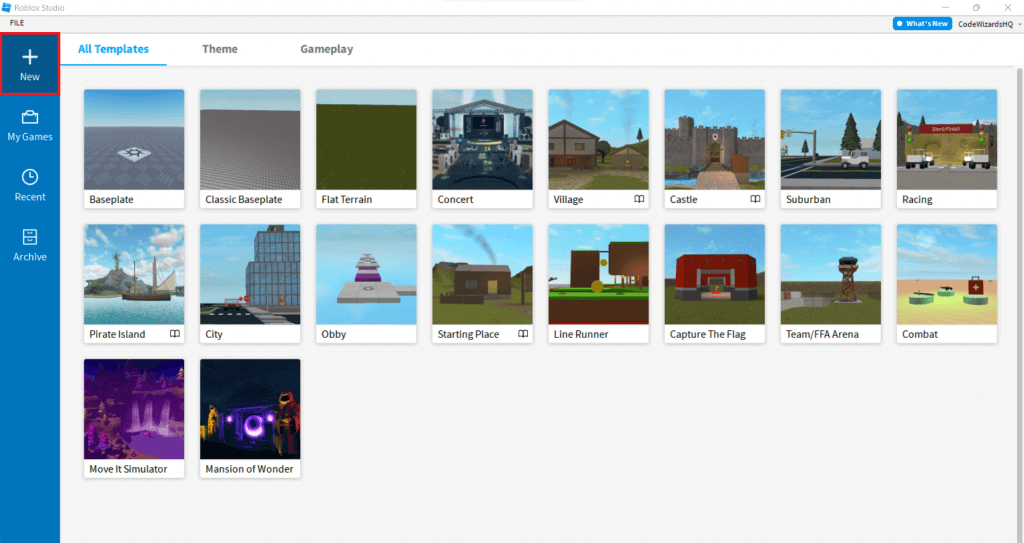
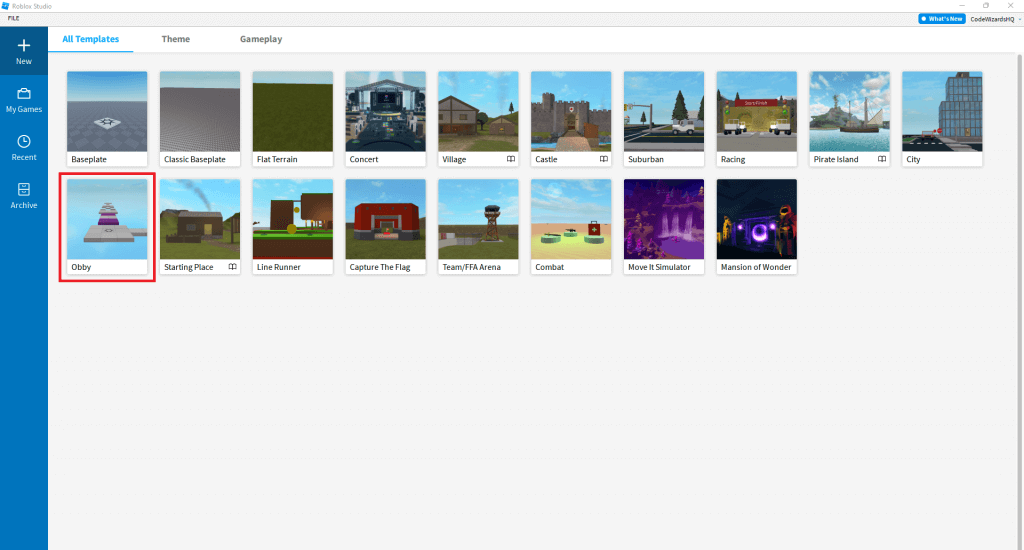
A Baseplate gives you an empty starting environment, so you must add the course, start area, and any desired behavior. A prepared template may already contain scripts and checkpoints; inspect what is included before changing it.
3. Identify the start and working area
Find the starting platform and SpawnLocation used by the template. Do not assume every object named “Start” is itself the spawn object. Keep a safe landing area around the spawn.
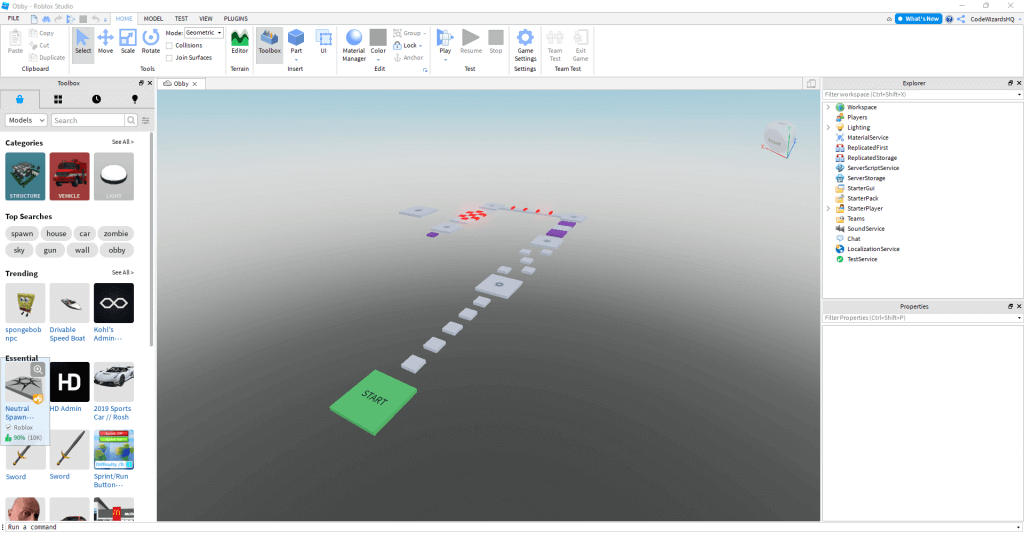
Navigate the 3D view, select a part, and inspect it in Explorer and Properties. Focus on a small section of the course so you can test changes quickly.
4. Build and anchor the platforms
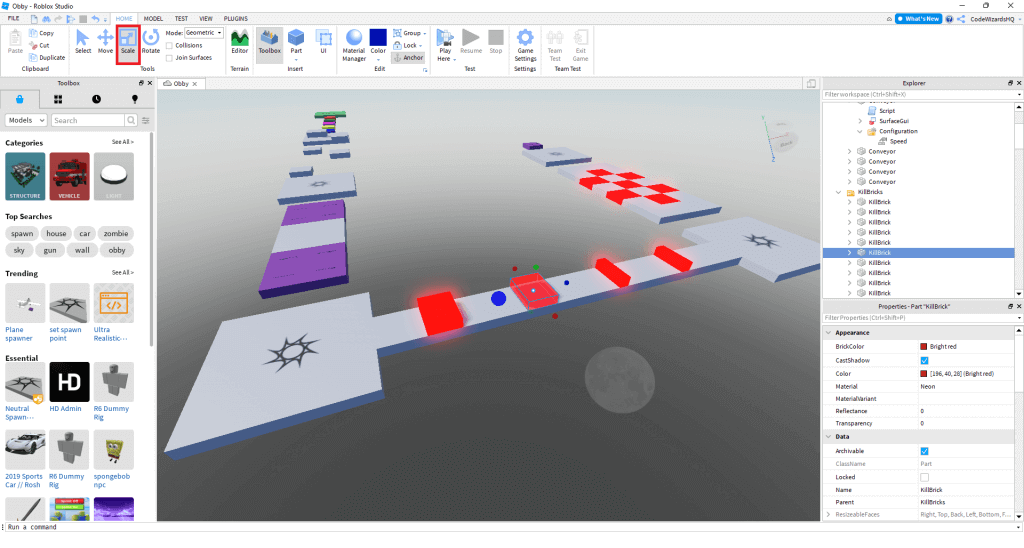
Insert parts for the first few jumps. Use Move for position, Scale for size, and Rotate for orientation. Check their placement from several camera angles.
Anchor fixed platforms so they stay in position when the simulation begins. Also check that their collision setting supports the intended landing behavior. For the underlying tools, use Roblox's parts tutorial.
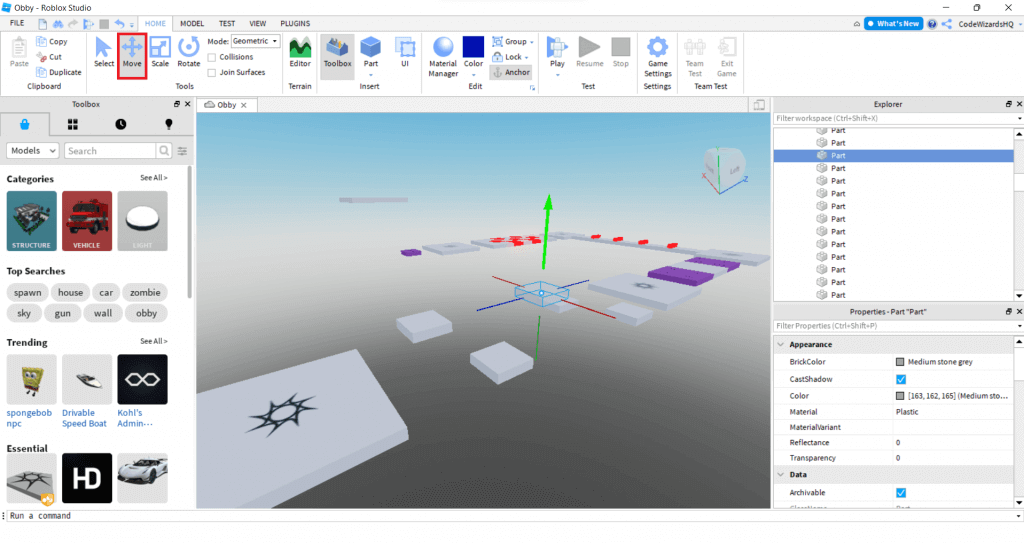
Begin with wide platforms and reachable gaps. Changing one platform at a time makes it easier to identify why a jump became impossible.
5. Use color to communicate
Select a part and change its Color through the available toolbar or Properties control. Use consistent colors for safe platforms, moving elements, and hazards, with shape or placement cues as well.
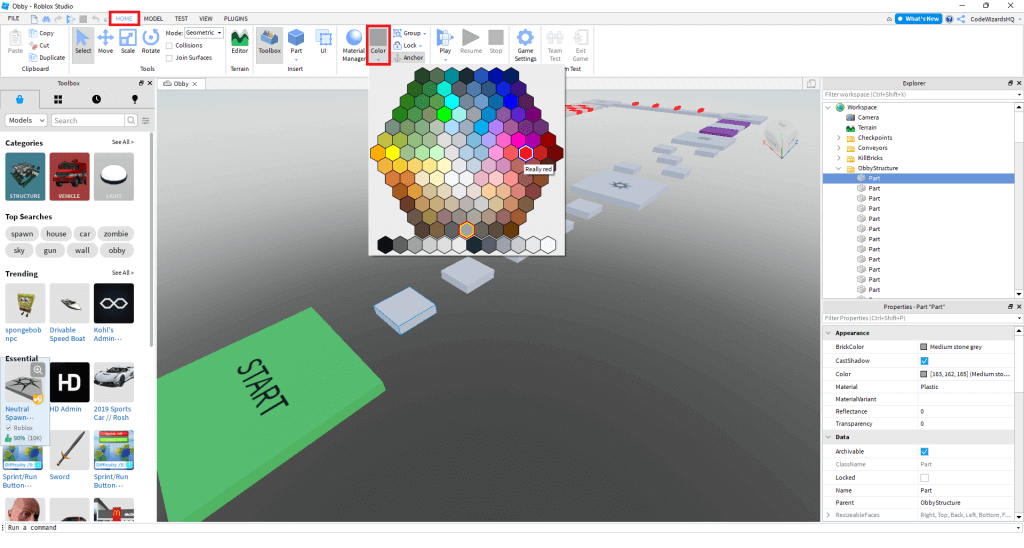
A red part is not automatically dangerous. Damage or reset behavior needs a script or configured template component. A plain colored part remains a plain part until behavior is added.
6. Adjust template-specific obstacles carefully
The original template includes a purple conveyor with a control labeled Speed. That is a property or setting of the template's conveyor system, not a universal property on every Roblox part.
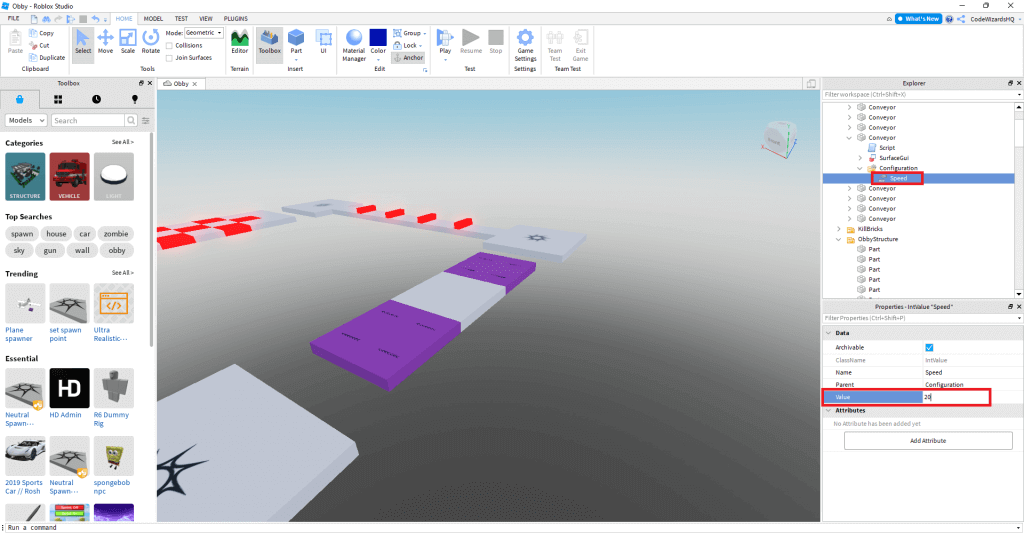
If your template has that control, record the starting value, make a small adjustment, and test it. In a Baseplate project, use a documented conveyor implementation rather than searching for a nonexistent generic Speed field.
Add angled or narrow obstacles only after the basic route works. Rotating an existing hazard changes its placement; it does not create hazard logic.
7. Playtest the full route
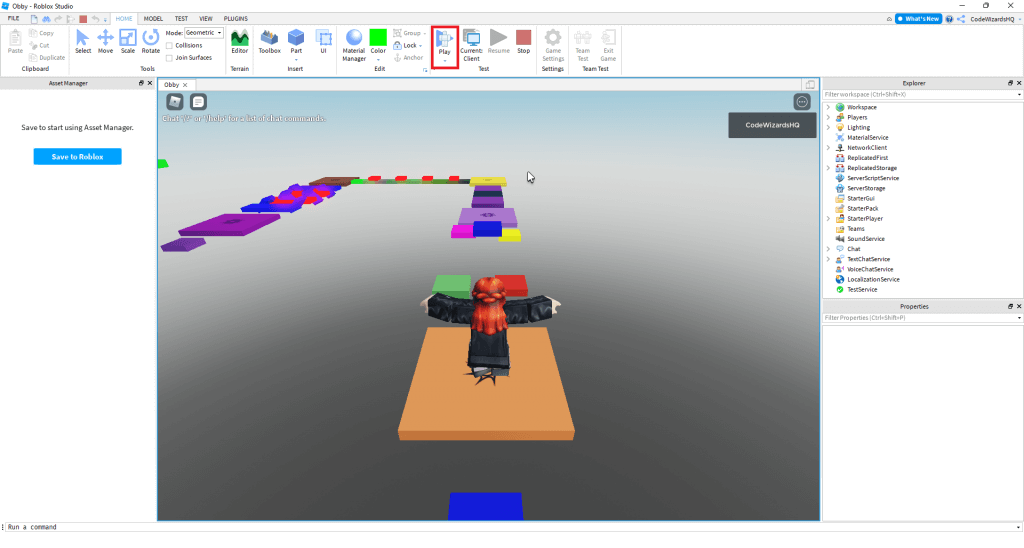
Select Play, start from the intended spawn, and attempt the course as a player. Stop the test before making permanent edits.
- Do fixed platforms stay in place?
- Can the character reach each landing without an unintended shortcut?
- Are hazards and moving elements predictable?
- Does falling or resetting return the player to the expected location?
- Is the finish obvious?
If every failure sends players to the beginning, consider checkpoints as a separate feature and test their respawn logic. Do not assume an ordinary platform becomes a checkpoint because of its color or name.
Save before expanding the course
Save the project and keep a working version before changing scripts or adding unfamiliar models. Studio playtesting does not mean the experience is publicly released. Review the current publishing controls and audience settings when you are ready to share it.
The official obby building curriculum provides a sequence for extending the basic course. Add one mechanic at a time and test the whole route after each change.





Reader Comments 0
Sign in with email or Google to join the discussion.