Table of Contents
This updated guide explains how to switch from skype to Microsoft teams with clear steps, practical tips, and useful context. Skype has officially stopped operating after 23 years of serving users. Once a monument and highly appreciated by many people when Skype helped users make free calls to relatives, friends, parents.
But now, Skype has been gradually surpassed by Skype alternatives such as Zoom, WhatsApp, FaceTime and Discord. And to focus all its efforts on Teams, Microsoft decided to stop Skype to develop Teams more comprehensively for users. If you are using Skype and want to transfer Skype data to Teams, follow the instructions below.
How to Switch from Skype to Microsoft Teams
Step 1:
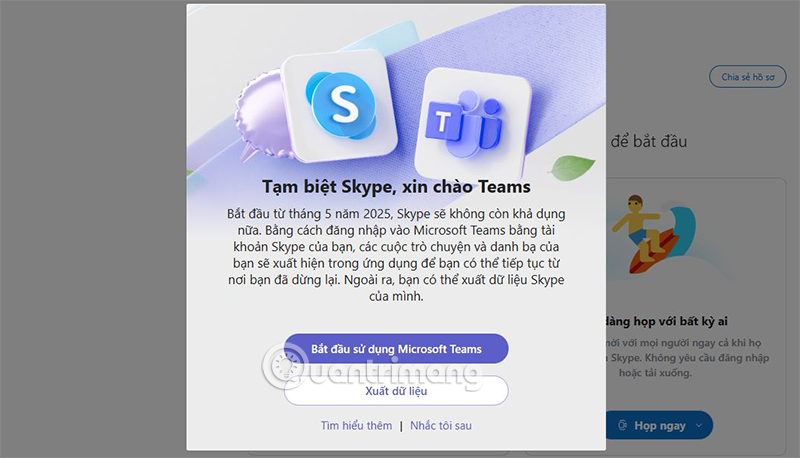
In the Skype interface you will receive a notification to log in to Microsoft Teams, choose Start using Teams to install and use on your computer. On the
Step 2:
Displaying the Microsoft Teams interface, we log in to our Skype account.

Now the interface appears as shown, choose the Start button to execute.

If you do not see the screen with the Get Started option, ensure you're already using Skype and have joined Teams Insider through the app settings.
Continue to verify your profile picture and account to use. This will be your profile name in Teams and across your other Microsoft 365 apps.

Step 3:
Now your free Microsoft Teams account is set up. Now we can see our contacts and chats.

FAQ
What should I prepare before I switch from skype to microsoft teams?
Review the requirements and options in the guide first. Having the correct device, app version, account access, or materials ready helps prevent avoidable errors.
How long does it take to switch from skype to microsoft teams?
The time depends on the task and your setup. Most basic steps can be completed quickly, while downloads, updates, scans, or troubleshooting may take longer.
What should I do if the steps do not work?
Repeat the instructions in order, confirm that your software or device is supported, and check permissions, connectivity, and available updates before trying again.
Related Articles
 Microsoft Did Not Abandon Skype Despite Successful Teams3 minutes read
 Skype Is About to Die, Users Are Advised to Switch to Teams4 minutes read
 Microsoft Stopped Supporting Skype for Business, Microsoft Teams and Yammer on Windows Phone in May3 minutes read
 Link Download Microsoft Teams 1.3.00.35649 minutes read
 Microsoft's Skype Sees Massive Increase in Usage as3 minutes read
 How to Use Microsoft Teams on Your Phone: Step-by-Step Guide3 minutes read
Reader Comments 0
Sign in with email or Google to join the discussion.