Table of Contents
Instructions for Creating USB Multiboot Start Multiple Operating is easier to understand when the core ideas are paired with practical examples. The sections below explain the topic clearly, highlight useful steps, and point out details that can prevent common errors.
Do you want to run multiple operating systems from a single USB or flash memory? To boot into the system or reinstall the operating system As an example,. If you do this directly you will have to break some commitments with Microsoft and the process is very slow.
This will be possible if different operating systems are Live CDs. That is, small operating systems are specifically designed to provide maintenance for a computer from outside the computer's operating system. The Linux Live CD or Windows live disc is very useful in many cases such as the computer's own operating system is corrupted due to misuse, poor maintenance or worse because of malware.
There are a few interesting programs that will help you create a USB boot that contains many operating systems. You will cover four programs: WinSetupFromUSB, XBoot, MultiBootUSB and YUMI. Note that before you start using multiboot USB creators, you should prepare a high-capacity flash drive like Kingston DataTraveler 101 16GB USB 2.0 to make sure there is no problem from the flash drive itself..
1. WinSetupFromUSB
WindetupFromUSB is worth a lot of users when installing Windows from USB and USB multiboot . However, WinSetupFromUSB is only compatible with Windows 2000 / XP and newer Windows operating systems, as well as compatibility with Linux and BSD. In addition, it is compatible with many Windows, DOS and Linux applications, any later version 1.1 with UEFI and Legacy BIOS modes.
You can refer to the article How to Create USB with the Windows XP, 7, 8 and 10 installer to see details on how to create multiboot USB with WinSetupFromUSSB.
2. MultiBootUSB
MultiBootUSB is a fairly popular program for creating multiboot USB. MultiBootUSB is also a portable application, which means you can run this program from USB and do not need to install it on your computer.

However, this software is limited to only install distributions Live on Linux platform but most of the best Live CDs are based on Linux. As an example,, here we will install ISO Kaspersky Rescue CD 10 on USB. Kaspersky Rescue CD is quite light so it won't take up much space on the USB.
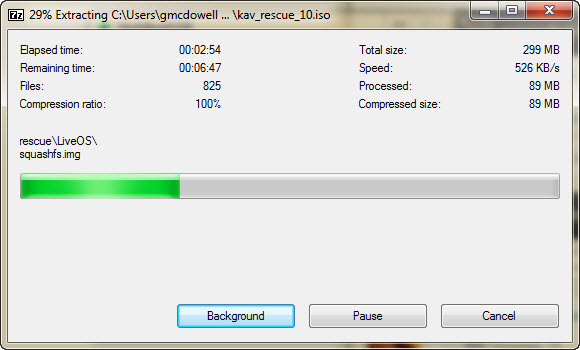
You can also add the second ISO as the Ultimate Boot CD. We now have two different boot operating systems on a USB flash drive.
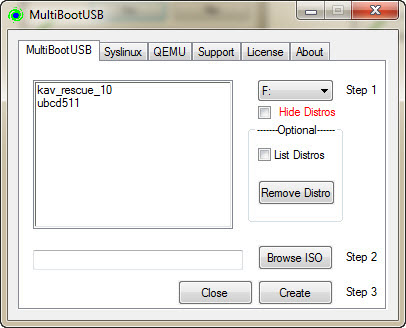
Now, you can click on the QEMU tab and check the settings without having to restart the system. QEMU is a virtual and virtual machine emulator, meaning it is an operating system that will run in a Windows environment, but is completely independent of Windows. It can even run Raspbian in Windows.
- How to check if the USB Boot has been successfully created?

Finally, you can boot your computer with Kaspersky and Ultimate Boot CD from USB.
3. XBoot
XBoot has more documentation than MultiBootUSB, both of which are easy to use but you may still need documentation when you have problems using it. XBoot installation is quite easy. Double-click the executable file and it will open in seconds. From there, you can easily add ISOs by dragging and dropping them into the main box.

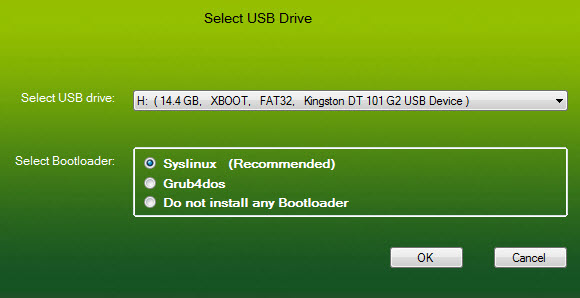
Next, click the Create USB button. The program will prompt you to select the USB drive that you want to install ISO and choose the type of bootloader you want to use. If your USB is formatted as FAT32, XBoot will suggest Syslinux. If USB is formatted as NTFS, you should use Grub4DOS. You can also choose Do not install any Bootloader , but because you want USB bootable, you will probably ignore it. Then click OK .
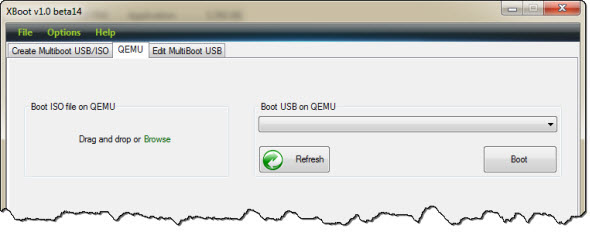
Xboot also has QEMU features to boot ISO Live CD or boot the USB you just created.
4. YUMI - Multiboot multi-installer
YUMI is also a quite popular program. You just need to add distributions to USB, YUMI will determine exactly what to do as well as where to download the distribution. This way you will save time. There are dozens of Linux operating systems and other Linux-based live CDs listed. At least one of them can meet your needs.
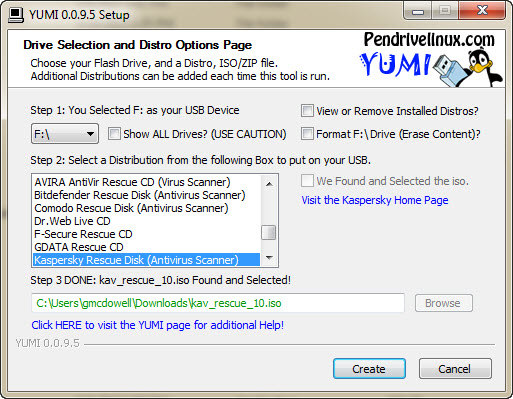
First you need to download the software you want to add to USB, here is Kaspersky Live CD.
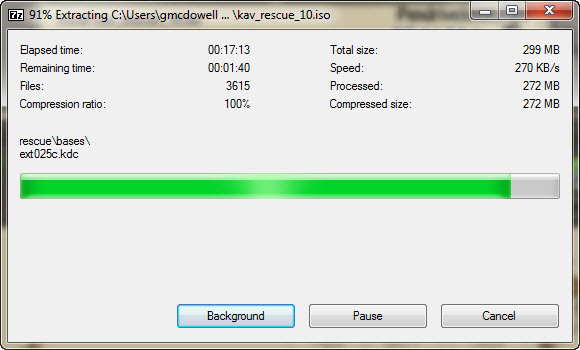
And then download the second software, As an example, the Ultimate Boot CD.
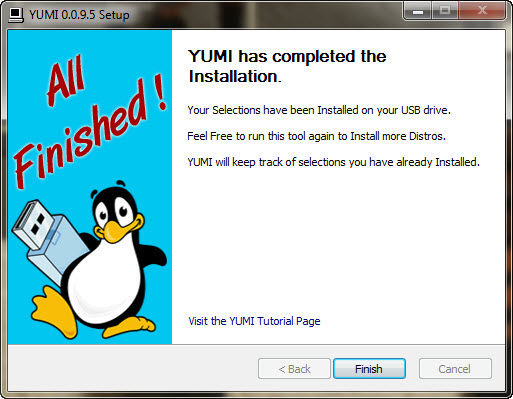
In addition, YUMI does not have QEMU tools like MultiBootUSB or XBoot. However, for YUMI, this tool seems unnecessary because using a USB boot drive created from YUMI, you can boot into both images without any problems.
We already know some tools like WinSetupFromUSB, Xboot, MultiBootUSB and YUMI. These are tools that create a USB drive that can boot multiple operating systems quite quickly and are small portable applications that are easy to use.
FAQ
What should you know about 1. WinSetupFromUSB?
WindetupFromUSB is worth a lot of users when installing Windows from USB and USB multiboot. However, WinSetupFromUSB is only compatible with Windows 2000 / XP and newer Windows operating systems, as well as compatibility with Linux and BSD. In addition, it is.
What should you know about 2. MultiBootUSB?
MultiBootUSB is a fairly popular program for creating multiboot USB. MultiBootUSB is also a portable application, which means you can run this program from USB and do not need to install it on your computer.
What should you know about 3. XBoot?
XBoot has more documentation than MultiBootUSB, both of which are easy to use but you may still need documentation when you have problems using it. XBoot installation is quite easy. Double-click the executable file and it will open in seconds. From there, you.
Related Articles
 3 Ways to Boot Multiple Operating Systems on Raspberry Pi5 minutes read
 What Test Do You Know About the Operating System (Part 1)?4 minutes read
 What Test Do You Know About the Operating System?4 minutes read
 Instructions for Downloading and Installing Easybcd3 minutes read
 What Test Do You Know About P2 Operating System?4 minutes read
 What Test You Know About Operating System P4?4 minutes read
Reader Comments 0
Sign in with email or Google to join the discussion.