Table of Contents
You can prevent users from installing programs on Windows 11 without installing any third-party apps. Or we can set it up so that others can only install apps from the Microsoft Store.
You can prevent users from installing programs on Windows 11 without installing any third-party applications. Or you can set up so that others can only install applications from Microsoft Store, ensuring that the computer is not affected by malicious sources originating from third-party software. Below are instructions to block software installation on Windows computers.
Block software installation via Windows Settings
Step 1:
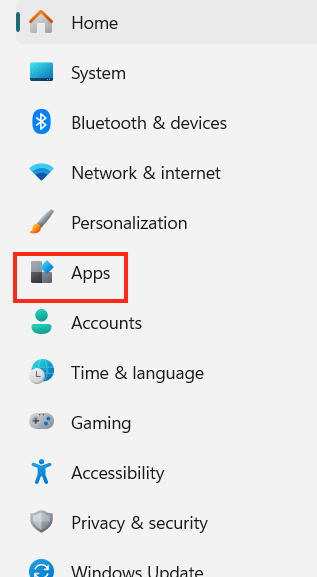
We open Settings on the computer, then click on Apps To make adjustments.
Step 2:
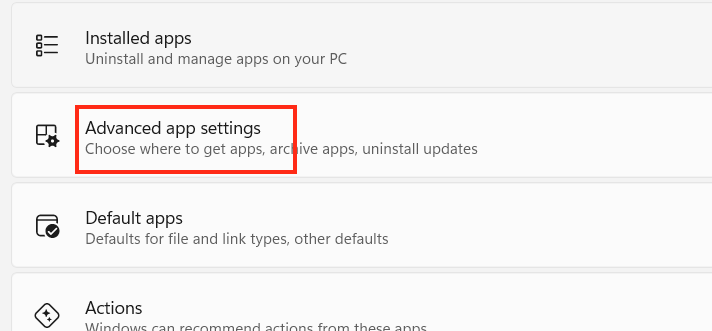
Switch to the new setup interface, Click on Advanced app settings .
Here you Click on Choose where to get apps To expand the list. Now select The Microsoft Store Only In the displayed list.
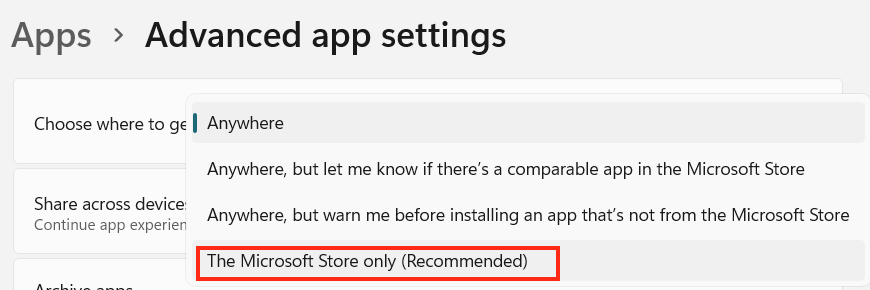
From now on, Windows 11 will only allow app installation through the Microsoft Store and block any other third-party app installation on your device.
Prevent others from installing software using Group Policy
Step 1:
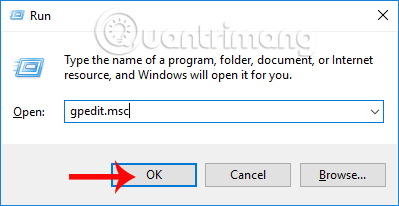
First, we press the Windows + R Key combination to open The Run dialog box . Then enter The keyword gpedit.msc And press OK to access.
Step 2:
In the Local Group Policy Editor interface, we access the folder path as below.
- Computer Configuration > Administrative Templates > Windows Components > Windows Installer
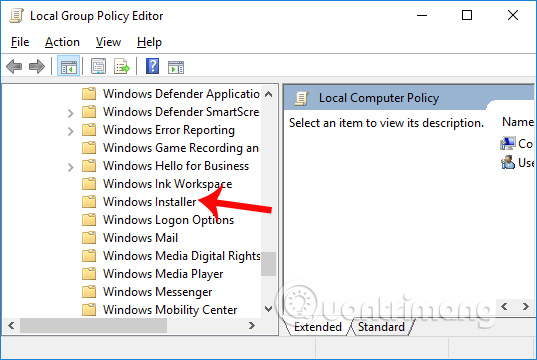
Looking at the content on the right, we double-click on the Turn off Windows Installer Item.
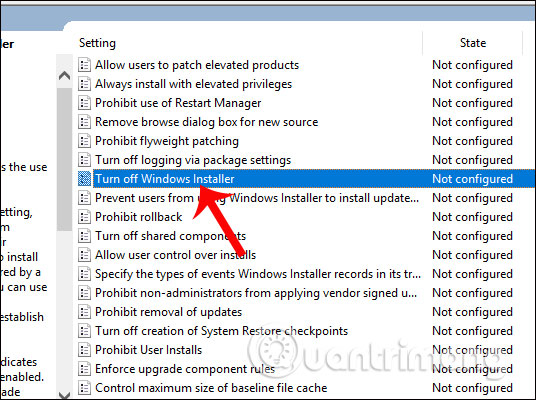
Step 3:
The Turn off Windows Installer interface appears. Here, select Enabled . Then find the Disable Windows Installer section and switch to the Always Option. Finally, click Apply and then click OK Below to save the changes.
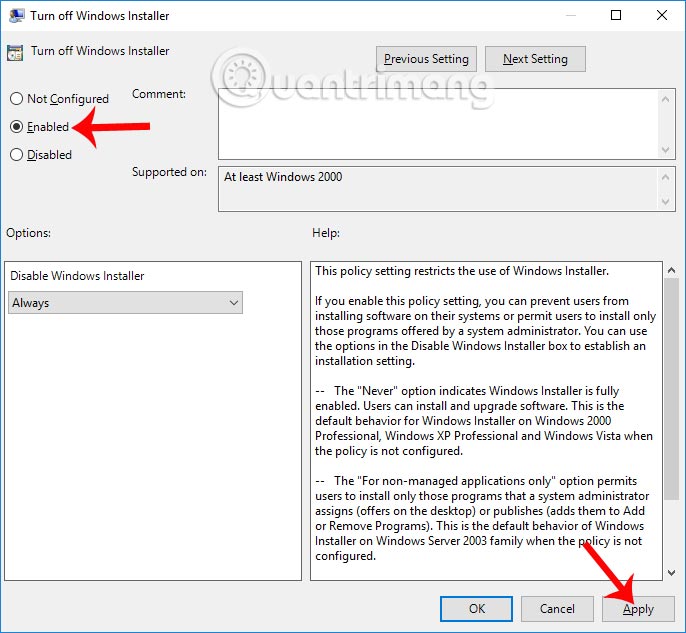
With this method, others will not be able to install software on your computer. Applications on Windows Store can still be installed normally. To return to the old settings, you also follow the steps above but switch Enable to Not Configured Settings.
So when someone installs software on your computer, you will receive a notification and cannot continue the installation. This will limit some cases that affect the system when strange, dangerous software invades the computer.
Prevent others from installing software using the Windows Registry
If you are using Windows Home edition, you can use the Windows Registry to prevent others from installing software on your Windows computer. Before proceeding with the steps below, back up the registry to be safe.
1. Open Registry Editor from the Start menu. Next, go to the following location.
HKEY_LOCAL_MACHINESoftwareClassesMsi.PackageDefaultIcon2. Once here, you will see a value named 'Default'. Double click on it.
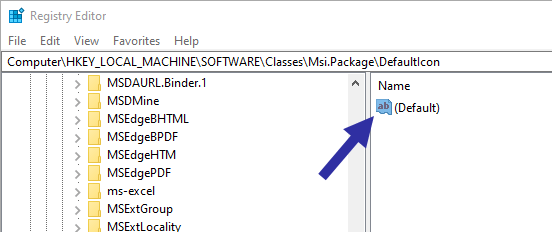
3. In the value data field, replace "0" With "1". Do not modify the existing path. Click the OK Button to save the changes.
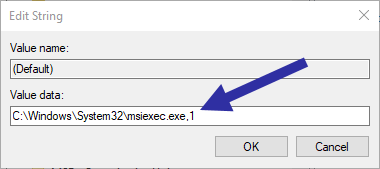
4. Next, close Registry Editor and restart Windows.
That's it! From now on, Windows will block anyone from installing software on your computer.
As you can see, blocking people from installing new software in Windows is pretty easy. However, it is not a foolproof method. You can still install software that comes with the.EXE extension. To be safe, always give your users a standard account, rather than an admin account. Since most Windows software requires admin rights, you are essentially blocking new software installations.
That said, standard You can still install software that does not require any admin rights. But such software will have minimal effect on the system, as they cannot change or access any settings or files in the system.
FAQ
How do you block software installation on Windows computers?
In practical terms, you can prevent users from installing programs on Windows 11 without installing any third-party apps. Or we can set it up so that others can only install apps from the Microsoft Store.
What should you check before getting started?
Review the requirements, compatible device or software version, and any warnings described in the guide before making changes.
What should you do if the steps do not work?
Repeat the steps in order, confirm that your app or system is up to date, and review the troubleshooting details provided above.
Related Articles
 Instructions to Block Automatic Driver Installation on Windows 113 minutes read
 How to Block Random App Installations on iPhone3 minutes read
 How to Fix Windows Computer Error That Cannot Install7 minutes read
 How to Block Software from Connecting to the Internet by Firewall3 minutes read
 How to Prevent Others from Installing Software on Windows3 minutes read
 How to Block Others from Changing Mouse Cursor in Windows 113 minutes read
Reader Comments 0
Sign in with email or Google to join the discussion.