What you will learn
- Explain the difference between a Microsoft account and a local Windows account.
- Distinguish administrator privileges from standard-user privileges.
- Review sign-in and recovery settings without weakening account security.
- Choose an account arrangement that limits unnecessary system-wide access.
What you need
- A Windows 10 or Windows 11 PC.
- Access to Settings > Accounts.
- Permission from the device owner before reviewing another person's account.
Separate account identity from permission level
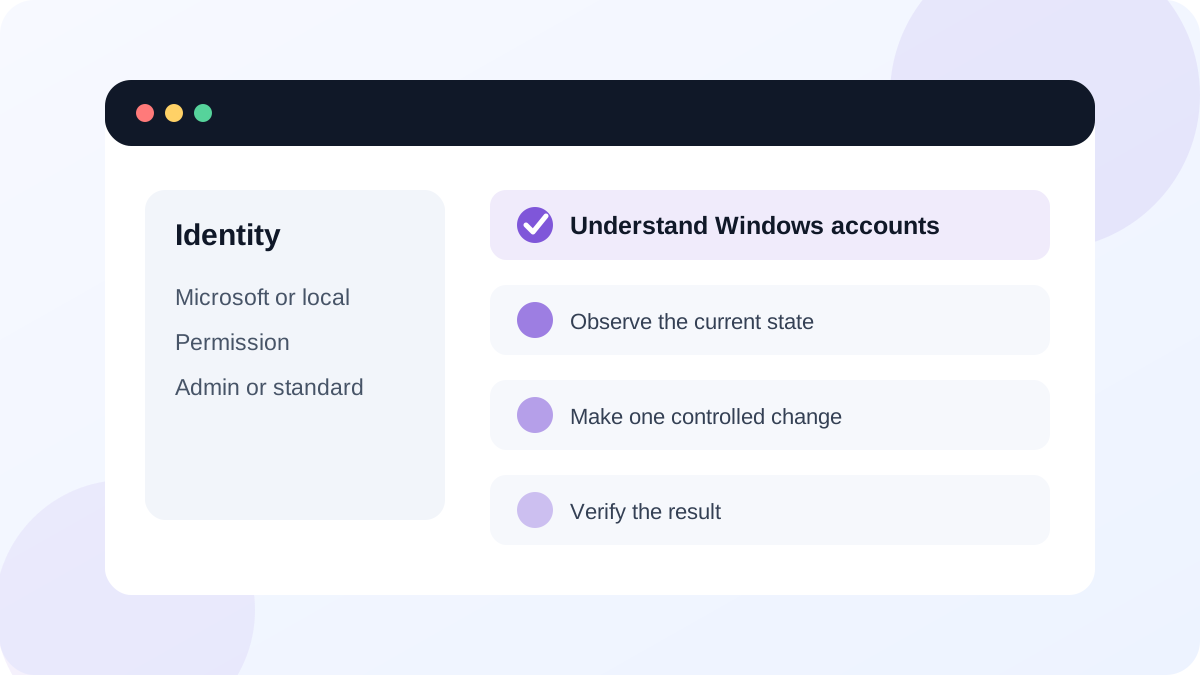
Microsoft account versus local account describes the identity used to sign in. Administrator versus standard user describes what that identity can change on the device. These are separate dimensions: a Microsoft account can be a standard user, and a local account can be an administrator.
Microsoft recommends using a Microsoft account for integration with Microsoft services and recovery features, while local accounts remain specific to the device. The best choice depends on whether synchronization and online recovery are wanted, but neither identity type should automatically receive administrator access.
Review accounts and sign-in options
Open Settings > Accounts. Your info shows the current identity type. Other users lists additional accounts, while Sign-in options controls PIN, password, Windows Hello and related methods. A Windows Hello PIN is tied to the device and is not the same as the Microsoft account password.
Before changing anything, list who uses the PC and what each person needs to do. Someone who browses, studies and creates documents usually does not need administrator rights every day. A separate administrator account can approve software and system changes when required.
- 1
Press Windows + I and open Accounts.
- 2
Open Your info and identify whether the current sign-in uses a Microsoft or local account.
- 3
Open Other users and count the accounts without opening private files.
- 4
For each account, note whether Windows labels it Administrator or Standard user.
- 5
Open Sign-in options and confirm at least one working recovery-aware sign-in method is configured.
- 6
Close Settings without deleting or converting an account during this review.
Use administrator rights only when needed
Administrator accounts can install system-wide software, change security settings and manage other users. That power is useful for maintenance but increases the damage an unwanted program or mistaken action can cause. Standard accounts can run normal applications and change personal settings while Windows requests administrator approval for protected actions.
When User Account Control displays a prompt, read the app name and verified publisher instead of approving automatically. If the prompt appears unexpectedly, cancel it and investigate the file or action that triggered it. An administrator password is not a routine obstacle to bypass; it is a decision point.
- Every regular user has their own account rather than sharing one profile.
- At least one recoverable administrator account exists.
- Daily-use accounts do not have administrator rights unless there is a clear reason.
- The device owner knows which email address or recovery method controls the Microsoft account.
Plan for password and account recovery
Microsoft's account help guidance separates local-password reset, Microsoft-account recovery and work-or-school account support. The correct recovery path depends on the identity type, so record that information before a lockout occurs.
Do not store passwords in an unprotected text file. For a Microsoft account, keep recovery email and phone information current and enable multi-factor authentication on the online account. For a local account, review the security questions or a password reset disk where appropriate. On an organization-managed device, contact the administrator rather than trying consumer recovery steps.
Create an account and permission map
Document who can sign in and what permission each account genuinely needs, without recording passwords.
- 1
List each visible Windows account and its owner.
- 2
Mark each account as Microsoft, local, work/school or unknown.
- 3
Mark each account as administrator or standard user.
- 4
Identify the recovery owner for the primary account.
- 5
Write one safe improvement, such as using separate profiles or reducing unnecessary administrator use.
Common mistakes to avoid
- Assuming a Microsoft account is automatically an administrator.
- Sharing one Windows profile among several people and mixing files and browser sessions.
- Approving every User Account Control prompt without checking the publisher.
- Deleting an old account before copying needed files and confirming another administrator works.
Key takeaways
- Identity type and permission level are separate account properties.
- Standard-user access is usually sufficient for daily work.
- Recovery information should be prepared before an account is locked.
Frequently asked questions
Should every home PC user have an administrator account?
Usually no. One or more recoverable administrators can maintain the PC, while standard accounts reduce accidental or unwanted system-wide changes during daily use.
Is a Windows Hello PIN less secure because it is shorter than my password?
The PIN is tied to that device and protected by its security hardware. It does not travel like an online password, but the device still needs screen locking and a protected recovery method.
Sources and further reading
- Manage user accounts in WindowsMicrosoft Support
- Help for accounts in WindowsMicrosoft Support
Ready to continue?
Mark the lesson complete so your Learning Path progress stays current on this device.