What you will learn
- Verify an application's publisher, source and system requirements before installation.
- Read installer options and reject unrelated bundled software.
- Use supported Windows uninstall methods.
- Preserve license, settings and user-data information before removing an application.
What you need
- A Windows PC with a standard or administrator account as required.
- A non-critical, reputable application for practice.
- A restore point or backup before installing low-level drivers or system utilities.
Verify the source before running the installer
Prefer Microsoft Store, the software publisher's official website or an organization-approved software portal. Search advertisements and third-party download mirrors can present repackaged or outdated installers. Confirm the domain, product name, current version, supported Windows release and whether the app is free, trial-based or subscription-based.
Windows App & browser control and reputation-based protection can warn about unrecognized or potentially unwanted applications. Treat a SmartScreen warning as a reason to stop and verify the file—not as an instruction to click Run anyway.
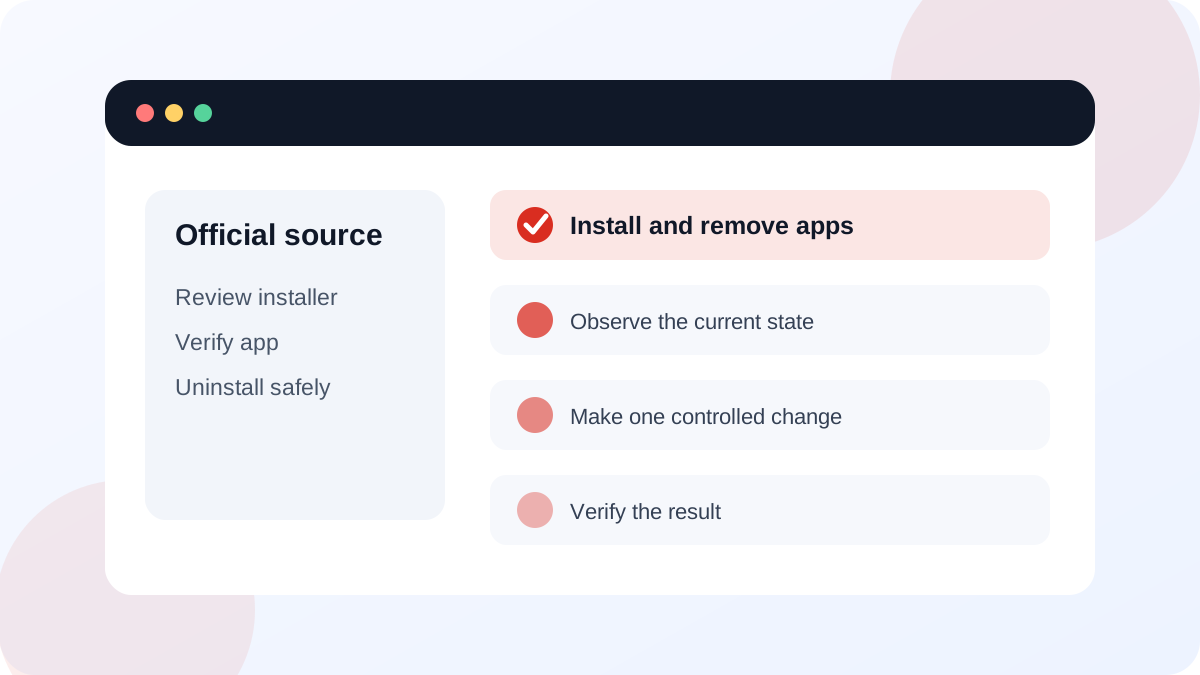
Control the installation instead of clicking through it
Before running the file, check Properties for the digital-signature or publisher information when available. Scan the download with Windows Security. During setup, read each page. Custom or advanced options can reveal a changed install location, browser add-on, startup item, telemetry choice or unrelated bundled program.
Administrator approval should match the application's purpose. A system utility or all-user application may legitimately need elevation; a simple document viewer requesting unusual system access deserves more investigation. Record the installer version and source so you can update or remove it later.
- 1
Download the practice app from its official publisher or Microsoft Store listing.
- 2
Verify the product name, publisher and supported Windows versions.
- 3
Scan the downloaded installer with Windows Security.
- 4
Open Properties and review available publisher or signature information.
- 5
Run setup, read every page and decline unrelated offers.
- 6
Launch the installed app, confirm its version and verify that it works before deleting the installer.
Uninstall through Settings, Start or Control Panel
Microsoft supports uninstalling through Settings > Apps > Installed apps, the Start menu or Programs and Features for traditional desktop programs. The available route depends on the application type.
Before uninstalling, export settings, projects, license information or local data the application owns. After uninstalling, restart only if requested, then verify shortcuts and background processes are gone. Do not manually delete the Program Files folder first; that can leave services, scheduled tasks and uninstall records behind.
- The installer came from an official or approved source.
- No unrelated bundled software or browser extension was accepted.
- The application launches and reports the expected publisher/version.
- Uninstallation, when tested, used a supported Windows or vendor method.
Handle blocked or incomplete installation safely
Microsoft provides a Program Install and Uninstall troubleshooter for certain problems that block installation or removal. Vendor support may be required for licensing, custom services or corrupted application data.
Capture the full message, installer version, Windows build and log location before retrying. Check whether a restart, pending update, insufficient storage or incompatible architecture explains the failure. Avoid registry cleaners and forced-uninstall utilities unless the publisher or Microsoft specifically recommends them for the exact product and issue.
Audit one application's full lifecycle
Install or inspect a reputable non-critical application, then document how it would be removed and where its user data is stored.
- 1
Record the official download or Store URL and publisher.
- 2
Check requirements and scan the installer.
- 3
Install while noting every optional choice.
- 4
Confirm the app version and whether it added a startup item.
- 5
Locate its supported uninstall entry and identify data that must be backed up before removal.
Common mistakes to avoid
- Downloading from the first advertisement or mirror result.
- Approving bundled software because the installer uses a Recommended option.
- Deleting the program folder instead of running the uninstaller.
- Removing an app before exporting projects, activation details or local settings.
Key takeaways
- Software installation is a source, permission and configuration decision.
- Read installer options and verify the finished application.
- Use supported uninstall methods and protect user data before removal.
Frequently asked questions
Is Microsoft Store always the only safe source?
No, many reputable desktop apps are distributed from the publisher's official site. The Store is convenient, but you should still verify publisher, permissions and purpose.
Why does an uninstalled app leave folders behind?
Uninstallers may preserve user settings, caches or shared data. Identify the folder and back up needed information before deleting leftovers; do not remove shared components blindly.
Sources and further reading
- App and browser control in the Windows Security appMicrosoft Support
- Uninstall or remove apps and programs in WindowsMicrosoft Support
- Fix problems that block programs from being installed or removedMicrosoft Support
Ready to continue?
Mark the lesson complete so your Learning Path progress stays current on this device.