Table of Contents
If you've ever felt frustrated with the poor sound quality coming from your laptop, you're not alone. A simple and effective solution that many tech users are turning to is FxSound – a free tool that enhances the audio experience on Windows devices.
What is FxSound and why should you use it?
Sound quality is incredibly important when it comes to enjoying content like music, podcasts, or videos. A slightly poor picture is bearable, but bad sound can ruin the entire experience.
In most cases that are not related to hardware failure, improving laptop sound can be done easily with just the FxSound application.
FxSound is a completely free, open source application on the Windows platform. Previously, this software was known as DFX Audio Enhancer and operated under a paid model for more than 10 years, before being officially renamed and released for free.
Many people know FxSound after having problems with Realtek HD Audio Manager software - which used to work well on Windows 8, but became unstable when upgraded to Windows 11.
The reality is that many laptop manufacturers often cut corners on speaker quality to save costs, resulting in sound quality that is not as expected. FxSound was born as a digital sound processor (digital sound card) that helps to fine-tune factors such as volume, reverb, frequency range and balance - thereby creating a significantly louder, clearer and more vivid sound experience.
Even if your laptop has good speakers, FxSound helps squeeze out as much audio performance as possible from the device.
How to install and use FxSound on Windows
Installing FxSound is very simple. You just need to download the application from the official website and install it as usual. After the installation is complete, FxSound will automatically activate and you will see a noticeable improvement in the sound performance of your system as soon as you play any media file.
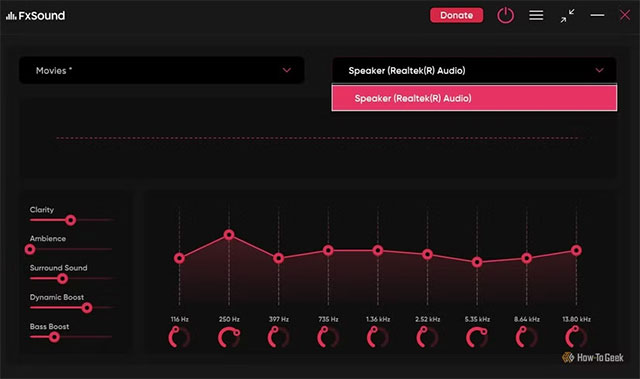
The main interface of the application consists of two main menus:
- The left menu is where you can choose your audio presets . The default is 'General', but you can switch to modes that suit the content you're watching, for example:
- Movies – when watching movies on Netflix.
- Gaming – when playing games.
- Bass Boost – when listening to bass-heavy music.
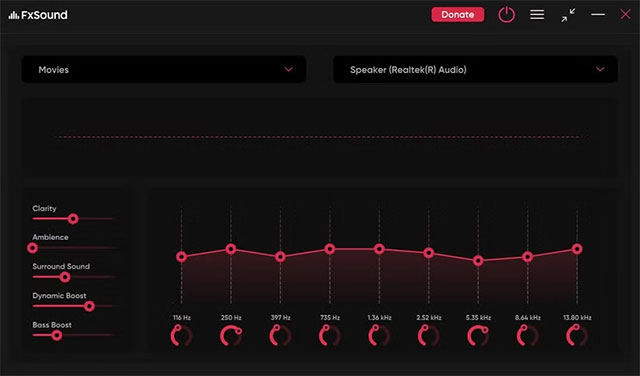
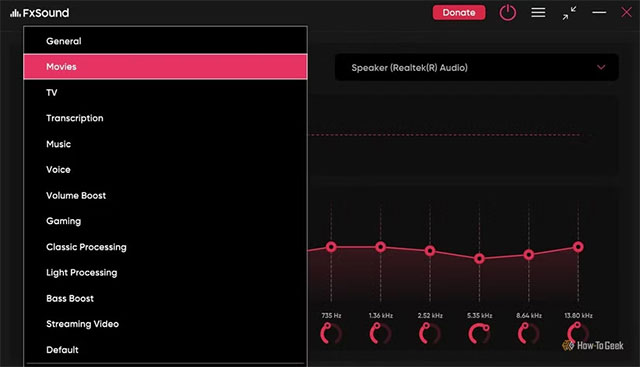
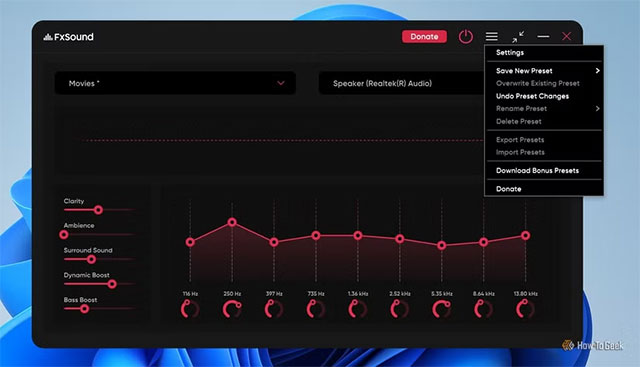
- These presets can also be manually adjusted . For example, if you're using the "Movies" preset and want to add more bass, just drag the second frequency bar up. Once adjusted, you can save it as a new preset for later use.
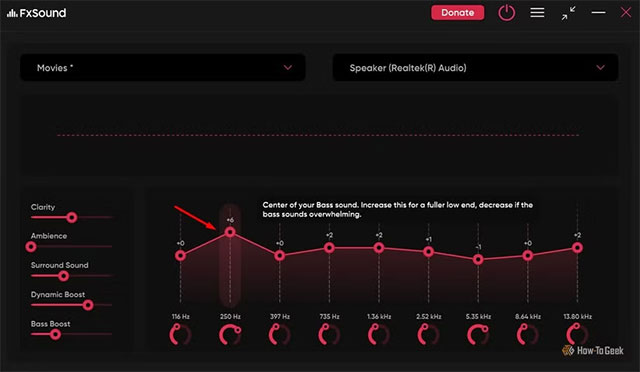
- The right menu allows selecting the default output audio device .
Additionally, users can import external presets or download additional presets from FxSound itself. The Windows startup feature can also be enabled in the settings, making FxSound always ready when the computer is turned on.
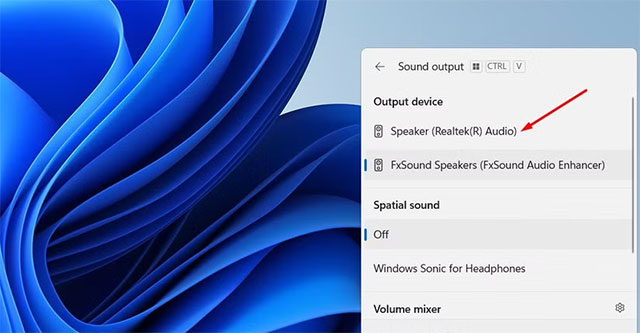
When you need to temporarily disable FxSound and return to default sound, simply go to Action Center, tap the sound icon and select a different output device.
Summary
FxSound is a simple, effective, and completely free solution to improve the sound quality of your laptop. Whether your device has poor or high-end speakers, this application helps to maximize the sound performance. For many, FxSound has even become an indispensable default application in the daily audio-visual experience.
FAQ
What is the main development covered in this article?
If you've ever felt frustrated with the poor sound quality coming from your laptop, you're not alone. A simple and effective solution that many tech users are turning to is FxSound – a free tool that enhances the audio experience on Windows devices.
What should you know about What is FxSound and why should you use it??
Sound quality is incredibly important when it comes to enjoying content like music, podcasts, or videos. A slightly poor picture is bearable, but bad sound can ruin the entire experience.
Is every reported detail officially confirmed?
Not necessarily. Product leaks, preview builds, research reports, and early announcements can change. Confirm important specifications, dates, and availability through an official source before making a decision.
Related Articles
 How to Use Fxsound to Improve PC Sound Quality6 minutes read
 How to Use FxSound Enhancer to Improve Sound Quality4 minutes read
 What Is FxSound Enhancer?5 minutes read
 4 Tips to Improve Your Computer Sound Quality5 minutes read
 5 Tips to Improve Sound Quality on Android Phones Without Root7 minutes read
 How to Manage and Improve Sound Quality in Windows 1011 minutes read
Reader Comments 0
Sign in with email or Google to join the discussion.