Table of Contents
Learn how to use wiztree to clean up 200gb of hidden junk files with clear steps, practical tips, and troubleshooting guidance for a reliable result.
People who install dozens of apps, from 4MB Windows super apps to running large language models using Ollama, need more space than most. Instead of uninstalling a single app or cleaning up the Windows Update folder, many people fire up WizTree, a free disk space analyzer, to see what's taking up their hard drive. After an hour of intensive cleaning, they can free up 200GB of space that Windows' built-in cleanup tools have completely missed.
Why are built-in cleaning tools not enough?
They are horribly slow and lack detail
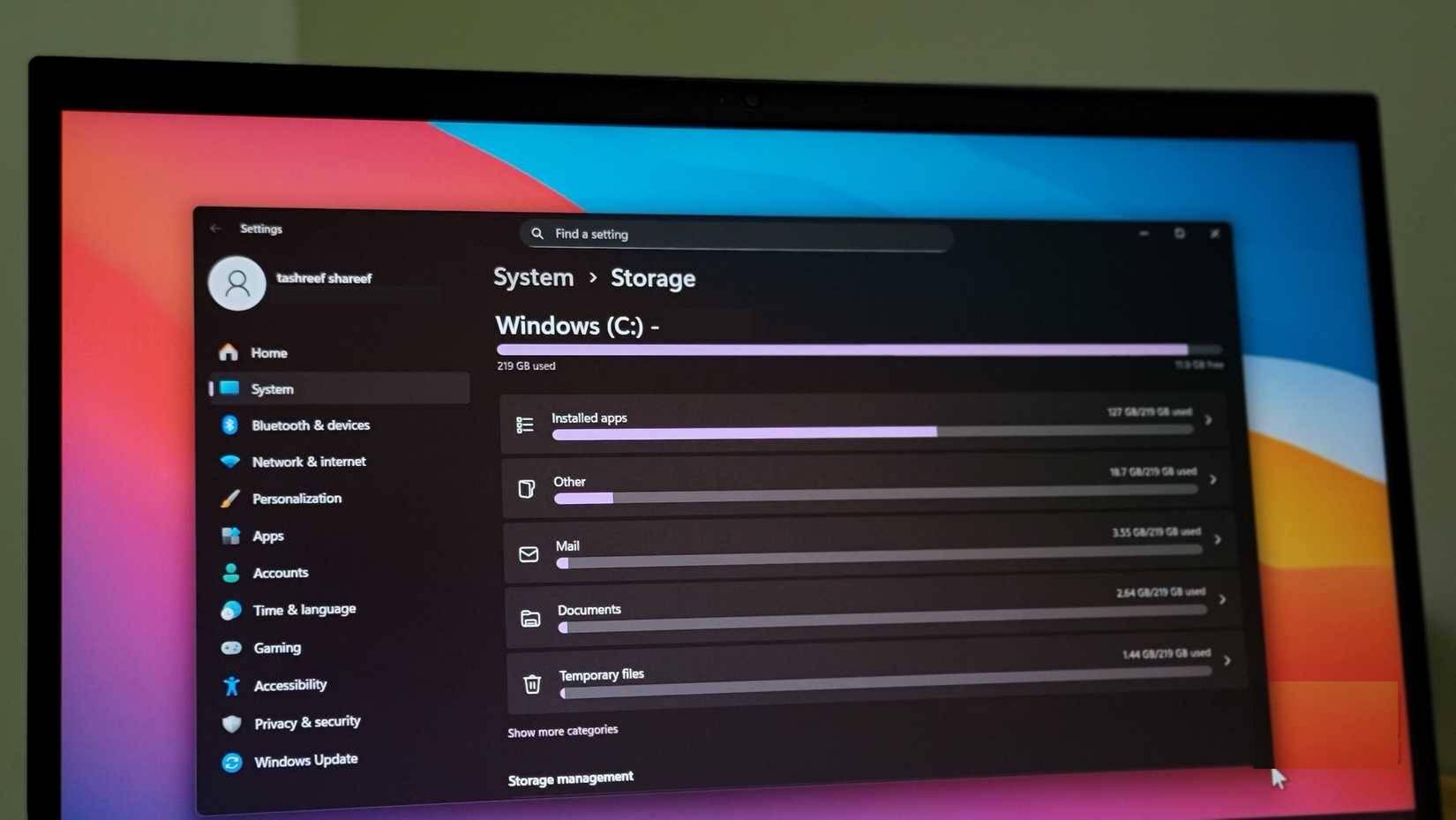
Windows' built-in disk cleanup tools are pretty basic. Disk Cleanup lists common folders like the Recycle Bin, temporary files, and Windows Update files that can be safely deleted without affecting your personal data. However, it's often installed apps, old files, or duplicate files that take up space on your PC.
Windows also offers Storage Sense in the Settings app, which can show you which files and folders are taking up the most space. However, it's slow and rescans every time you switch between folders. Many people use it to get a detailed look at their user folders, but give up after waiting half a minute for each subfolder to load.
Use WizTree to find lost space
Fast and detailed memory analysis
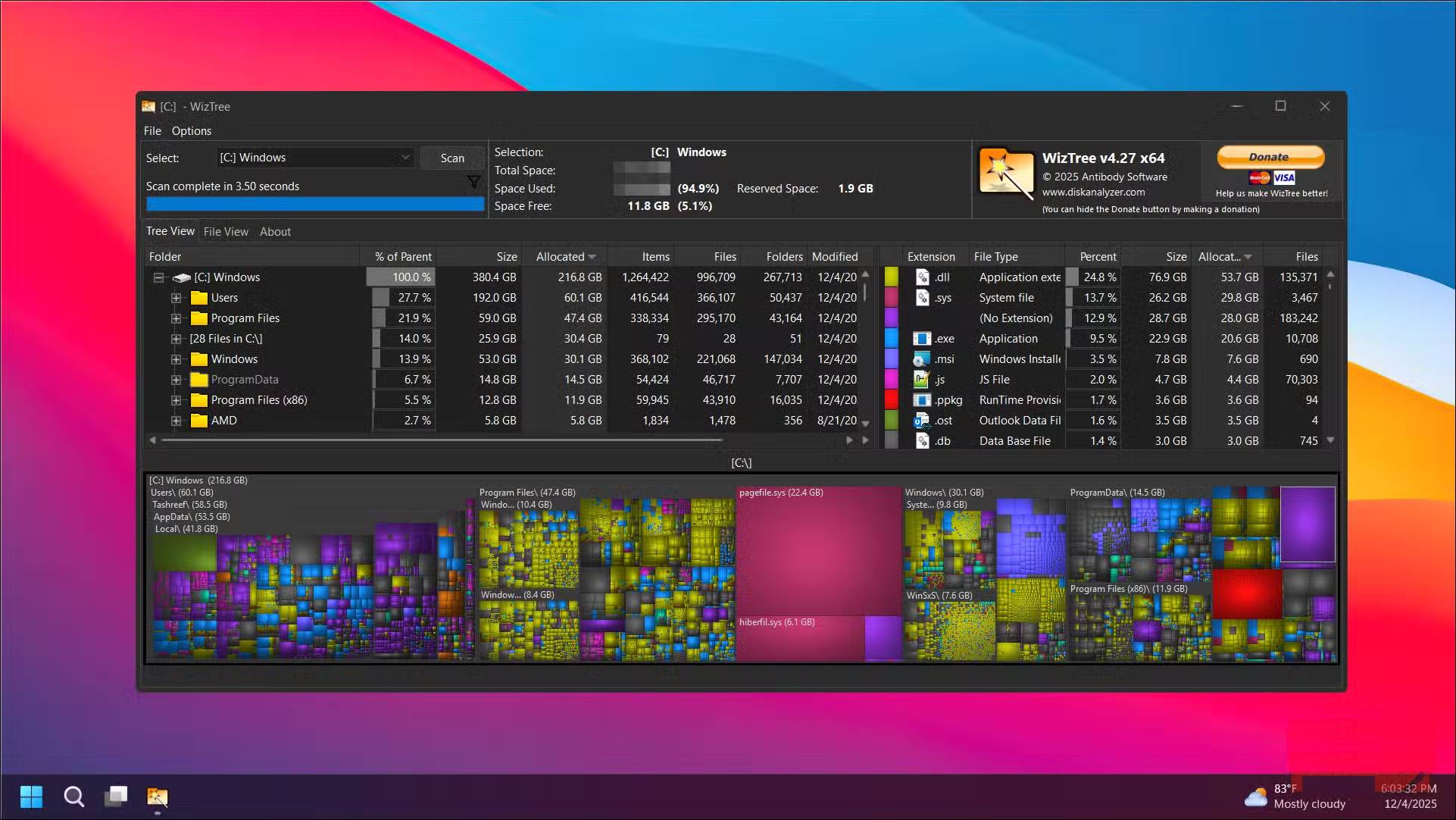
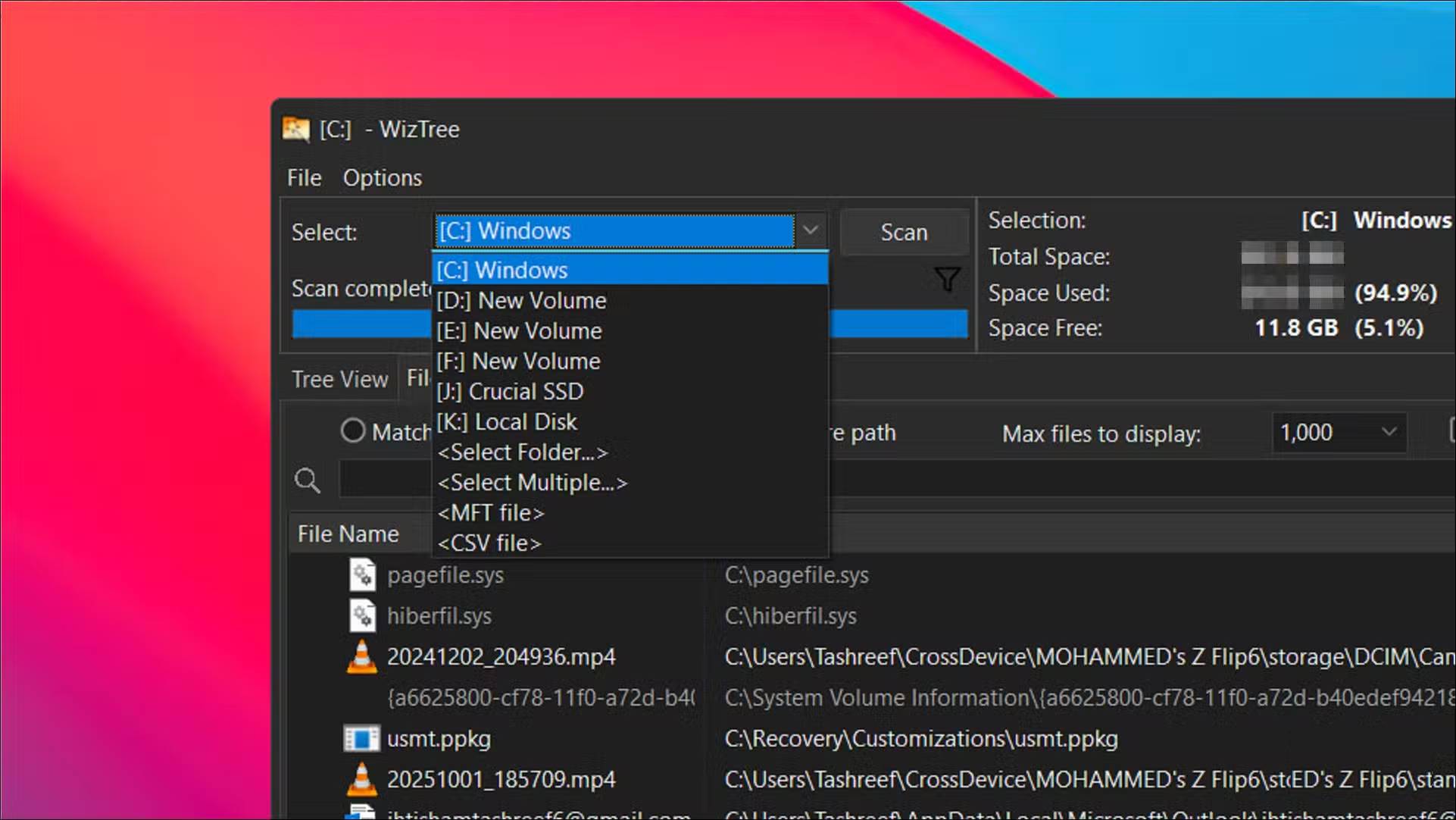
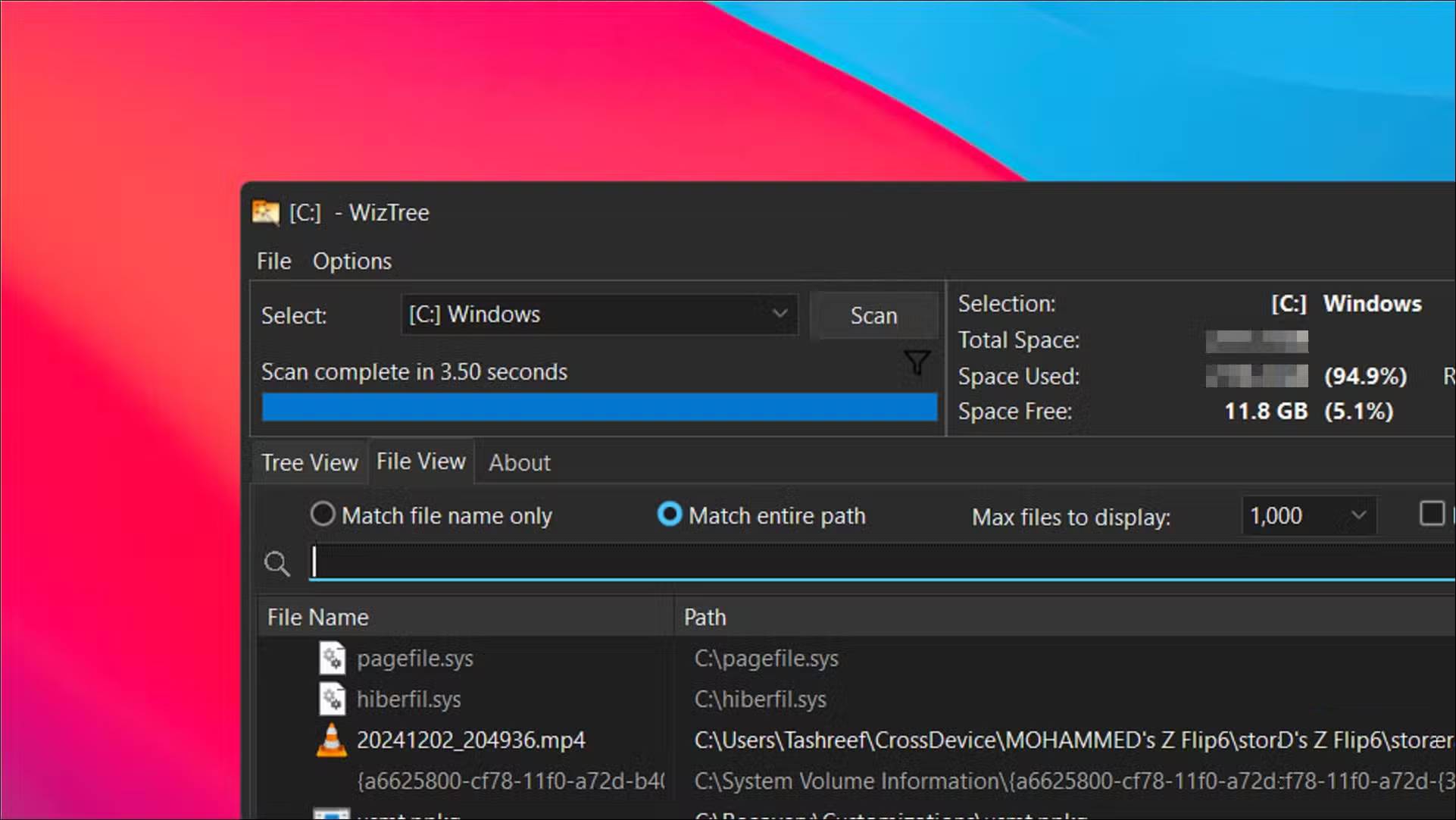
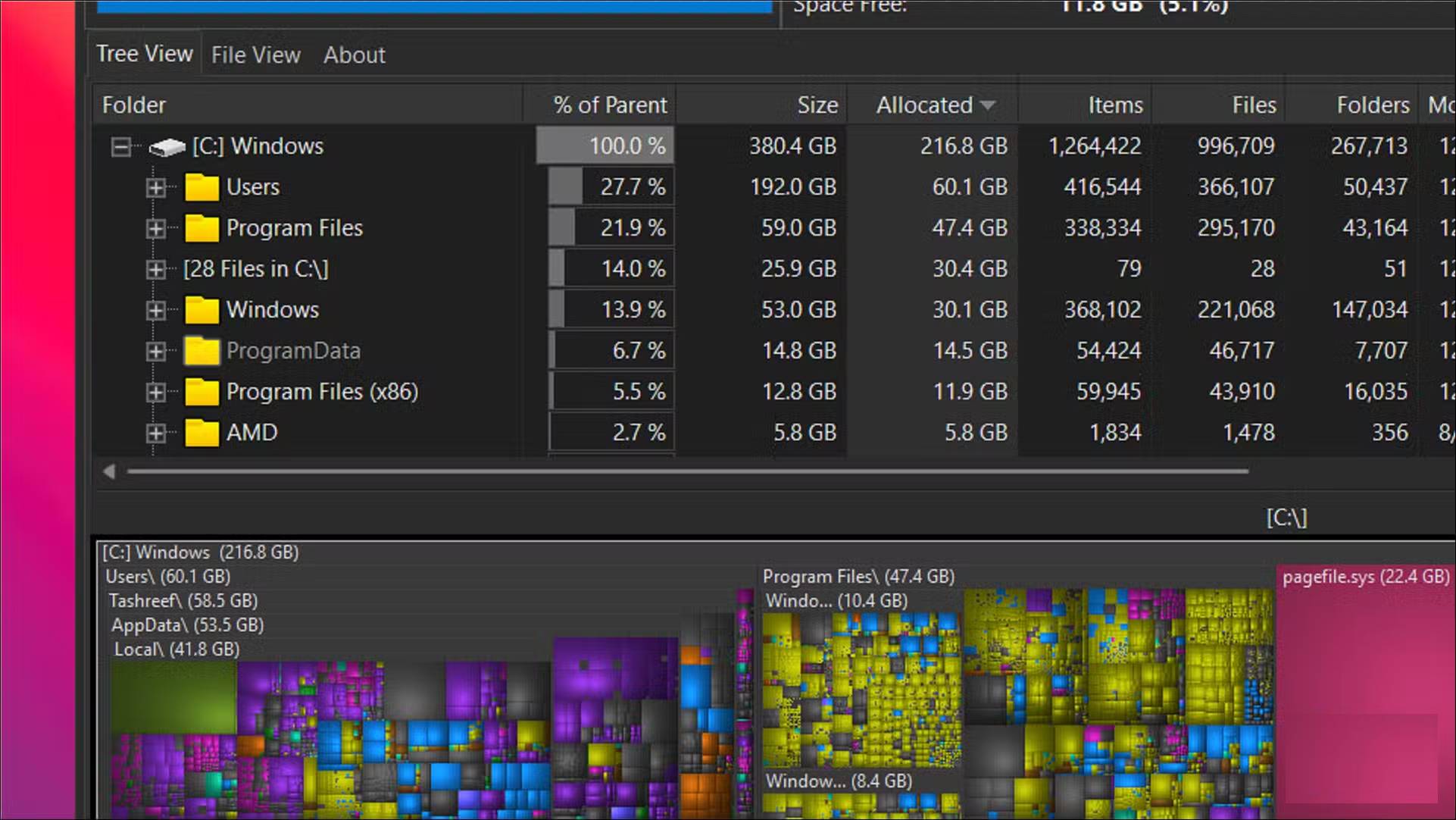
Many people have been using WizTree for years now, and it works perfectly, considering it's completely free for personal use. Yes, there's a pretty annoying animated Donate button, but that's not a big deal. You'll need to grant it admin rights every time you run the tool so it can scan your drive. Then, select the drive you want to analyze and click Scan .
For those who have used WinDirStat, WizTree will feel surprisingly familiar, except it's faster and comes with more customization options. In our testing, WizTree completed a scan of a 256GB NVMe SSD in about 5 seconds. When I tested WinDirStat on the same drive out of curiosity, it took about 17 seconds, so WizTree is really fast.
The difference in speed comes from the way WizTree reads your drive. Instead of using the usual Windows file enumeration feature like most disk analyzers, WizTree reads the Master File Table directly on NTFS drives. This feature completely bypasses Windows and speeds up the scanning process significantly.
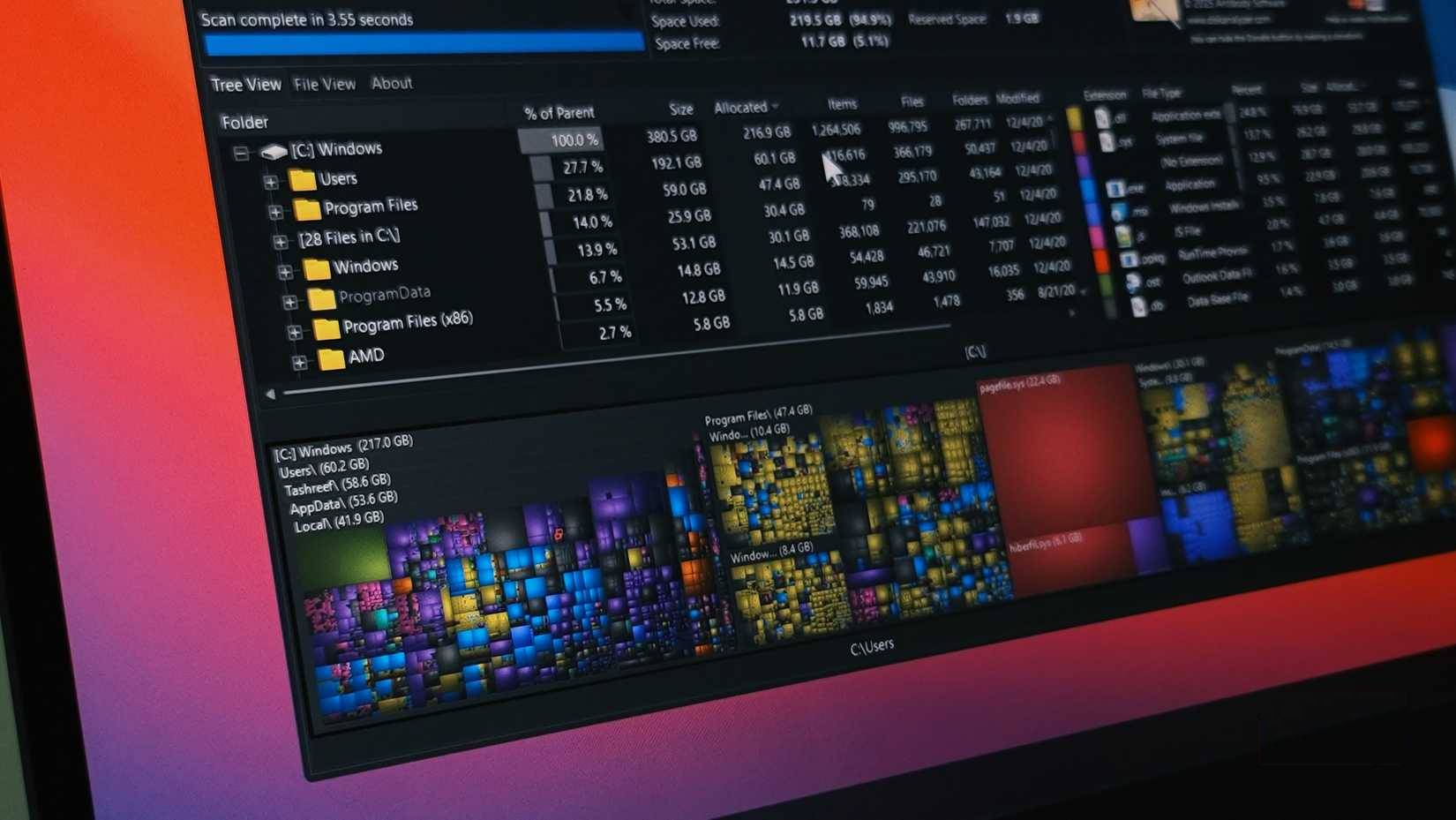
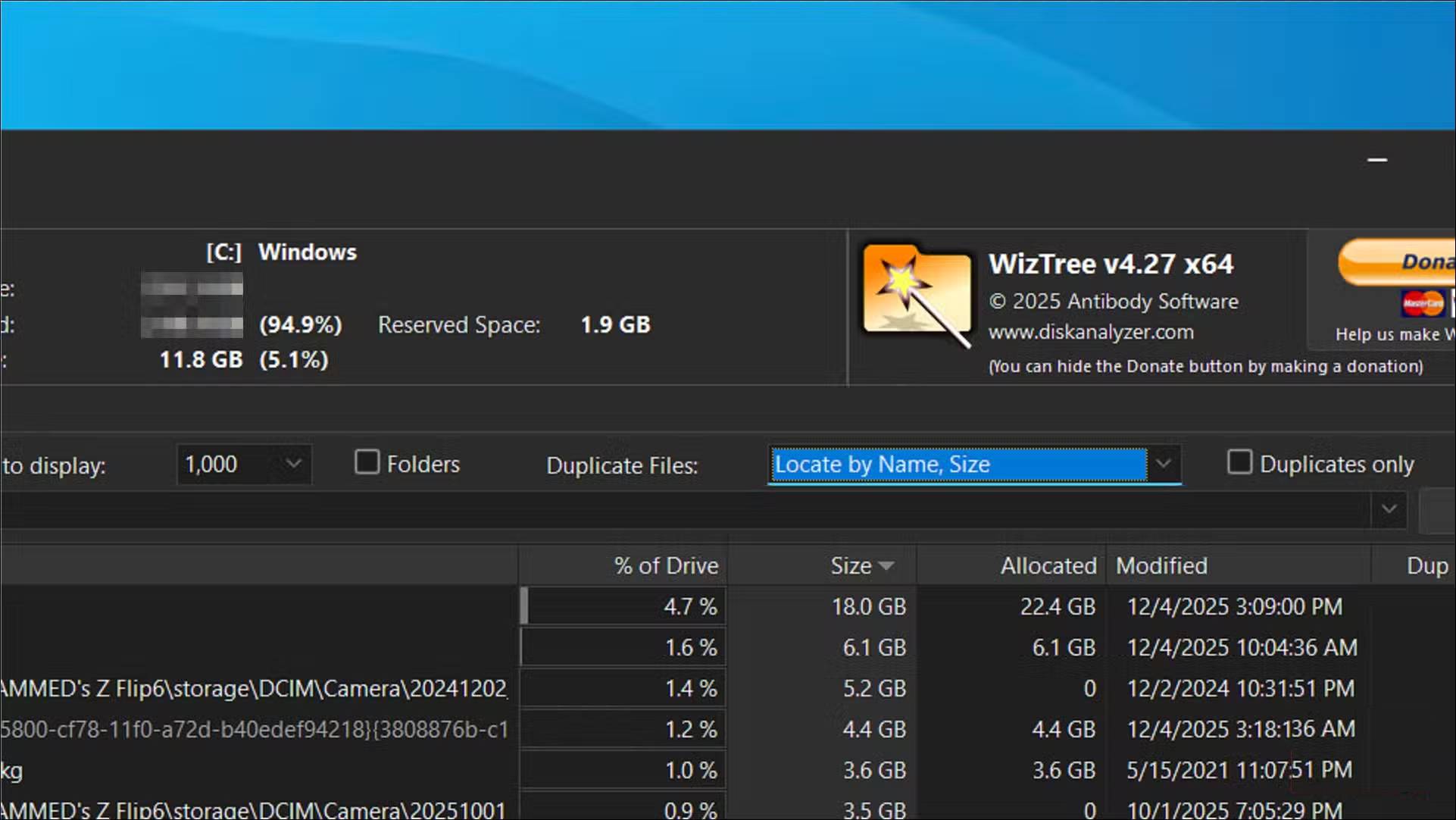
Once the scan is complete, WizTree displays a detailed breakdown of your storage space. The Tree View tab displays folders sorted by size, making it easy to see which folders are taking up the most space. The File View tab lists each file by size, helping you quickly spot large media files, old downloads, or duplicate movies hidden in nested folders.
From the file list, you can right-click any item to open it directly in File Explorer via the standard Windows context menu. This makes it easy to locate and delete large files without having to manually copy the path and open it in File Explorer.
More advanced features
Tweaking how WizTree works
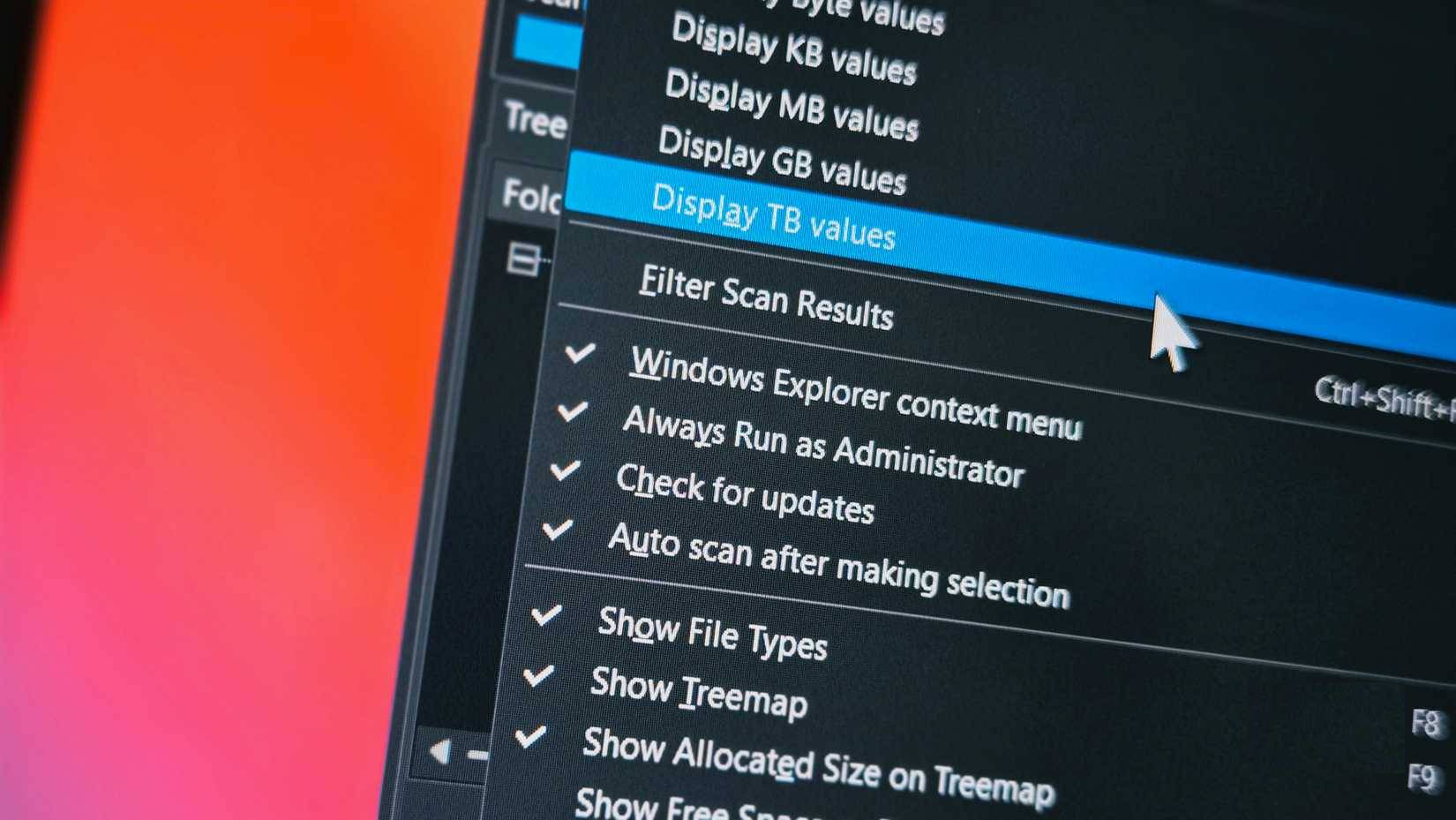
WizTree has a few hidden settings you can adjust, but the most useful is the option to always run as admin. Enabling this option saves you from having to manually run the application as admin every time you start it.
You can also configure WizTree to automatically scan your drive on startup, exclude specific folders from scanning, and customize the treemap colors to your liking. The export feature lets you save scan results to a CSV file, which is handy if you need to record your storage usage over time or share reports with others.
Another appreciated feature is the ability to scan multiple drives at once. If you have both an SSD and secondary storage drive, you can analyze them all at once instead of running separate scans.
Final Thoughts
Use this guide as a practical checklist for how to use wiztree to clean up 200gb of hidden junk files. Work through the steps in order, verify each result, and adjust the options to match your needs.
FAQ
What do you need before following this How to Use WizTree to Clean up 200GB of Hidden Junk Files guide?
Review the required tools, accounts, settings, or materials mentioned in the article. Learn how to use wiztree to clean up 200gb of hidden junk files with clear steps, practical tips, and troubleshooting guidance for a reliable result.
What are the main steps for how to use wiztree to clean up 200gb of hidden junk files?
Follow the sections in order, especially Why are built-in cleaning tools not enough?, They are horribly slow and lack detail, Use WizTree to find lost space. Complete each step before continuing and verify the result as you go.
What should you do if the process does not work as expected?
Recheck the prerequisites, update the relevant app or service, review the settings, and repeat the step that caused the issue. Use any troubleshooting notes included in the guide.
Related Articles
 What Is a Junk File?7 minutes read
 How to Clean Junk Files and Speed up Windows with Clean Master4 minutes read
 How to Deleting Old Drivers and Hidden Files on Windows5 minutes read
 How to Automatically Clean Junk on Windows 10 Computers3 minutes read
 How to Clean up Junk Files to Reduce Disk Space C3 minutes read
 How to Delete Junk Files on the Computer, Clean the Computer10 minutes read
Reader Comments 0
Sign in with email or Google to join the discussion.