Table of Contents
Learn how to deleting old drivers and hidden files on Windows with clear steps, practical tips, and troubleshooting guidance for a reliable result.
Instructions for deleting old drivers on Windows
Old drivers that are no longer used will take up space on your computer. If you are having problems with your graphics driver, it is best to clean up the old installation and then reinstall the driver.
Step 1
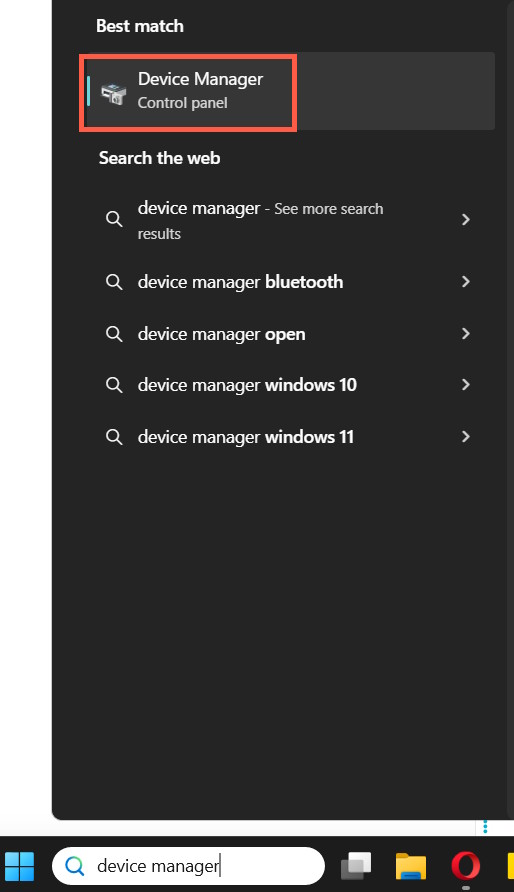
First, enter device manager in the search bar and then access it.
Step 2
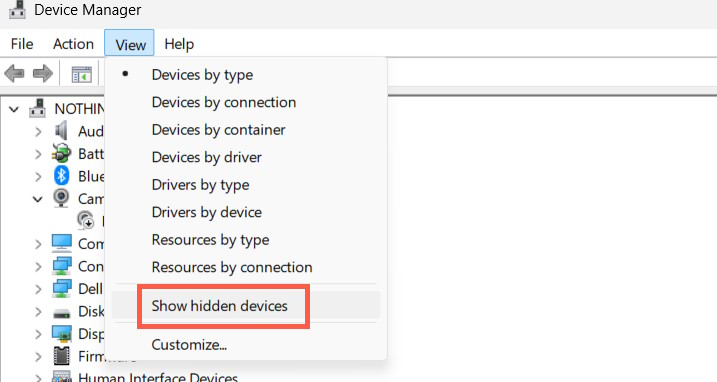
In the driver management interface, click View and select Show Hidden Devices to display old or inactive device drivers.
Step 3
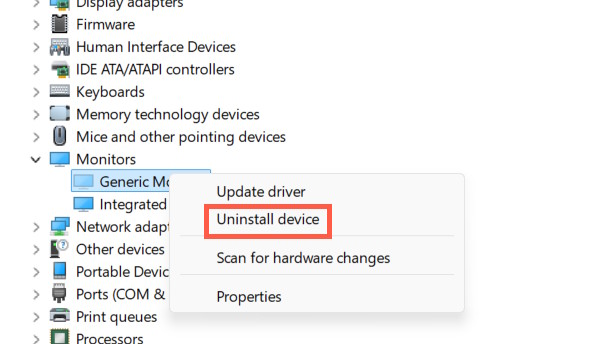
Then expand each driver item to check. When you see an old, hidden driver, right-click and select Uninstall Device to uninstall it.
Note that you need to be very careful when uninstalling old drivers.
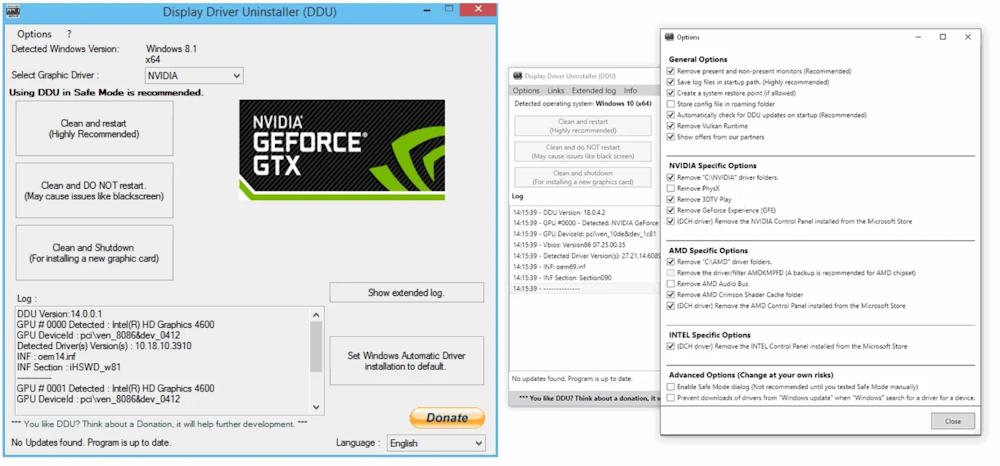
Also for graphics and sound drivers you should use DDU (Display Driver Uninstaller).
https://www.guru3d.com/download/display-driver-uninstaller-download/Utility for completely removing graphics drivers and related files when switching between GPUs or troubleshooting driver issues. The new version focuses on improving the ability to clean up old drivers, especially for AMD hardware.
How to delete hidden junk files on Windows
Windows has built-in tools to clean up system junk files. In the Windows search bar, search for disk cleanup and launch the Disk Cleanup tool .
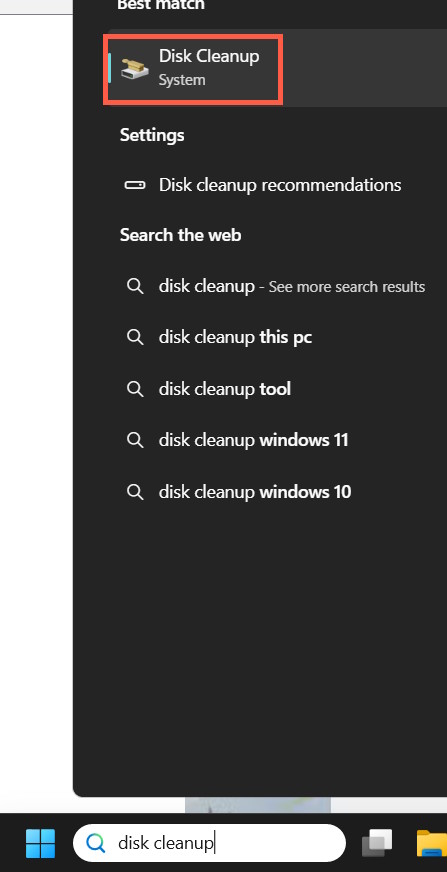
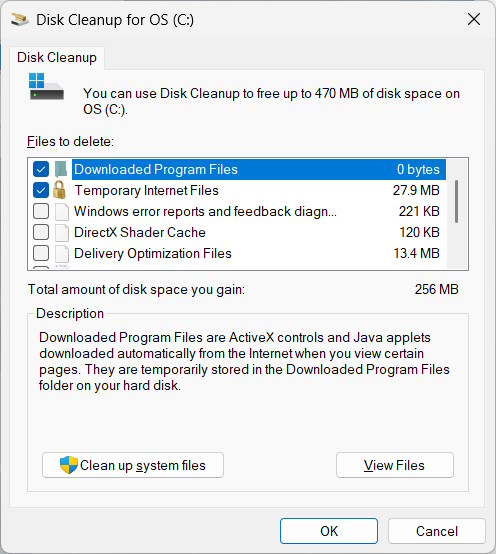
We select the drive we want to clean up. The tool will automatically scan that drive and show you any old driver files or temporary junk files you can delete to free up space.
- What can be deleted in Windows Disk Cleanup?
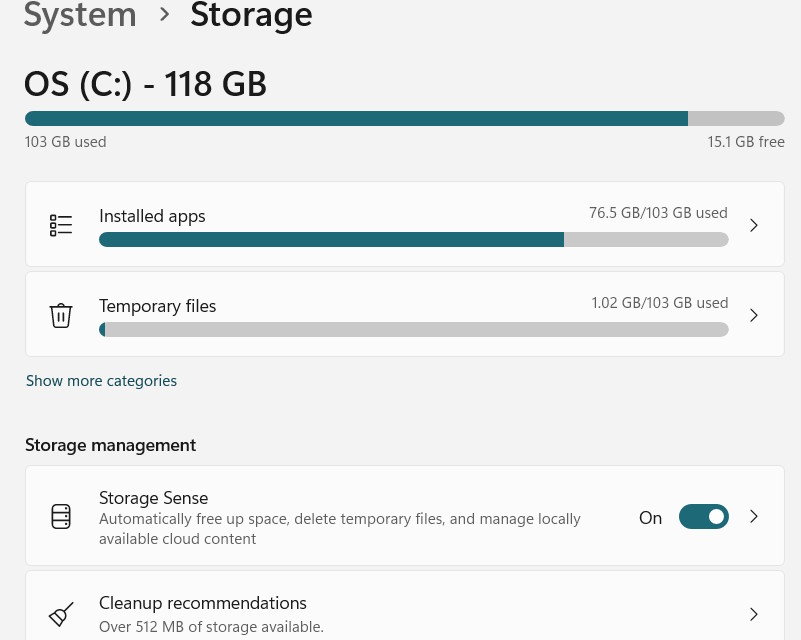
In addition to the Disk Cleanup tool, you can also use Storage Sense to delete junk files on a schedule. You can schedule Storage Sense to run daily, weekly, or monthly according to your needs.
- How to use Storage sense Windows to free up disk space
Final Thoughts
Use this guide as a practical checklist for how to deleting old drivers and hidden files on windows. Work through the steps in order, verify each result, and adjust the options to match your needs.
FAQ
What do you need before following this How to Deleting Old Drivers and Hidden Files on Windows guide?
Review the required tools, accounts, settings, or materials mentioned in the article. Learn how to deleting old drivers and hidden files on Windows with clear steps, practical tips, and troubleshooting guidance for a reliable result.
What are the main steps for how to deleting old drivers and hidden files on windows?
Follow the sections in order, especially Instructions for deleting old drivers on Windows, Step 1, Step 2. Complete each step before continuing and verify the result as you go.
What should you do if the process does not work as expected?
Recheck the prerequisites, update the relevant app or service, review the settings, and repeat the step that caused the issue. Use any troubleshooting notes included in the guide.
Related Articles
 Click: How to Show Hidden Files in Windows 74 minutes read
 How to Stop Windows Defender from Deleting Files: Step-by-Step Guide3 minutes read
 How to Show Hidden Files and Folders on Windows 10/8/74 minutes read
 How to Show Hidden System Files in Windows 113 minutes read
 How to Hide Files, Show Hidden Files, View Hidden Folders and5 minutes read
 How to Show or Hide Files in Windows 73 minutes read
Reader Comments 0
Sign in with email or Google to join the discussion.