Table of Contents
This practical guide explains how to unlink email from Apple account. Follow the steps in order, review the requirements first, and use the troubleshooting notes when a setting or option does not work as expected.
Remove email address from Apple account
Step 1:
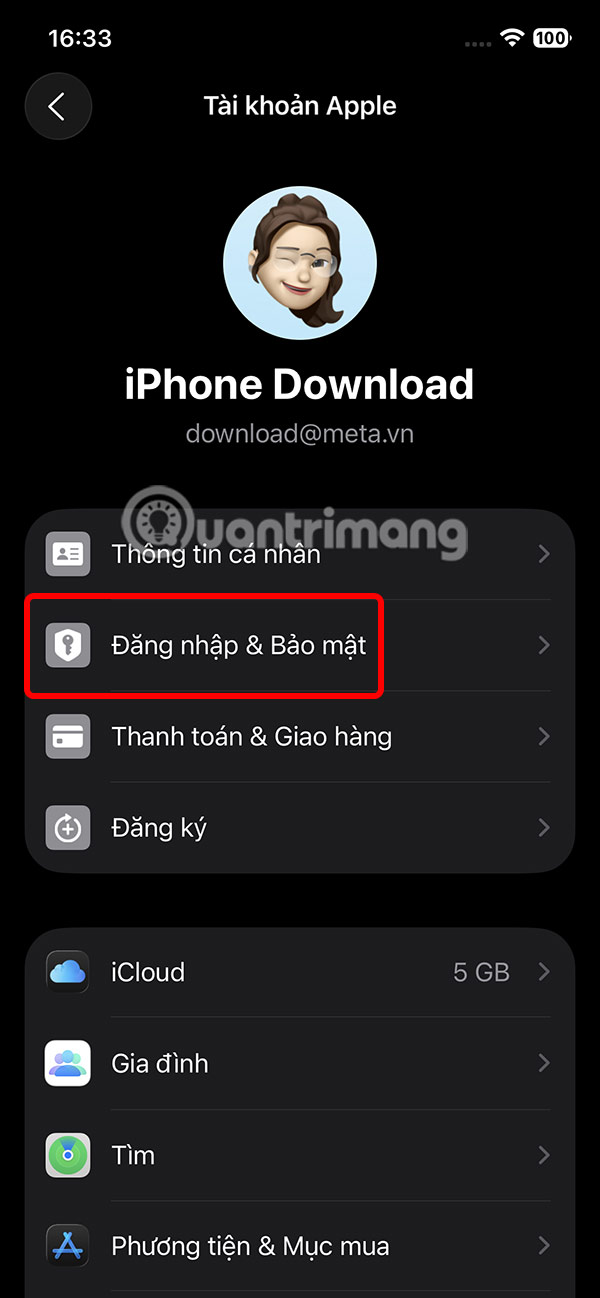
We access Settings , then select the Apple account at the top, then select Sign in & Security .
Step 2:
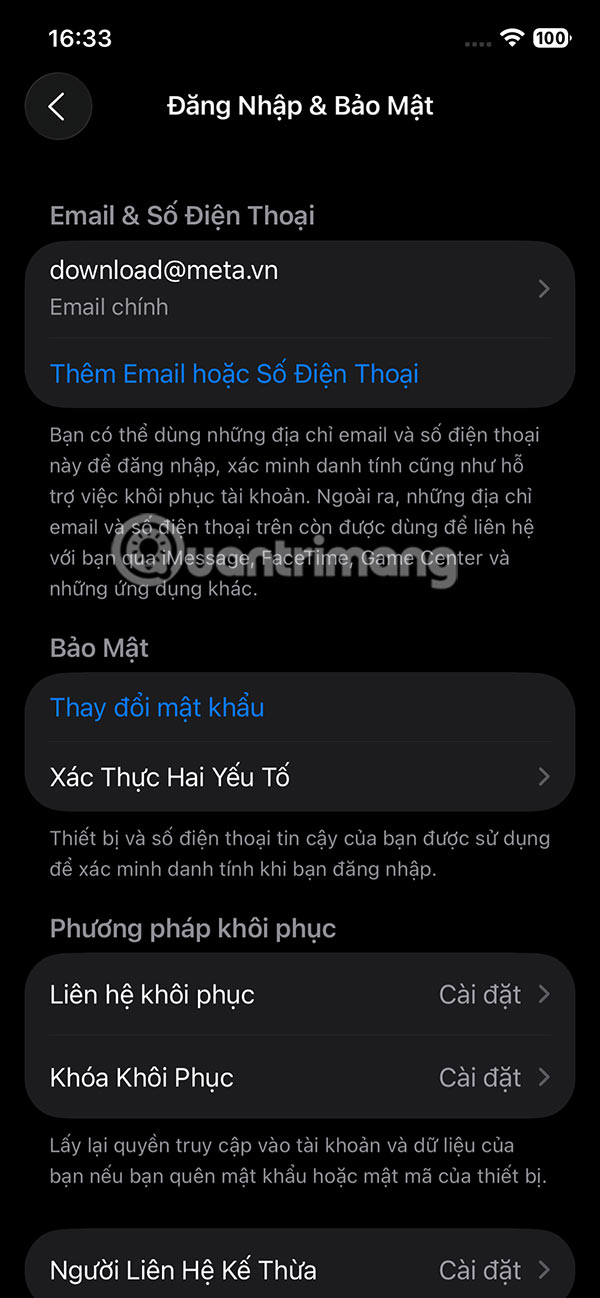
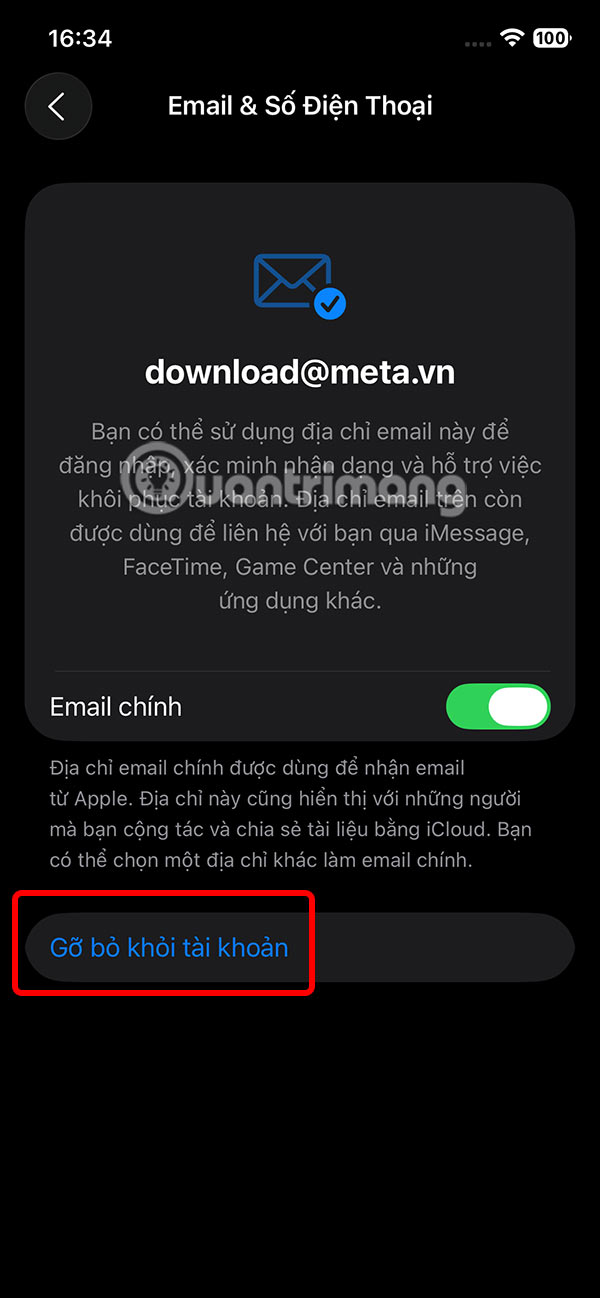
You'll see all the email addresses associated with your Apple account. The email address listed at the top is your primary Apple account username. Tap an email , then select Remove from Account .
Change Apple ID email address
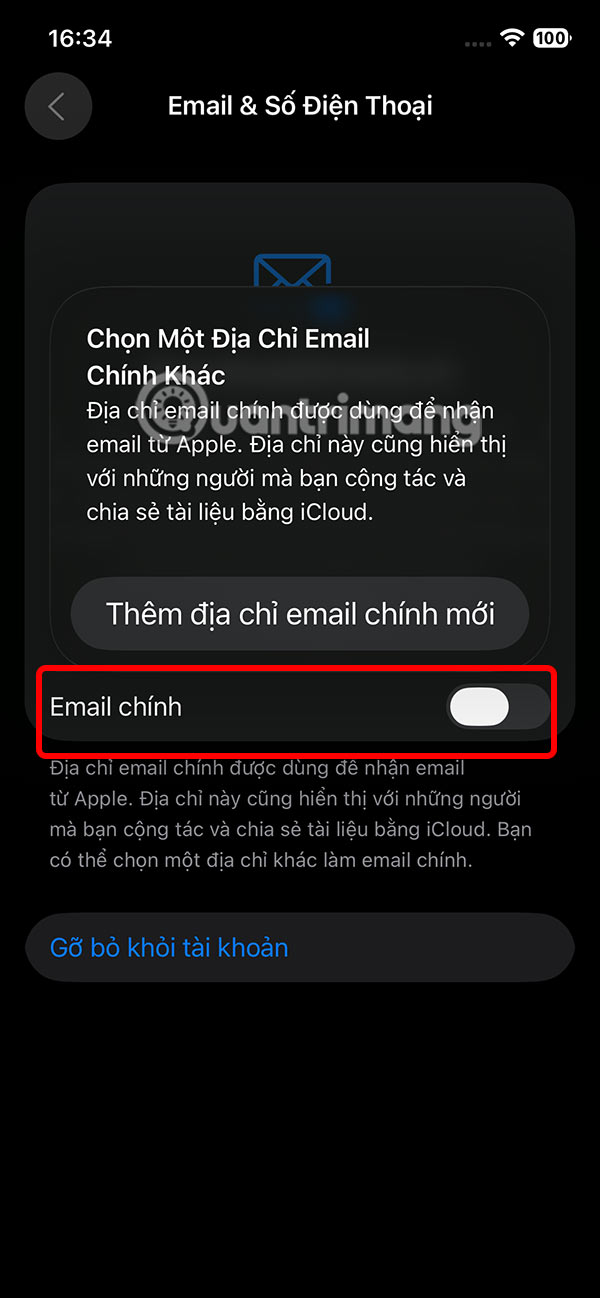
You can replace your primary Apple account email address with another one or stop using it without deleting it.
In the Sign-in & Security interface, tap on the primary email and deactivate the primary email or tap Remove from account.
Check FaceTime and iMessage email addresses
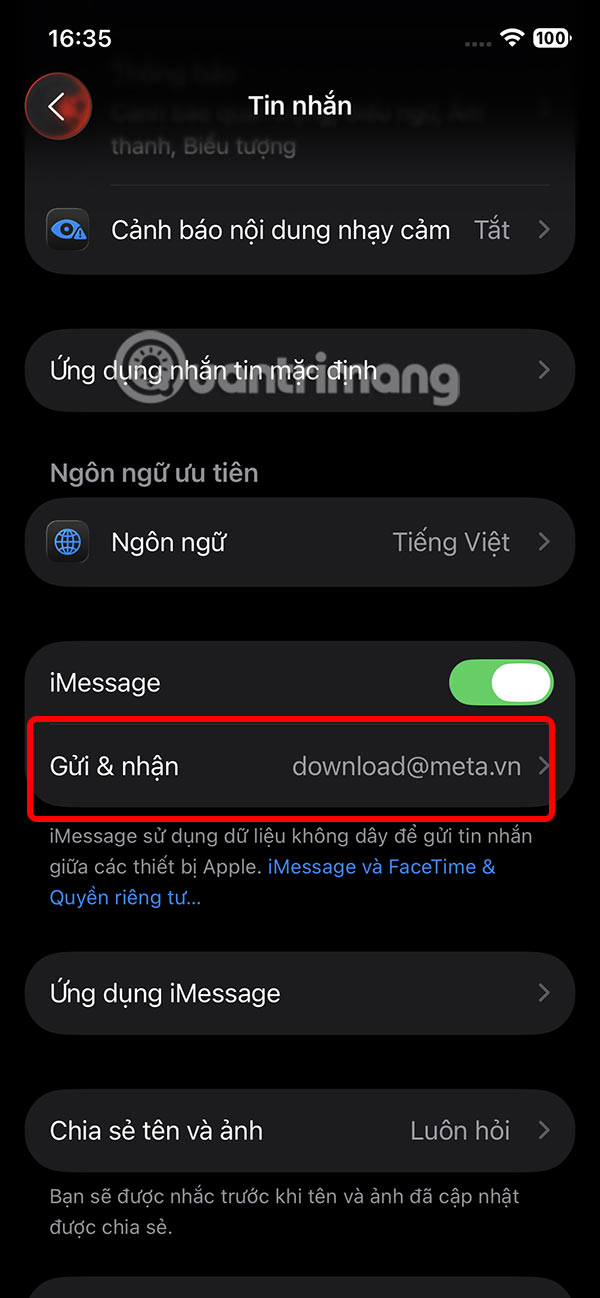
Go to the FaceTime and iMessage apps, then tap Send & Receive . Next, uncheck the email in the main email you are using and switch to another email.

Don't use Apple account for Mail, contacts
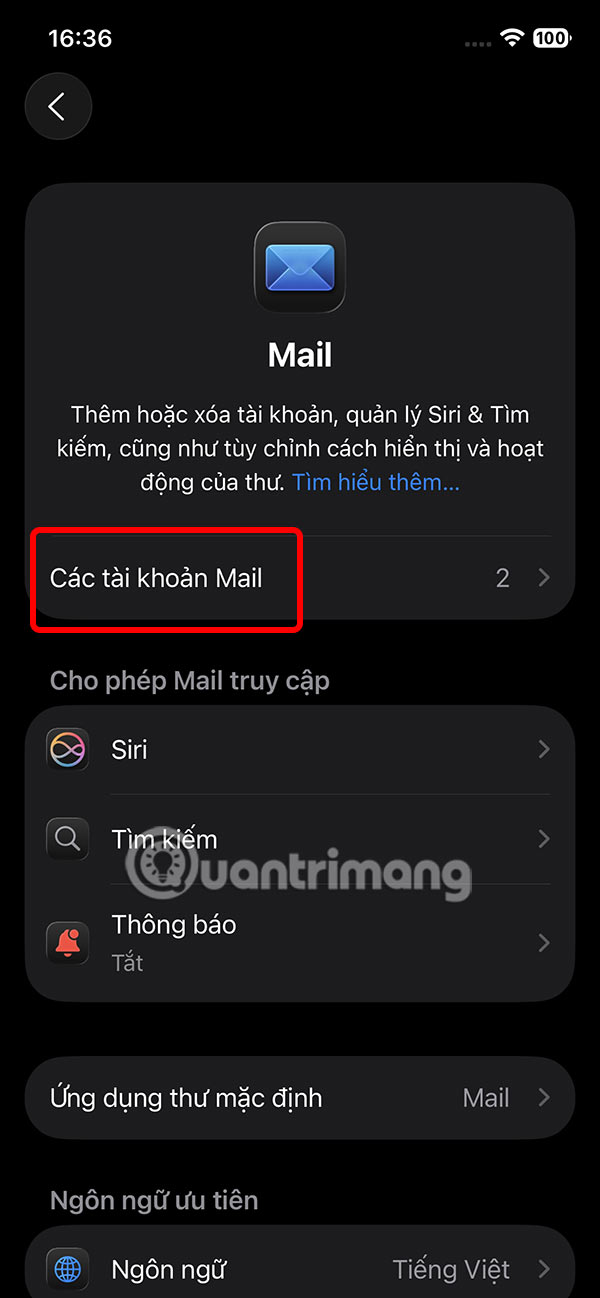
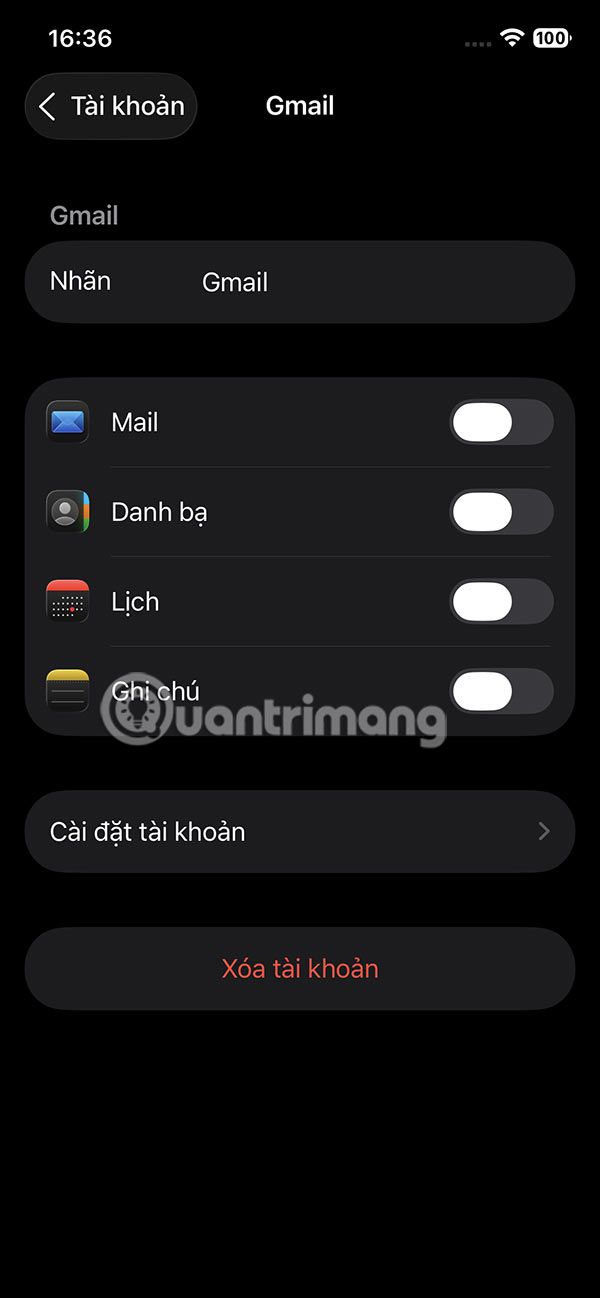
If you don't want to use your Apple account email address to sync data in built-in apps, go to Settings, then select Apps, and select Calendars, Contacts, Mail, Notes .
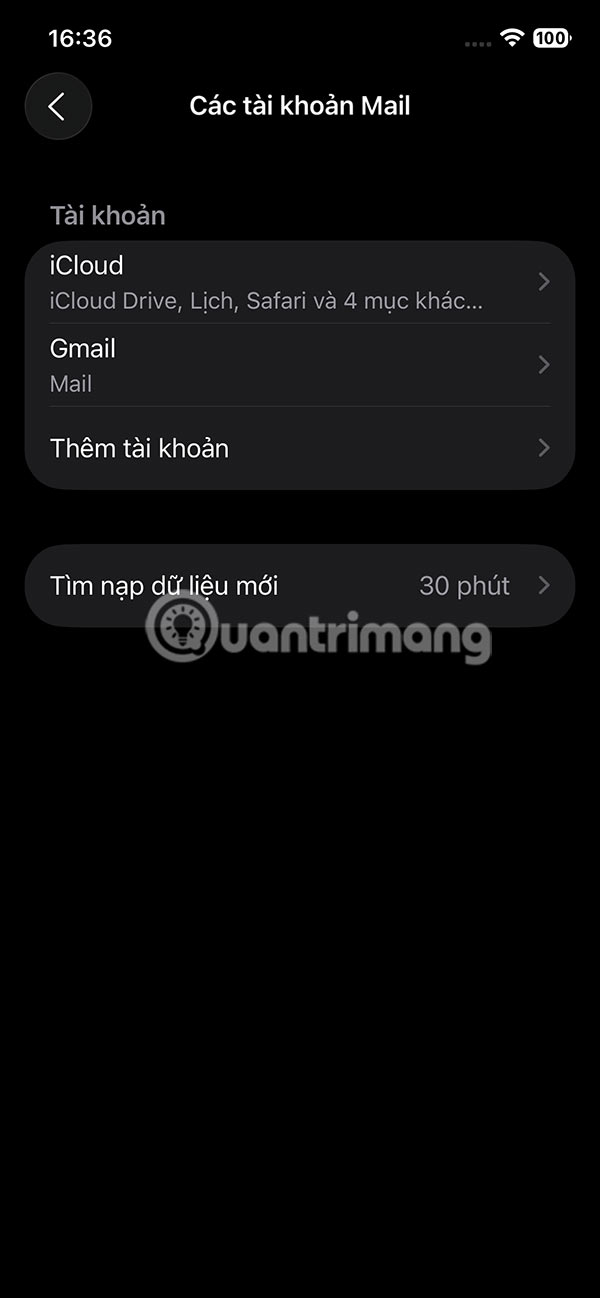
Next, click Mail Accounts and select an email account from this list.
Now you need to turn off all applications that use email to unlink.
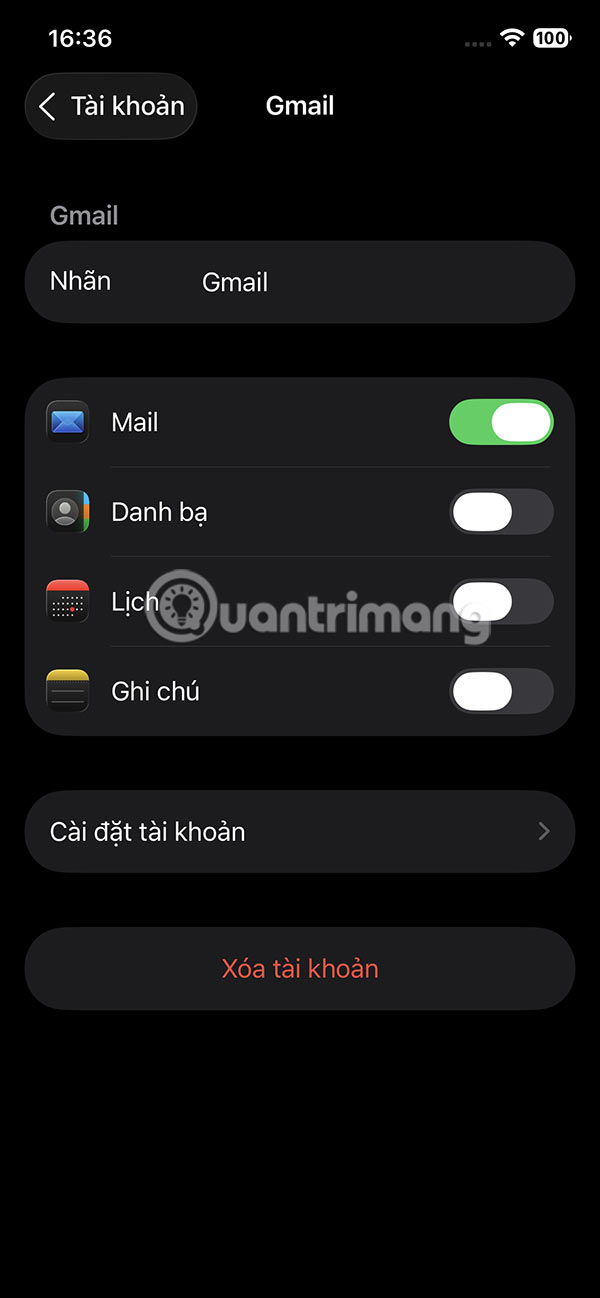
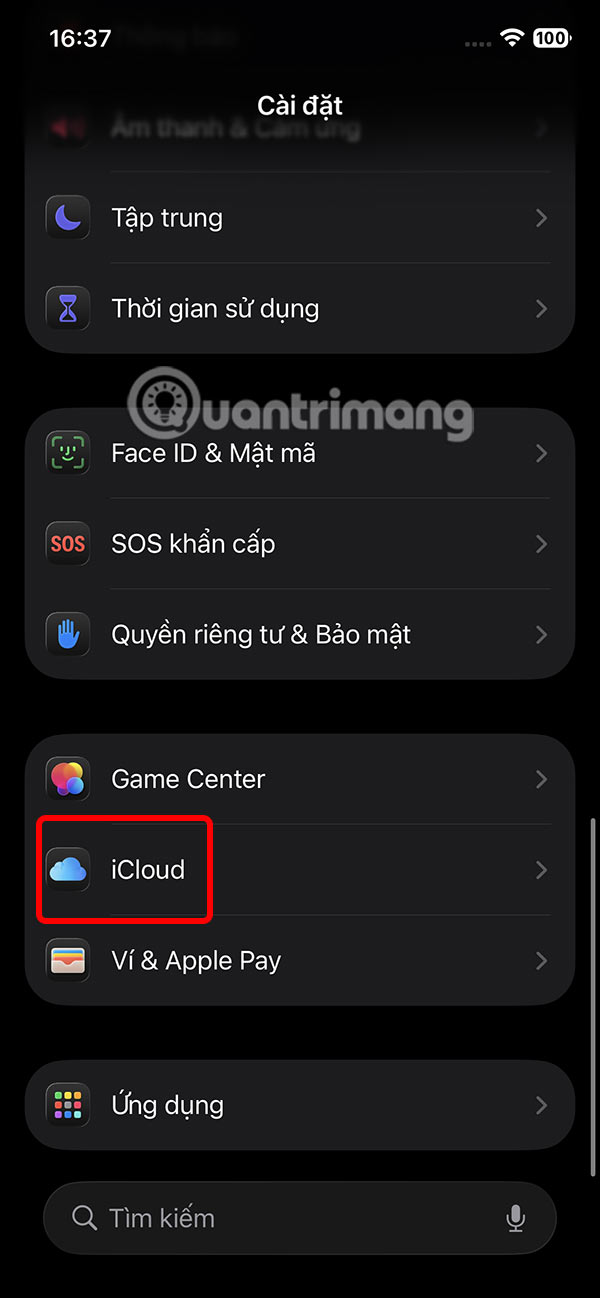
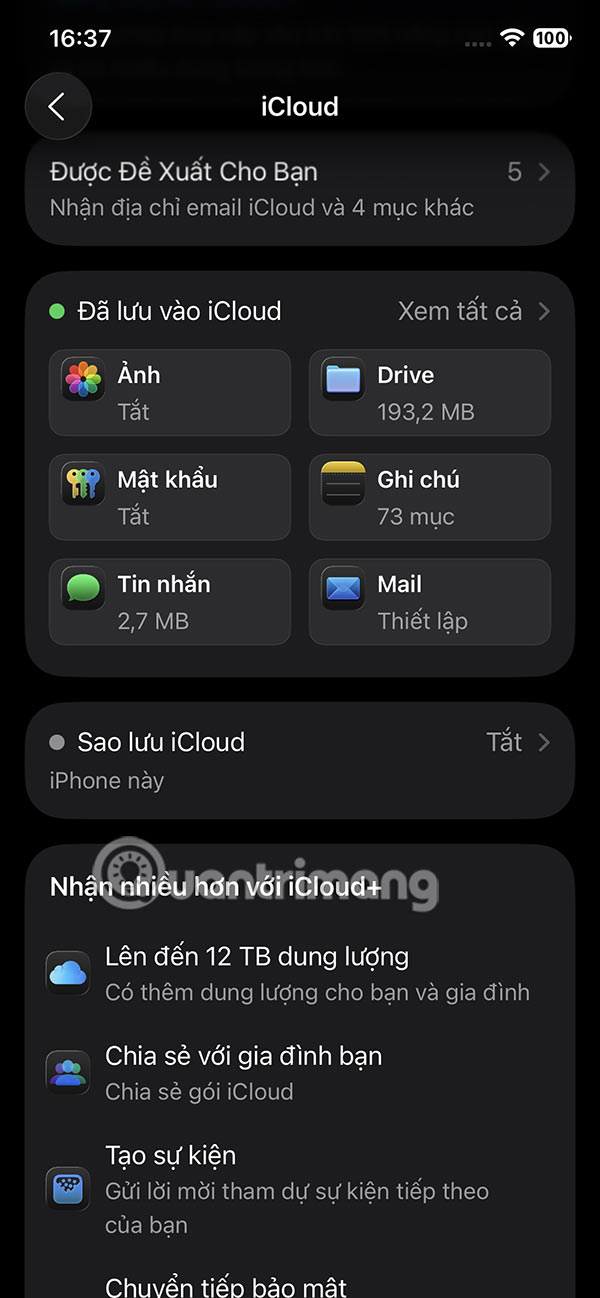
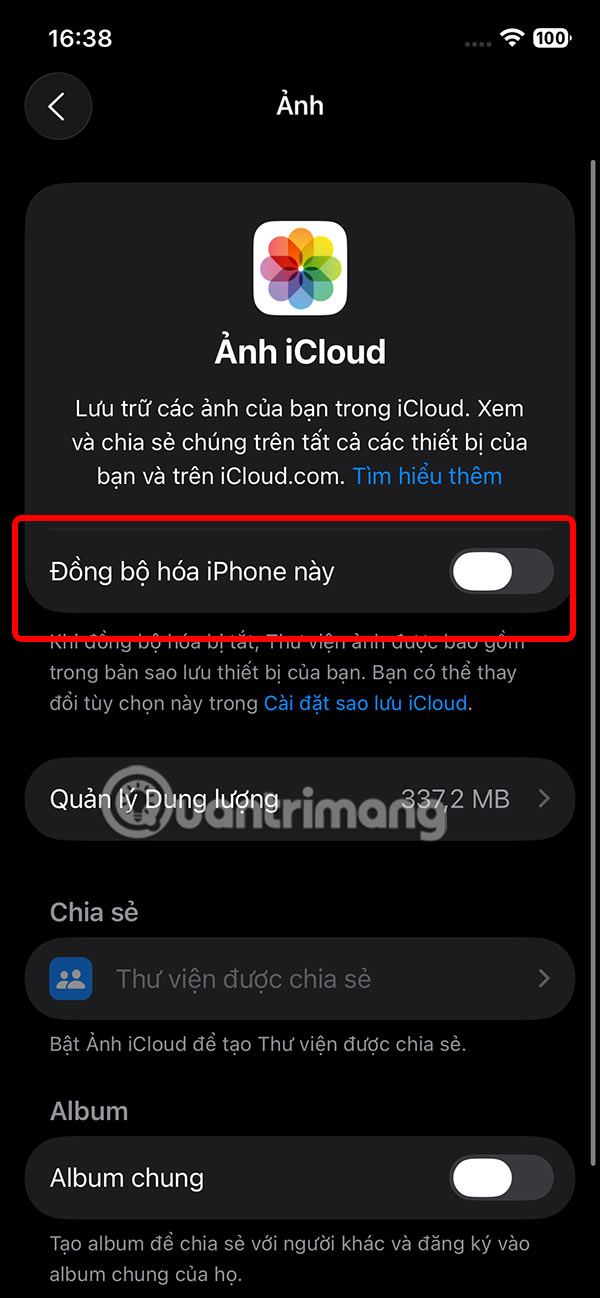
To stop using your iCloud account, go to iCloud in Settings . Then tap Notes or any app. Finally, turn off this iPhone Sync .
FAQ
What should you know about remove email address from Apple account?
We access Settings, then select the Apple account at the top, then select Sign in & Security.
What should you know about change Apple ID email address?
You can replace your primary Apple account email address with another one or stop using it without deleting it.
What should you know about check FaceTime and iMessage email addresses?
Go to the FaceTime and iMessage apps, then tap Send & Receive. Next, uncheck the email in the main email you are using and switch to another email.
What should you know about don't use Apple account for Mail, contacts?
If you don't want to use your Apple account email address to sync data in built-in apps, go to Settings, then select Apps, and select Calendars, Contacts, Mail, Notes.
Related Articles
 How to Unlink or Unlink Your PUBG Mobile Account5 minutes read
 How to Unlink a Windows 10 License from a Microsoft Account5 minutes read
 How to Add and Delete Email Accounts on Mac, iPhone and iPad13 minutes read
 How to Create an Itunes Account7 minutes read
 Click: How to Add Email Accounts to a Mac3 minutes read
 How to Change Apple ID from 3rd Party Email to Apple Email5 minutes read
Reader Comments 0
Sign in with email or Google to join the discussion.