Table of Contents
This updated guide explains how to disable gemini on Android lock screen with clear steps, practical tips, and useful context. Now we can easily use Gemini on Android lock screen to quickly perform content, without having to access the application. Still, some users feel that Gemini notifications or suggestions disturb their privacy when activated right from the phone's lock screen.
How to Turn Off Gemini Android Lock Screen
Step 1:
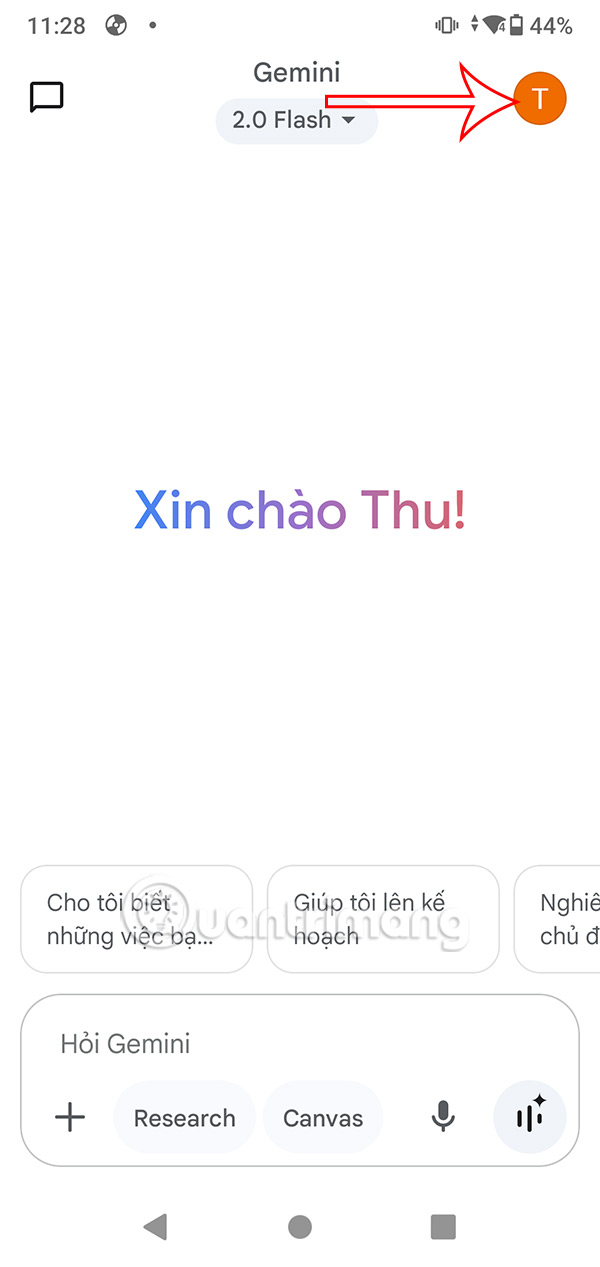
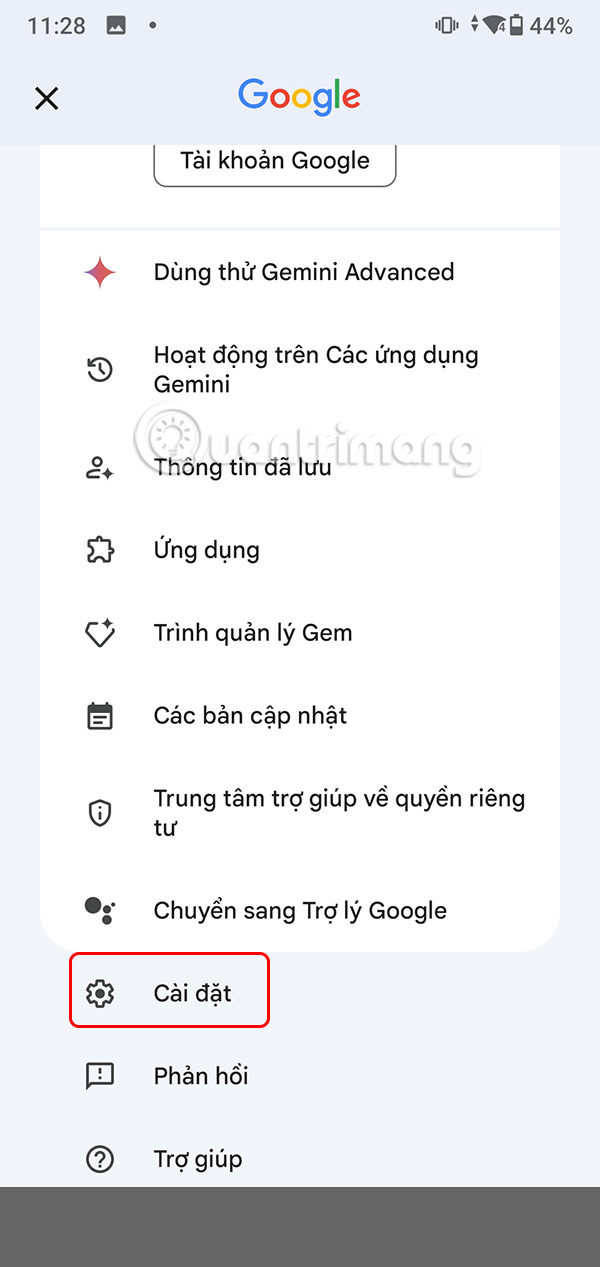
You open the Gemini application on your phone, then select the avatar . The menu for the application appears, we select Settings to adjust.
Step 2:
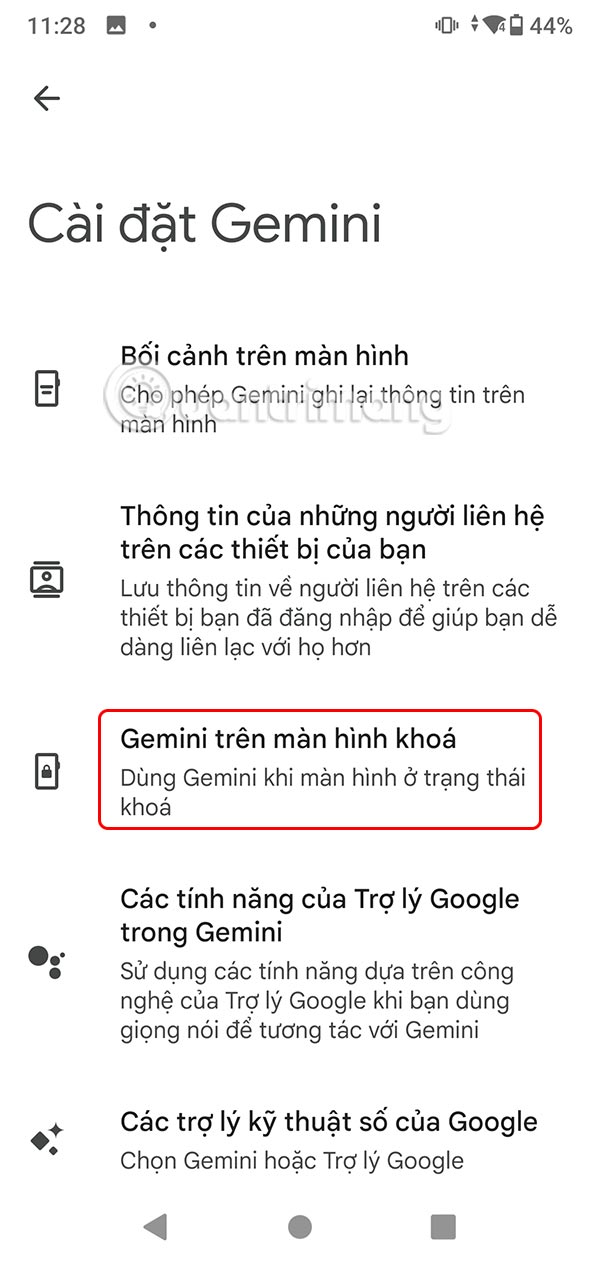
open the settings interface for the Gemini application, scroll down and then tap Gemini on the lock screen to change it again.
Step 3:
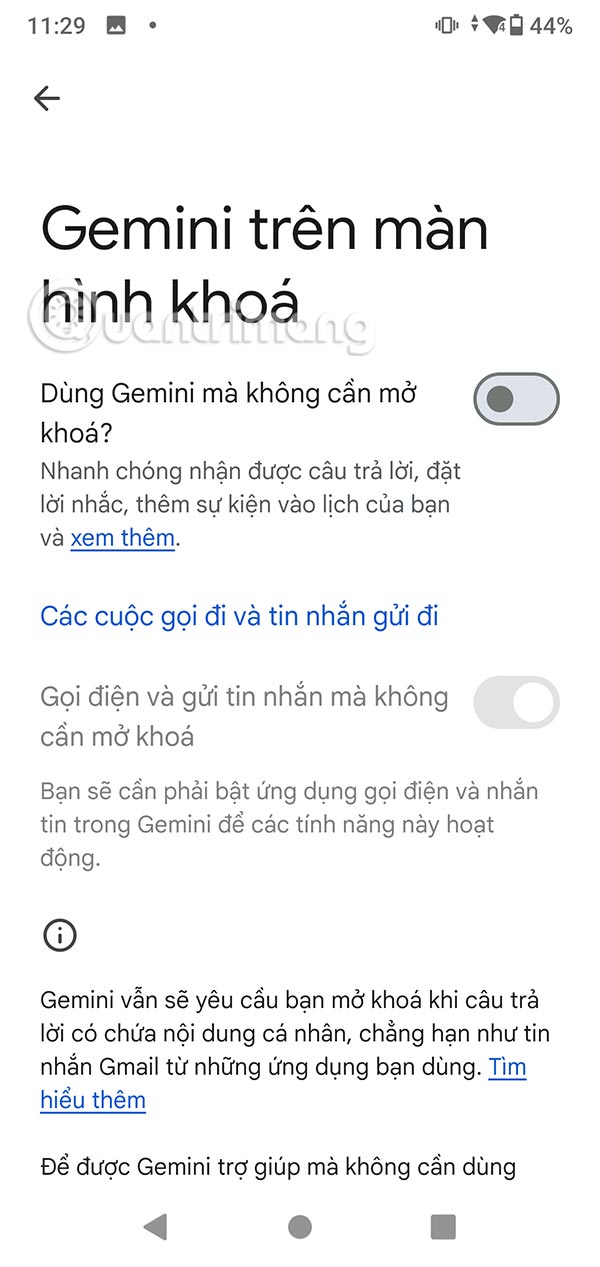
In the next interface you will see the Gemini usage mode on the lock screen is open. To not display Gemini on the lock screen anymore, you turn it off at Use Gemini without opening .
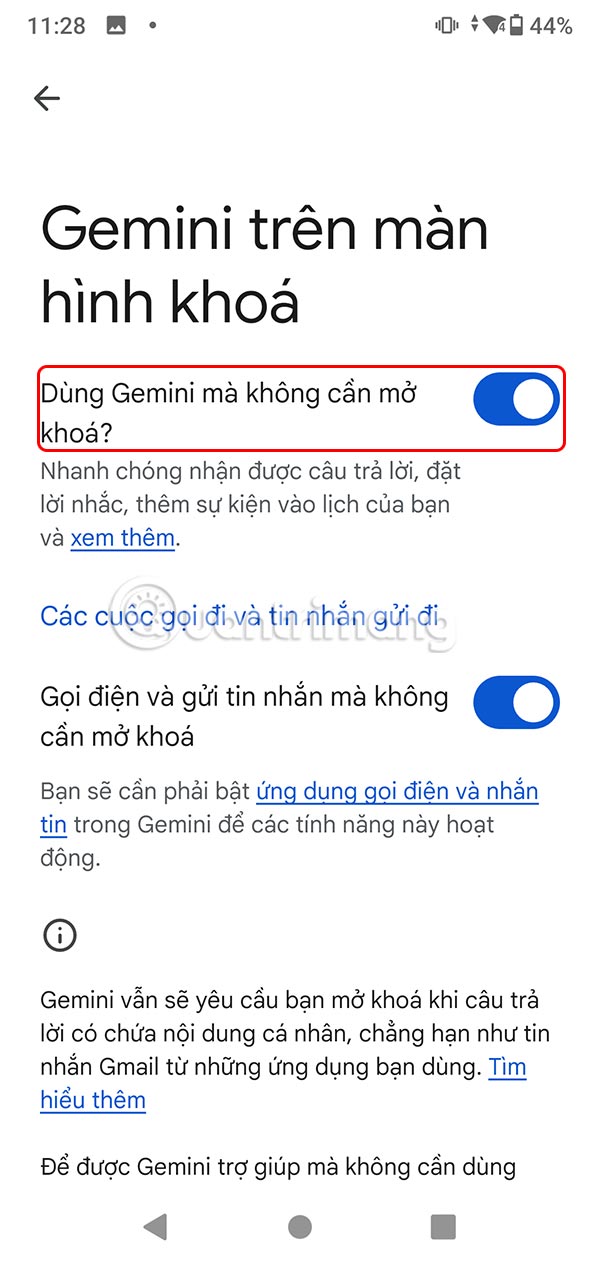
After disabling Gemini on the Android lock screen, the accompanying feature of using texting and making calls via Gemini on the lock screen is automatically disabled.
FAQ
What should I prepare before I disable gemini on android lock screen?
Review the requirements and options in the guide first. Having the correct device, app version, account access, or materials ready helps prevent avoidable errors.
How long does it take to disable gemini on android lock screen?
The time depends on the task and your setup. Most basic steps can be completed quickly, while downloads, updates, scans, or troubleshooting may take longer.
What should I do if the steps do not work?
Repeat the instructions in order, confirm that your software or device is supported, and check permissions, connectivity, and available updates before trying again.
Related Articles
 Custom Android Lock Screen Tips You Shouldn't Overlook7 minutes read
 8 Best Lock Screen Apps for Android: Lock Screen App for Android7 minutes read
 14 Best Android Screen Lock Apps for Your Creativity11 minutes read
 How to Disable Lock Screen Lock Screen on Windows 8, 105 minutes read
 9 Android Phone Lock Screen Security Settings9 minutes read
 Remove Network Icon on Lock Screen Lock Screen Windows 104 minutes read
Reader Comments 0
Sign in with email or Google to join the discussion.