Table of Contents
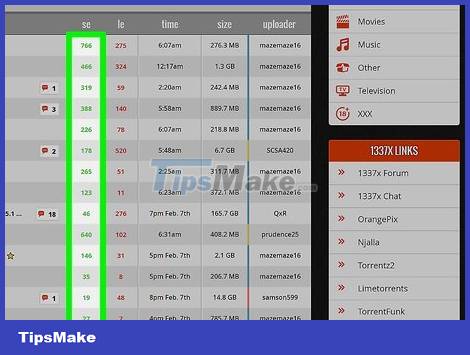
How Many ""seeds"" Are There Out There?
This practical guide explains how to speed up utorrent with clear steps and useful context. It also covers common requirements, potential problems, and the details that can help you get better results.
If possible, download from a source that has multiple 'seeds' for the file you want to download. Once connected with enough 'seed', you can easily reach the maximum connection speed. However, this is more risky when you try to download movies and music. Learn how to choose reputable torrent sources because many are not necessarily good.
Is Your Wi-Fi Noisy?
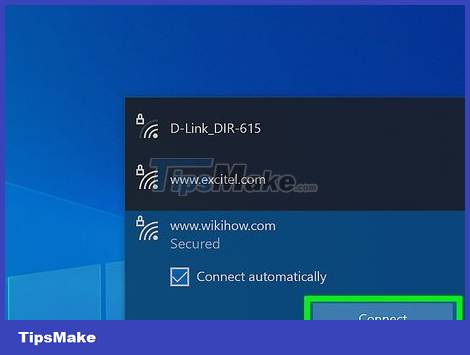
Try connecting the computer directly to the modem or the navigator instead of using Wi-fi. Many signals in the house can interfere with your Wi-fi connection, thereby affecting the network speed as well as the download speed of uTorrent.
Have You Used All Your Abilities?
Check uTorrent's standby settings. Every file being downloaded in uTorrent takes up some of your bandwidth. The more files are loaded at full speed, the longer it takes to load. Watch while downloading: Enjoy the first movie while waiting for another to download.
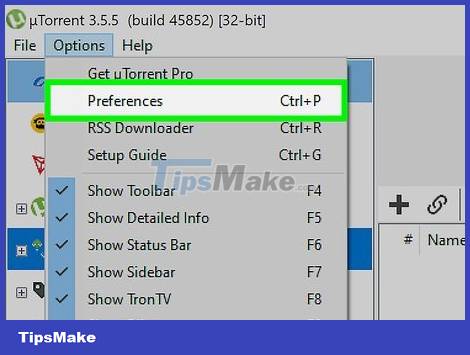
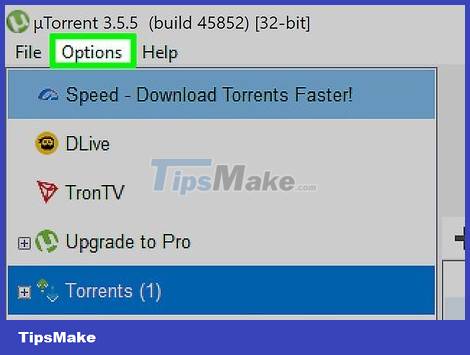
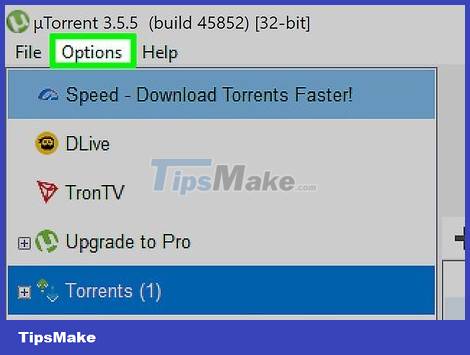
Click Options then Preferences.
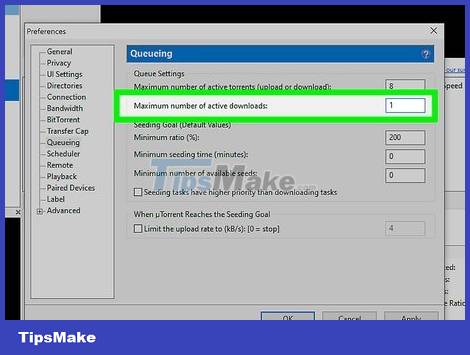
Click Queuing on the left side and set 1 as the maximum number of files to be downloaded at a time.
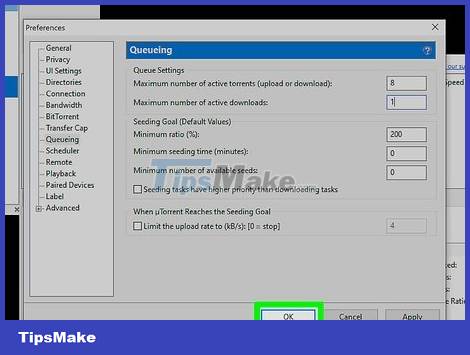
Click Apply and then OK.
Enable the UPnP network protocol. As a result, uTorrent can bypass the firewall to connect directly to the "seeds", ensuring maximum transmission speed. To enable UPnP:
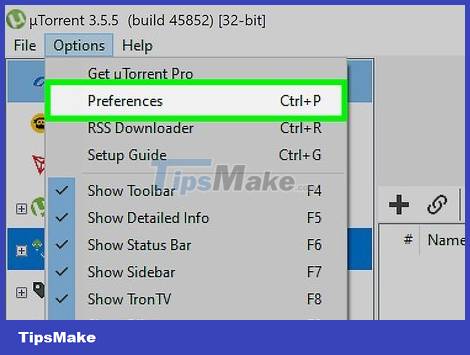
Click Options and select Preferences.
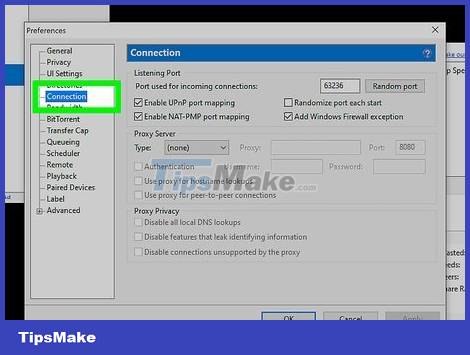
Click Connection in the left menu.
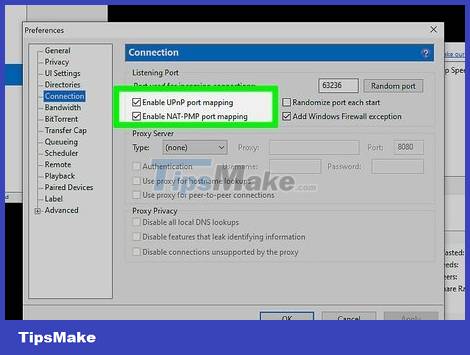
Check the box to enable the UPnP protocol.
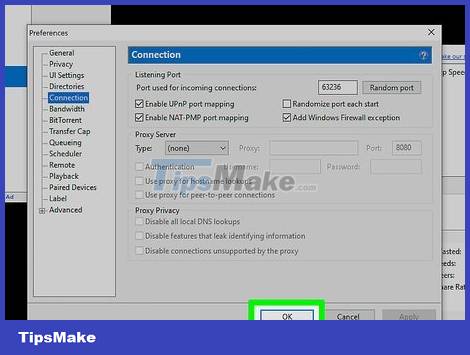
Click Apply and then OK.
Are You Using the Latest Utorrent Version?
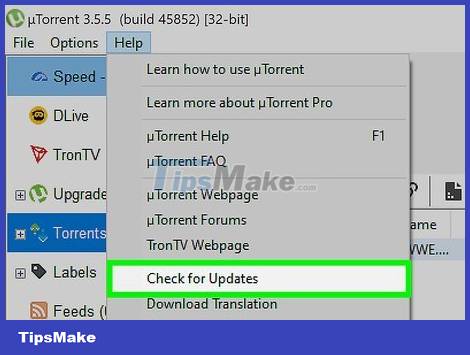
Make sure you have the latest version of uTorrent on hand. Please check for updates on a regular basis. You can do so by clicking Help and selecting "Check For Updates".
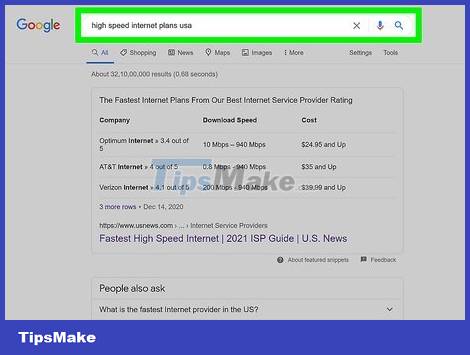
Sign up for a higher speed internet plan. Depending on where you live, you may still be able to upgrade the speed of your internet service. Even if the monthly fee increases, if you change carriers, you will probably earn a good price.
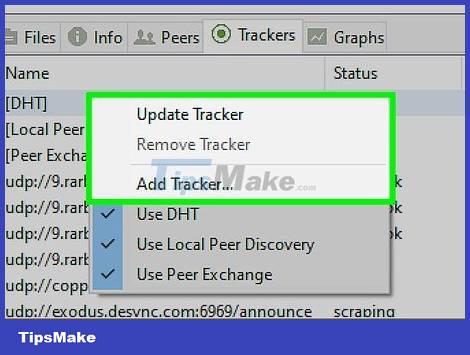
Add home network. With a home network with more "seeds", you can download files quickly.
Have You Considered Changing the Loading Speed?
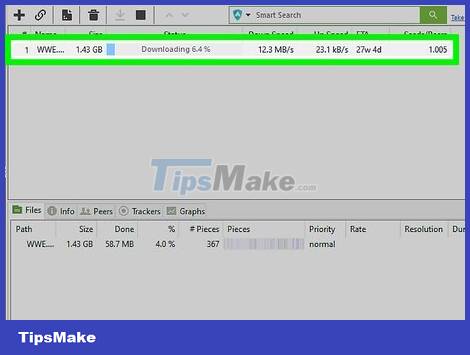
Double-click the download window. A menu will appear, saying "maximum download speed" or something similar. Such as 0.2 KB/s.
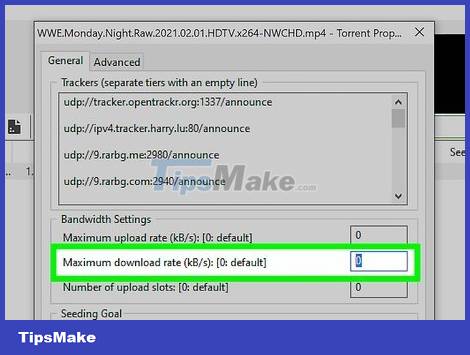
Change the number displayed. 0.0 means unlimited speed.
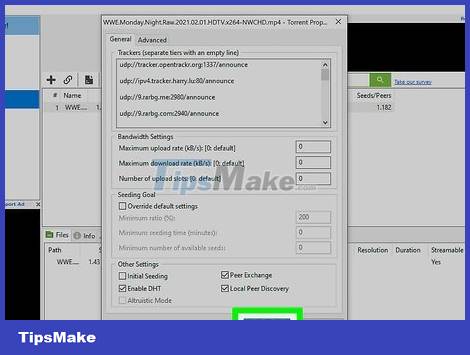
Click OK.
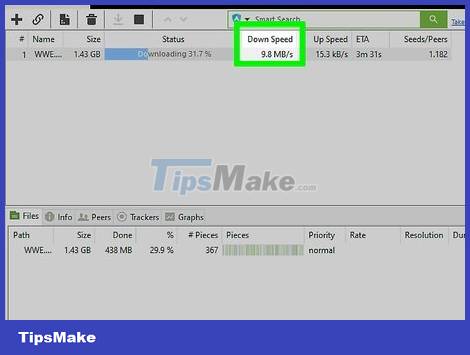
Now watch the download speed increase to at least 500 Kb/s. It takes a while to get to this point, but by then, your download speed will probably be a bit faster than before.
Have You Set Utorrent Preferences?
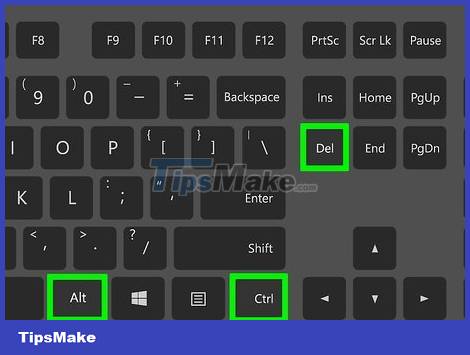
Simultaneously press Ctrl+Alt+Del or Ctrl+⇧ Shift+Esc.
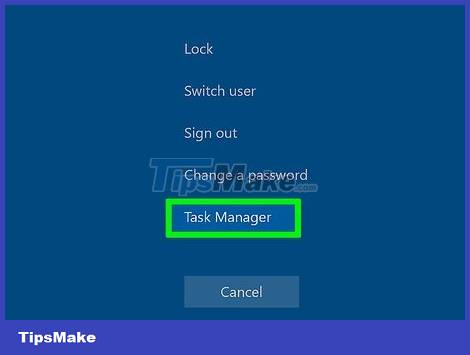
Click Start Taskmanager.
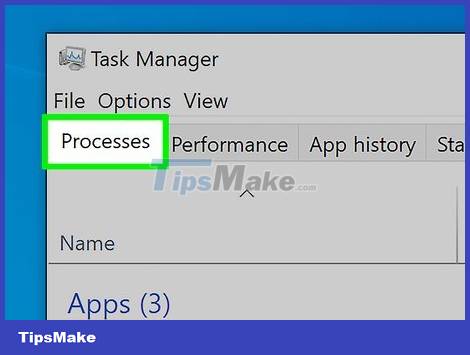
Go to Processes.
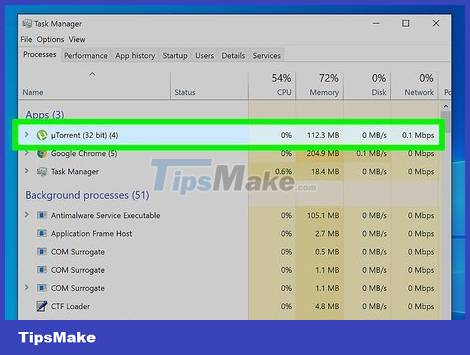
Scroll down until you find uTorrent.exe.
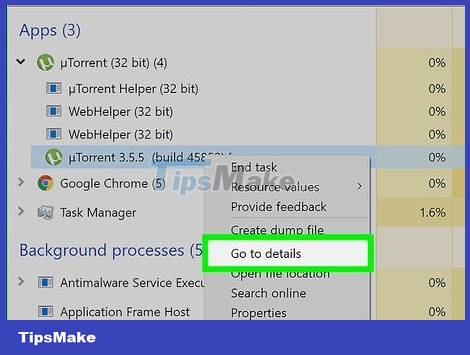
Right click on it.
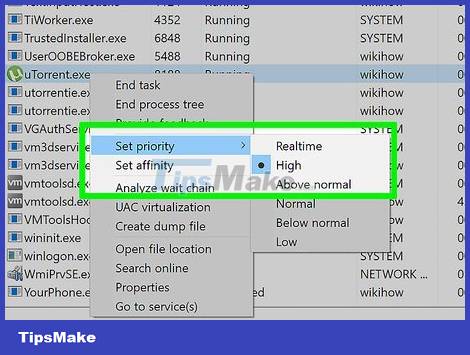
Set Priority to High.
Have You Adjusted Other Settings?
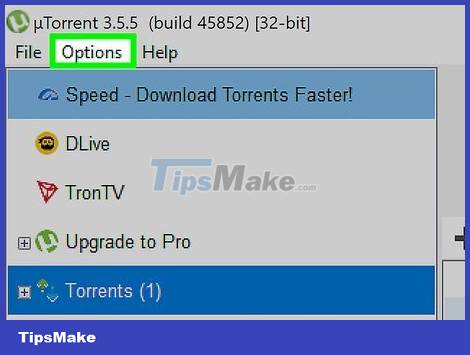
Click Options.
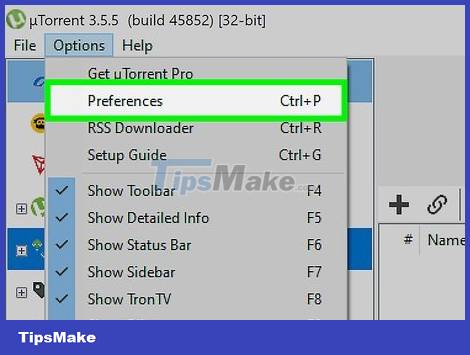
Click Preferences.
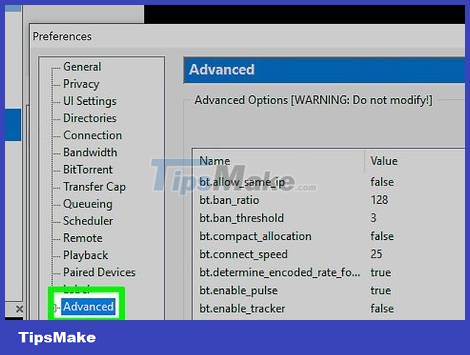
Go to the Advanced section and click the "+" sign to expand this section.

Go to Disk Cache.
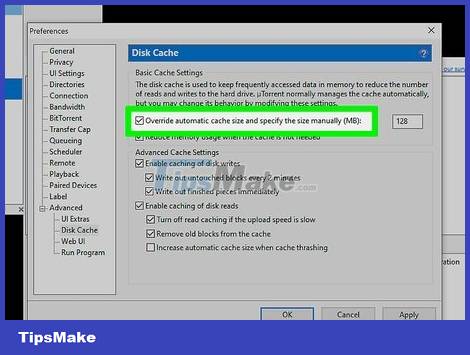
Enable "Override automatic cache size and specify the size manually (MB)".

Type 1800 in the box to the right of "Override automatic cache size and specify the size Manually (MB).
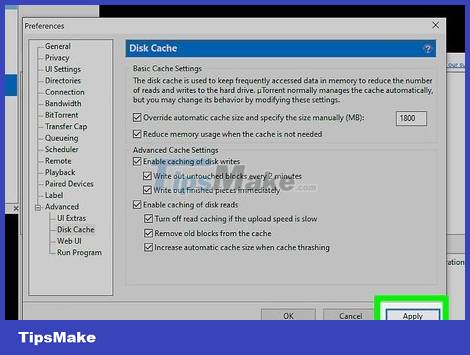
Click the Apply button.
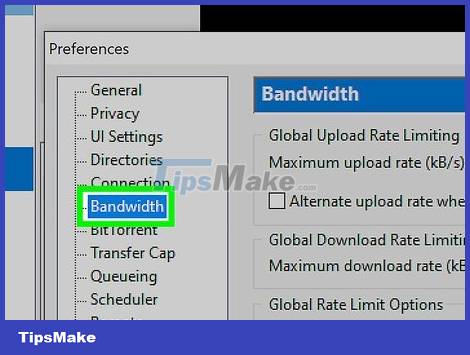
Select the 'Bandwidth' tab.
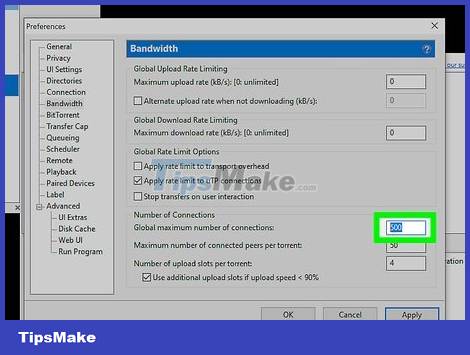
Select the "Global maximum number of connections:" section and change the value to 500.
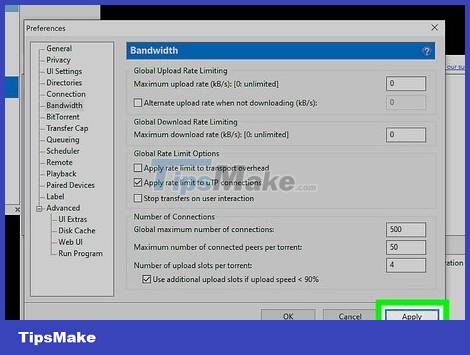
Click the Apply button.
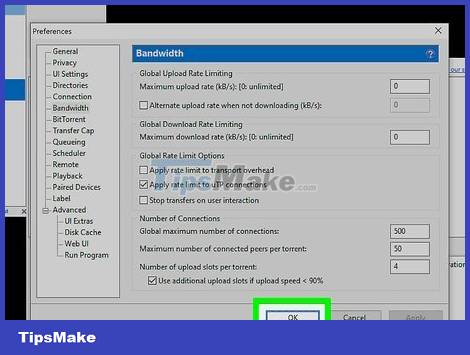
Close the Preferences page. Click the OK button to close the page and save your changes.
What About Hot Boot?
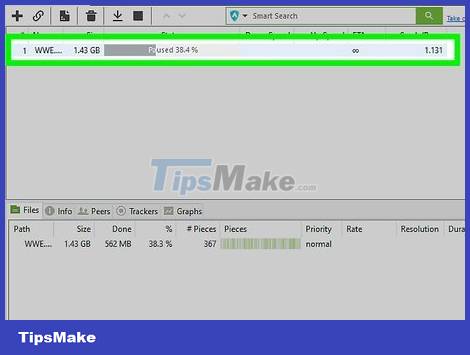
Right click on the torrent you want to increase download speed.
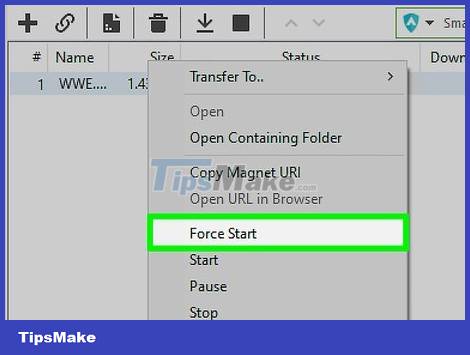
Press "force start" (hot start) in the menu displayed.
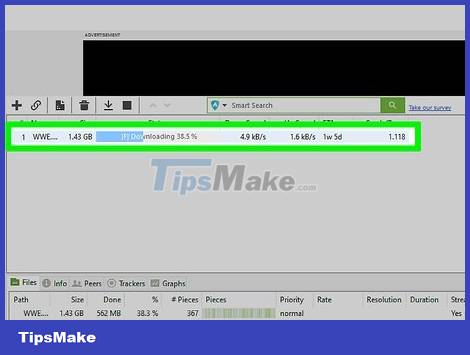
Right click again on that torrent.
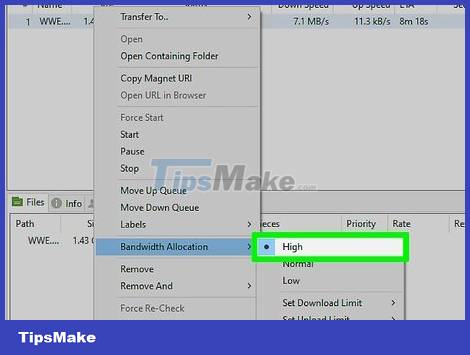
Click on the bandwidth allocation item in the displayed menu and select high.
Conclusion
Understanding Utorrent makes it easier to compare options, avoid common mistakes, and apply the information in this guide more effectively. Review the relevant requirements before making changes or choosing a solution.
FAQ
How do you speed up utorrent?
Follow the steps in this guide in order, confirm the required settings or tools, and verify the result before making additional changes.
Is it safe to speed up utorrent?
It is generally safe when you follow the recommended instructions, use trusted tools, and avoid changing settings you do not understand.
What should you do if the process does not work?
Recheck the requirements, restart the device or application when appropriate, and review each step for missed settings or compatibility issues.
Related Articles
 Download Utorrent 3.5.5.457988 minutes read
 5 Tips for Using Utorrent Effectively5 minutes read
 uTorrent - 3.5.5.46074/6.6.7: What to Know11 minutes read
 How to Fix Utorrent Error Not Installing on Windows8 minutes read
 Control Utorrent Remotely Via Mobile Phone: Remote Utorrent Control8 minutes read
 How to Use Utorrent Web to Download Torrents in the Browser6 minutes read
Reader Comments 0
Sign in with email or Google to join the discussion.