Table of Contents
Facebook stores the profiles you have blocked in Settings. On desktop, open Settings & privacy > Settings > Blocking. In the mobile app, open Settings > Audience and visibility > Blocking. From the list, you can review or unblock a profile.
View blocked profiles on Facebook desktop
Step 1: Open Facebook, select your profile picture or account menu in the upper-right corner.
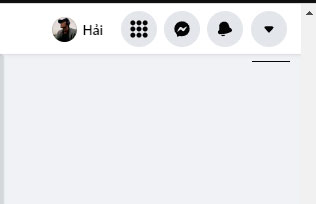
Step 2: Choose Settings & privacy.
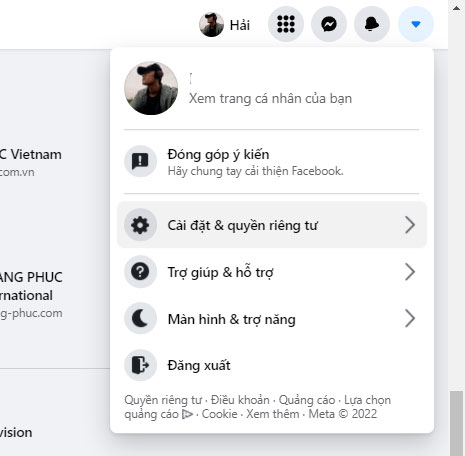
Step 3: Select Settings.
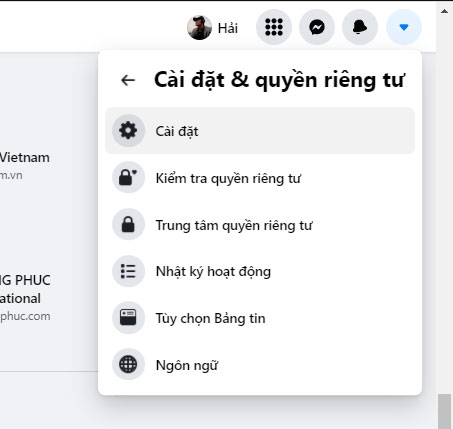
Step 4: Find Blocking in the left menu or under Audience and visibility.
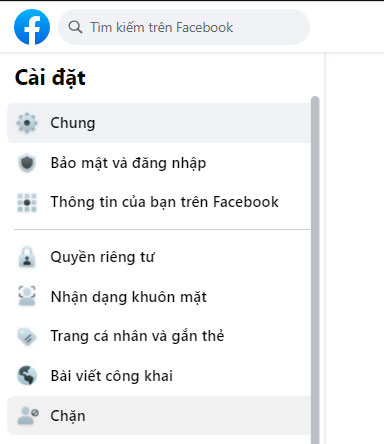
Step 5: Under Block users, select Edit or See your blocked list.
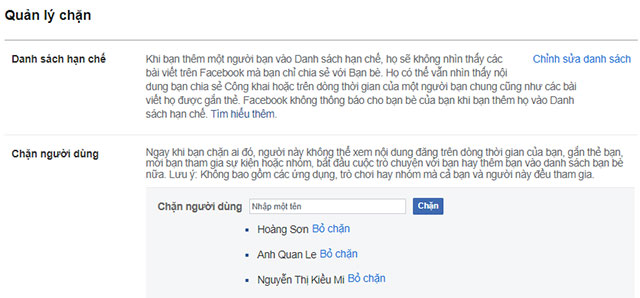
Facebook can show separate controls for profiles, messages, app invitations, event invitations, or Pages. A person blocked only from messages and calls is not necessarily blocked across all of Facebook.
View blocked profiles in the Facebook app
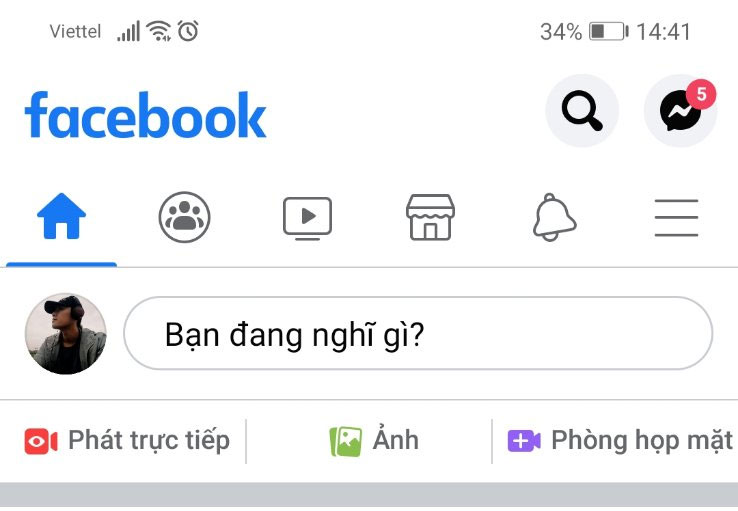
Step 1: Tap the Facebook Menu icon. Its position varies by device and app version.
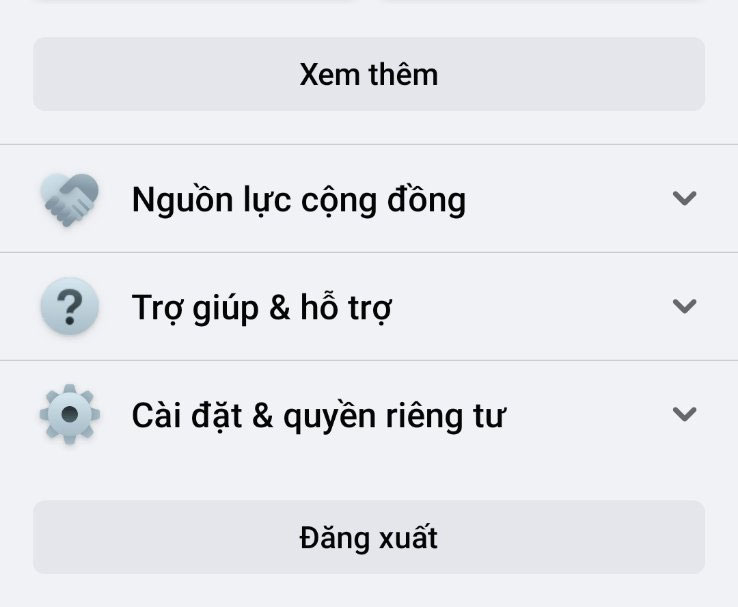
Step 2: Open Settings & privacy.
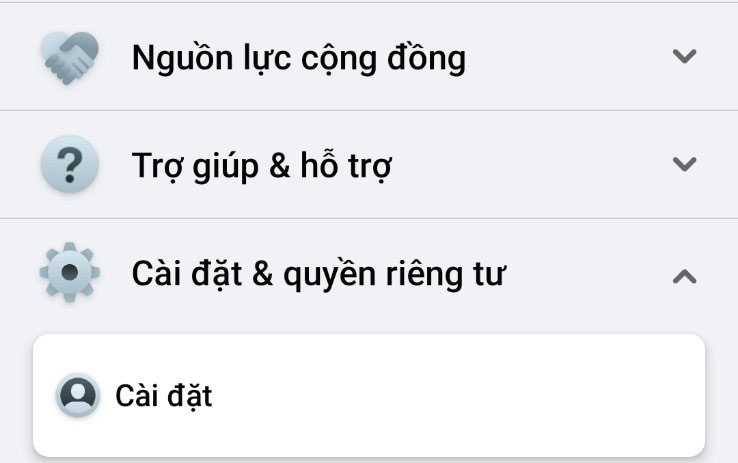
Step 3: Tap Settings.
Step 4: Under Audience and visibility, select Blocking.
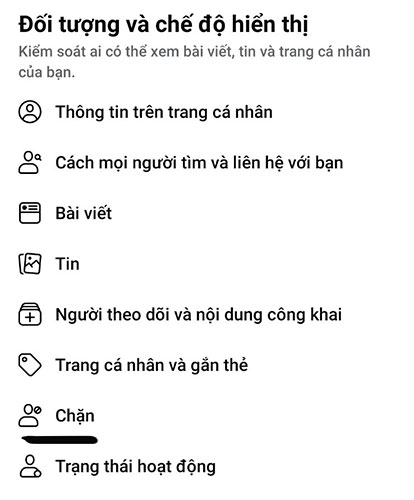
The page lists profiles blocked by the current Facebook profile.

Before you unblock someone
Select Unblock beside the correct profile and confirm. Consider the consequences first:
- Unblocking restores the ability for the profiles to find or interact with each other according to their privacy settings.
- It does not automatically restore a previous friendship.
- Facebook may prevent you from blocking the same profile again for a short period.
- Past tags, messages, group activity, and public interactions can follow separate rules.
If the block was related to harassment, threats, fraud, or unwanted contact, preserve evidence and review privacy settings before unblocking.
Facebook block vs. Messenger block
| Setting | Main effect |
|---|---|
| Block profile on Facebook | Limits most Facebook profile interaction and generally affects messaging between the profiles |
| Block messages and calls | Stops Messenger contact while the Facebook profile may remain visible |
Check both Facebook's Blocking settings and Messenger's privacy or blocked-accounts settings when a person appears on one list but not the other.
Alternatives when you do not need a full block
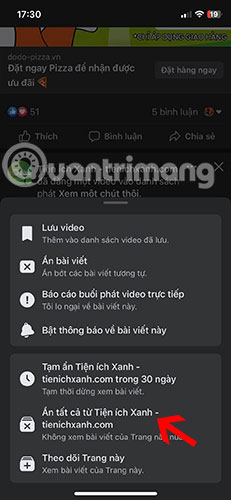
Snooze for 30 days
Open the three-dot menu on one of the person's posts and choose Snooze for 30 days. Their posts temporarily stop appearing in your Feed, but the friendship and their view of your content remain subject to normal settings.
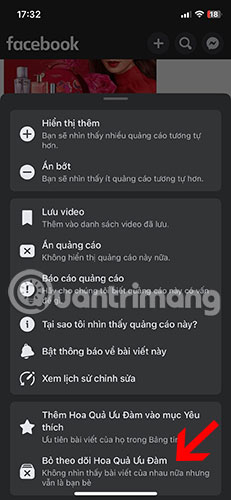
Unfollow
Unfollow someone to stop seeing their posts while remaining friends. You can follow them again later.
Unfriend
Open the person's profile, select Friends, and choose Unfriend.
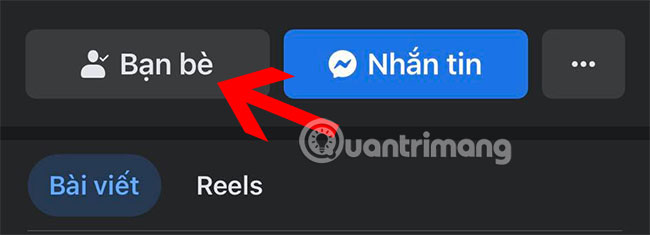
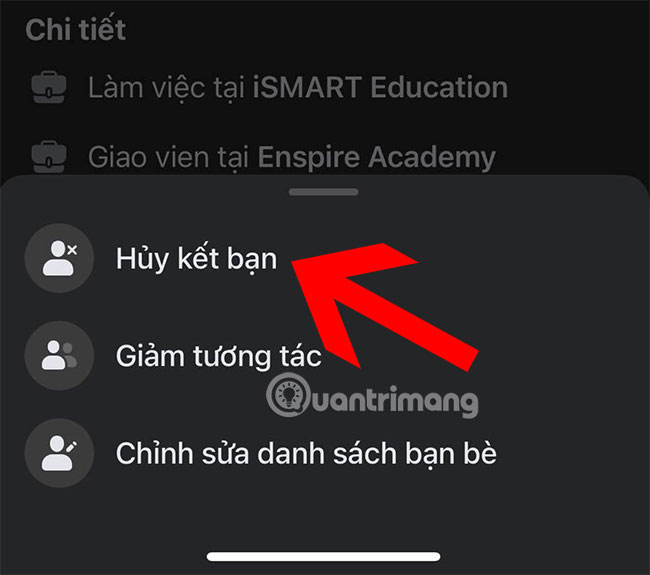
Unfriending removes the connection but does not prevent a future friend request or every form of contact. Use blocking when you need the stronger boundary.
Related Articles
 Will You Be Blocked by Other Facebook Users?: Block Facebook4 minutes read
 Summary of Several Ways to Access Blocked Websites9 minutes read
 How to Know If Someone Blocked You on Facebook Messenger: Clear Instructions6 minutes read
 How to Change DNS to Access Facebook Is Not Blocked4 minutes read
 It's Very Simple to See Who Has Blocked You on Facebook9 minutes read
 How to Handle When Unable to Access Facebook, Facebook Is5 minutes read
Reader Comments 0
Sign in with email or Google to join the discussion.