Table of Contents
Apple redesigned the Phone app in iOS 26 and introduced a new Unified interface. This interface replaces the Recents tab with the Calls tab, and removes the Favorites and Voicemail options from the sidebar. Many people who don't like the new look of the Phone app can revert back to the old interface, following the instructions below.
Instructions to restore classic interface iPhone
This is the Unified interface for the Phone app on iOS 26. The bottom bar has been greatly simplified for managing phone calls.
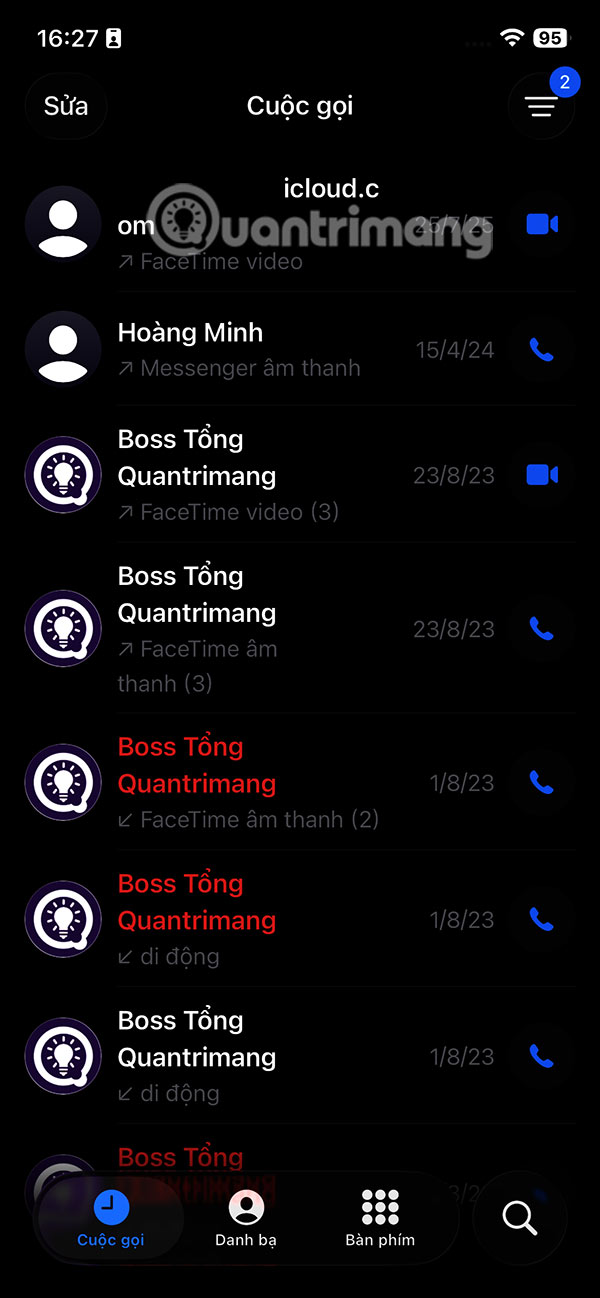
To switch back to the classic calling interface, it's very simple in the Phone app interface on iPhone, you will need to tap on the 3 dashes icon in the top right corner. Then tap on the Classic interface to do it.
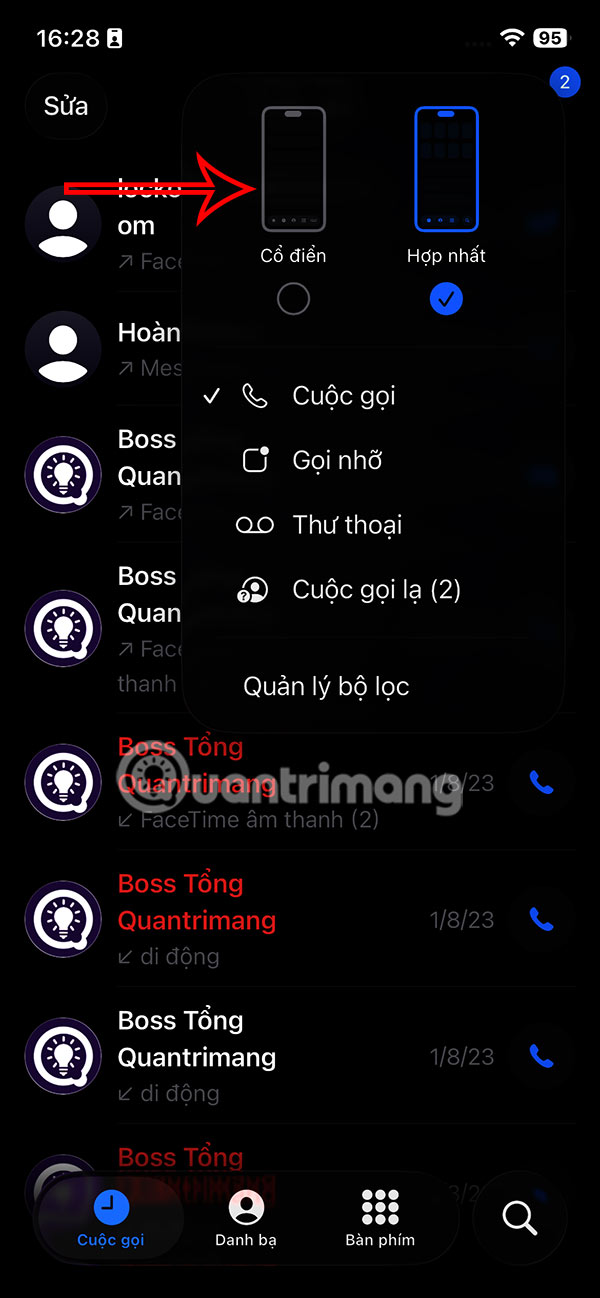
As a result, you'll see the classic Phone app interface on your iPhone return with the familiar call management items as before, the Calls tab will disappear, and you'll see the Favorites, Recents, and Voicemail options return, along with the Contacts and Keypad options.
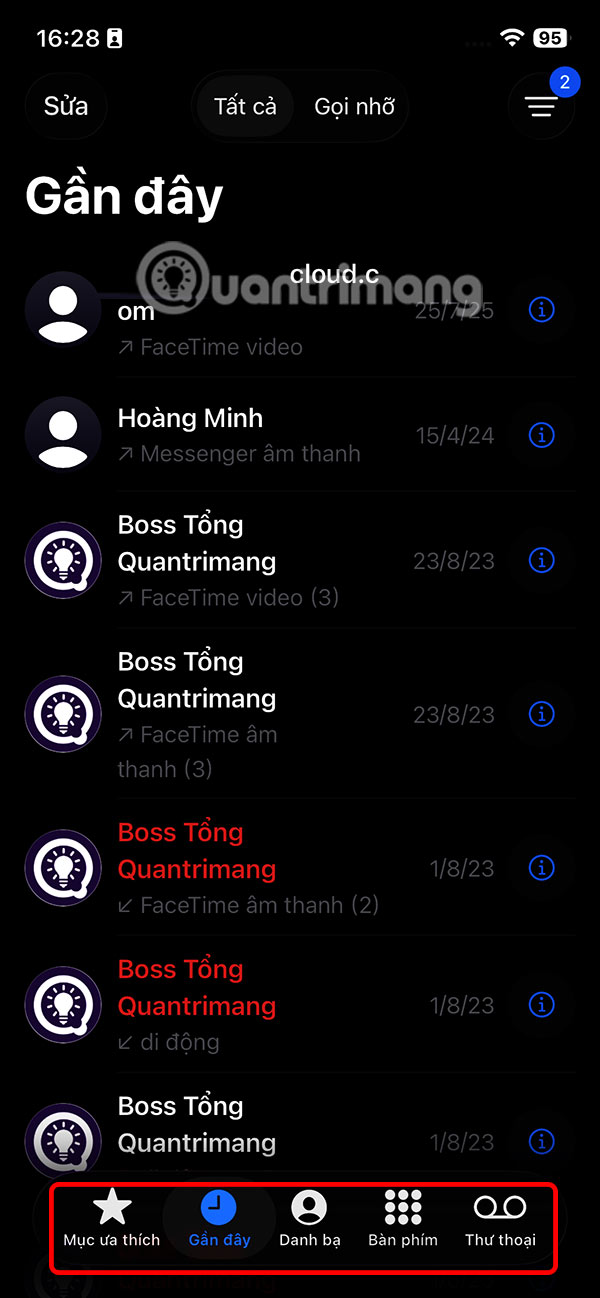
You can easily find missed calls on iOS 26 without having to do much.
Final Thoughts
Following the steps in order and checking version-specific settings should make it easier to Restore the Classic Look of Your iPhone. If an option looks different, verify the device, app, or operating-system version before changing additional settings.
FAQ
What is the best way to Restore the Classic Look of Your iPhone?
Start with the requirements described in the article and follow the steps in order. Apple redesigned the Phone app in iOS 26 and introduced a new Unified interface. This interface replaces the Recents tab with the Calls tab, and removes the Favorites and Voicemail options from the sidebar.
What should you know about Instructions to restore classic interface iPhone?
This is the Unified interface for the Phone app on iOS 26. The bottom bar has been greatly simplified for managing phone calls.
What should you do if the instructions do not match your screen?
Check the device, software version, account permissions, and regional settings. Interfaces can change after updates, so use the closest matching option and consult the official support documentation when necessary.
Related Articles
 iPhone XS Max and 6s Plus Officially Become 'Classic' Devices4 minutes read
 How to Restore iPhone and Use Recovery Mode8 minutes read
 How to Restore Original Settings Reset iPhone5 minutes read
 Restore Classic File Explorer with Ribbon in Windows 11: Key Facts5 minutes read
 How to Restore iPhone from iCloud: Practical Guide6 minutes read
 minutes read
Reader Comments 0
Sign in with email or Google to join the discussion.