Table of Contents
To reboot, reset, turn on dfu mode on iPhone 8 and iPhone x successfully, begin with the right preparation and follow each step carefully. The guide also covers common issues you may encounter.
Reset iPhone (device reboot) and DFU mode are the last two steps to troubleshoot complex problems on iPhone 8 and iPhone X. When all troubleshooting attempts are not working, here are the steps you must make the phone work properly.
Reset is forcibly restarted phone, you can perform this action even if the phone is broken. In contrast, DFU mode (device recovery mode), which is the way to put iPhone into a state that can communicate with iTunes on Windows or Mac and is restored. However, with DFU mode, the iPhone will not start the iOS operating system or bootloader If the app is obstructed.
- How to bring iPhone 7/7 Plus to DFU restore mode with iTunes
How to restart iPhone X, iPhone 8
If iPhone 7 and 7 Plus, Sleep / Wake key combination and volume key used to reboot the phone, on iPhone 8 / 8X, this operation will be used to open the Emergency SOS feature (this operation is straightforward to remember for emergencies) So you can't restart an iPhone 8, 8X above. To restart an iPhone 8 / 8X If it stops responding and can't exit the app or can't shutdown, you'll do the following:
- Press and quickly release the Volume Up Key
- Press and quickly release the Volume Down Key
- Press and hold the Side Button (power button) until the Apple logo appears
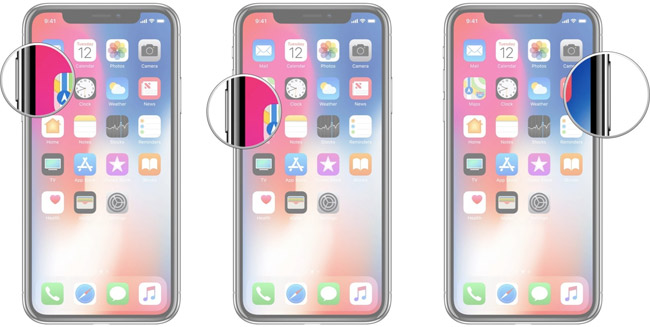
How to bring iPhone X, iPhone 8 to DFU mode
If all attempts to fix the problem fail, you need to restore the iPhone. If you cannot restore iPhone in the normal way, you can return it to DFU mode.
- Connect iPhone to Mac or Windows computer.
- Make sure ITunes Is running.
- Turn off iPhone (if it is not turned off)
- Press and hold the power button next to iPhone for about 3 seconds.
- Keep the power button still and keep adding the volume down button of the iPhone.
- Then hold these 2 buttons for about 10 seconds. (If the machine restarts the Apple icon, please repeat the first step.)
- Now release the power button and just hold each iPhone volume down button for 5 seconds. (If you see the 'Plugin into iPhones' message, you have kept the power button or the sound down button for too long, you need to start again.)
- If you see that the iPhone screen is still black, You have now succeeded, your iPhone is in DFU mode.
At this point, iTunes will notify you that your iPhone 8 or iPhone X requires permission to be restored.
- Fix PC error not receiving iPhone in iTunes
- How to reset iPhone, restore original settings with iTunes
- Forgot iPhone password, what to do?
- How Hard Reset restores settings on iPhone X
- How to backup and restore messages on iPhone Zalo
FAQ
What should I prepare before I reboot, reset, turn on dfu mode on iPhone 8 and iPhone x?
Review the requirements in the guide, confirm that your device or software is compatible, and save important work before changing settings related to reboot, reset, turn on dfu mode on iPhone 8 and iPhone x.
Why might reboot, reset, turn on dfu mode on iPhone 8 and iPhone x not work as expected?
The most common causes are incompatible versions, missing permissions, incorrect settings, or an interrupted internet connection. Recheck each step and restart the app or device when appropriate.
Can beginners follow these reboot, reset, turn on dfu mode on iPhone 8 and iPhone x steps?
Yes. Follow the steps in order, avoid skipping confirmation screens, and compare your interface with the screenshots because labels may differ slightly between versions.
Related Articles
 Restart: How Different Are Reboot and Reset?8 minutes read
 How to Reset iPhone with Hard Keys3 minutes read
 What to Do When the iPhone or iPad Can't Turn On?6 minutes read
 Fix Windows Settings Reset to Default on Reboot9 minutes read
 How to Turn on, Turn Off Airplane Mode on iPhone?4 minutes read
 How Hard Reset Restores Settings on iPhone X6 minutes read
Reader Comments 0
Sign in with email or Google to join the discussion.