Table of Contents
This guide explains how to prevent Virus Infection on USB Effectively, with clear steps, practical tips, and important checks before you begin.
To protect USB from viruses we will use software called NTFS Drive Protection. This is a software that helps you temporarily freeze USB or portable hard drives formatted according to NTFS standard with the purpose of protecting the data stored on it and preventing viruses from entering. With this mode, no one can copy new data, delete or edit files on these devices.
But the good thing about this application is that you can create an unprotected folder to be able to comfortably copy data as usual.
To download the application you access the following link: https://www. sordum. org/8117/ntfs-drive-protection-v1-5/
Note : Before using the software format, you must make sure your USB is in NTFS format, you can check it by right-clicking on the USB drive, selecting Properties and then viewing the USB format in the File system section.
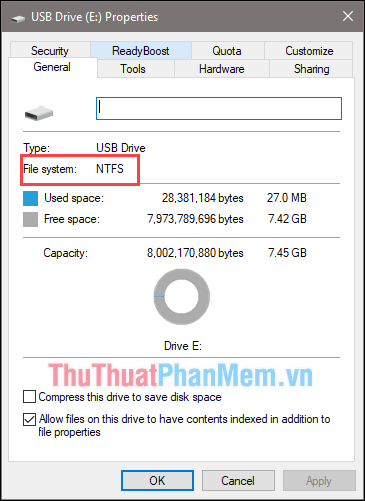
If your USB is in FAT32 format, you can reformat the USB to NTFS. Note that formatting will lose all data, so copy the data elsewhere.
To change to NTFS format, right-click on USB and choose Format. In the new window, select NTFS under File System and click OK, wait a while.
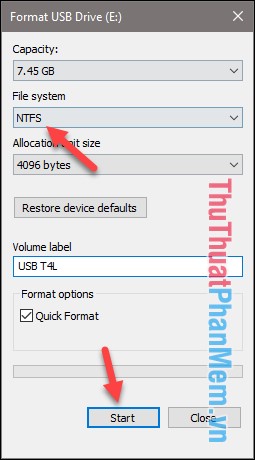
You can now copy data back to USB and use the NTFS Drive Protection software
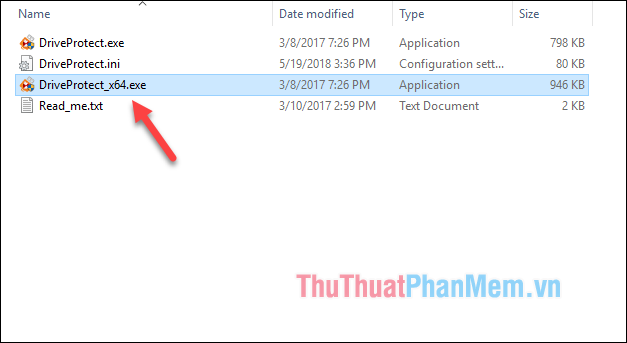
After you download the software, you will need to extract some files as shown below, double-click the. exe file to run the application.
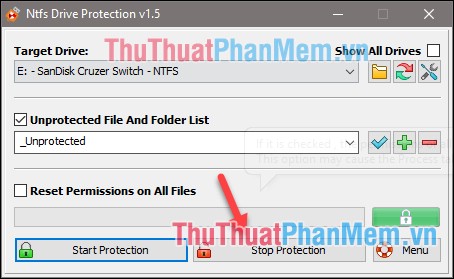
At the interface of the program, you follow the steps as shown:
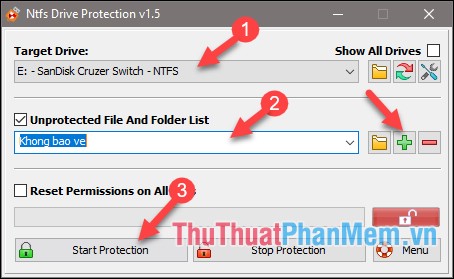
- Choose your USB, portable hard drive.
- Create an unprotected folder name to copy data normally (Enter the name and click the green plus)
- Click Start protection to start protection.
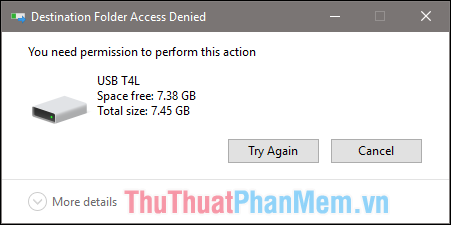
So your USB is protected, now when you copy a file to usb or delete the file in USB will be notified that you do not have permission to perform.
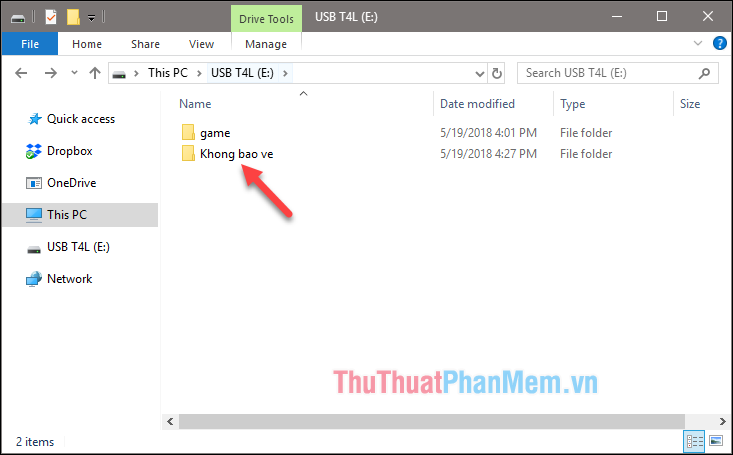
On the USB, there will be an unprotected folder created by you in step 2, you can freely copy data in this folder.
To cancel the protection mode, open the software to select the USB drive, then press Stop Protection to finish.
Above is a guide on how to protect usb from virus infection very effectively with NTFS Drive Protection software, hope you will find the article useful. Good luck!
FAQ
What should I know about Prevent Virus Infection on USB Effectively?
Focus on the key features, requirements, limitations, and practical use cases explained in this guide.
How do I get the best results with Prevent Virus Infection on USB Effectively?
Follow the recommended steps, use current software or information, confirm compatibility, and review settings before major changes.
Are there any risks or limitations?
Potential limitations depend on compatibility, data quality, cost, privacy, support, and how the product or method is used.
Related Articles
 Prevent Virus Infection via USB3 minutes read
 Trick to Prevent 100% Virus Infection from USB, Memory Card6 minutes read
 The Time When Flu Occurs and How to Prevent It4 minutes read
 Prevent Virus Infection from USB to Computer by Disabling MountPoints22 minutes read
 Distinguishing Corona Virus Infection and the Common Cold, Pay4 minutes read
 New Virus Appeared: New Virus Outbreaks Occur via USB3 minutes read
Reader Comments 0
Sign in with email or Google to join the discussion.