Table of Contents
This updated guide explains how to open shared files on Android without a Microsoft account with clear steps, practical tips, and useful context. Microsoft's new feature makes it easy to open shared files on Android anonymously without having to log in to your account. With this feature, Microsoft is making life easier for Android users and improving collaboration at work, as you can open Word, Excel, or PowerPoint.
How to Share Files in Microsoft 365 on Android
Open a Microsoft Word, Microsoft Excel, or Microsoft PowerPoint file and choose the Share button in the upper right corner.

Select Link Settings .

Select Anyone . Under More Settings, select Anyone with the link can view or Anyone with the link can edit . Then, choose Apply to confirm the settings.

Enter the recipient's email and tap Send or copy the link to manually share via text message or social media app.

Open Shared Files on Android Anonymously
To open a shared Office file on Android anonymously, receive a link via email, text message, or any messaging app.
Tap the link to open it. The link will open directly in your Microsoft 365 app or the specific Office app for the document. Depending on your permissions, you can view or edit the file.
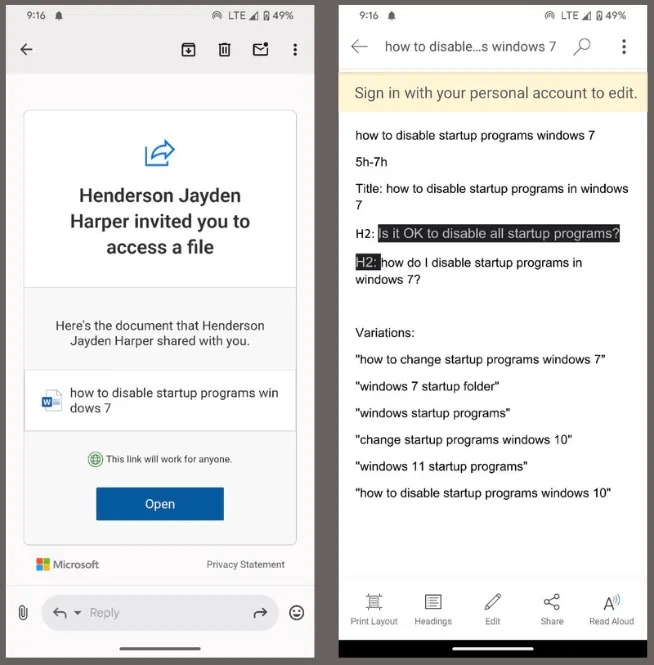
Note : Try these tips to stay secure and protect your privacy on Android when receiving files from untrusted sources.
Quick Tips for a Smooth Experience
- To easily open shared files on Android anonymously, download the file for offline access, if the sharer allows it.
- Use Microsoft 365 apps because you can save space and access all types of files.
- Ask the sender to adjust their sharing settings if you cannot view or edit the file.
- While you can view documents anonymously, consider creating a free Microsoft account for additional features like editing or cloud storage.
If you like free features, you can learn why a Microsoft 365 subscription might be worth it.
Opening shared Office files on Android anonymously is easy with Microsoft's latest update. You can easily access documents, spreadsheets, and presentations without a Microsoft account. Try it out and let us know your results in the comments below!
FAQ
What should I prepare before I open shared files on android without a microsoft account?
Review the requirements and options in the guide first. Having the correct device, app version, account access, or materials ready helps prevent avoidable errors.
How long does it take to open shared files on android without a microsoft account?
The time depends on the task and your setup. Most basic steps can be completed quickly, while downloads, updates, scans, or troubleshooting may take longer.
What should I do if the steps do not work?
Repeat the instructions in order, confirm that your software or device is supported, and check permissions, connectivity, and available updates before trying again.
Related Articles
 How to Open RAR Files on Android Phones: Practical Guide5 minutes read
 How to Read PDF on Android Phone8 minutes read
 How to Open and Read PDF Files on Android3 minutes read
 How to Open Epub Files on Windows 10 (Without Microsoft Edge)3 minutes read
 How to Use Chrome to Easily View PDFs on Android6 minutes read
 How to Open an Emz File on PC or Mac5 minutes read
Reader Comments 0
Sign in with email or Google to join the discussion.