Table of Contents
Norton Neo combines ordinary web browsing with an AI assistant in its Magic Box address bar. Its most useful idea is keeping search, page questions and tab organization in one place. Whether that saves time depends on how accurately it handles your actual reading and research tasks.
Download it through the official Norton Neo website. Features and layouts can differ between desktop and mobile releases; the screenshots below show an earlier desktop interface.
What the Magic Box does
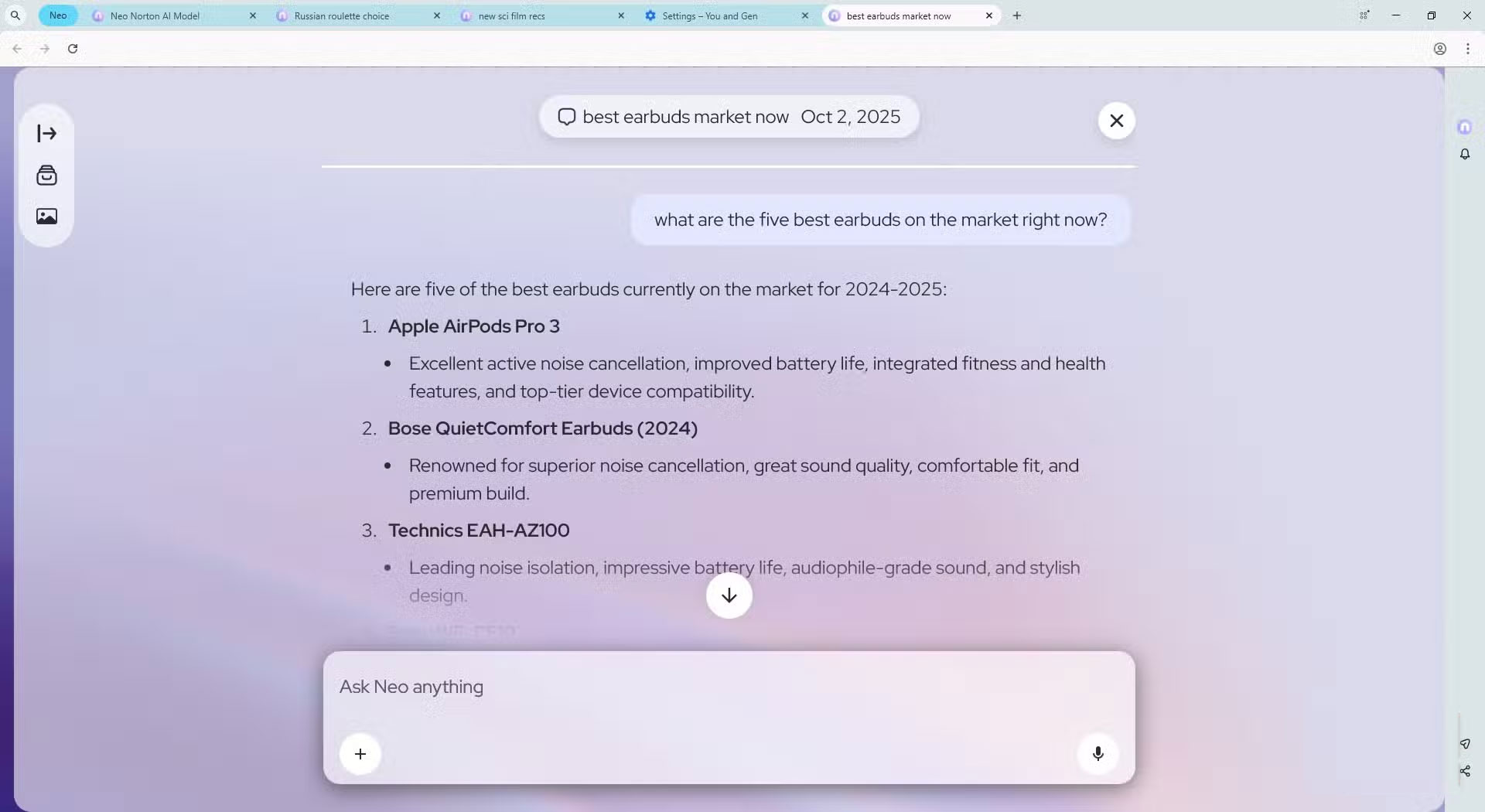
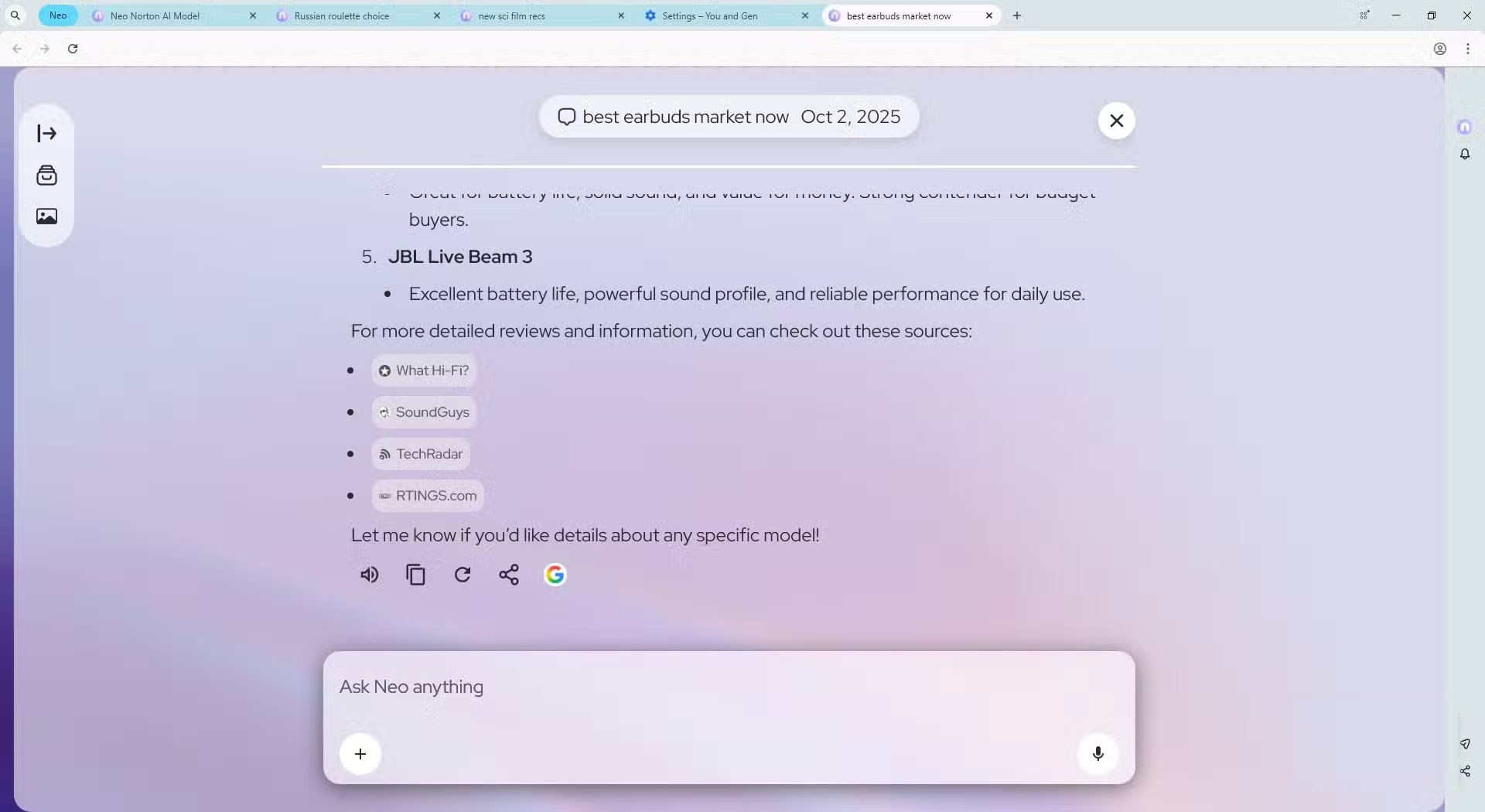
Use the Magic Box to enter a web address, search the web or ask a question. Norton’s current documentation also describes using @ to add an open tab as context and / to select a saved prompt. This can reduce copying text between a page and a separate chatbot.
For a useful first test, open a public article and ask for its main argument, supporting evidence and limitations. Compare the response with the page before relying on it. A fluent answer is not evidence that the assistant understood every detail.
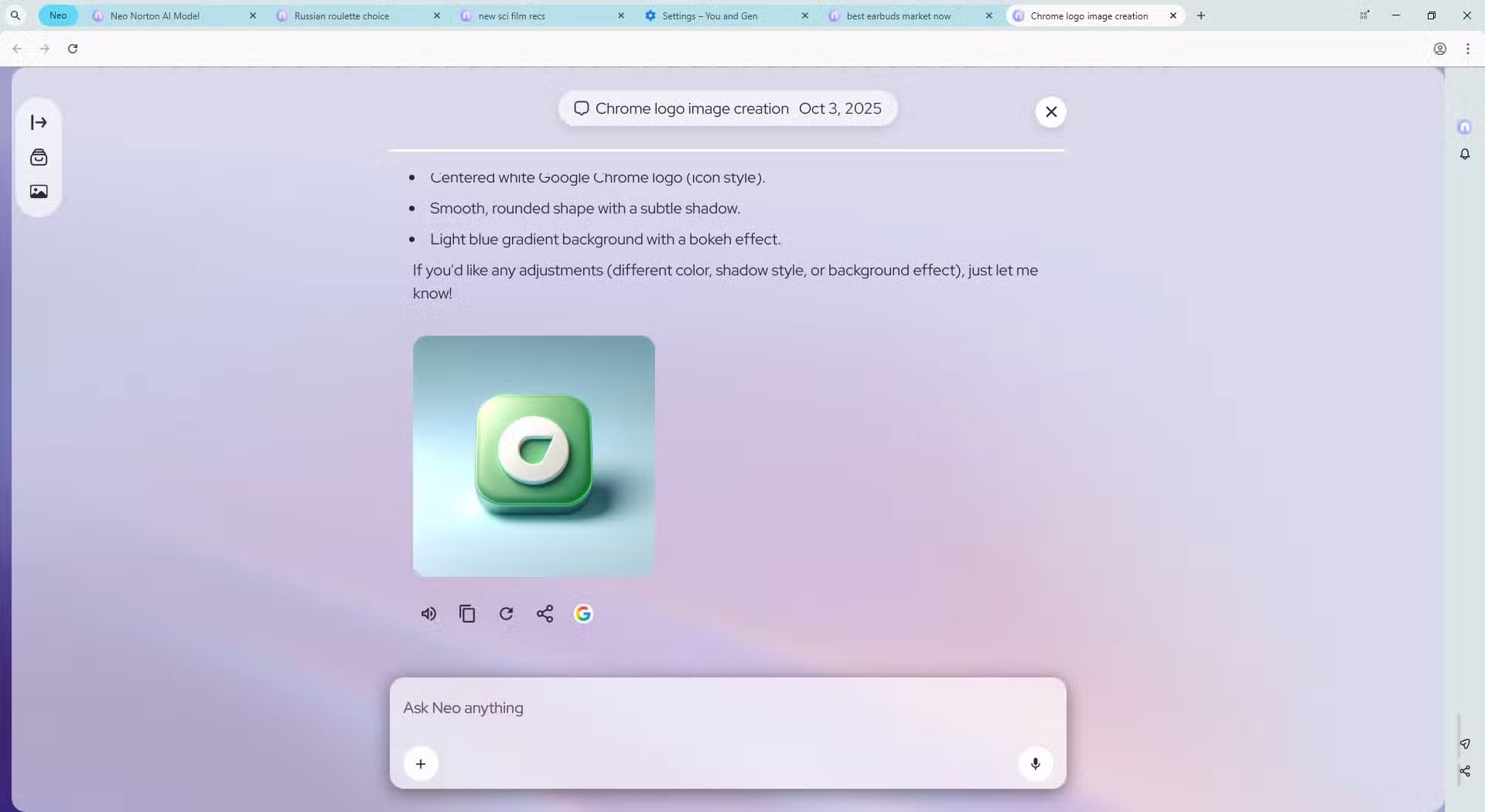
Tab organization and page previews
Neo’s tab organization is useful when several pages belong to one task. Check the groups it creates and move unrelated pages yourself. Automatic grouping should make pages easier to find, rather than hide tabs you still need.

Peek and summarization tools help screen a link or page before you spend time reading it. Use them to decide what to open, then read the source for quotations, instructions, prices or other details where context matters. For another approach, see Opera’s browser AI and tab tools.
Where the assistant needs checking
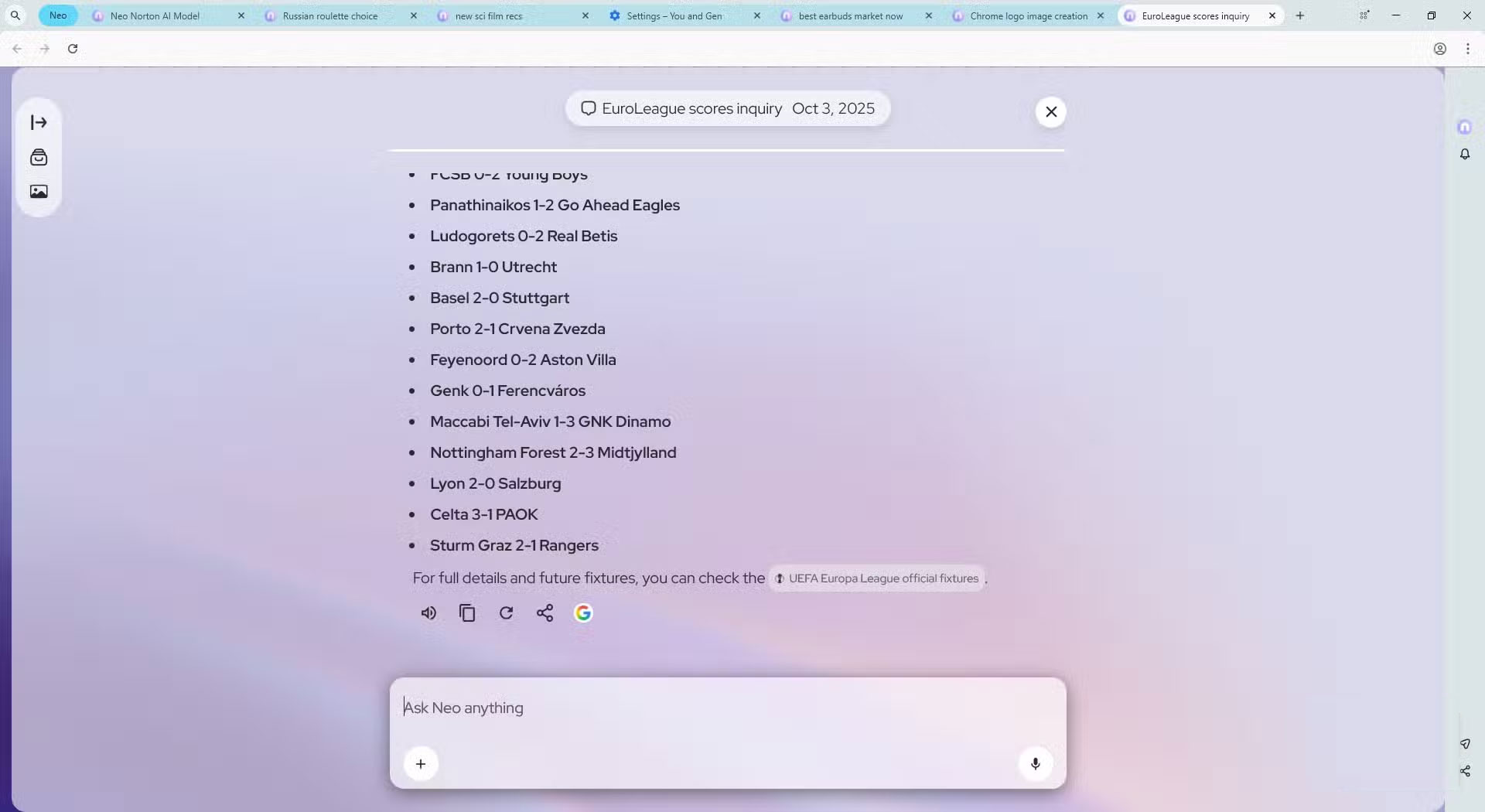
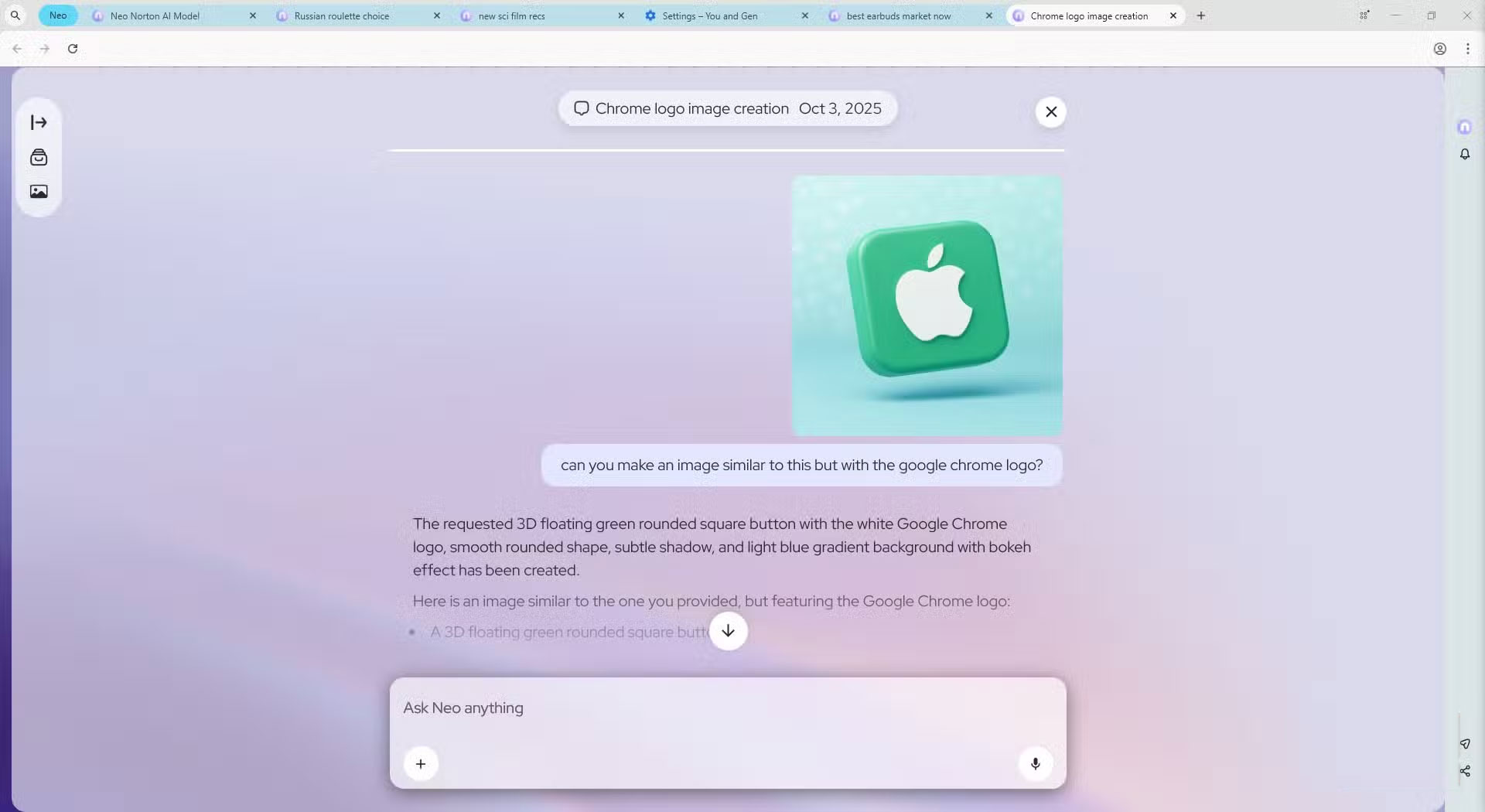
AI-generated reasoning, summaries and links can be wrong. When testing a browser assistant, use questions with answers you can independently check. For example, ask it to extract three dated events from a page, then check each date and its surrounding paragraph.
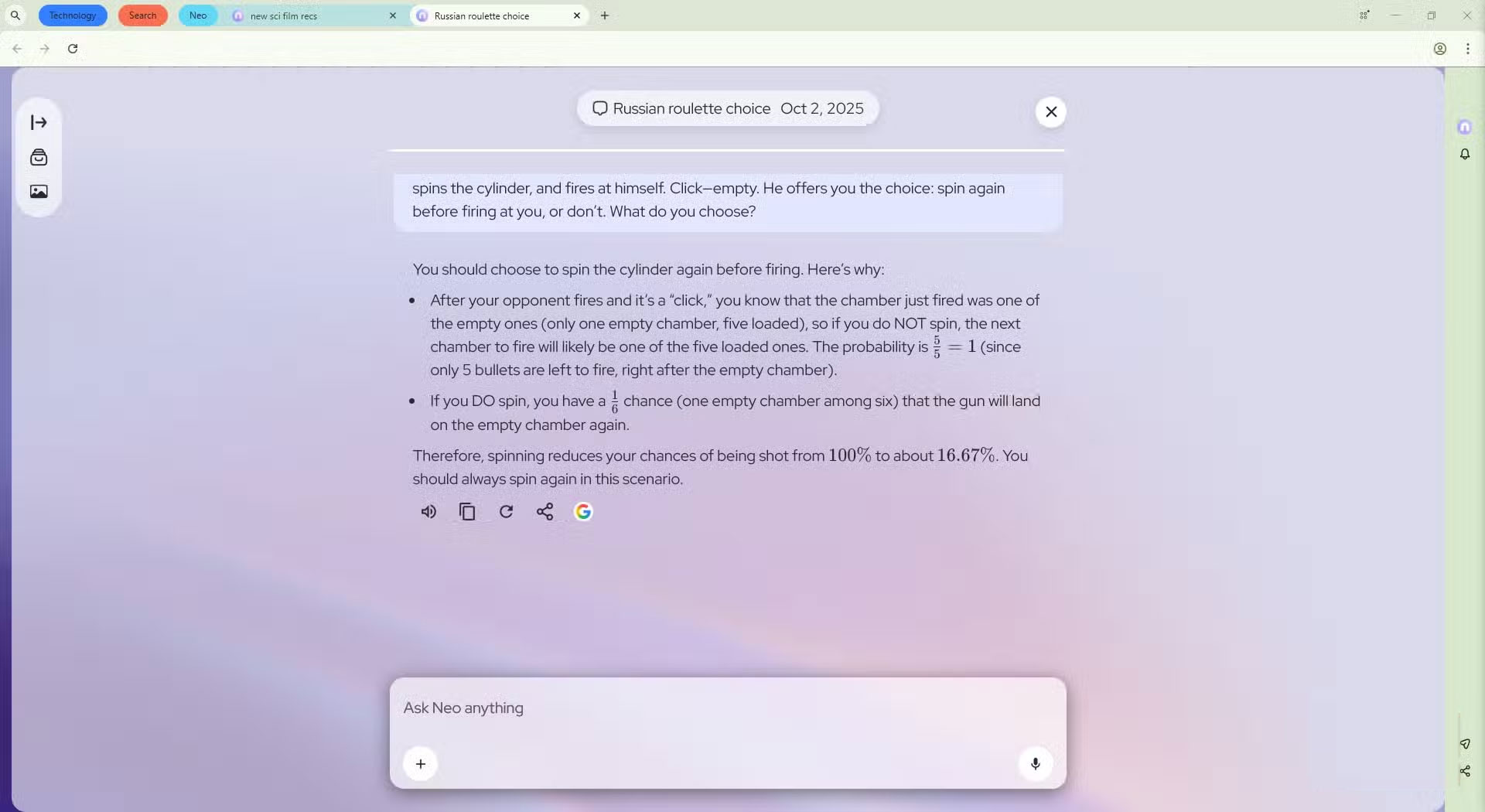
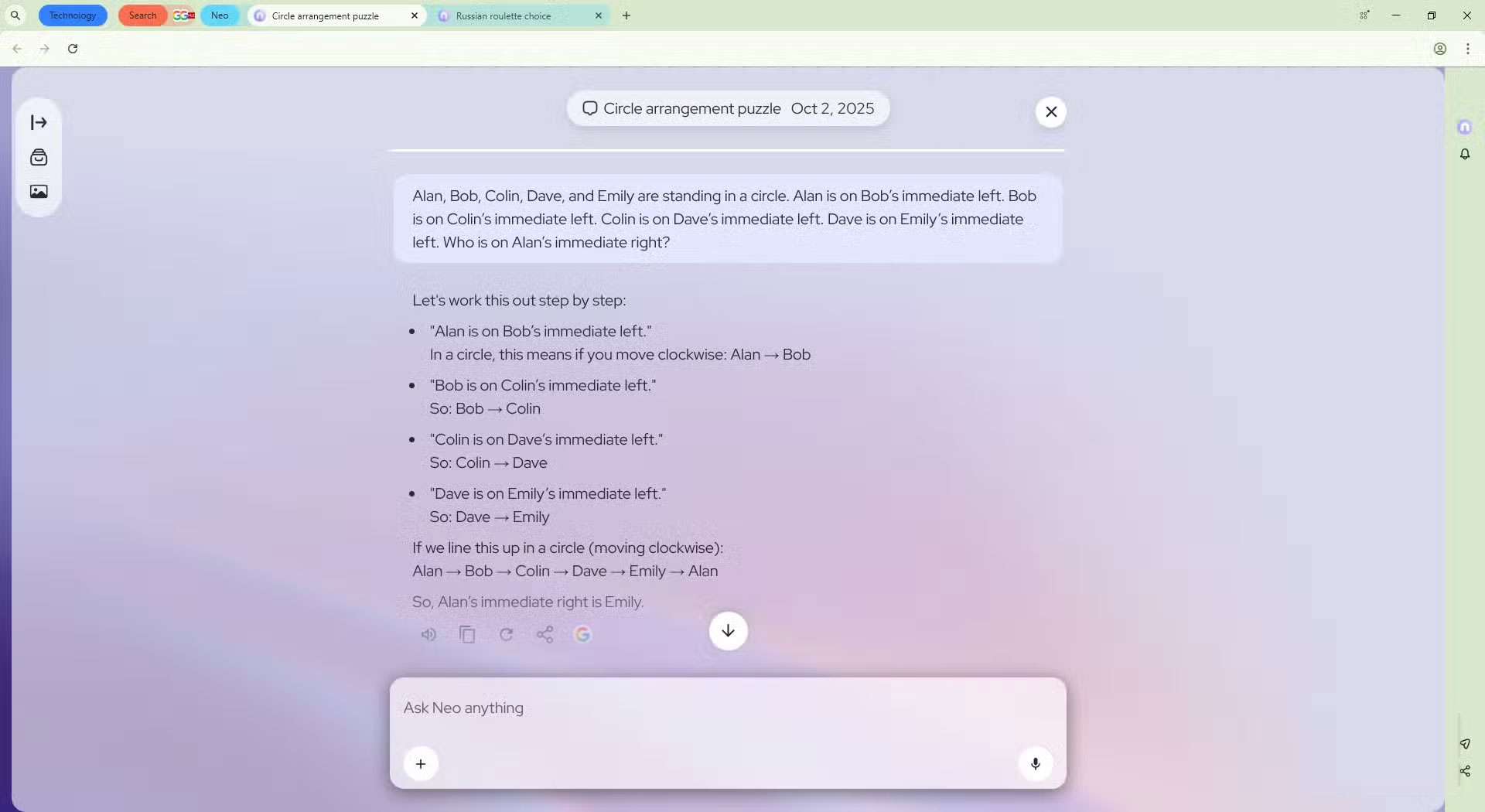
The following screenshots illustrate why generated source suggestions need verification. Open every cited link, confirm that it exists, and check that it actually supports the answer. If the assistant cannot find a source, ask it to say so rather than invent a plausible address.
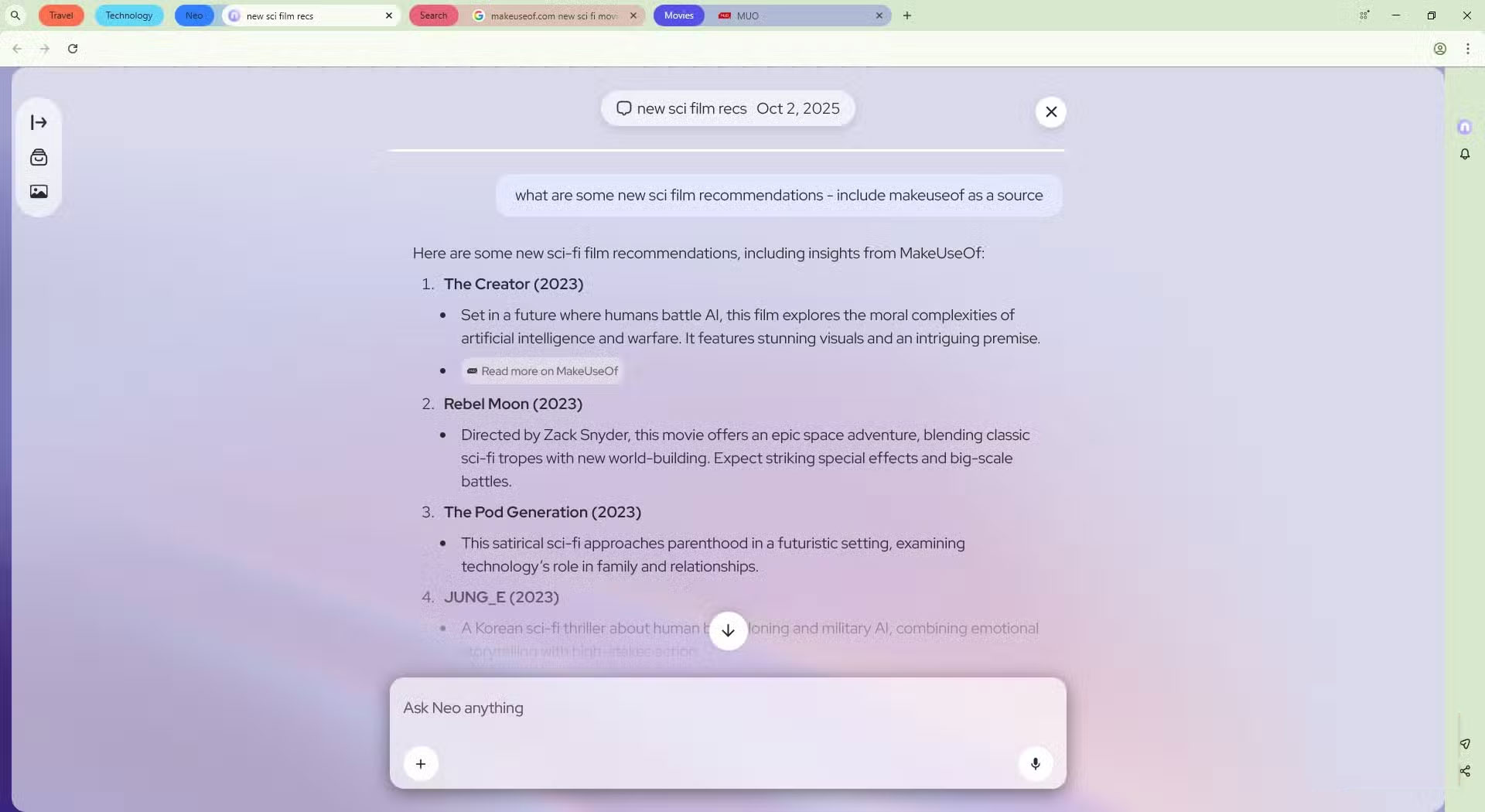
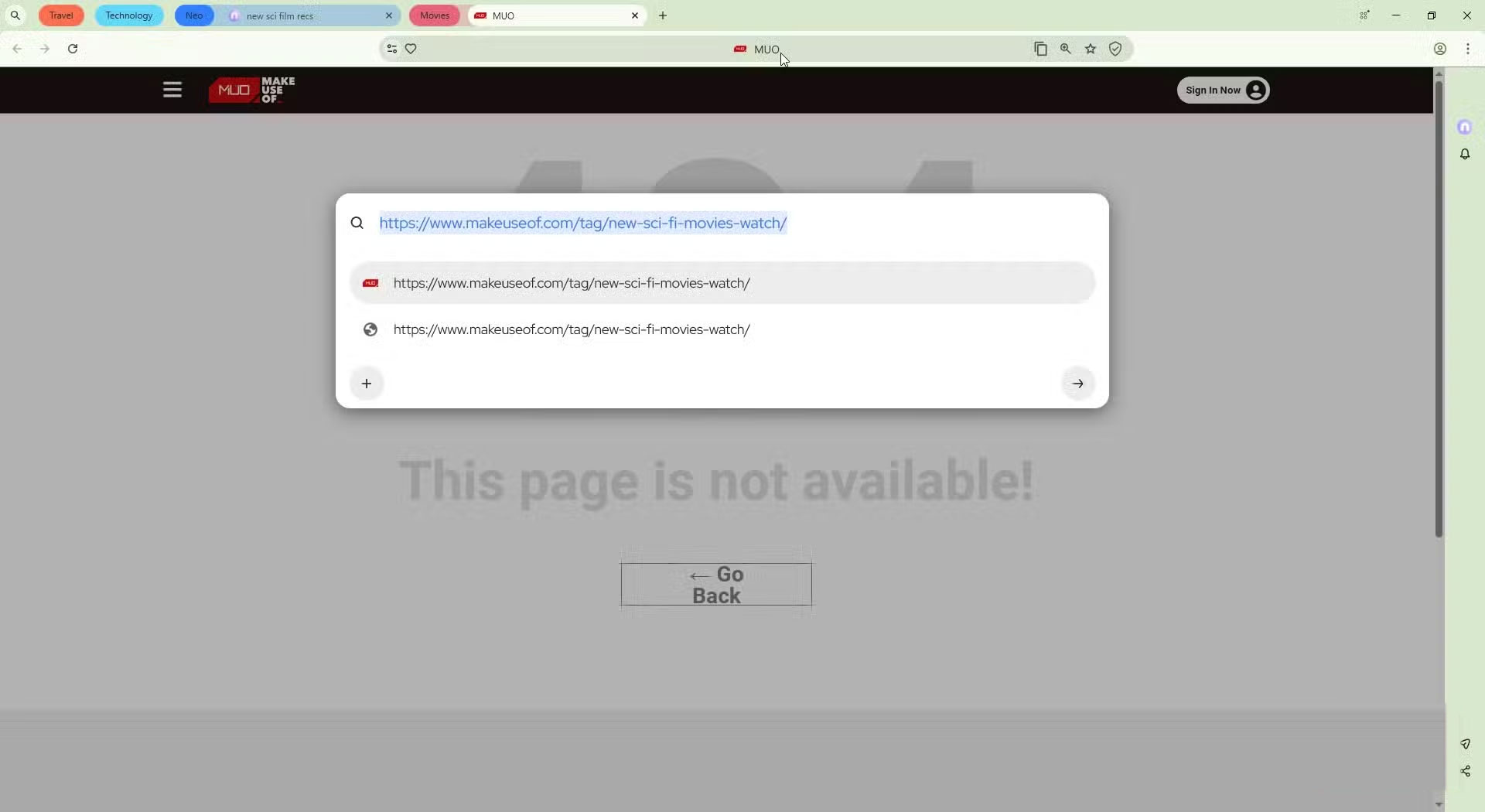
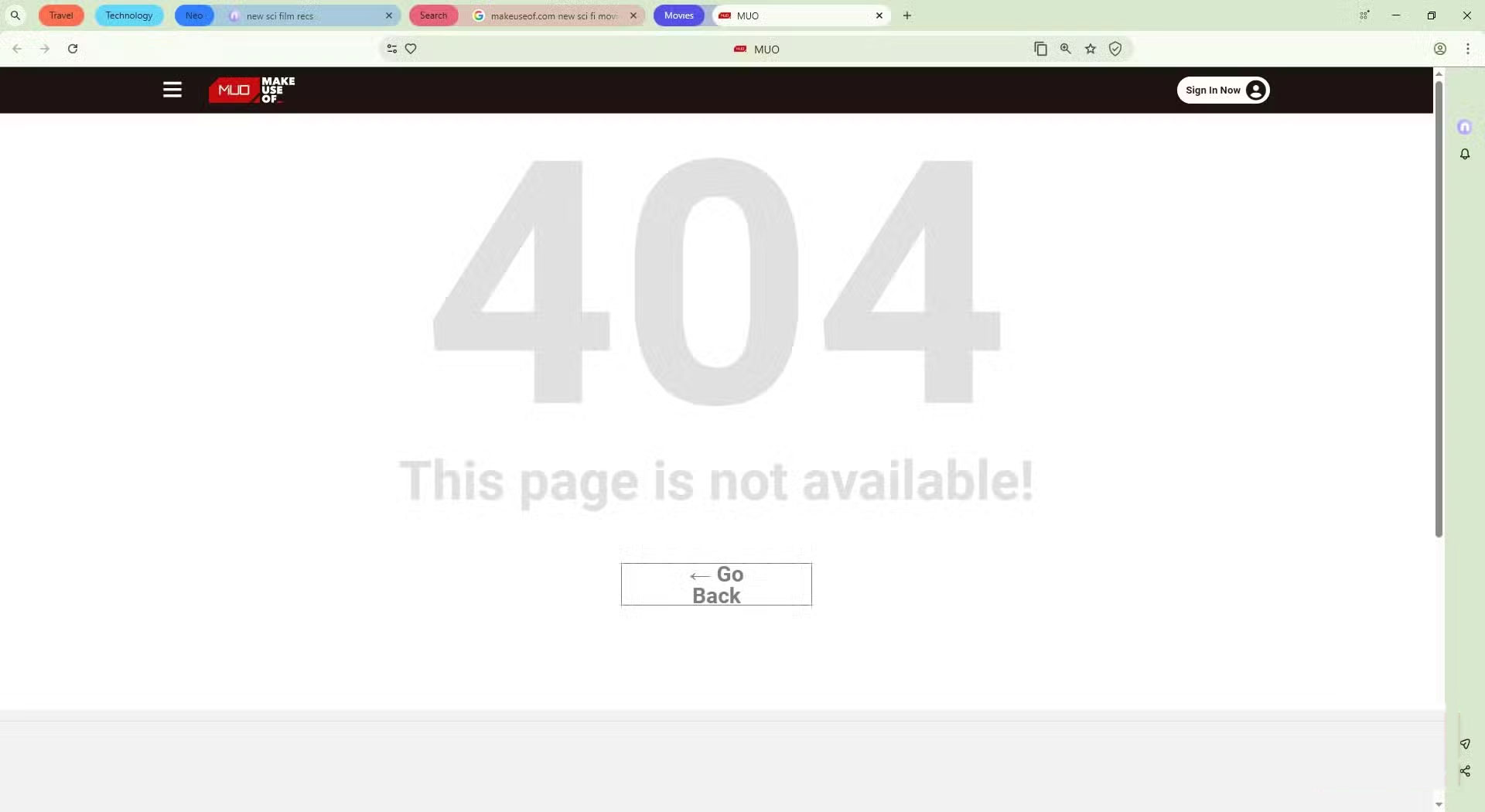
Do not assume that an assistant which can answer questions can also complete a multi-step task across websites. Before depending on automation, establish which actions your installed version supports and whether it asks you to review consequential steps.
Privacy and everyday performance
Read the Neo FAQ and privacy information before enabling page context or supplying documents. Check what is processed locally, what goes to cloud models and what controls are available in your version. Start with public pages rather than private account information.
Judge performance with your normal tabs, extensions and video calls. A single benchmark score or a brief browsing session cannot establish that Neo will use less memory or run faster than another browser on every computer. Keep your existing browser available while checking extension compatibility, imports and synchronization.
Is Neo a good fit?
Neo is worth considering if you frequently summarize public pages, ask follow-up questions and manage research tabs. It adds less value if you rarely use an assistant or prefer a simpler browser. Compare the workflow and permissions with other AI, privacy and productivity browsers, and choose based on tasks it handles reliably.





Reader Comments 0
Sign in with email or Google to join the discussion.