Table of Contents
This updated guide examines How to Listen to the Radio on Windows 10 with Moon Fm and organizes the essential facts, background, and practical takeaways in clear American English.
Users can search for any radio station they want to listen to, when the application supports adding radio or podcasts from outside according to OPML, RSS Feed. In particular the application has a tool to tweak Equalizer to better listen to the radio experience. Moon FM's interface has no ads, so it does not affect your listening. The following article will show you how to use the Moon FM application on Windows 10.
- Moon FM, the new Radio listening application for Android and iOS
- The best Vietnam Radio listening app for Android
- How to use TV 24 hours watching TV and radio on Windows 10
- 5 best free Podcast apps for Android
Instructions for using Moon FM to listen to the radio
Step 1:
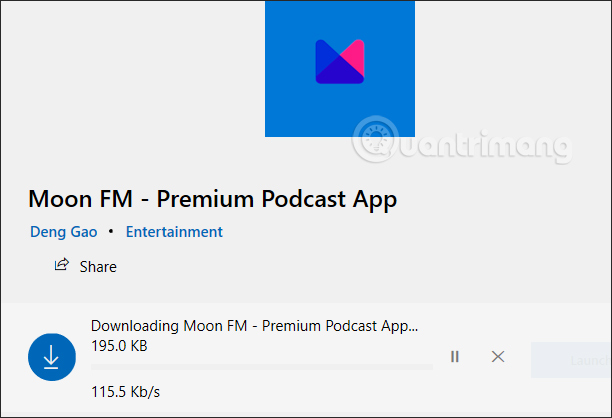
Users install the Moon FM application for Windows 10 according to the link below.
- Download the Moon FM Windows 10 application
Step 2:
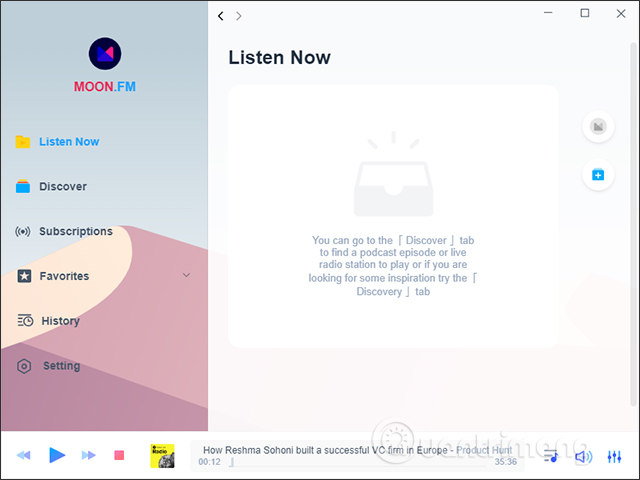
Show the interface of the application. The left side of the screen shows a list of different management items. With Listen Now, show new episodes of podcasts that we follow.
Step 3:
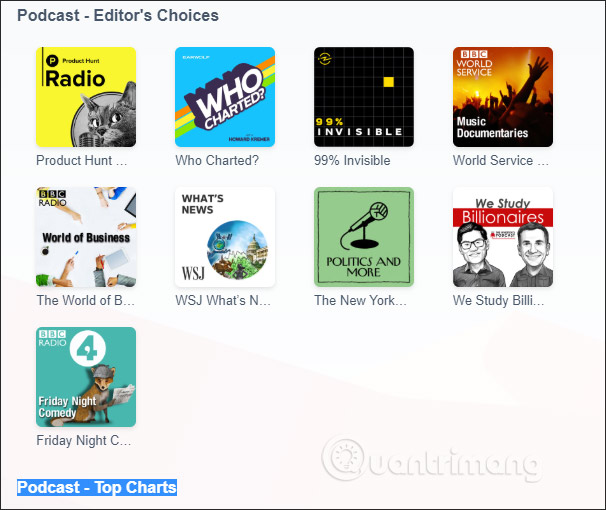
Click on Discover to display radio stations and podcast shows. The content displayed by the program or the user can select the content to listen.

Featured section of radio channel collection is heard by many people today. Podcasts will have selected editing sections (Podcast - Editor's Choices) or top ratings (Podcast - Top Charts).
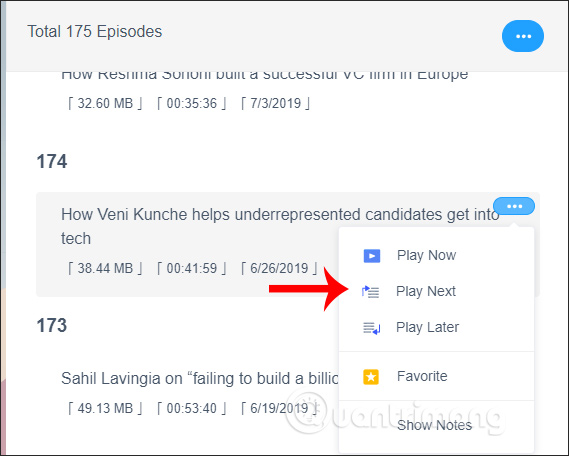
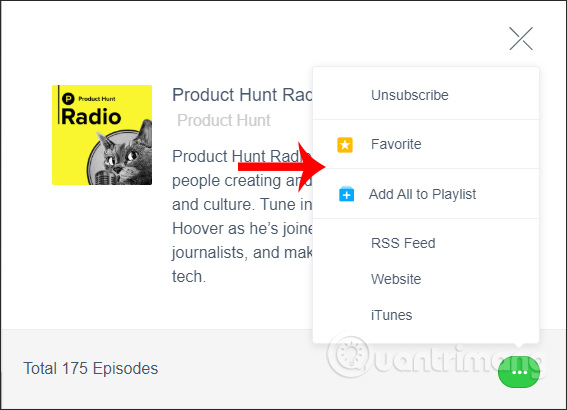
Click on a podcast to listen. Each podcast has different episodes to follow. If you want to listen to any episode, click on the 3 dots icon and select Play Now , click Favorites to like this episode.
Also when you click the 3 dot icon at the podcast we have a Subscribe option, or access the website if you want.
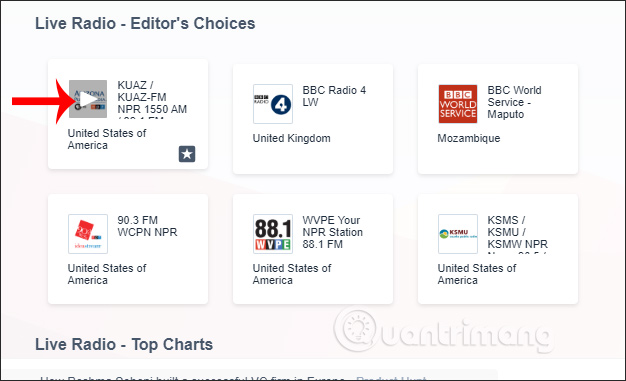
The radio section is also classified as podcasts. To listen you just need to click the play icon , if you like to click the star icon.
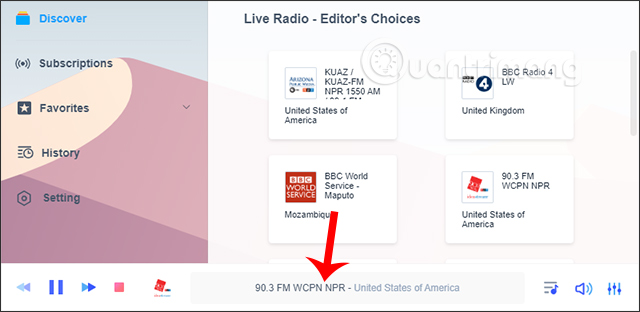
The listening section is displayed below with basic controls. To use the Equalizer tool , click the rightmost icon .
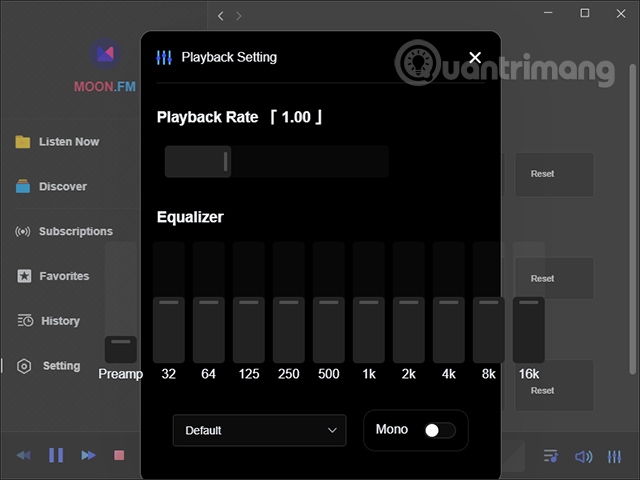
Here we adjust the playback speed (Playback rate) and improve the sound quality when playing the radio.
Step 4:
Click Browse to find content you want to listen to, with podcasts and radio.
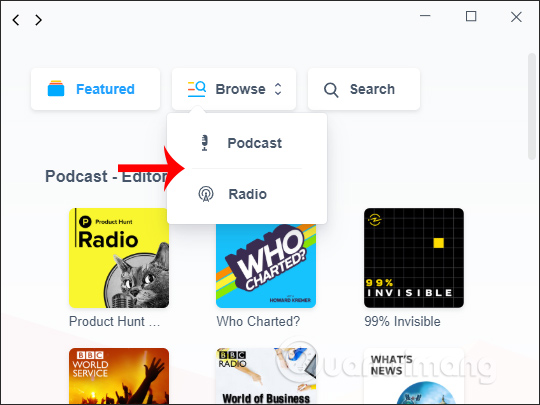
With podcasts users will see a list of podcast categories for users to choose from.

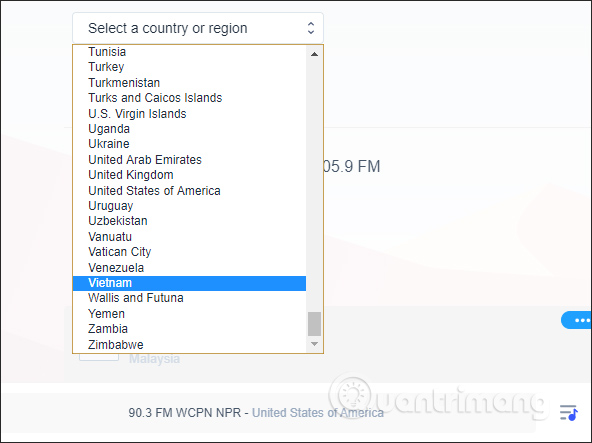
If it is a radio, the user first selects the country to search at Select a country or region . There are many countries to choose from, including Vietnam.
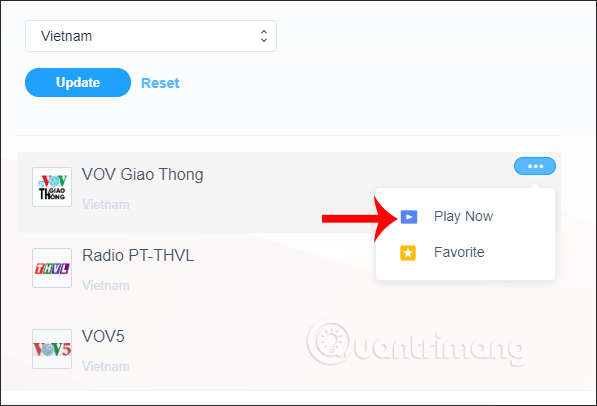
Display radio channels according to the country we choose. To listen to any channel, press the 3 dots icon, select Play Now.
Step 5:
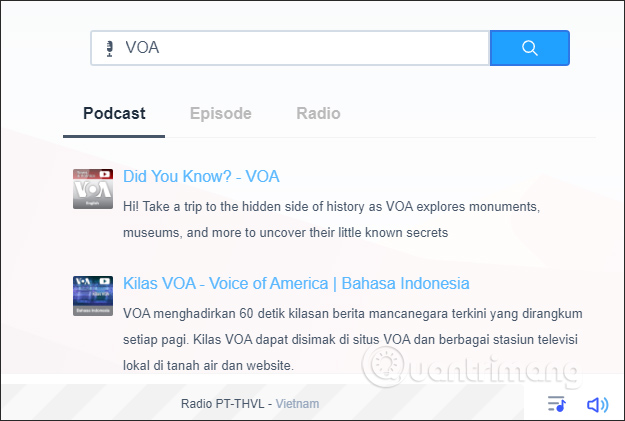
Search items to search for radio and podcast channels. We enter the channel name in the white frame.
Step 6:
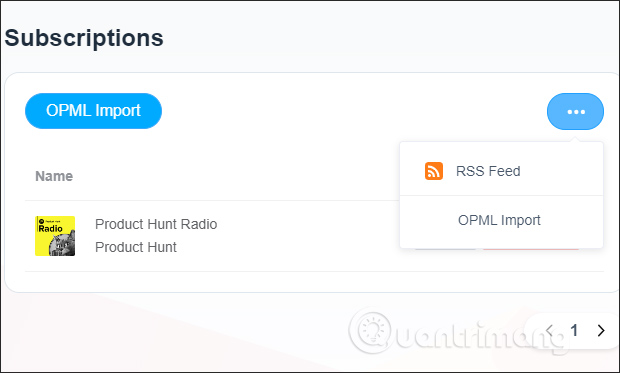
Switch to Subscriptions section to add external channels to the application. If you press OPML Import, we proceed to add the podcast channel with OPML file. Click the 3 dots icon and select RSS Feed to add radio and podcasts via RSS Feed.
Step 7:
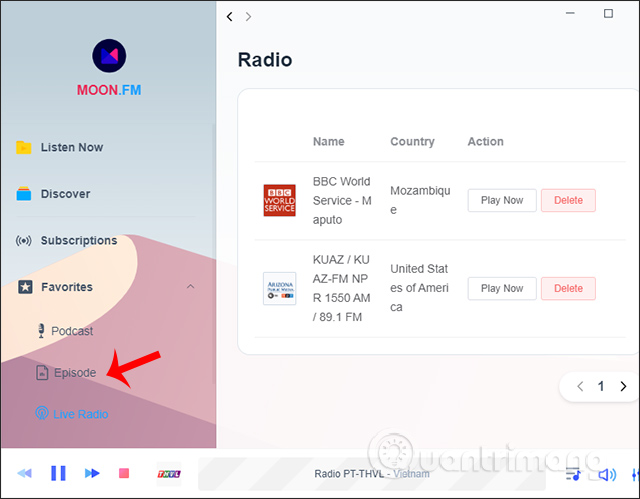
Favorites section is all the channels you have clicked starred, divided into 3 content is Live Radio, Podcast, Episode. Click Delete if you want to delete from the list.
Step 8:
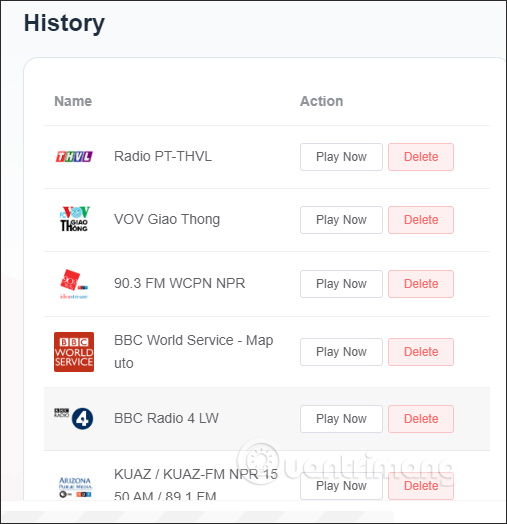
History section is all radio and podcast channels that users have heard. Click Delete to delete the list.
Step 9:
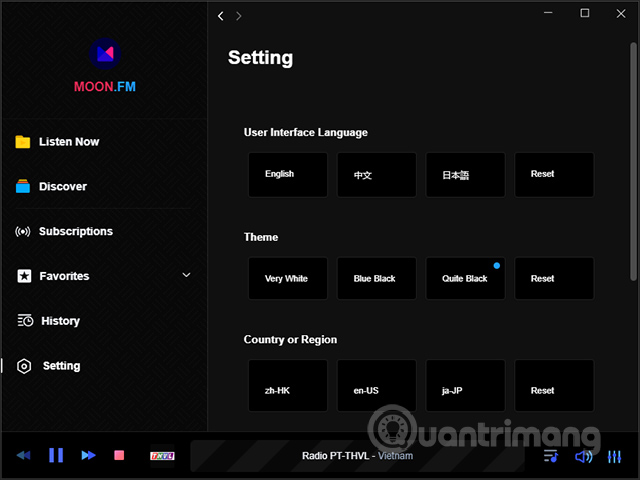
The Settings section to re-adjust the application, especially the Theme section has many selected interfaces.
Moon FM brings quality radio apps on Windows 10, where you can find any radio station you want to listen to inside and outside the country. Podcast channels are organized according to the latest episodes for user convenience.
I wish you all success!
FAQ
What is How to Listen to the Radio on Windows 10 with Moon Fm about?
It provides a structured overview of listen to radio on windows 10, explains the main context, and highlights practical takeaways for readers.
Why does this topic matter?
Understanding the main concepts helps readers evaluate the issue, avoid common mistakes, and make better-informed decisions.
How should readers use this information?
Use the guidance as a practical starting point, confirm details that may have changed, and follow current product, safety, or security recommendations.
Related Articles
 Moon FM, the New Radio Listening Application for Android and iOS8 minutes read
 Plug in a Headset to Hear the FM Radio on Your Phone, Why Is It So Complicated?5 minutes read
 The Best Vietnam Radio Listening App for Android4 minutes read
 Listen to FM Radio on Linux: Step-by-Step Guide7 minutes read
 Top Best Radio Application for Smartphones6 minutes read
 3 Ways to Listen to the Radio via Ubuntu Terminal6 minutes read
Reader Comments 0
Sign in with email or Google to join the discussion.