Table of Contents
Jailbreaking has always been a way to make the iPhone operating system more open than usual, and this is a need for many iPhone users. The following method of jailbreaking an iPhone using 3uTools is one of the best solutions for those who want to unlock their iPhone without needing advanced jailbreaking skills. Furthermore, jailbreaking an iPhone with 3uTools is completely legal, so you have nothing to worry about.
Jailbreak iPhone using 3uTools
Guide to jailbreaking iPhone using 3uTools
Note:
Before jailbreaking your iPhone using 3uTools, make sure your iPhone or iPad's battery is at least 50%.
You should back up your iPhone and iPad data before jailbreaking.
- Download and install 3uTools here.
Step 1
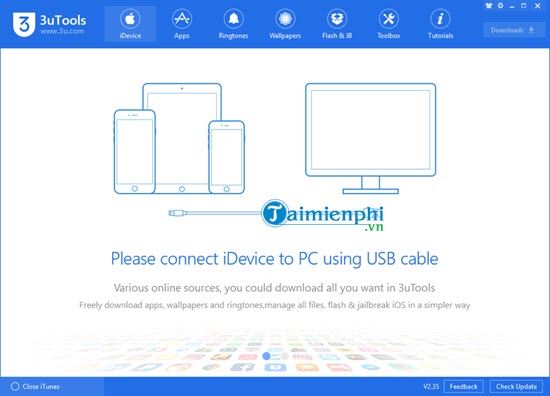
After downloading and installing 3uTools, open the software and proceed to jailbreak your iPhone using 3uTools. Once you see the 3uTools interface, connect your iPhone to your computer .
Step 2
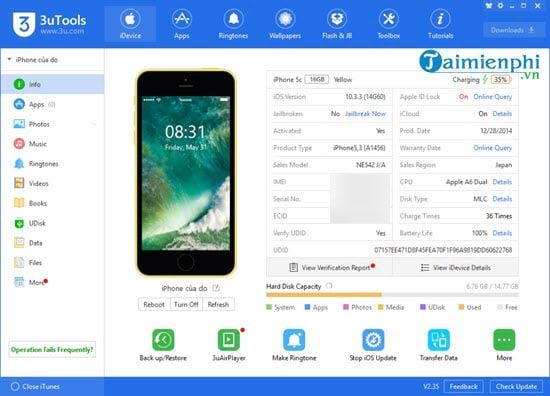
Here, 3uTools will identify your device. There is a lot of information available here before we proceed with jailbreaking your iPhone using 3uTools.
Step 3
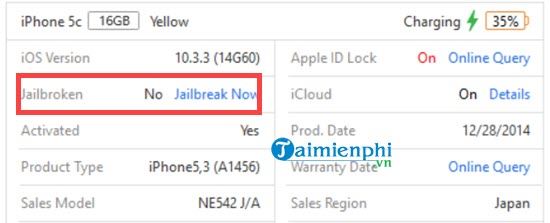
Here you will see the Jailbroken section. If your device says " Jailbreak Now ," it means it can be jailbroken, as not all iOS versions or devices can be jailbroken. All you need to do is tap "Jailbreak Now."
Step 4
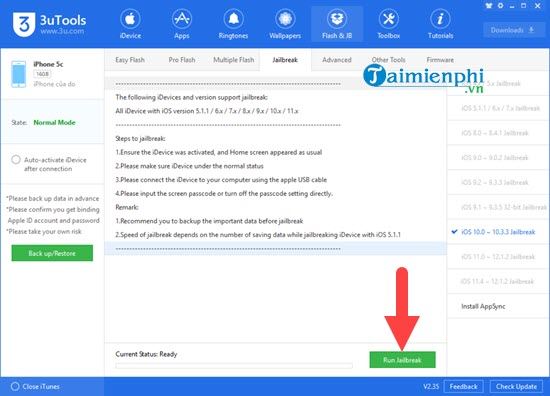
3uTools will immediately take you to the jailbreak interface. Here, simply click on "Run jailbreak" to jailbreak your iPhone using 3uTools.
Note: Before proceeding to this stage, remember to back up your data.
Step 5
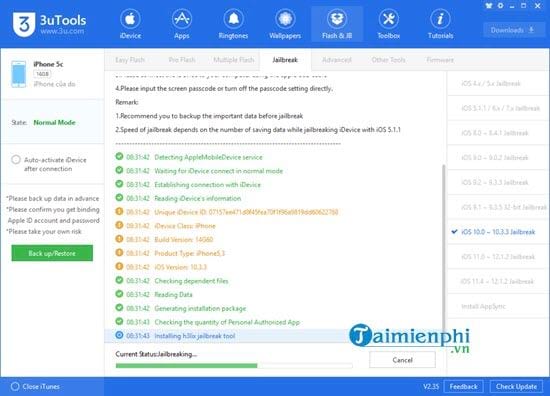
Wait for the process to complete, then refer to the yellow text for instructions on the next steps to jailbreak your iPhone using 3uTools, or continue with the instructions below.
Step 6
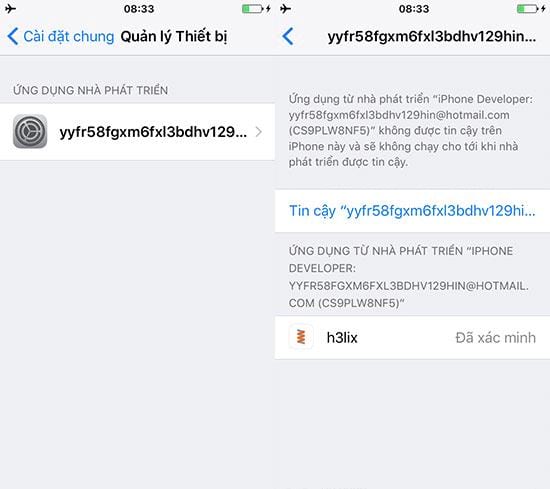
On your phone, you will now see the Developer Apps section. Tap on it and then tap Trust.
Step 7
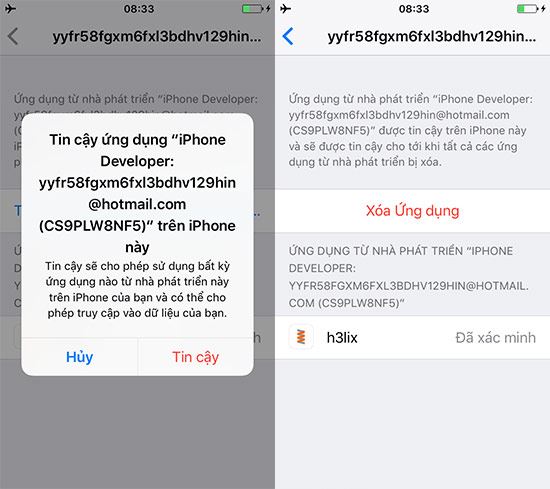
The system will need your permission; simply click "Trust" to complete this verification process.
Step 8
Now, go back to your home screen and you will see a new application called h3lix. Tap on it, then tap jailbreak k to jailbreak your iPhone using 3uTools.
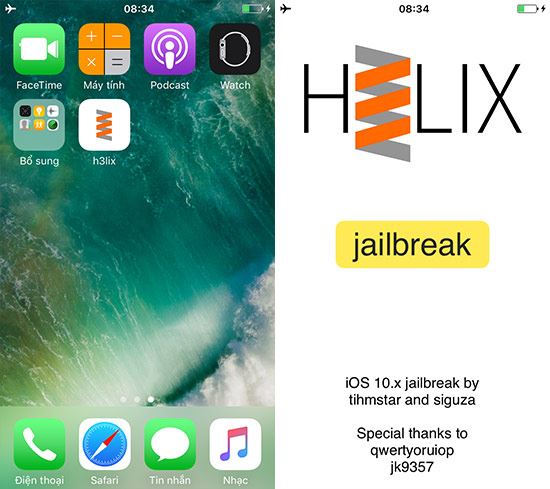
Step 9
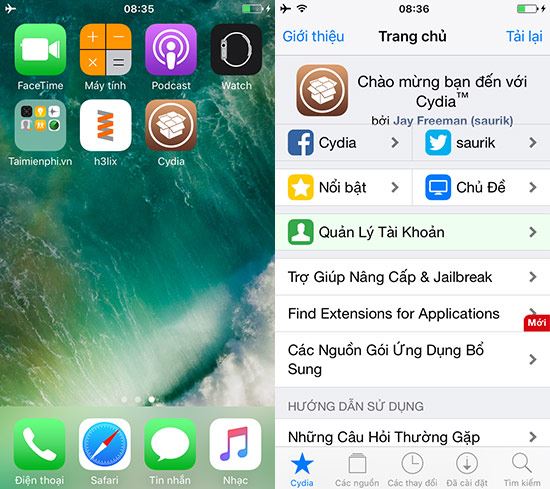
After the above steps, your iPhone will automatically restart. Then you will see another application installed called Cydia. If Cydia appears, it means your device has been jailbroken.
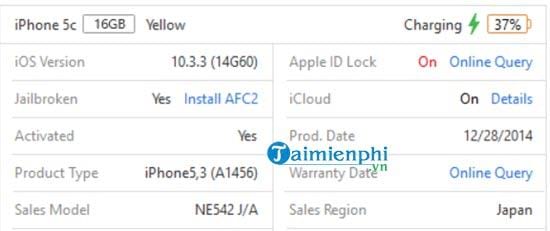
Check again on 3uTools and you will see the Jailbroken section shows YES, meaning the iPhone jailbreak using 3uTools is complete.
The above is a guide on how to jailbreak an iPhone using 3uTools. Please note that this method is not compatible with all versions and models; generally, the latest iOS versions cannot be jailbroken.
Additionally, if you don't like jailbreaking your iPhone with 3uTools, you can completely remove the iOS jailbreak if you want, as jailbreaking does consume a bit more battery than normal. Refer to the instructions on how to remove iOS jailbreak using 3uTools here if you wish. 3uTools is not the only software or tool for jailbreaking iOS; there are many other iOS jailbreak software options for users to choose from. However, remember that regardless of which iOS jailbreak software you use , it depends on iOS to function.
Related Articles
 Instructions for Creating Ringtones on iPhone with 3utools8 minutes read
 How to Delete Duplicate Contacts on iPhone with 3utools6 minutes read
 How to Delete iOS Jailbreak Using 3utools5 minutes read
 How to Download iPhone Apps with 3utools7 minutes read
 There Are 3uTools V2.33, Support for Downgrade to 64-bit Devices and Jailbreak iOS 123 minutes read
 3utools V2.36 Update Supports Virtual Location and Ignores3 minutes read
Reader Comments 0
Sign in with email or Google to join the discussion.