Table of Contents
Claude for Google Workspace adds an AI sidebar to Google Docs, Sheets and Slides so you can ask questions and request edits in the file you have open. It is a useful option to test against your own workflow; there is no basis for assuming its answers or formulas are always correct or universally better than Gemini.
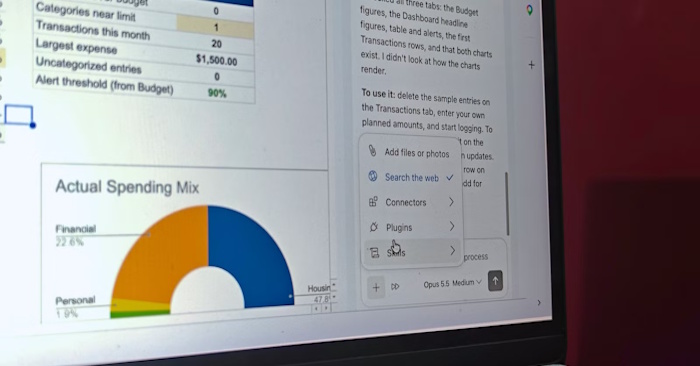
Install and open the add-on
Anthropic lists the Google Workspace add-on as a beta for paid Claude plans. You also need a Google account permitted to install Marketplace apps. Check the official setup guide for current availability and its Marketplace installation link.
- Install the official Claude add-on using the Google account associated with your working files. Review the requested permissions and your organization's AI-use policy.
- Reload an open Docs, Sheets or Slides file, then select Extensions > Claude > Open Claude.
- Sign in to your eligible Claude account in the sidebar.
- Begin with a small request, such as asking Claude to explain one selected paragraph or formula.
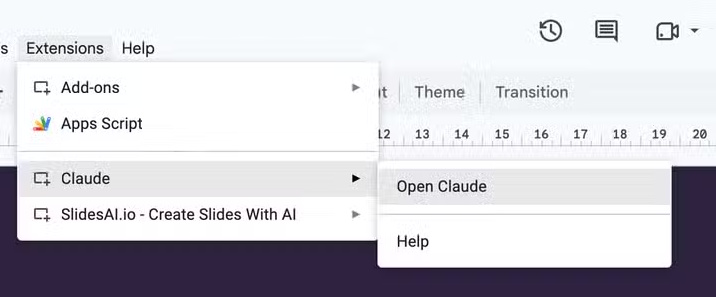
If installation is blocked by your organization, ask the Google Workspace administrator to review the app. If the extension is missing, reload the file and check which Google account you used. Keep the sidebar open until a task finishes.
Use precise requests in Google Docs
Select the passage you want changed and describe the result. For example:
Rewrite this selected paragraph in plain English for a customer. Preserve the figures, dates and product names. Do not add claims. Show the proposed changes before applying them.
Skills can make a repeated writing workflow easier, but a name such as /academic-voice-writer is not a universal built-in command. Use a skill that is actually available in your account, or describe the style directly. Choose from the models shown in your sidebar rather than relying on a fixed model recommendation.
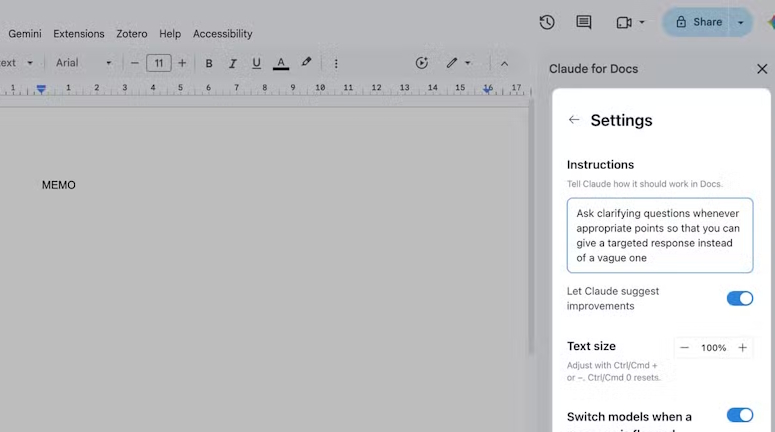
Review meaning as well as grammar. Confirm that qualifications, obligations and citations remain intact, especially when shortening a long document.
Check formulas and data changes in Sheets
Claude can help draft formulas and organize spreadsheet work. Specify the input range, destination and expected handling of blanks or errors. Keep the source data intact while testing a proposed transformation.
Explain the formula in F2 and identify its input cells. Propose a version that leaves F2 blank when A2 is blank. Do not change the sheet yet. Give a small example showing the expected result.
Test any proposed formula on a normal row, a blank row and a row containing an error or unusual value. Compare totals with an independent calculation. A syntactically valid formula can still implement the wrong business rule.
Build and refine Slides
Claude can draft slides and adapt layouts. Give it the audience, purpose, target length and source material, then ask it to distinguish sourced facts from suggested wording.
Create a five-slide outline for a team update using only this document. Include progress, unresolved issues and next actions. Keep dates and figures unchanged. Identify missing information instead of filling it in.
After generating or editing slides, inspect the actual deck for crowded text, overlap, unreadable charts and unsupported statements. Do not assume a complete-looking deck is ready to present.
Understand connectors and review changes
The sidebar add-on works inside a Google file. Connectors provide separate ways for Claude to access services or work with Google files from a Claude conversation. See TipsMake's introduction to Claude connectors and using Google Drive organization workflows for context. Only enable connections you need and are authorized to use.
Anthropic's Workspace announcement describes “Ask before edits” and “Accept all edits” modes. Start with approval-based editing until you have checked the workflow on a copy of your file. Review each change, and use Undo or Google version history if an edit needs to be reversed.
Related Articles
 Claude API Quickstart: Create a Key and Send Your First Request
 How to Set Up Claude Projects for Consistent, Focused Work
 AI Workspace Platforms Compared: Which Fits Your Team?
 How to Connect Gemini to Google Calendar and Manage Events
 7 Essential Google Workspace Features to Help You Work Faster
 How to Use Claude Connectors: Add Apps and Control Permissions
Reader Comments 0
Sign in with email or Google to join the discussion.