Table of Contents
Android phones come with a default icon size, but you can easily change this in Settings.
Android phones come with default icon sizes, but you can easily change them in Settings. The ability to change icon sizes depends on the version of Android you are using. If you are using an older version of Android, this feature is not supported. Here is a guide to increasing icon size on Android.
Instructions to increase icon size on Android
Step 1:
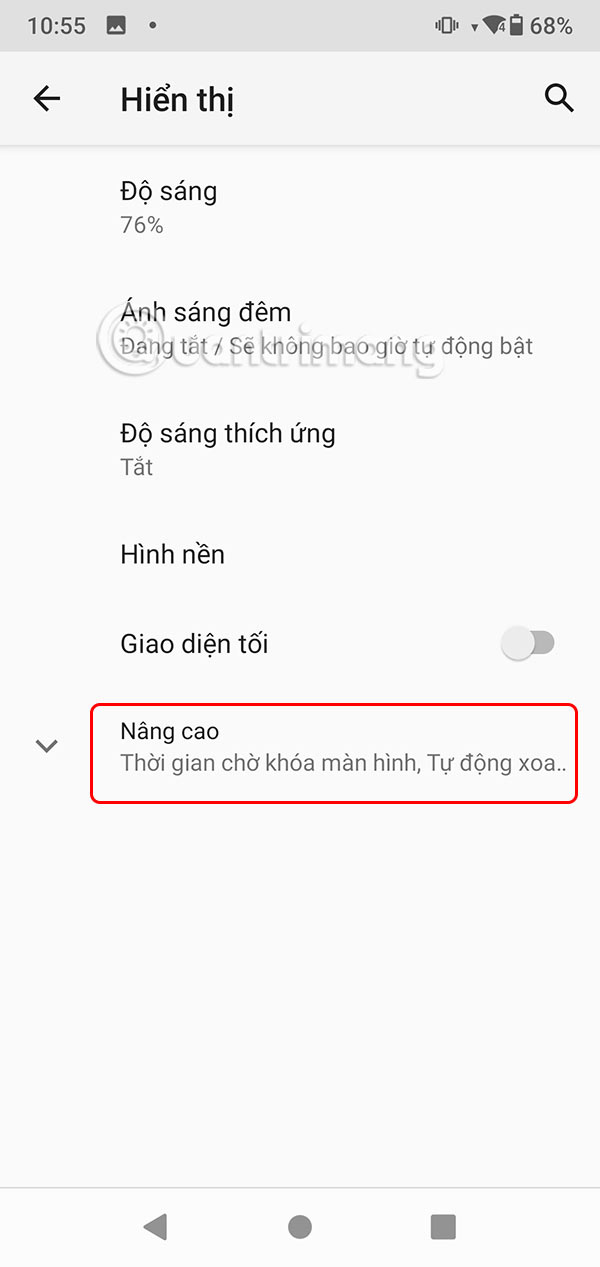
First, you access Settings on your Android phone, then click on Display To continue. In the new interface, the user clicks on Advanced .

Step 2:
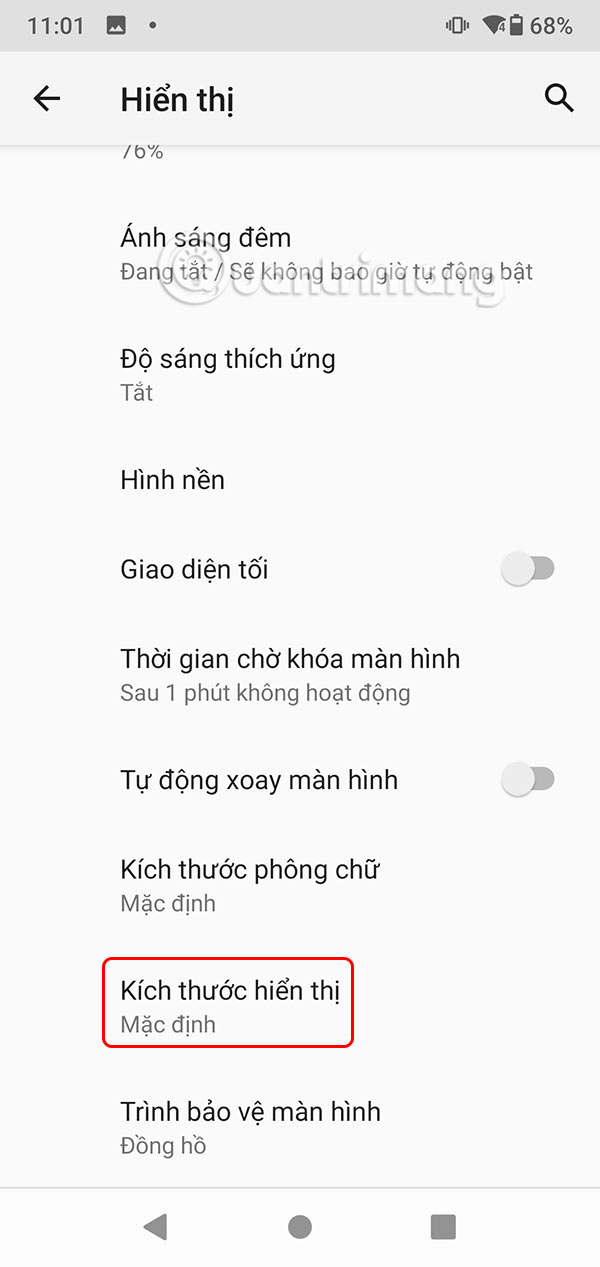
In the advanced adjustment interface, you continue to click on The Display Size item . Here you will Click on the plus sign To increase the size of the display icon on your Android phone.

This guide will see how the icon preview looks like after increasing the display size.

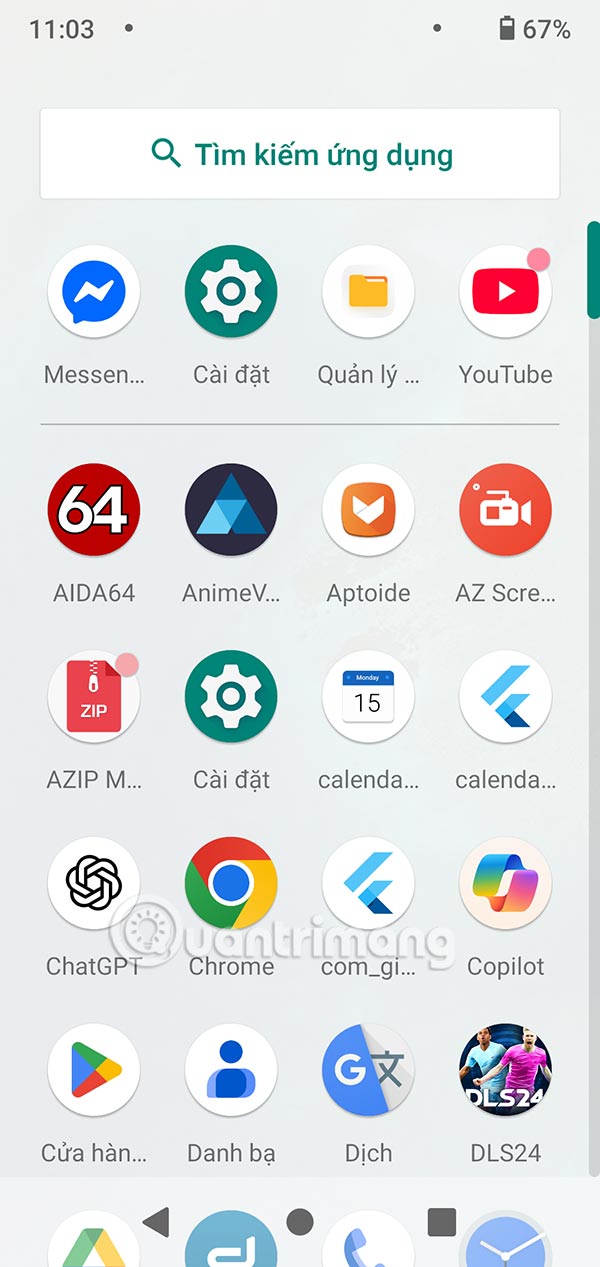
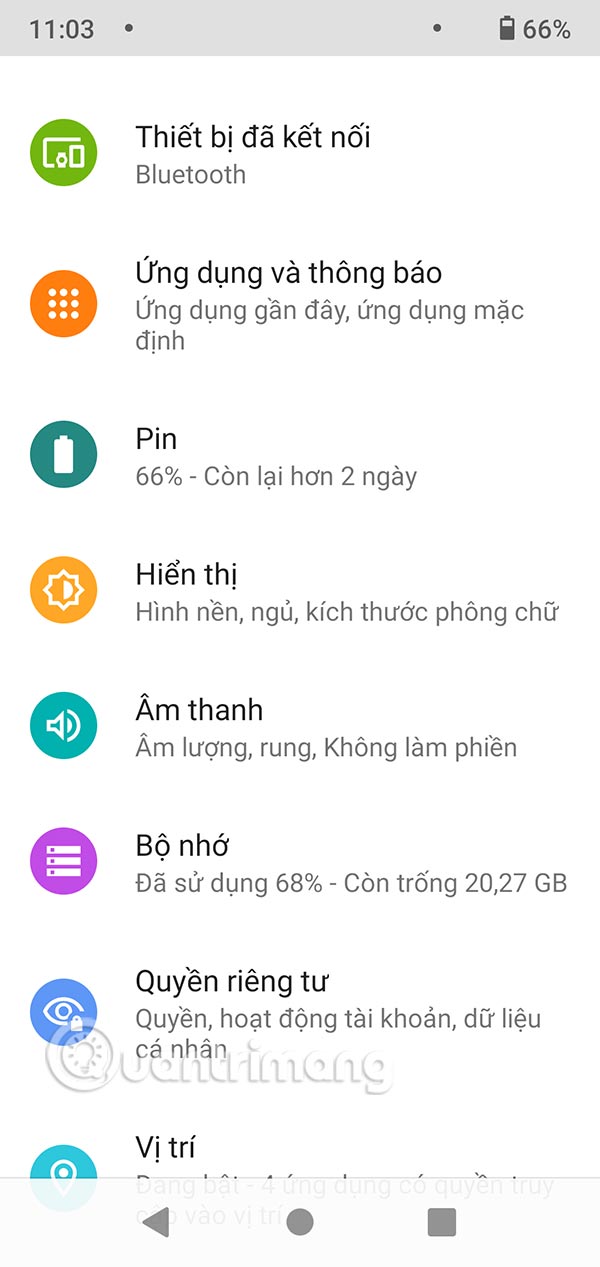
Returning to the home screen, you will see The icon enlarged To its original size. The text displayed on the screen will also be adjusted to be larger Than the original.
In case your phone does not have an option to support increasing Android icon size, you can install additional applications.
Nova Launcher: Provides an interface that is close to stock Android. The app is lightweight and fast, allowing you to customize the grid size similar to Samsung devices.
Microsoft Launcher: Instead of a grid, this launcher lets you adjust the layout and size of icons on both the Home screen and the Apps screen. It offers many customization options beyond just changing the icon size.
Apex Launcher: In the settings menu, you can adjust the icon size from 50% to 150% of normal size.
Go Launcher: Once you install GO Launcher, simply long press on the Home screen, go to Icons and choose from Large Size, Default Size or Custom Size.
FAQ
How do you increase icon size on Android: step-by-step guide?
In practical terms, Android phones come with a default icon size, but you can easily change this in Settings.
What should you check before getting started?
Review the requirements, compatible device or software version, and any warnings described in the guide before making changes.
What should you do if the steps do not work?
Repeat the steps in order, confirm that your app or system is up to date, and review the troubleshooting details provided above.
Related Articles
 How to Increase Text Size and Icon (Icon) on iPhone4 minutes read
 How to Increase the Font Size for Web Pages on Android6 minutes read
 Top 10 Stunning Icon Packs for Android7 minutes read
 Shrink Icon Size: How to Resize Desktop Icon on Windows?6 minutes read
 How to Change the Windows 11 Taskbar Icon Size to 32x323 minutes read
 How to Change Custom Icons for Apps on Android5 minutes read
Reader Comments 0
Sign in with email or Google to join the discussion.