Table of Contents
Many people choose microSD cards to expand the storage capacity on their Android phones. Here's how to set an SD card as the default storage on your Android phone.
Most phones have a maximum storage limit. When the default storage capacity on an Android phone is used up, it will affect the storage of personal information. Many people choose microSD cards to expand the storage capacity on their Android phones. Here are instructions for setting an SD card as the default storage on an Android phone.
How to set SD card as default storage on Android
Step 1:
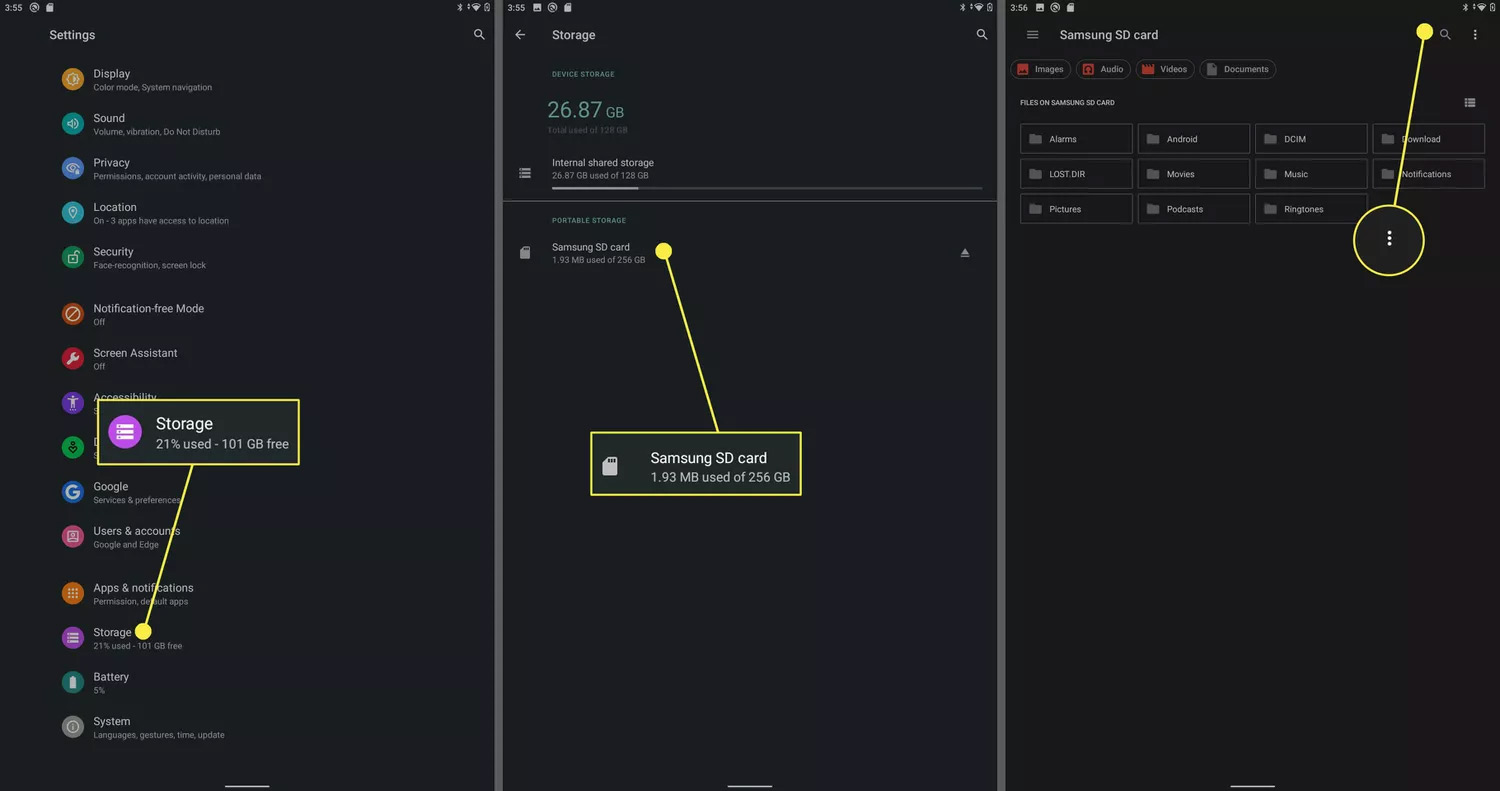
Insert the SD card into your phone, then tap Settings > Storage . Tap the SD card That is inserted into your phone, then tap The 3-dot icon In the top right corner.
Step 2:
In the displayed menu, Click Storage settings To adjust the storage on your Android phone. Next, click Format as internal And Select Format SD card To set the SD card as the default memory on your phone.
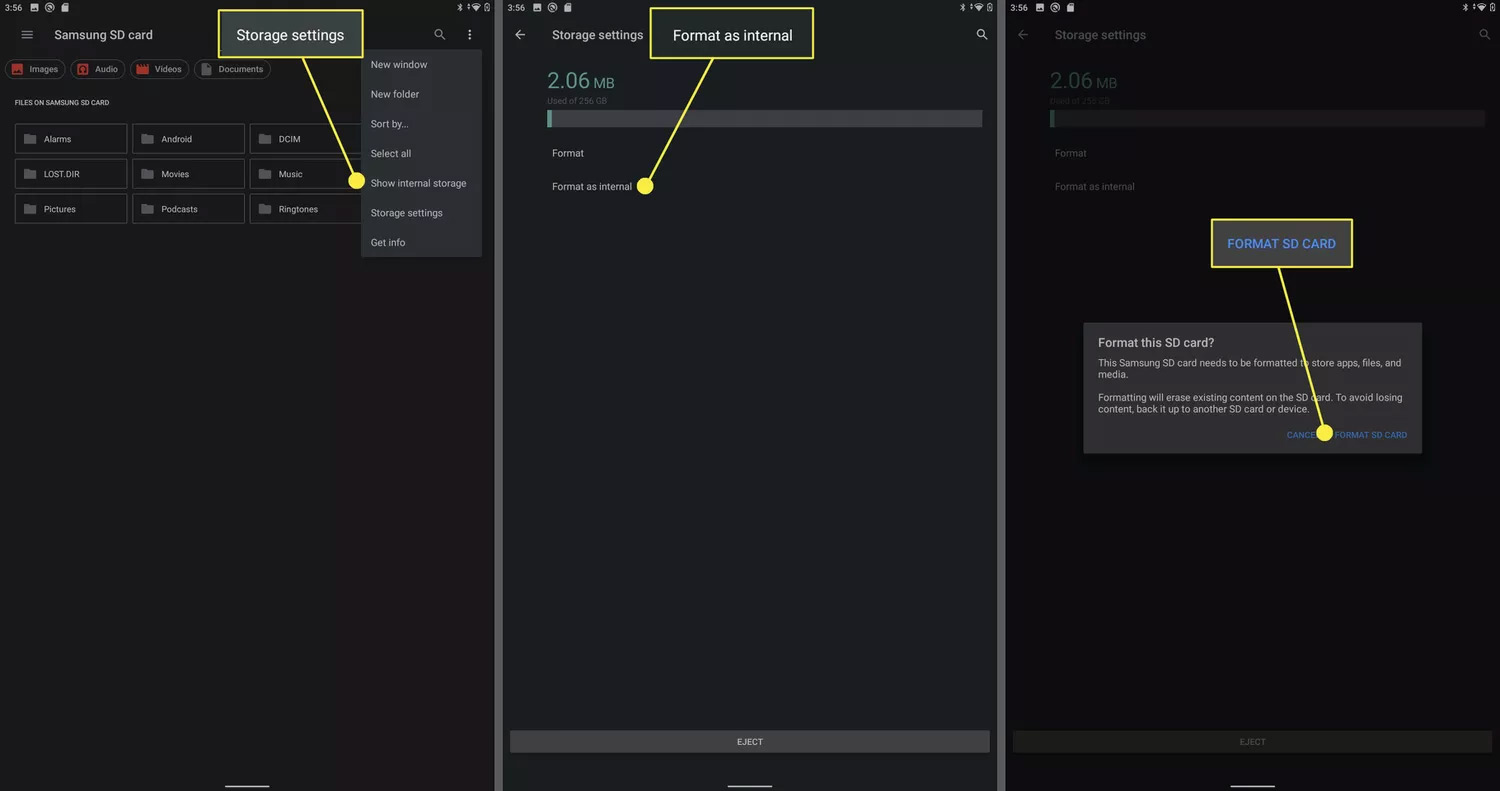
Formatting an SD card will erase all of its contents. Back up any data you want to keep before completing this step.
Step 3:
You Continue to select Move content To transfer data to the SD card connected to the phone. Press Done when this process is complete.
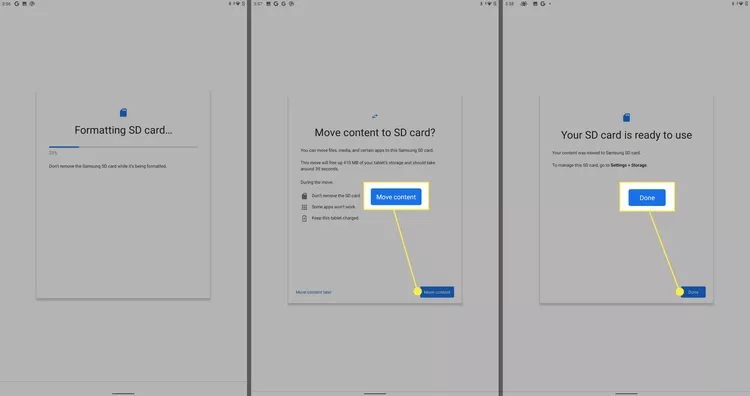
Depending on your phone, there will be some limitations on how you can use your new SD card and what you can store on it. Some devices won't let you store apps or games on the SD card, but you can store additional data there.
FAQ
How do you set SD card as default storage on Android: step-by-step guide?
In practical terms, many people choose microSD cards to expand the storage capacity on their Android phones. Here's how to set an SD card as the default storage on your Android phone.
What should you check before getting started?
Review the requirements, compatible device or software version, and any warnings described in the guide before making changes.
What should you do if the steps do not work?
Repeat the steps in order, confirm that your app or system is up to date, and review the troubleshooting details provided above.
Related Articles
 How to Transfer Applications from Memory to SD Memory Card on8 minutes read
 3 Ways to Increase Storage Capacity on Android with a Microsd Card9 minutes read
 The Company Has Created an SD Memory Card That Can Store Data on Par with the Hard Drive You Are4 minutes read
 How to Install Android Apps on SD Card13 minutes read
 The Real Difference Between SD Card and SSD Card5 minutes read
 What to Do When an Error Occurs 'Android Cannot Format SD Card'?5 minutes read
Reader Comments 0
Sign in with email or Google to join the discussion.