Table of Contents
There are many reasons why the Galaxy A32 5G might constantly restart or not display the logo. In this article, TipsMake will guide you on how to fix this annoying problem.
Troubleshooting Samsung Galaxy A32 restarting and not displaying the logo.
I. Causes of the Galaxy A32 5G constantly restarting and not displaying the logo.
The main reasons why your Samsung Galaxy A32 5G keeps restarting and doesn't display the logo could be:
- Firmware Flash Error: Each firmware is designed specifically for a particular smartphone model. It's worth noting that Samsung supports many different versions of the Galaxy A32 for users in different markets. If a user installs firmware for a different version, it can cause errors that lead to the Galaxy A32 constantly restarting and not displaying the device logo.
- ROM and Kernel Flash Error: Similarly, if you download and flash a ROM, kernel, and other files designed for a different device, this can also cause your Samsung Galaxy A32 to become unusable.
- Data and Cache Clearing Error: Some troubleshooting steps require users to clear data and perform a hard reset. If you skip clearing data, it can cause the device to fail to boot to the logo.
II. Fixing the Galaxy A32 5G's continuous restarts and failure to display the logo.
Method 1: Force turn off Samsung Galaxy A32 5G
The simplest way to fix the problem of your Galaxy A32 5G constantly restarting is to force shut down the device. To do this, press and hold the Volume Down button and the Power button simultaneously until the device completely shuts down and the screen turns black. Wait a few seconds, then press and hold the Power button again until the device restarts and check if the problem persists.
Method 2: Delete data and perform a factory reset.
Assuming the above method doesn't work, and the Galaxy A32 5G continues to boot up without displaying the logo, the cause of the error may be a software issue. In this case, the ideal solution is to wipe all data and perform a hard reset.
Normally, to reset a Samsung Galaxy A32 5G, we can do so through the Settings menu. However, because the device is experiencing continuous restarts and not displaying the logo, we cannot access the Settings menu. Instead, we will perform a factory reset in Recovery Mode.
Follow the steps below:
Step 1
Press and hold the Power button on your Galaxy A32 5G. On the menu screen, select Power off .
Step 2: After the device is completely powered off, press and hold the Volume Up button and the Power button simultaneously until the Samsung logo appears on the screen to access Recovery Mode.
Step 3: Use the Volume Up and Volume Down buttons to navigate to the Wipe data/factory reset option , then press the Power button to select it.
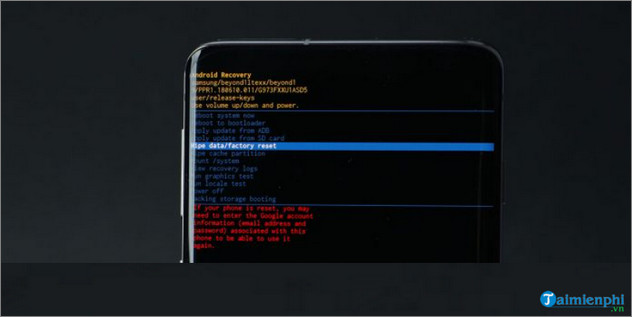
Step 4
A message will then appear on the screen asking if you want to erase all data on the device. Use the volume up and down keys to navigate to the Yes option and use the Power button to select it.
This process will erase all data stored on your Samsung Galaxy A32 5G. After the process is complete, restart your device and check if it still boots to the logo and if the continuous restarting error persists.
Method 3: Flash Stock Firmware
Finally, if none of the above methods work, the solution to fix the Galaxy A32 5G constantly restarting and not displaying the logo is to flash the stock firmware.
If you previously experienced a ROM flashing error or an incompatible mod, restoring your Galaxy A32 5G to its factory default state will also be unavailable because the entire Android firmware is corrupted.
Important note
To flash stock firmware, the user's device must have Developer Options, USB Debugging, and OEM unlock enabled. To enable these options:
- Go to Settings => About Phone => Software Information. Here, find and tap the Build Number option 7 times to activate Developer Options.
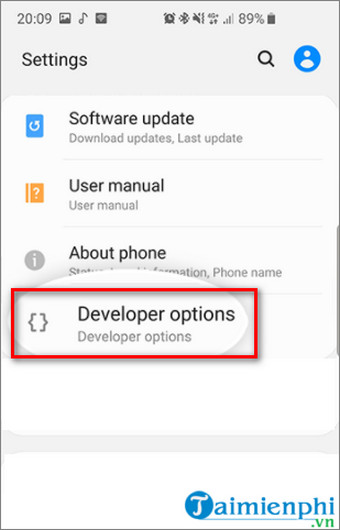
- Next, open the Settings app => Developer Options => find and select the USB Debugging option . This allows the Galaxy A32 5G to connect to a computer to install new firmware.
- Access Settings => Developer Options and enable the OEM unlocking option .
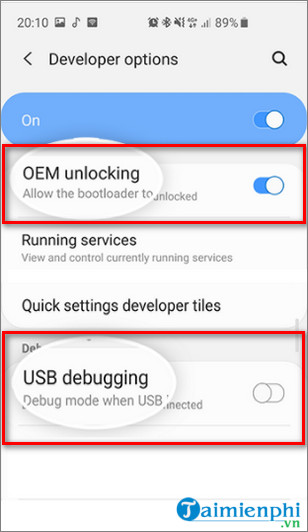
In addition, the following must be ensured:
- Your phone must have at least 60% battery remaining.
- Download the Samsung Galaxy A32 5G USB driver.
To download the Samsung Galaxy A32 5G USB driver, you can access it here.
- Download Samsung Galaxy A32 5G firmware.
Download the Samsung Galaxy A32 5G firmware here.
Follow the steps below to flash the stock firmware for your Galaxy A32 5G:
Step 1
Download and install the Flash ODIN tool.
Download and install the Flash ODIN tool from here.
Step 2
Extract and run the ODIN file.
Step 3: Press and hold the Power button and the Volume Down button simultaneously on your Samsung Galaxy A32 5G phone to turn off the device and enter Download Mode.
Step 4: Connect the device to your computer using a USB cable. If the USB driver is installed correctly, the bar next to ID:COM will turn blue.
Step 5: Click the AP/PDA button and select the firmware file you downloaded and extracted earlier.
Step 6: Access the Options menu and disable the Re-Partition option while enabling the Auto Reboot and F. Reset Time options .
Step 7: Click the Start button to begin the firmware installation process on your Galaxy A32 5G phone.
Once the process is complete, ODIN will display a "PASS" message along with details of the firmware installation time. During the process, your phone will restart itself a few times.
In summary, the article above has guided you through several ways to fix the Galaxy A32 5G constantly restarting and not displaying the logo. Additionally, if you don't know how to take a screenshot on the Galaxy A32, you can refer to other articles on TipsMake for more information.
In addition, you can find some tips on using the Samsung Galaxy A32 here.
Related Articles
 Fixing a Computer That Keeps Restarting but Doesn't Display the BIOS Screen8 minutes read
 How to Fix Samsung Galaxy S8 to Restart Automatically6 minutes read
 Causes and How to Fix Computer Restarting Continuously8 minutes read
 How to Fix Samsung Galaxy Tab Freezing: Practical Guide7 minutes read
 Samsung Galaxy Tab S9+ Review: Great Mid-range Tablet: Main Insights14 minutes read
 Using AAA Logo Professional Logo Design6 minutes read
Reader Comments 0
Sign in with email or Google to join the discussion.