It's wrong to say that you can only enable the virtual Home button on iPhones, because you can also enable it on Samsung phones and many Android phones. The reason we only hear about enabling the virtual Home button on iPhones is because it's truly useful and practically indispensable on Apple products. But that doesn't mean it's useless on Android; it's just that Android and Samsung devices offer more customization options, so perhaps not many people choose the virtual Home button.

Enable the virtual Home button on your Samsung phone.
However, if you're a newcomer switching from iPhone to Samsung, enabling the virtual Home button on your Samsung phone will provide a sense of familiarity and help you get used to the device initially.
Step 1: Enabling the virtual Home button on a Samsung phone is very simple. First, users need to access Settings > select Accessibility from the list of options.
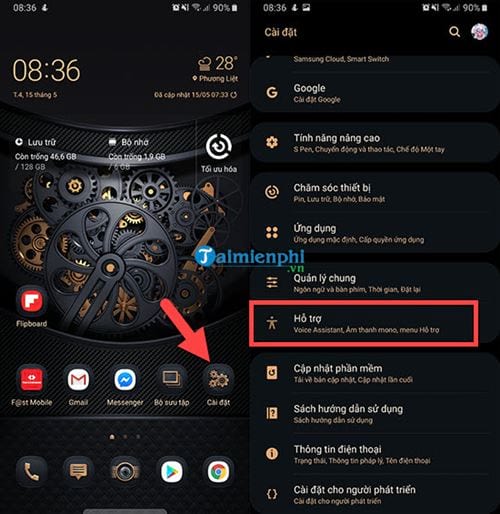
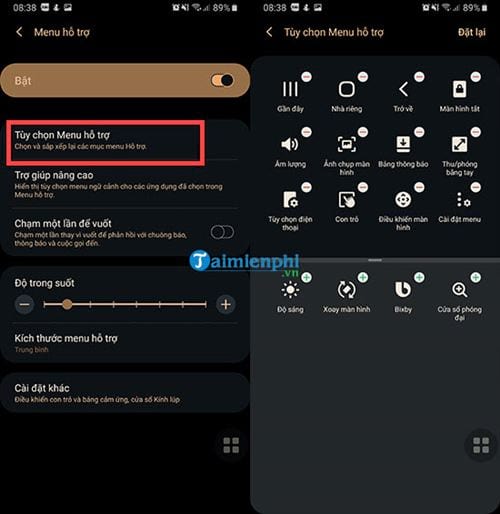
Step 2: In the support section, select interaction and operation > then activate the Support Menu (turn it green) and click on it again.
Note: On some devices, instead of "interaction" and "operation," it will be "operation and interaction." These two lines only differ in name but share the same part, the same function, regarding the virtual Home button.
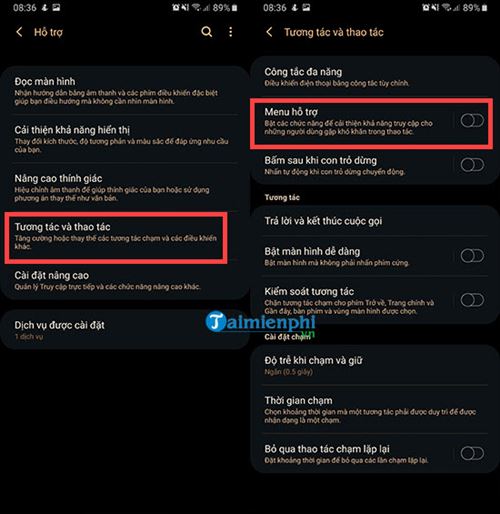
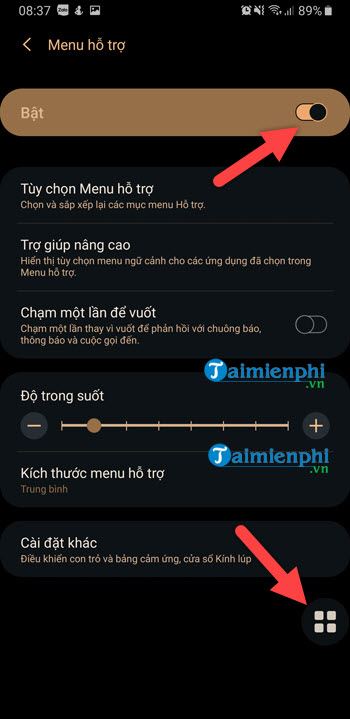
Step 3: Go inside the Support Menu and activate it (if you didn't already click enable in step 2). You will see a small icon appear at the bottom, and that's the virtual Home button we're looking for.
Step 4: Basically, the Samsung virtual Home button consists of two menu panels, arranged quite well. However, the way they open and are arranged is far inferior to the iPhone virtual Home button. Nevertheless, users can tap on the menu settings to reconfigure these functions.
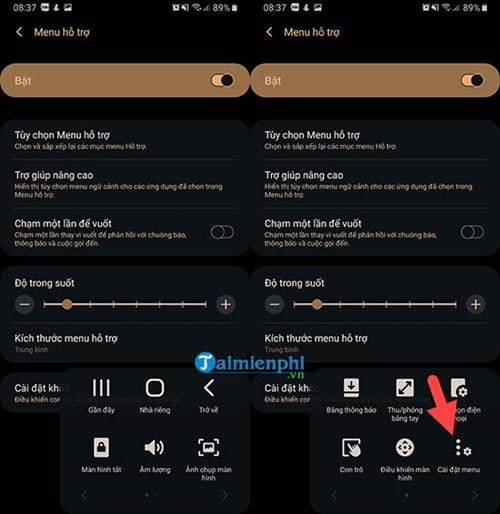
Alternatively, you can tap on the " Support Menu" option , which allows you to configure the entire virtual Home button menu. This also shows that the virtual Home button on Android doesn't have as many features as the iPhone.
The above article provides instructions on how to enable the virtual Home button on Samsung phones. So, is it useful or useless, and is it really necessary on your phone? Experience it yourself and decide whether you need to enable the virtual Home button on your Samsung phone.
If you've used a Samsung phone, you probably know there are many great features to explore, especially Samsung Pay. Samsung Pay is a new and unique payment feature that works only on Samsung devices and is incredibly convenient for users. You can make purchases using Samsung Pay and pay for many other services without needing to carry cash. So, how do you buy things using Samsung Pay ? The answer is right here.
Related Articles
 Instructions for Turning on the Virtual Home Key on Samsung5 minutes read
 The App Replaces Android Physical Home Button6 minutes read
 4 Customizations to Optimize Virtual Home Button on iPhone, iPad7 minutes read
 How to Create a Virtual Home Button for Android Phones3 minutes read
 How to Turn on the Virtual Home Button on iPhone4 minutes read
 How to Turn on Virtual Home on iPhone X5 minutes read
Reader Comments 0
Sign in with email or Google to join the discussion.