Table of Contents
Windows on Arm is an option when replacing an older Windows 10 PC, but compatibility should guide the decision. A laptop's battery-life claims or AI branding do not establish whether your essential apps, peripherals, and games will work.
Microsoft has promoted Arm-based Copilot+ PCs, including the Surface Pro 11 and Surface Laptop 7, as upgrade options. Windows 10's standard support ended on October 14, 2025; that deadline does not require buyers to choose Arm. Copilot+ branding also covers qualifying PCs using other processor architectures.
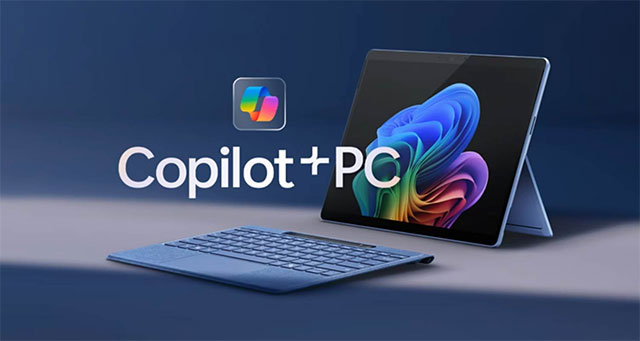
Native apps and emulated apps are different
An Arm64-native Windows app is built for the processor architecture. Windows 11 on Arm can also run many x86 and x64 applications through emulation. A program appearing in a compatibility list does not necessarily mean that every edition, plug-in, or feature is native or fully compatible.
Microsoft's Arm support guidance identifies an important limit: drivers need Arm64 support and are not covered by normal app emulation. That matters for hardware accessories, security software, VPNs, and other tools with driver components.
Check your own software before buying
- Work apps: check the exact version of your office suite, cloud-storage client, communication tools, and employer-required software.
- Creative tools: verify the application, plug-ins, codecs, export features, and any hardware accelerators you use.
- Security and VPN tools: confirm the vendor explicitly supports Windows on Arm, including required drivers.
- Peripherals: check your printer, scanner, audio interface, and specialist USB devices with their manufacturers.
- Games: check the specific title and its anti-cheat requirements. A game launching is different from working reliably online.
Record the publisher's support statement, required version, and any limitations for each essential item. If a tool is mandatory for work, ask your IT team to approve the exact configuration before purchase.
Use compatibility directories as a starting point
Works on Windows on Arm can help you find app and game compatibility reports. Check the tested hardware, Windows build, app version, and report date rather than treating a single label as a guarantee.
For related checks, see how to identify an Arm-based Windows PC and how Windows architecture affects software compatibility.
Choose an Arm PC when your required workflow is supported and the overall device meets your needs. If one indispensable application or accessory lacks support, resolve that gap before switching.
Related Articles
 7 reasons Microsoft urges users to abandon Windows 10 to switch to Windows 11
 2025 – The Year of Linux? Or is it Microsoft's 'Forcing You to Buy a New PC' Ploy?
 Microsoft wants 64-bit applications to work reliably on Windows devices using ARM chips
 Microsoft and Qualcomm introduced Windows 10 running ARM chips all day without running out of batteries
 Microsoft announced that Windows 11 does not support Apple computers using M1 chips
 Windows 365 Boot and Windows 365 Switch are coming soon
Reader Comments 0
Sign in with email or Google to join the discussion.