The lock screen on Samsung devices, like any other, functions as a message board displaying messages and app notifications. However, not all app notifications are necessary or of interest to users. To avoid being bothered, many people often turn off all notifications on the lock screen, even those from important apps.
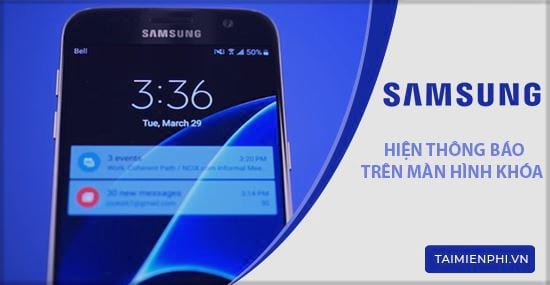
How to display notifications on the Samsung lock screen
So how do you reactivate the lock screen notification feature when needed? tipsmake will help you quickly answer this question with the detailed guide below.
tipsmake will demonstrate this article using the Samsung Galaxy J7 Pro , with a Vietnamese interface. You can refer to and follow similar steps for other Samsung phone models.
Method 1: Display Samsung lock screen notifications using the Notifications feature.
Step 1: From the device's home screen, tap Settings , then select Notifications .
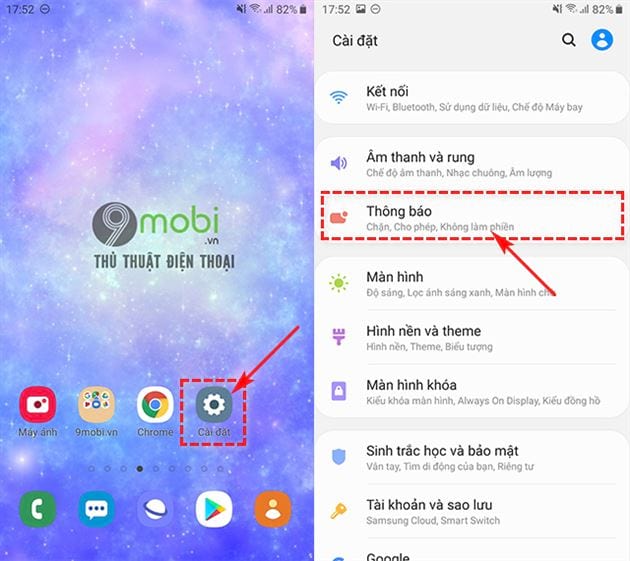
Step 2: The Notifications windowwill appear. Tap " View all" to see the complete list of applications installed on your phone. Find the application you want to enable notifications for and slide the slider to the right .
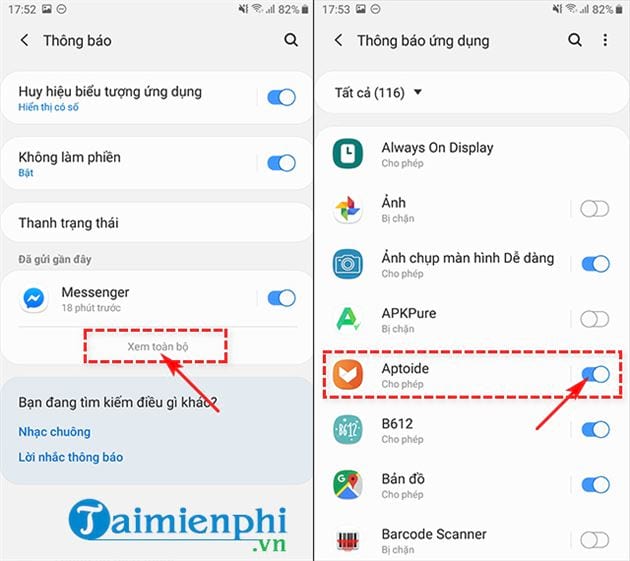
Method 2: Display Samsung lock screen notifications via the Apps feature.
Step 1: Instead of accessing the Notifications section in Settings , tap on Apps . Then select the app you are interested in;
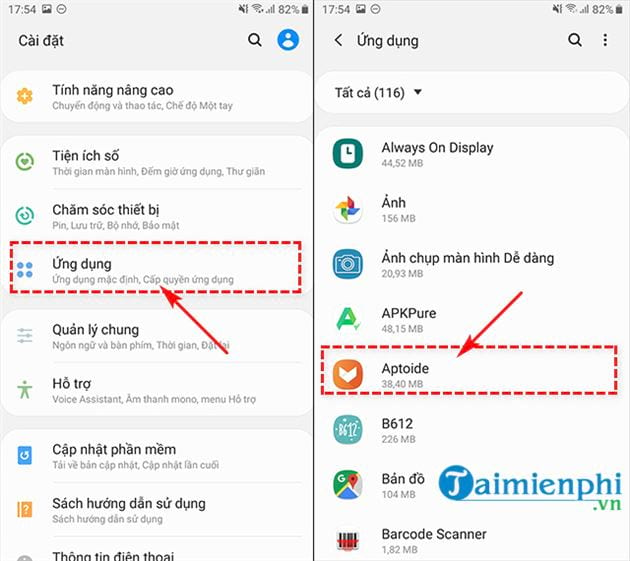
Step 2: In the App Information window, click on Notifications , then toggle the switch next to Show notifications to enable it.
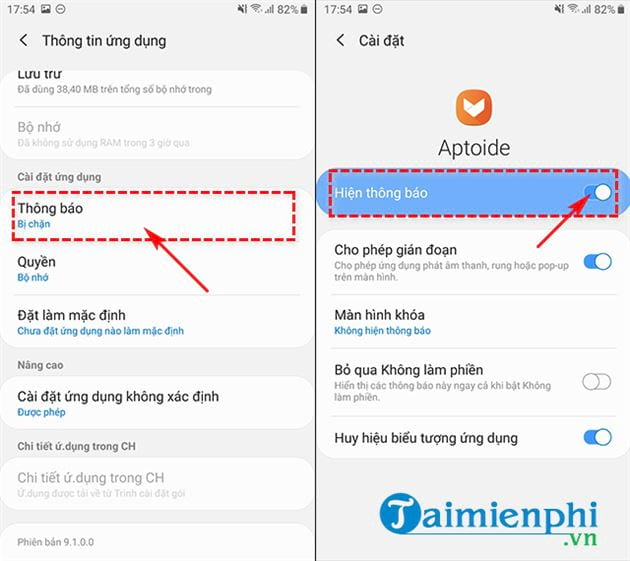
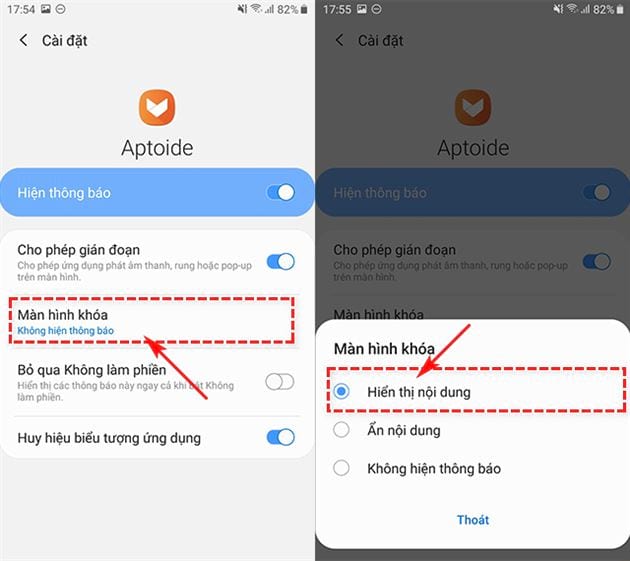
Step 3 : Even though you've enabled notifications, the lock screen still doesn't show any app notifications. At this point, tap on the Lock Screen option .
A new dialog box will open; if the option is currently set to "Do not show notifications ," change it to "Show content ."
So, you and tipsmake have together performed the necessary steps to activate the notification display function on the Samsung lock screen. This method is not limited to Samsung phones; users can apply this trick to display notifications on the lock screen on many other devices running the Android operating system. Additionally, Samsung phone users can refer to how to check Samsung hardware here.
Related Articles
 Add Custom Notifications on Android Lock Screen5 minutes read
 How to Turn Off App Notifications from iPhone Lock Screen3 minutes read
 How to Add Widgets to Samsung Lock Screen: Practical Guide3 minutes read
 12 Settings on Samsung Galaxy Phones You Should Change12 minutes read
 How to Display the Weather on the iPhone Lock Screen5 minutes read
 How to Set Up Infinity Wallpaper on Galaxy S84 minutes read
Reader Comments 0
Sign in with email or Google to join the discussion.