Table of Contents
To free space used by old Windows restore points, use Disk Cleanup > Clean up system files > More Options > System Restore and Shadow Copies. This option removes older restore points while keeping the most recent one. Check that Windows is working properly before proceeding: deleted restore points cannot be used to undo a problem later.
System Restore records system settings and related files; it is not a backup of your documents or photos. If you are unfamiliar with it, first review how to create and use a restore point.
Check how much space restore points use
- Open Start, search for Create a restore point, and open it.
- On the System Protection tab, select the protected drive, usually C:.
- Click Configure and check Current Usage under Disk Space Usage.
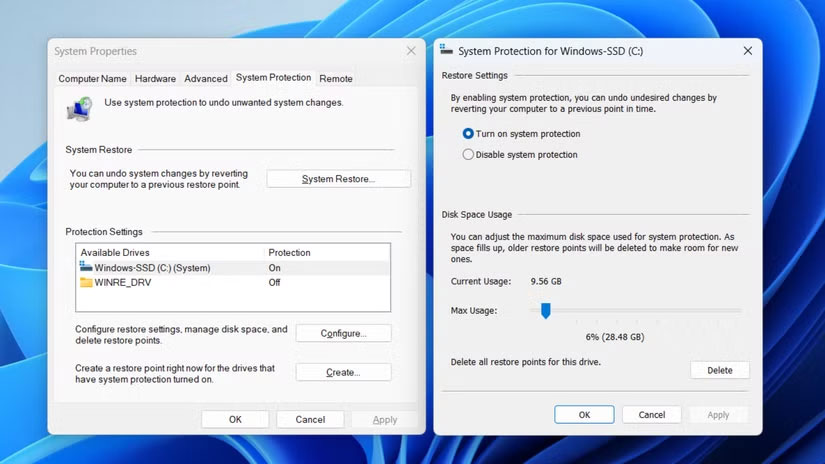
Compare the actual usage with the space you need. If it is small, cleaning up other files may help more. Do not use the Delete button in this configuration window if your goal is to keep the latest point: it deletes all restore points for that drive.
Keep the newest point and remove older ones
Before cleanup, press Win + R, enter rstrui.exe, and select Next to inspect available points. Select Show more restore points if offered. Cancel when you have finished checking; you do not need to perform a restore.
Keep older points if you are still investigating a driver, update, or software problem. The newest point may already contain that problem. For help deciding, see when System Restore is the appropriate recovery option.
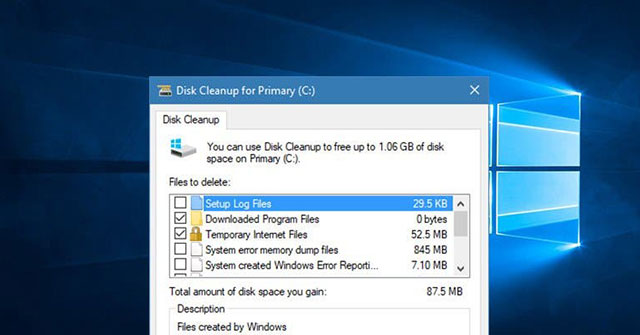
- Search Start for Disk Cleanup and open it.
- Select the Windows system drive and click OK.
- Click Clean up system files; approve the administrator prompt if required.
- Select the same drive again if prompted, then open More Options.
- Under System Restore and Shadow Copies, click Clean up.
- Read the confirmation and choose Delete only when you are ready to remove the older points.
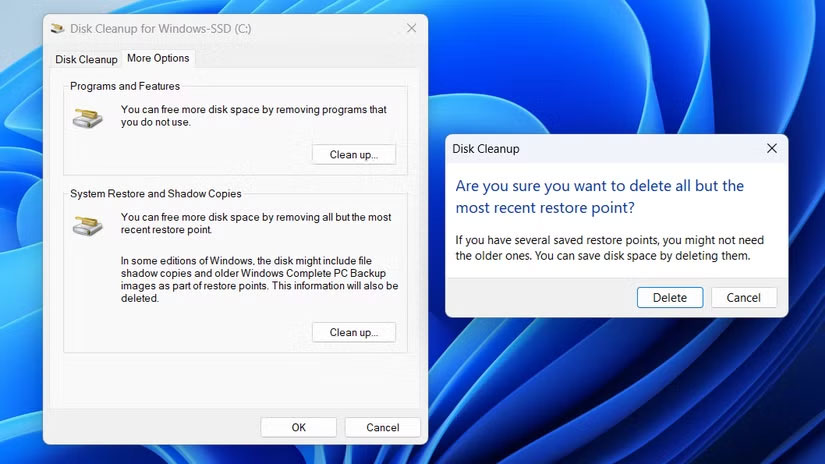
If More Options is absent, confirm that you opened the system-file cleanup view with administrator rights. Avoid deleting restore-point files manually.
Limit future System Restore storage
- Return to Create a restore point > System Protection.
- Select the protected drive and click Configure.
- Adjust Max Usage under Disk Space Usage.
- Click Apply, read any warning, and click OK.
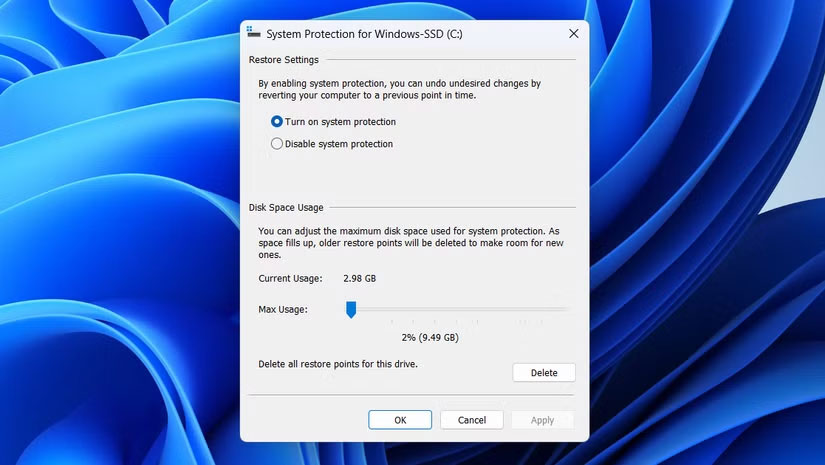
A lower limit leaves less room for restore history, and reducing it can remove older points. There is no single percentage suitable for every PC: choose a limit based on free disk space and how far back you need to recover. Keep System Protection enabled if you want future restore points, and maintain a separate backup of important personal files.
Related Articles
 How to delete System Restore Points in Windows 10
 Some tips to free up Windows 10 computer hard drive space
 How to delete individual system restore points in Windows
 How to delete a system restore point in Windows 10
 Clear the Windows 10 Update Cache to free up memory space
 How to root out old Windows 10 drivers?
Reader Comments 0
Sign in with email or Google to join the discussion.