What you will learn
- Match common Windows symptoms to the correct recovery tool.
- Prepare backups, BitLocker keys and account credentials before recovery.
- Review a restore point and affected applications before applying it.
- Verify one recovery action before escalating to Reset or reinstall.
What you need
- A recent-change timeline and exact symptom description.
- A verified backup and access to the BitLocker recovery key when encryption is enabled.
- Reliable power throughout the recovery operation.
Map the symptom to the purpose of each recovery tool
Microsoft's recovery-options guidance maps Startup Repair to startup failures, Uninstall Updates to problems after an update, System Restore to recent system changes, and Reset or reinstall to broader recovery scenarios. The least disruptive matching tool should normally be evaluated first.
If Windows reaches the sign-in screen but one application fails, a boot repair is not appropriate. If Windows stopped starting immediately after a known update, uninstalling that update is more focused than resetting the PC. If drivers or system settings changed and a suitable restore point exists, System Restore may be the smaller reversal.
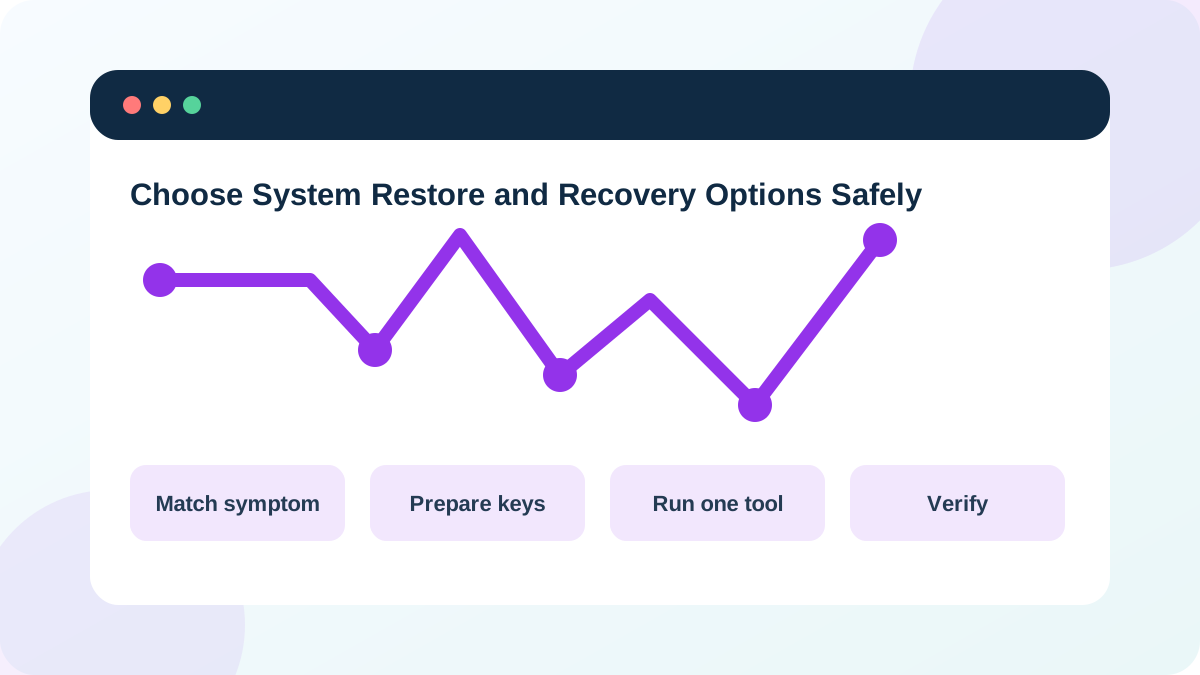
Prepare recovery access before making a change
Verify important files on a separate destination. Locate the BitLocker recovery key, because WinRE can request it before accessing an encrypted Windows volume. Confirm the account password; a PIN may not work in limited recovery contexts. Connect reliable power and disconnect nonessential external drives so the correct target is clear.
Record the last known good startup, recent updates, drivers, applications and hardware changes. Take photos or notes of current error messages. Recovery should begin from evidence, not from trying every menu item.
- 1
Verify a separate backup of important files.
- 2
Retrieve and securely store the BitLocker recovery key when applicable.
- 3
Confirm the Windows account password.
- 4
Record the last known good startup and recent changes.
- 5
Disconnect nonessential external drives and accessories.
- 6
Choose the least destructive tool that directly matches the symptom.
Use System Restore with a reviewed restore point
Microsoft states that System Restore applies a restore point to system files, registry settings, installed programs and drivers while not targeting personal files. Applications and drivers installed after the selected point can be affected.
Open System Restore from Windows or WinRE. Review restore point date and description and use Scan for affected programs when available. Select a point before the first failure, not simply the newest point. Keep power connected and do not interrupt the process.
- 1
Open System Restore from Windows or WinRE Advanced options.
- 2
Select the correct Windows account if prompted.
- 3
Choose a restore point dated before the symptom began.
- 4
Use Scan for affected programs and record the results.
- 5
Confirm the Windows volume and start the restore.
- 6
After restart, verify sign-in, affected applications, updates and the original symptom.
Use Startup Repair or update removal for matched scenarios
Startup Repair is designed to diagnose and repair common issues that prevent Windows from starting. It is not a general application or performance repair.
Microsoft supports uninstalling a recent Windows update through Settings or WinRE when the update is causing errors. Record the update and review current release-health guidance before removing it.
- The selected tool directly matches the symptom and recent-change timeline.
- Only one recovery action is applied before restart and verification.
- The affected application, driver or update list is recorded.
- Normal startup is tested more than once after recovery.
- Security updates and removed applications have a follow-up plan.
Escalate deliberately instead of stacking recovery actions
If the first matched tool fails, return to the evidence. Confirm drive visibility, encryption status, exact errors and whether the system can start in Safe Mode. A failure does not automatically justify running every remaining option.
Reset and reinstall are broader operations. Before reaching them, document personal-file backup, applications and licenses, browser or password-manager recovery, device drivers and post-recovery validation.
Build a recovery decision card
Choose a recovery tool for one realistic scenario and document prerequisites.
- 1
Write the exact startup or system symptom.
- 2
Record the last known good state and recent change.
- 3
Choose Startup Repair, Uninstall Updates, System Restore or another option.
- 4
List backup, BitLocker and account prerequisites.
- 5
Define the post-recovery verification test.
- 6
Write the escalation path if the selected tool fails.
Common mistakes to avoid
- Using Startup Repair for an application problem after sign-in.
- Selecting a restore point after the failure began.
- Assuming System Restore replaces a file backup.
- Running several recovery tools without restarting and testing.
Key takeaways
- Recovery tools have different purposes and risks.
- Backups, encryption keys and a recent-change timeline come first.
- Apply one matched action and verify before escalation.
Frequently asked questions
Will System Restore remove my documents?
It is designed to roll back system state rather than personal files, but recovery operations still carry risk. Keep a verified file backup.
What if no restore point is available?
Use the recovery option that matches the evidence, such as Startup Repair or uninstalling a recent update. Do not create a new restore point and expect it to represent the earlier state.
Sources and further reading
- Recovery options in WindowsMicrosoft Support
- System RestoreMicrosoft Support
- Startup RepairMicrosoft Support
- How to uninstall a Windows UpdateMicrosoft Support
Ready to continue?
Mark the lesson complete so your Learning Path progress stays current on this device.