Table of Contents
CorelDRAW offers three useful ways to crop a bitmap. Use the Crop tool for a quick rectangular crop, use the Shape tool when you need an irregular boundary, and use PowerClip when the image should remain repositionable inside a separate vector frame. Duplicate the bitmap first if you may need the original pixels later.

Choose a crop method
| Method | Best for | Editing behavior |
|---|---|---|
| Crop tool | Fast rectangular trimming of one or more selected objects | Removes content outside the defined crop when applied |
| Shape tool + Crop bitmap | Irregular bitmap boundaries controlled by nodes | Nodes reshape the visible boundary; Crop bitmap commits the removal |
| PowerClip | Placing a photo inside a circle, text or custom vector frame | Frame and image remain separately editable and repositionable |
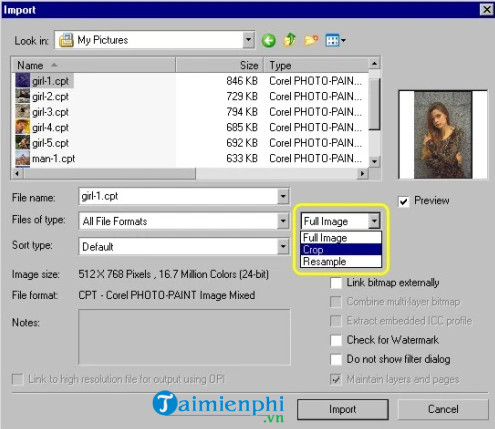
| Crop during import | Bringing only part of a large image into the document | Reduces the imported area before placement |
Method 1: Crop a bitmap with the Crop tool
- Select the bitmap with the Pick tool.
- Choose the Crop tool from the toolbox.
- Drag a rectangle around the area to keep.
- Adjust the crop handles if necessary.
- Double-click inside the crop area to apply it.
CorelDRAW's crop and erase documentation notes that the Crop tool can crop selected vector objects and imported photos. If nothing is selected, the tool may crop all objects on the drawing page, so check the selection before applying it.
Method 2: Crop with the Shape tool
1. Select or import the bitmap
Import an image with File > Import or Ctrl+I, then select it. A vector object can be converted with Bitmaps > Convert to Bitmap, but that rasterizes the object and should be done only when a bitmap workflow is intended.
2. Reshape the bitmap boundary
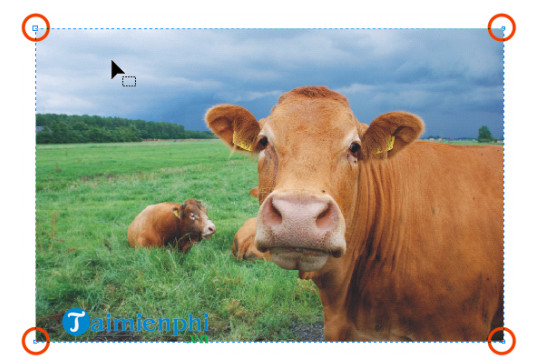
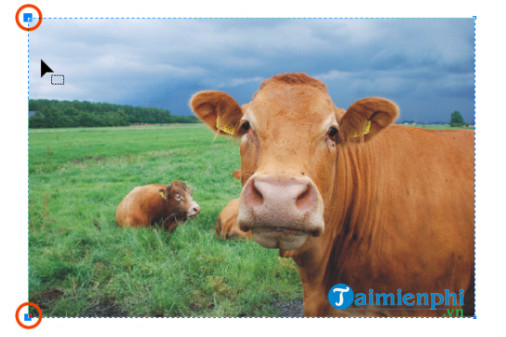
Choose the Shape tool and select the bitmap. Four corner nodes appear around a normal rectangular bitmap. Drag a corner node inward to hide part of the image. Drag it outward again to reveal the hidden area before the crop is committed.
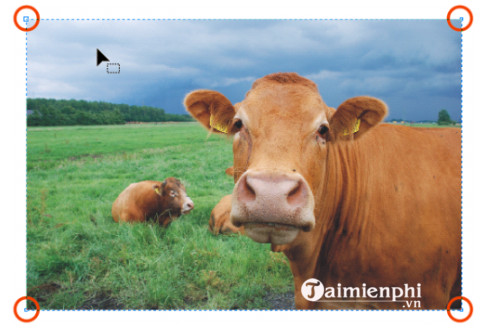
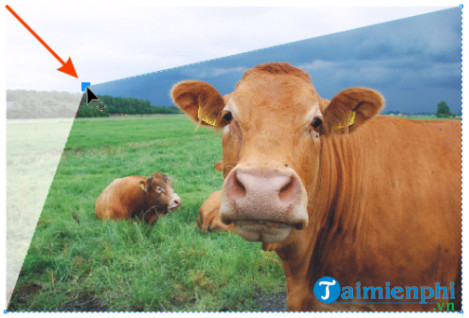
For an irregular crop, double-click the dotted boundary with the Shape tool to add nodes, then move the nodes around the subject. Use as few nodes as possible for a clean, manageable edge.
3. Move several nodes together
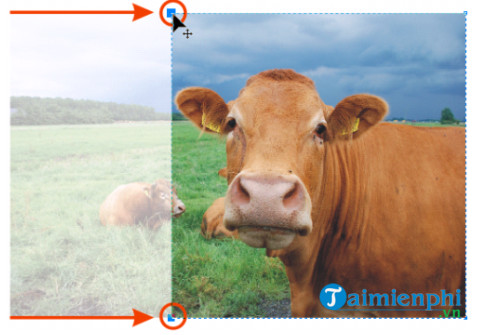
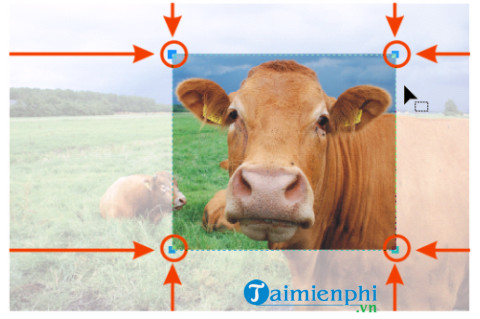
Shift-click nodes or drag a selection around them, then move the selected nodes. Modifier keys can constrain movement, but behavior can vary with workspace and platform. Watch the property bar and status bar for the controls in your release.
4. Commit the crop
When the boundary is correct, choose Bitmaps > Crop bitmap or the Crop bitmap control on the property bar. Corel's bitmap crop instructions use this sequence. The command works on a single bitmap object, so separate or flatten complex selections appropriately first.
Method 3: Use PowerClip for a reversible frame
- Draw the vector shape that should act as the frame, such as a circle or custom closed curve.
- Select the bitmap and choose the PowerClip command to place it inside the frame.
- Select the destination frame.
- Edit the PowerClip contents to move, scale or rotate the bitmap without changing the frame.
- Finish editing the contents and return to the page.
PowerClip is usually the better choice for a photo in a layout because the source image remains movable inside the frame. CorelDRAW's PowerClip documentation explains how vector objects and bitmaps are placed inside a frame.
Crop during import
For a very large bitmap, import-time cropping can avoid placing unnecessary pixels in the document:
- Select File > Import and choose the image.
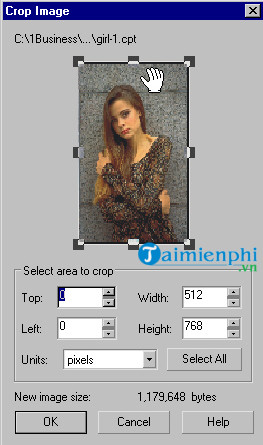
- Open the crop option offered by the import dialog.
- Enter or drag the top, left, width and height values for the required region.
- Confirm, then place the cropped image on the page.
Not every file type or CorelDRAW release presents the same import options. When the crop control is unavailable, import normally and use one of the document methods above.
Cropping is not the same as resizing or resampling
- Cropping removes or hides areas outside a boundary.
- Resizing changes the displayed dimensions of the entire bitmap.
- Resampling changes its pixel dimensions and can reduce or increase data.
- Masking/PowerClip controls visibility through another object while retaining editable content.
After cropping, check the bitmap's effective resolution at the final printed size. Enlarging a small cropped region can expose blur and compression artifacts even if the original full image looked sharp.
Common problems
The Crop tool affects other objects
Undo, return to the Pick tool and select only the intended bitmap. Grouping does not always mean a crop will behave as expected; inspect the selection in the Objects docker.
Hidden pixels cannot be restored
Crop bitmap or the Crop tool may have committed the trim. Undo immediately, restore a duplicated original or reimport the source file. Use PowerClip when future repositioning is likely.
The irregular edge looks jagged
Reduce unnecessary nodes and use smooth curve handles. A node-based crop follows a vector boundary, but the visible bitmap itself still has finite pixel resolution.
Export has an unexpected background
Check whether the chosen format supports transparency and whether the page background is included. PNG supports transparent raster output; JPEG does not.
Continue with editing SVG files in CorelDRAW, learn how to change the CorelDRAW language, or review CorelDRAW interface shortcuts. Choose a non-destructive PowerClip when flexibility matters, and commit a bitmap crop only when the discarded pixels are no longer needed.
Related Articles
 Click: How to Crop an Image Using Gimp6 minutes read
 How to Convert a Bitmap Image into a File Format Supported by2 minutes read
 How to Crop an Image into a Circle in Photoshop4 minutes read
 How to Crop an Image into a Circle on Canva4 minutes read
 minutes read
 How to Crop Pictures in Onenote App?4 minutes read
Reader Comments 0
Sign in with email or Google to join the discussion.