Table of Contents
This updated guide explains how to create dotted line in excel with clear steps, practical tips, and useful context. To create a dotted line in Excel is very simple, not as complicated as when you create a dotted line in Word. We can create a dotted line in Excel to fill in information, or you can create a horizontal line in Excel, depending on your needs and the purpose of creating data.
How to Create Dotted Lines in Excel
Step 1:
First you also create content in Excel as usual.

Next, we need to merge multiple cells into one in Excel by clicking on the Merge & Center feature. Note, you want to create a dotted line, then merge the line to that point.

Step 2:
Next, we highlight the entire data area to the position where you want to create a dotted line in Excel. Then right-choose and select Format Cells… in the displayed list.

Step 3:
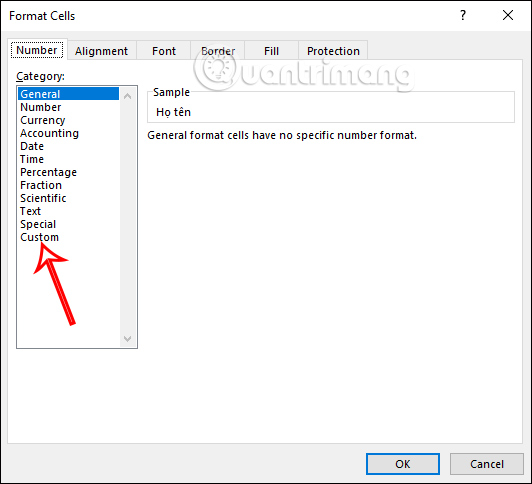
To display the new interface, select the Number tab , then look down and select the Custom category .
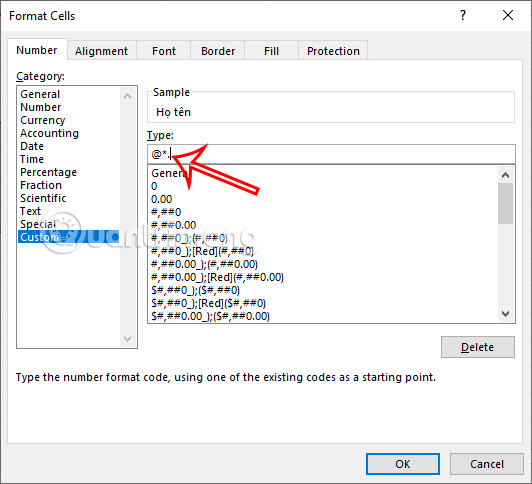
Now look to the side in the Type box, we will enter the character @*. then choose OK below to save.
Step 4:
As a result you will see the dotted line below, with the length we have chosen.

Now we just need to fill in the content in the dotted line as usual.

How to Create Horizontal Lines in Excel
To create horizontal lines in Excel is as simple as creating dotted lines in Excel.
Step 1:
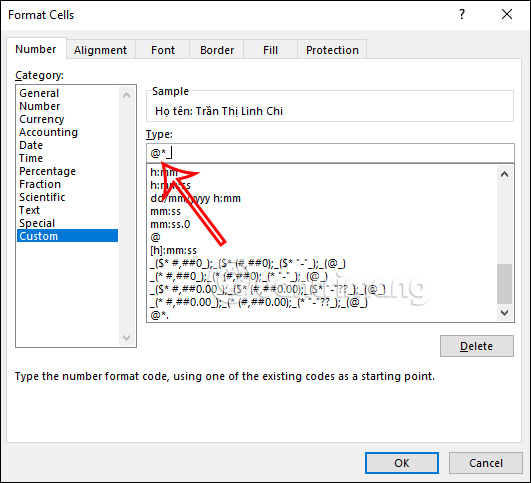
We also select the data area where we want to create horizontal lines and then select Format Cells… Next, in the new interface, you will enter the character @*_ in the Type box and press OK.
Step 2:
The result will show horizontal lines instead of dots in the data area as shown below. Finally, you can write content as usual.

With the operation of creating horizontal lines in Excel or dotted lines, our information survey table or information table will be much more professional.
Video Tutorial on Creating Dotted Lines in Excel
FAQ
What should I prepare before I create dotted line in excel?
Review the requirements and options in the guide first. Having the correct device, app version, account access, or materials ready helps prevent avoidable errors.
How long does it take to create dotted line in excel?
The time depends on the task and your setup. Most basic steps can be completed quickly, while downloads, updates, scans, or troubleshooting may take longer.
What should I do if the steps do not work?
Repeat the instructions in order, confirm that your software or device is supported, and check permissions, connectivity, and available updates before trying again.
Related Articles
 Create Dotted Lines (......) in Word3 minutes read
 How to Insert a Dotted Line in Word6 minutes read
 How to Insert a Dotted Line in Word: Step-by-Step Guide6 minutes read
 How to Type a Dot in Word Extremely Quickly: Step-by-Step Guide3 minutes read
 How to Create Newlines in Excel3 minutes read
 3 Ways Down the LINE in Excel, LINE Break, Down Row in 1 Excel Cell5 minutes read
Reader Comments 0
Sign in with email or Google to join the discussion.