Table of Contents
Google Maps has separate controls for the language of the app or voice search and the voice used for turn-by-turn directions. The labels and available choices can vary by device, app version, and region.
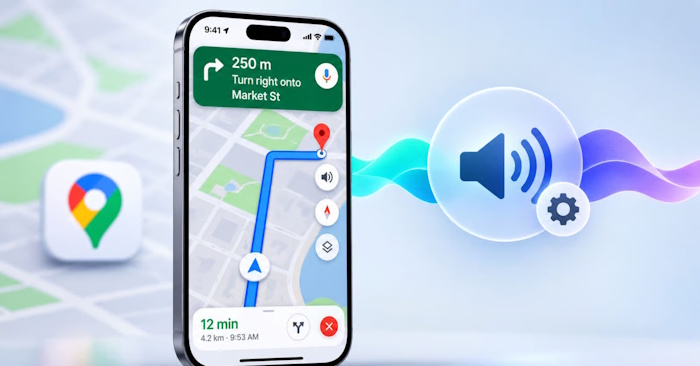
Change the spoken directions voice on Android
- Open Google Maps and tap your profile picture.
- Choose Settings, then Navigation settings.
- Under Sound & voice, tap Voice selection.
- Choose a voice or language from the available options, then start a short route to check the result.
If your menu uses different labels, look in Navigation settings for voice or sound options. Changing the app language alone may also change menus and search prompts.
Change the Google Maps app language on iPhone
- Open the iPhone's Settings app.
- On recent iOS versions, go to Apps > Google Maps > Language, if that option is available. On earlier versions, look for Google Maps in Settings.
- Select a supported language, reopen Google Maps, and test a route. The app's menus may change along with spoken directions.
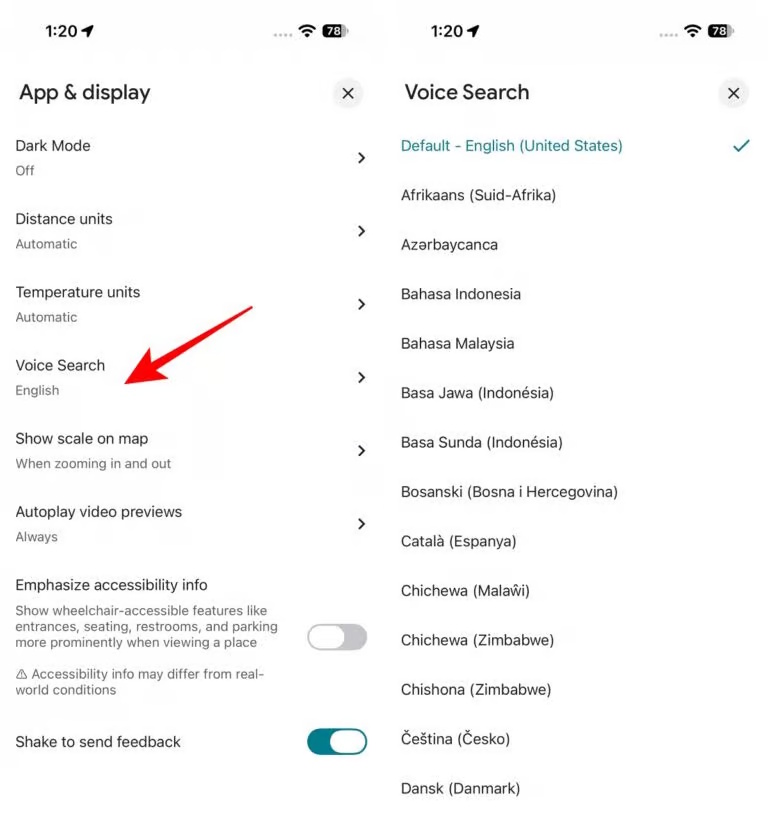
If there is no language control for Google Maps, iOS may use the device's preferred language. You can review it under Settings > General > Language & Region; changing it can affect other apps too.
Voice search is a separate setting
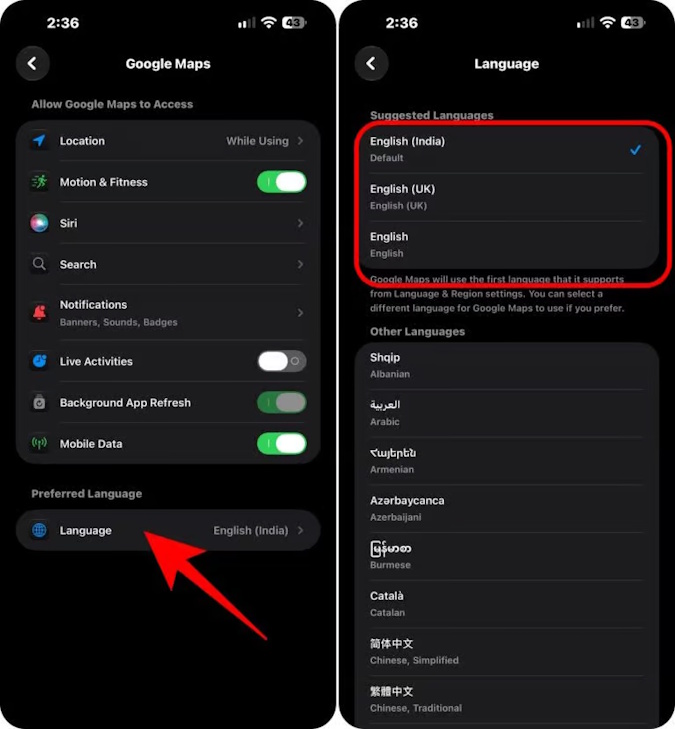
The language used to recognize spoken searches is not necessarily the same control as the turn-by-turn voice. Check Google Maps' app or language settings for voice-search options, where available. To confirm the navigation voice, preview the selection or start a short route rather than relying only on a search test.
If the voice does not change
- Confirm the phone's media volume is up and navigation audio is not muted.
- Check the selected voice again and test with a new route.
- Update Google Maps if the settings described here are missing; the menu may differ in older app versions.
Related Articles
 Google Assistant has been integrated into Google Maps
 Here Maps for Android has Vietnamese voice
 8 reasons Google Maps is the best navigation app
 How to fix Google Maps voice navigation not working on Android
 How to find your way with Google Maps on your phone
 Google: Android users prefer to use 3 traditional navigation keys than 'inspired' gesture navigation from iOS
Reader Comments 0
Sign in with email or Google to join the discussion.