Table of Contents
This updated guide examines How to Compile && Run Java Program Using Command Prompt and organizes the essential facts, background, and practical takeaways in clear American English.
Method 1
Compiling and Running
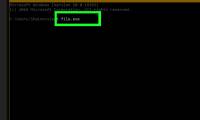
 Save the program. After using a text editor, such as NotePad, to create your Java program, save the program with a.java extension. Of course, the file name can be anything. For the purposes of this tutorial, "filename" will be used as a placeholder for your file name.
- To ensure that your file is saved as a.java file, be sure to write.java after the file name, and select All Files from the dropdown extension menu.
- Make note of where you saved the file on your system.
- If you are unsure of how to write a program in Java, check out our tutorial on how to program in Java. For the purposes of learning how to compile and run a program, though, you can use any sort of Java program.
 Open Command Prompt/Terminal. Accessing the command line differs slightly for Mac and Windows.
- Windows: Press⇱Home, then type cmd . Press↵Enterto open the Command Prompt.
- Mac: In Finder, press the Go tab, select Applications, select Utilities, then select Terminal.
 Check that Java is installed. Type
java -versioninto your command line. If java is installed, you will see a message stating what version of Java is currently installed.- If not, you may need to install the Java Development Kit from their website. It is free and can be found at this link: http://www.oracle.com/technetwork/java/javase/downloads/index.html.
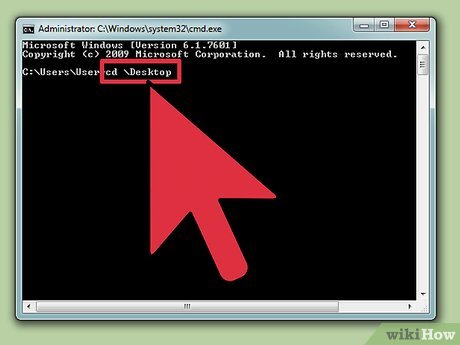 Navigate to the correct folder. Use the command cd followed by the directory name to change your working directory.
- For example, if you were operating in
C:UsersBobProjectand wanted to get toC:UsersBobProjectTitanProject, enter incd TitanProjectand press↵Enter. - You can see a list of what is in your current directory by typing
dirand pressing↵Enter.
- For example, if you were operating in
 Compile the program. Once you are in the correct directory, you can compile the program by typing
javac filename.javainto the command line and pressing enter.- If you have any errors in your program, or if there is difficultly compiling, the command prompt will notify you.
- Check out our article about how to fix compiler errors in Java for more help.
 Run the program. Enter in
java filenameand press↵Enter. Of course, replace "filename" with whatever the name of your file actually is.- After pressing↵Enter, your program should run. If you receive an error, or if your program fails to run in any way, refer to the troubleshooting method.
Method 2
Troubleshooting
 Set your path. If you are running a simple program with all of the files in the same directory, you will probably not need to do this. However, if you are running a more complex program with files in multiple directories, you will need to tell the computer where to look for these files.
- Windows: Type
java -versioninto the command prompt and press↵Enter. Based off the version of Java displayed on the first line, type inset path=%path%;C:Program FilesJavajdk1.5.0_09binto the command prompt and press↵Enter. Substitute jdk1.5.0_09 with whatever version of Java you have installed.- Be sure you are entering in this command while in the directory containing your Java project.
- Mac: Type
/usr/libexec/java_home -v 1.7into the terminal and press↵Enterto ensure Java is installed on your system. Then, typeecho export "JAVA_HOME=$(/usr/libexec/java_home)" >> ~/.bash_profileinto the terminal and press↵Enter. Restart the terminal afterwards.
- Windows: Type
FAQ
What is How to Compile && Run Java Program Using Command Prompt about?
It provides a structured overview of java, explains the main context, and highlights practical takeaways for readers.
Why does this topic matter?
Understanding the main concepts helps readers evaluate the issue, avoid common mistakes, and make better-informed decisions.
How should readers use this information?
Use the guidance as a practical starting point, confirm details that may have changed, and follow current product, safety, or security recommendations.
Related Articles
 Instructions on How to Compile and Execute Java Using Command7 minutes read
 How to Compile and Execute Java Using Command Prompt6 minutes read
 How to Compile a Java Program4 minutes read
 How to Execute a Program in Command Prompt7 minutes read
 How to Use the Command History Function in Command Prompt9 minutes read
 How to Open Microsoft Excel from Command Prompt5 minutes read
Reader Comments 0
Sign in with email or Google to join the discussion.