Table of Contents
The safest way to display League of Legends or TFT PBE text in Vietnamese is the Riot Client's Game Text Language setting. If Vietnamese is missing from the list, a Windows shortcut with the locale argument --locale=vn_VN can be used as a fallback. Close the client completely before changing either setting.
Method 1: Use Riot Client settings
- Open Riot Client and sign in with your PBE account.
- Select the profile icon in the upper-right corner, then choose Settings.
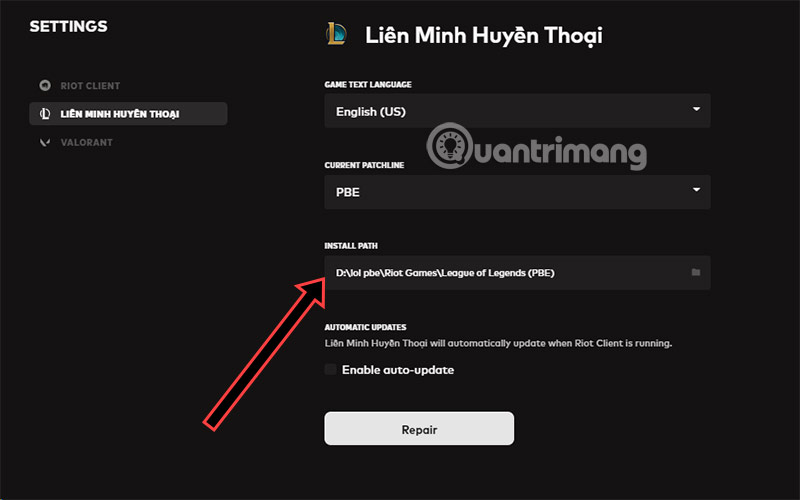
- Select League of Legends in the left column.
- Open Game Text Language and choose Tiếng Việt.
- Close and reopen Riot Client. Allow any language files to download before launching the PBE.
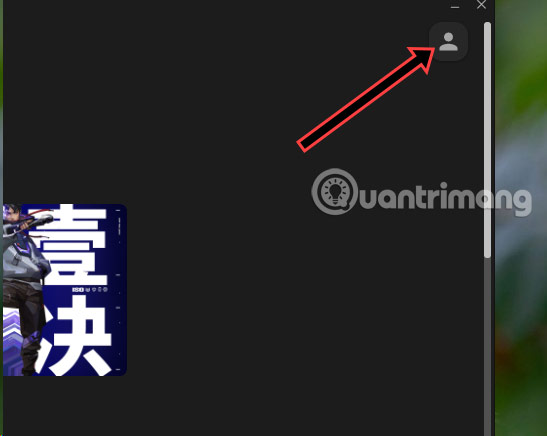
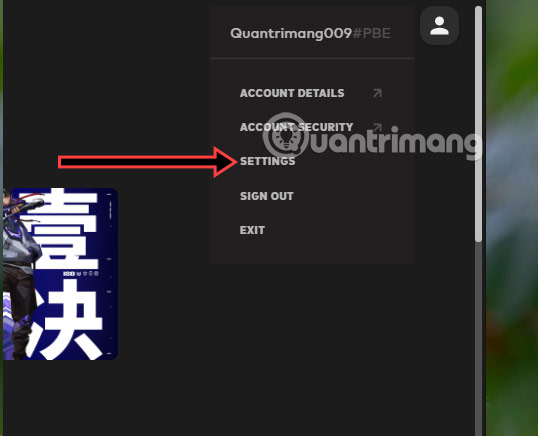
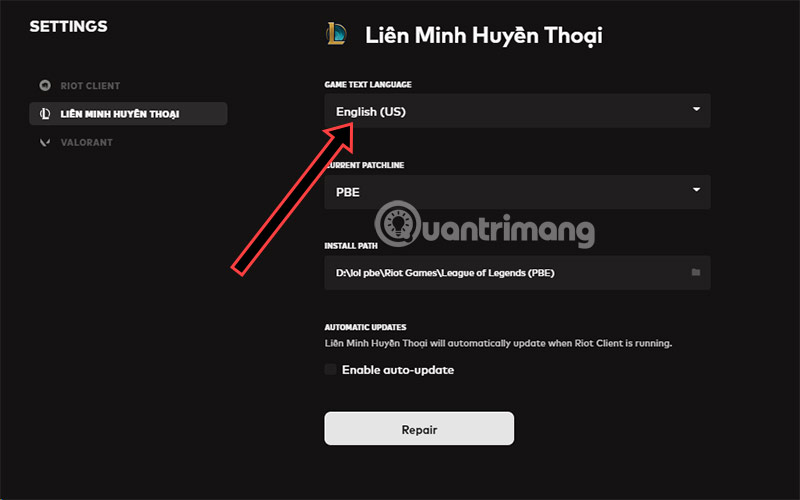
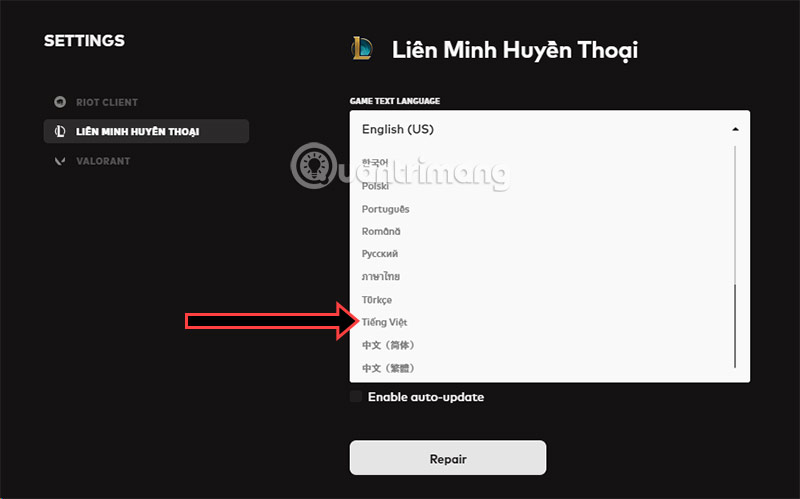
This setting controls the game text. The Riot Client interface can have a separate language setting under its General section, and voice-language availability may differ from text. Changing the language does not move your account to another region.
Method 2: Add the Vietnamese locale to a shortcut
Use this only when Vietnamese is not offered in the PBE language list or the setting keeps reverting. It changes the launch locale; a later Riot Client update may require you to recreate the shortcut.
- Exit League and Riot Client. In Windows, also close Riot Client from the notification area so it is not running in the background.
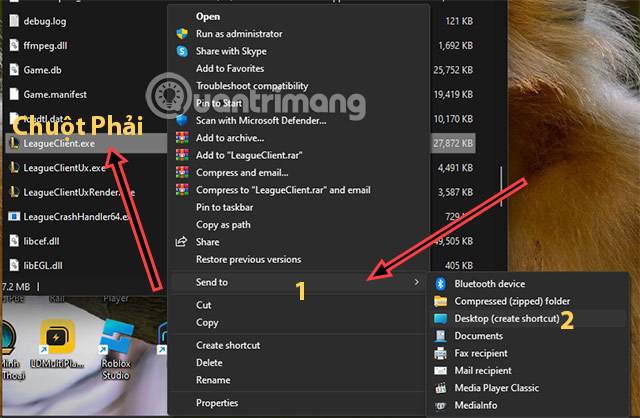
- Find the PBE or Riot Client executable. If you use the installation path shown in Riot Client settings, open that folder in File Explorer.
- Create a desktop shortcut for the executable rather than editing the original file.
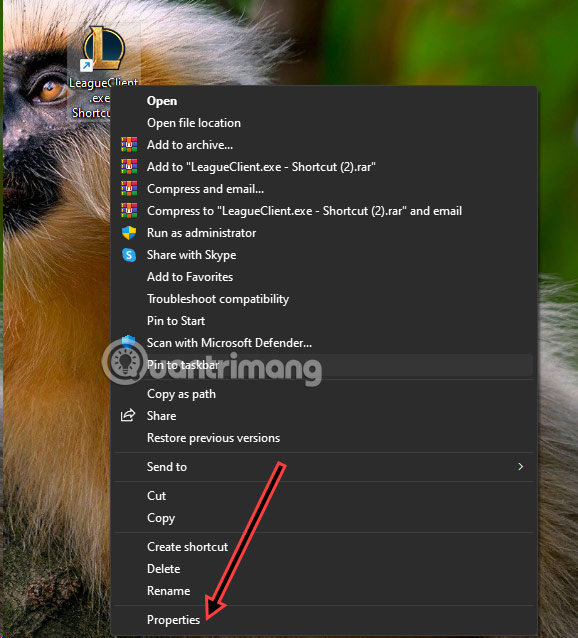
- Right-click the shortcut and select Properties.
- In the Target field, add a space and
--locale=vn_VNafter the closing quotation mark. Do not put the option inside the quoted file path. - Select Apply, then launch the PBE through that shortcut.
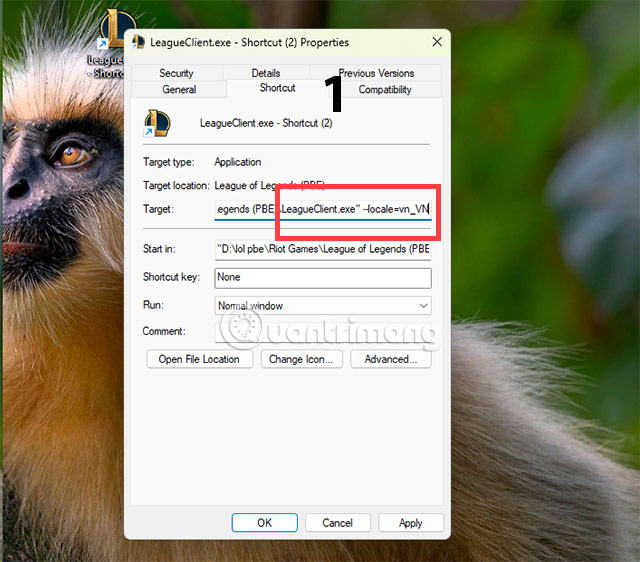
A correctly formatted Target looks like this:
"C:Riot GamesRiot ClientRiotClientServices.exe" --locale=vn_VNYour actual installation path may differ. Do not copy someone else's path blindly, and do not download unofficial “Vietnamese patch” files when the required language resources can come from Riot Client.
If the PBE is still in English
- Confirm that you launched the PBE shortcut, not the live League shortcut.
- Open Task Manager and verify that all Riot Client processes were closed before applying the change.
- Return to Settings and check whether Game Text Language reverted.
- Run the client's repair option if the language download stops or text appears as blank boxes.
- Remove the locale argument to restore normal regional behavior.
PBE access and update timing
The Public Beta Environment is a test server for features that may change or may never reach the live game. Riot generally tests content before its live patch, but there is no guarantee that every PBE build is exactly two weeks ahead. Maintenance, rapid balance changes and temporary disabled content are normal.
Use Riot's official PBE page to create or check a PBE account, and read the PBE FAQ for current rules. For TFT context, TipsMake's Targon composition guide covers a newer set, while the auto-battler overview explains the genre.
Related Articles
 How to Change Vietnamese in This War of Mine3 minutes read
 How to Switch to Vietnamese Interface for Windows 76 minutes read
 Instructions to Change Itunes Language to Vietnamese4 minutes read
 How to Convert Google Chrome to Vietnamese: Change Chrome Language5 minutes read
 How to Change Facebook Language on Computer3 minutes read
 Encoding of Vietnamese Typing Methods Telex, VNI and VIQR on Unikey9 minutes read
Reader Comments 0
Sign in with email or Google to join the discussion.