Table of Contents
This practical guide explains how to add custom stickers to Instagram stories. Follow the steps in order, review the requirements first, and use the troubleshooting notes when a setting or option does not work as expected.
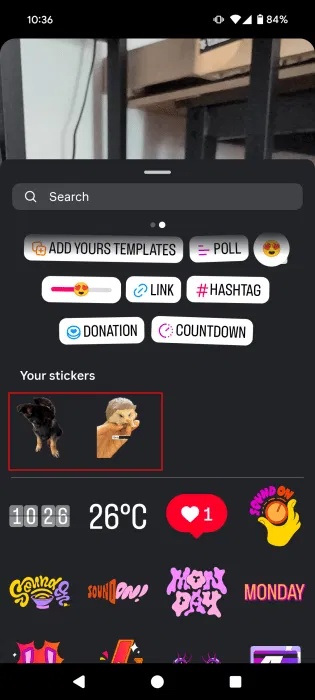
1. Using Instagram's Cutouts Option
If you have a photo that you think would make a great sticker, you can transform it using Instagram's Cutouts option in the mobile app.
Open the Instagram app and tap the + button at the bottom of your feed to create a new story. Take a photo/video or upload one from your device.
On the next screen, tap on the Sticker icon at the top.
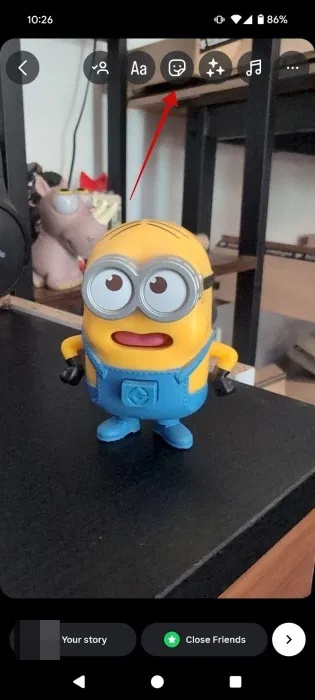
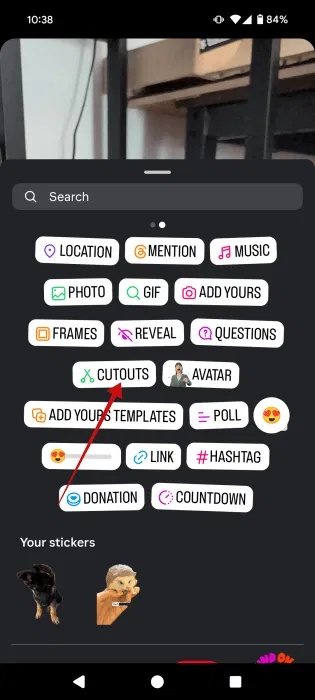
Select the Cutouts option.
Now, browse your device to find the image you want to turn into a sticker. Tap to select it. Instagram will automatically crop out the main subject in the photo. If you're not happy with the results, you can choose to do it manually.
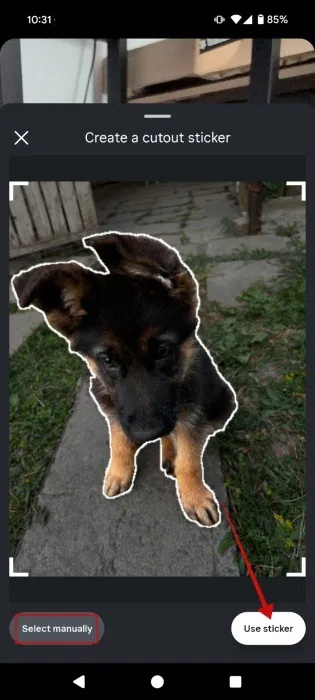
When you're done, tap Use sticker to add the sticker to your story. You can position the sticker wherever you want or zoom in/out.
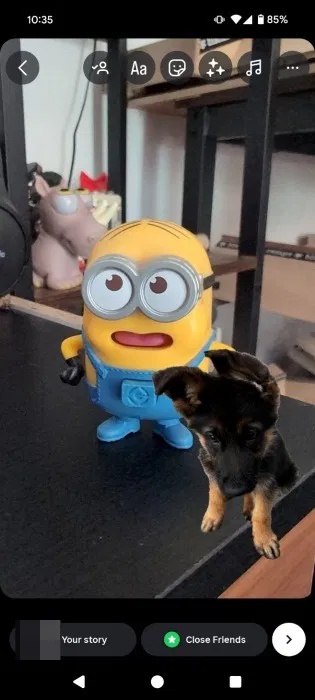
The sticker will be saved to your library, so you can access it later from the Stickers section.
2. Using Copy/Paste on iPhone
What if you have some cool stickers that you downloaded from the web or someone created for you? The good news is that you can use them on your Instagram story too.
This article assumes that you have downloaded stickers from the web from a site like Flaticon.
First, create a story in the Instagram app as usual.
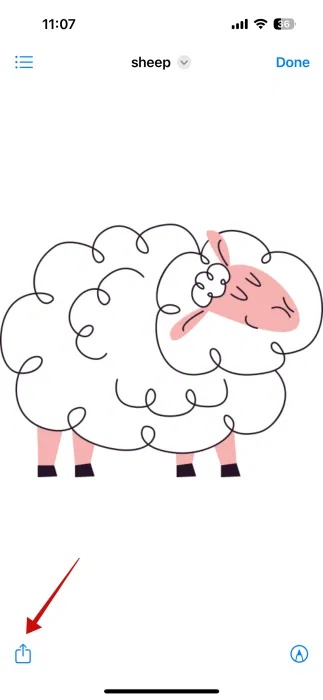
Next, open the Files app on your iPhone. Find the sticker you downloaded and tap to open it. Tap the Share button in the lower left corner.
Note : If the sticker is stored in the Photos app, the Share button will also be at the bottom.
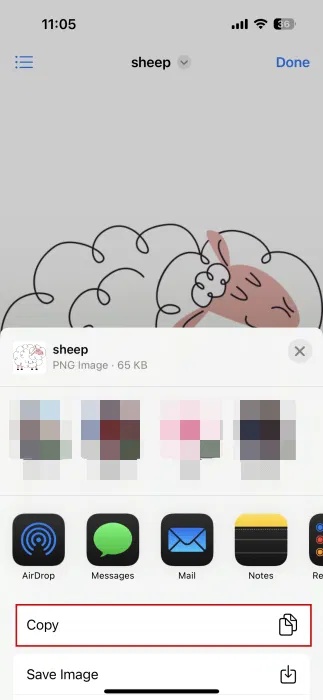
Click Copy in the menu at the bottom.
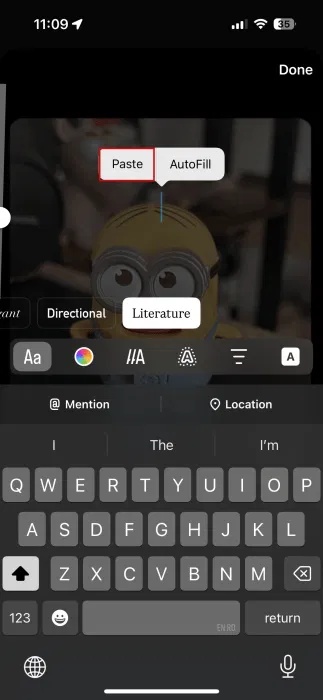
Go back to your Instagram story. Tap anywhere on the screen. This will bring up the keyboard and text options. Ignore this option. You'll also see the Paste menu appear. Tap this option.
The sticker will now appear on your story. Just like before, you can move the sticker around, as well as zoom in or out.
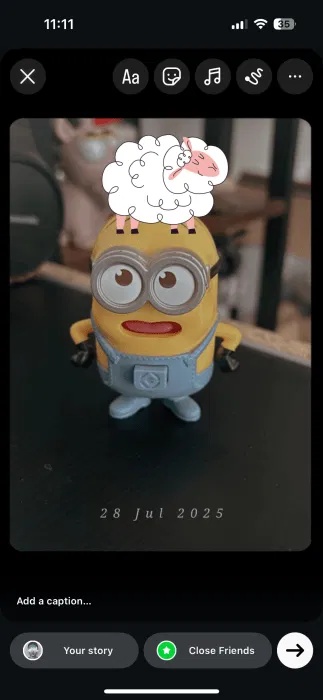
3. Using Copy/Paste on Android
On Android, we don't find a similar built-in Copy/Paste function (although there are reports on Reddit that the option exists, at least on Pixel devices). Luckily, this problem can be solved by installing a third-party clipboard app like Copy to Clipboard.
Install the app on your device and sign in to your primary Google account if you want, but it's not necessary to paste custom stickers into your Instagram story.
Create story on Instagram.
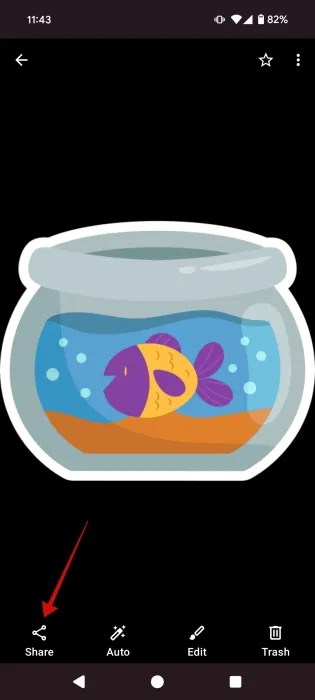
Then, navigate to the custom sticker. In this case, the article found the sticker in the Gallery app under Downloads. Tap the sticker to open it.
Click the Share button at the bottom.
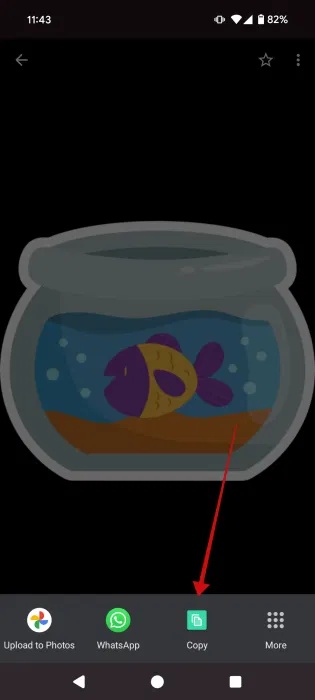
Use the Copy option (from Copy to Clipboard) that appears in the menu below.
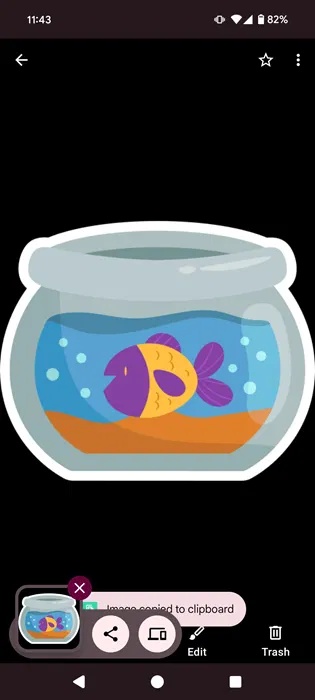
The image is now in your phone's clipboard.
Return to the Instagram app on the Story screen.
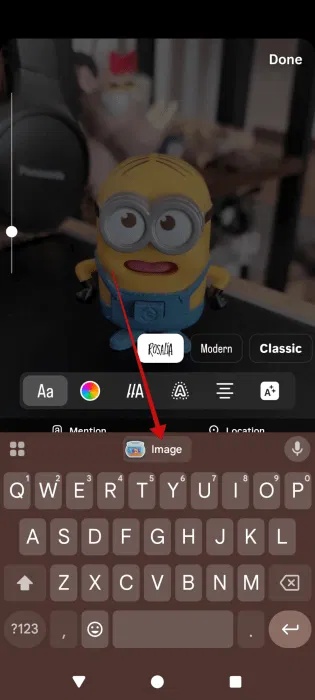
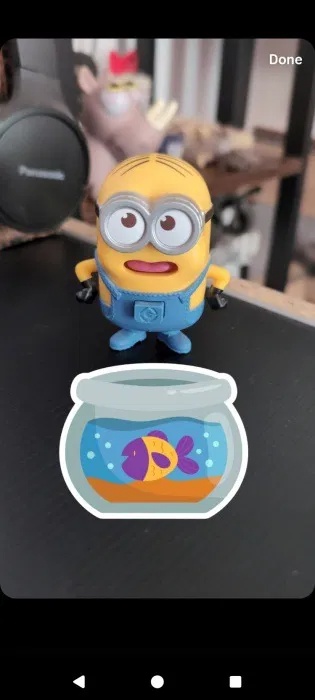
Tap anywhere to bring up the keyboard. Check the suggestion bar at the top of the keys. You'll see stickers. Tap a sticker to insert it.
Now you can arrange the stickers as you like.
4. Add custom stickers using Gboard
Finally, you can import more stickers into Instagram from the virtual keyboard. Most Android phones come with Gboard by default, so we'll use Gboard for this example.
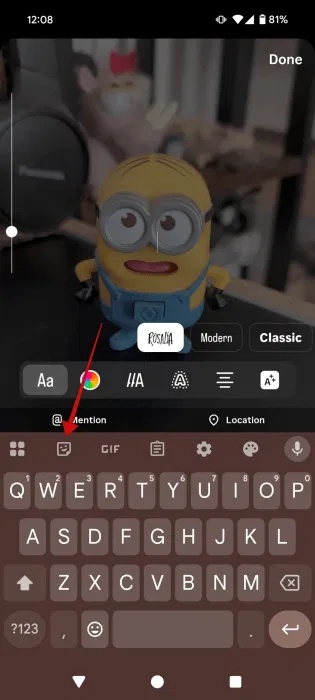
Create a Story on Instagram and tap anywhere on it to bring up the virtual keyboard. Tap the Sticker icon.
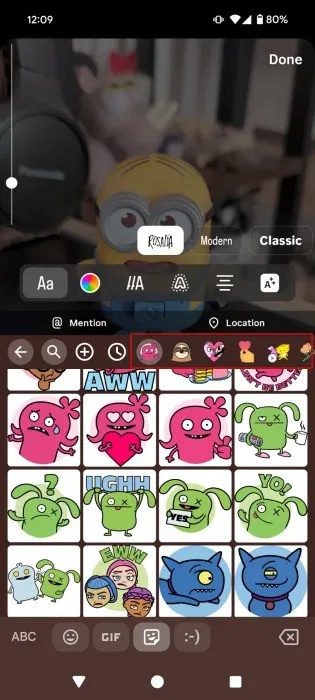
Swipe through the available stickers and tap a sticker to insert it into your Story.
Arrange stickers as you like.
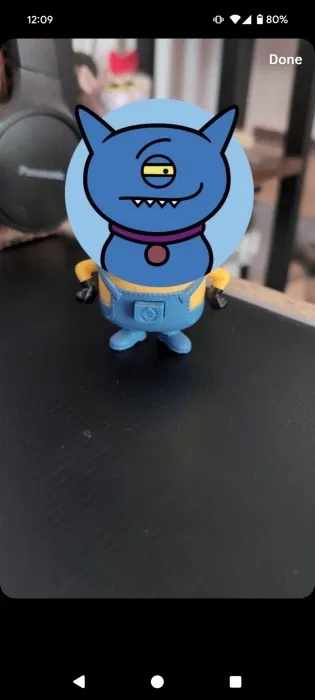
Or, tap the emoji icon next to the space bar.
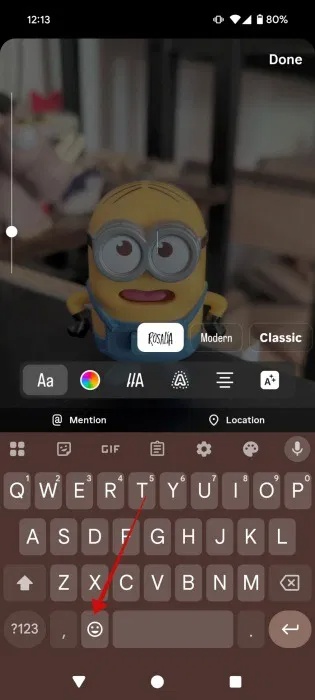
This way you can access the Emoji library and insert emoji combinations as stickers from there. You can also insert GIFs.
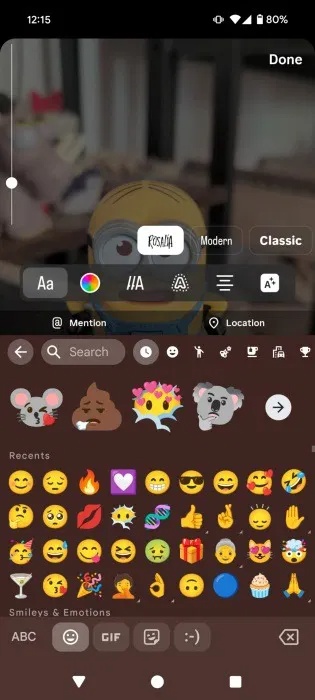
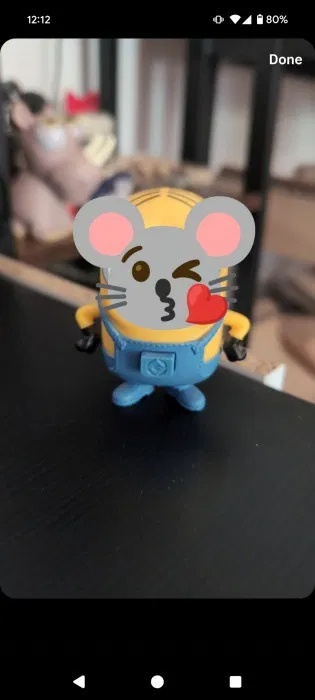
You can then move the emoji around on your Story.
If you need more tips on how to improve your Instagram Stories, read our article on how to change the AI background for Instagram Stories. Also, here's how to create a poll on Instagram.
FAQ
What should you know about 1. Using Instagram's Cutouts Option?
If you have a photo that you think would make a great sticker, you can transform it using Instagram's Cutouts option in the mobile app.
What should you know about 2. Using Copy/Paste on iPhone?
What if you have some cool stickers that you downloaded from the web or someone created for you? The good news is that you can use them on your Instagram story too.
What should you know about 3. Using Copy/Paste on Android?
On Android, we don't find a similar built-in Copy/Paste function (although there are reports on Reddit that the option exists, at least on Pixel devices). Luckily, this problem can be solved by installing a third-party clipboard app like Copy to Clipboard.
What should you know about 4. Add custom stickers using Gboard?
Finally, you can import more stickers into Instagram from the virtual keyboard. Most Android phones come with Gboard by default, so we'll use Gboard for this example.
Related Articles
 New Stickers on Instagram Allow Asking to Participate in Live3 minutes read
 10 Visual Tricks Make Your Instagram Stories Stand Out10 minutes read
 How to Tell Stories with Stories on Instagram5 minutes read
 How to Download Instagram Stories and Save Other People's Featured Stories on Instagram6 minutes read
 How to Create Instagram Stories from Your Voice and Photos5 minutes read
 How to Use Instagram Stories, the Storytelling Feature on Instagram11 minutes read
Reader Comments 0
Sign in with email or Google to join the discussion.