Table of Contents
Thanks to major improvements to smartphone cameras, mobile photo editing has become more popular than ever.
“Free” means different things in this category. Snapseed, Samsung Gallery, Google Photos, and Fossify Gallery provide substantial editing without a general editing subscription, while Photoshop Express, PhotoDirector, YouCam Perfect, Picsart, Canva, and Lightroom use freemium models in which some tools, exports, assets, AI credits, or cloud features require payment. Check the Play Store listing and in-app purchase screen before starting a large project.
Choose by editing workflow
| Need | Good starting points | Why |
|---|---|---|
| Fast, free manual edits | Snapseed | Strong adjustment tools, local edits, healing, filters, and RAW support without a subscription workflow. |
| Edit in the existing gallery | Samsung Gallery or Google Photos | Convenient crop, light, color, filters, markup, and device- or account-dependent AI features. |
| RAW and photography workflow | Adobe Lightroom | Detailed color, masking, presets, camera and cloud workflow; premium tools require a plan. |
| Quick retouching and collages | Photoshop Express, PhotoDirector, or YouCam Perfect | Guided corrections, effects, object tools, portraits, and templates, with freemium limits. |
| Social graphics and templates | Picsart or Canva | Combine photo edits with text, layouts, brand assets, and reusable formats. |
| Simple, private local gallery | Fossify Gallery | Open-source gallery and basic editing focused on files stored on the device. |
Check these points before installing
- Output: maximum resolution, compression, color profile, watermark, file type, metadata, and batch export.
- Workflow: RAW support, non-destructive history, layers or masks, selective adjustments, and cloud synchronization.
- Cost: subscription, AI-credit, asset, export, ad, and trial-renewal behavior.
- Privacy: whether editing happens on-device or uploads a photo; permissions for the full library, camera, contacts, and cloud storage.
- Generative AI: availability by age, region, account, and device; output can alter factual details and may require disclosure.
Google documents current Google Photos editing tools and warns that generative features can produce unexpected or inaccurate results. Keep the original file, save important edits as copies, and zoom in to inspect faces, text, hands, objects, and background details before sharing.
For deeper comparisons, see TipsMake's guides to Snapseed vs. Lightroom Mobile, free Android photo editors.
However, please note that none of these apps offer the same powerful and in-depth photo editing capabilities as GIMP, Lightroom, or Photoshop. For advanced image editing, you will still need a computer with these three software programs installed.
1. Photoshop Express: fast retouching and collages
While most other apps are excellent photo editors, they are primarily designed for professional editors. Photoshop Express is much easier to use, with simple editing tools that allow you to complete a small project in minutes.
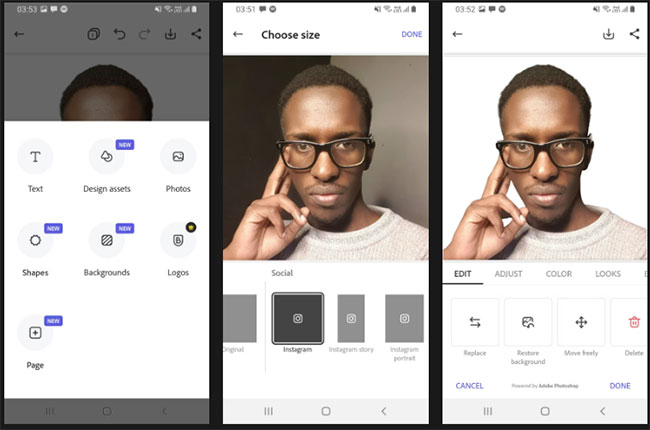
Photoshop Express's standout feature is its nearly perfect, free background removal tool. You have to pay for this feature on other major Android photo editors. It also excels at adding simple yet colorful text to images in a variety of fonts.
Photoshop Express comes with many templates to use, but not as many as what Canva offers in its free plan. You can quickly resize images depending on the platform you want to post them to, or set the desired size before starting your project.
For more advanced editing options, you can use the available filters along with the ability to adjust the contrast, brightness, saturation, warmth, and sharpness of the image. You will also have 6 animation options if you want to create an animated image.
2. Snapseed: powerful free manual editing
This unique photo editor was launched by Google a few years ago and it became one of the first photo editing apps for Android devices. Snapseed supports RAW images – a feature that pleases many photographers. You can also adjust images via one-touch tools or sliders. Snapseed also has several filters for faster image editing. If you're looking for a lightweight, simple, and completely free photo editing tool, Snapseed is a good option.
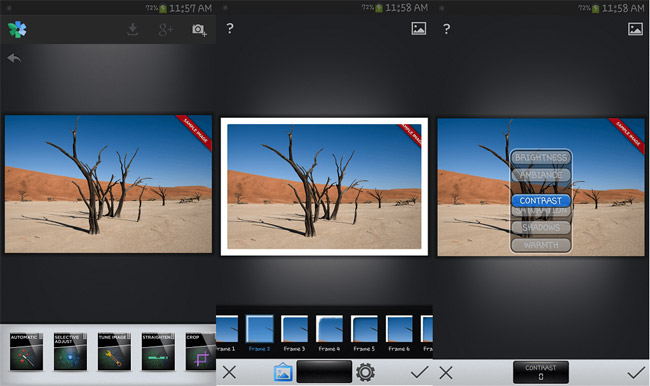
3. PhotoDirector: guided effects and AI tools
PhotoDirector is a relatively new name in the field of photo editing on Android, but it has done a good job. Like Fotor, PhotoDirector focuses more on manual image enhancement than filters. You have access to HSL sliders, RGB color channels, white balance, and more to edit images to your liking.
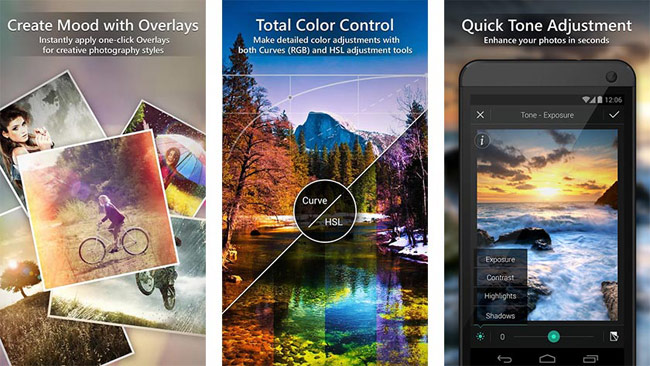
Additionally, there are sliders for tone, brightness, darkness, exposure, and contrast for more in-depth image editing. PhotoDirector is a good photo editing app for those who want to edit their own photos instead of using filters.
4. YouCam Perfect: portraits and object edits
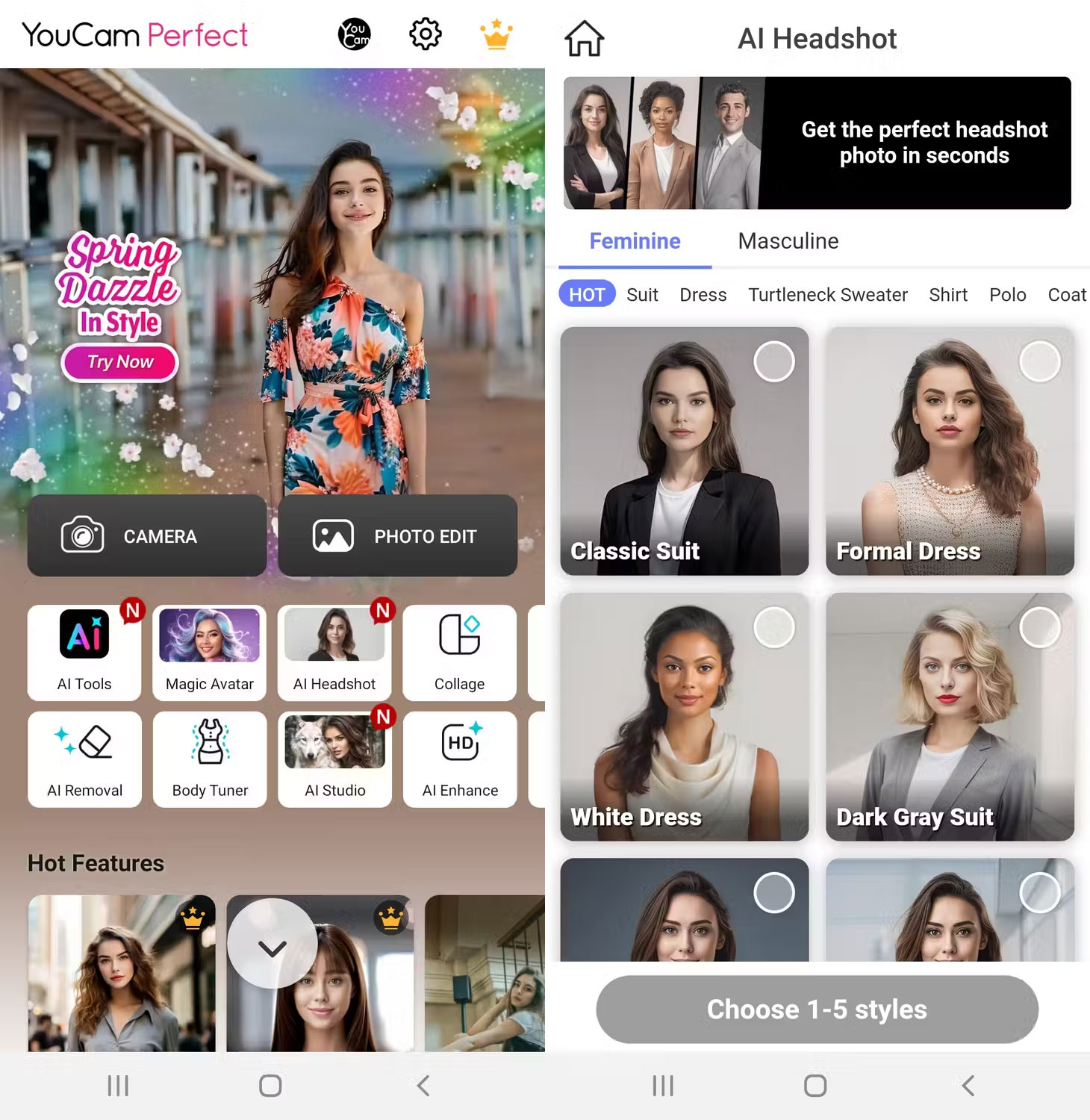
A standout feature of YouCam Perfect is its ability to enhance your photos in real time. It allows you to beautify, add effects, and use frames before you even take the picture. Once you have made the desired edits to your photo, you can share or use it immediately.
Another feature you might find useful is the face reshaping tool. It allows you to enhance your selfies by adding contours to make your cheekbones and jawline look better.
YouCam leverages a combination of artificial intelligence and augmented reality to ensure every adjustment to your photos is as perfect and realistic as possible. You can get more advanced manual features and AI support by paying for a subscription.
5. Picsart: social edits, effects, and templates
Picsart is one of the photo editors that will serve you well whether you're a beginner or a professional. It's available for both Android and iOS, and the free version is good enough for most users.
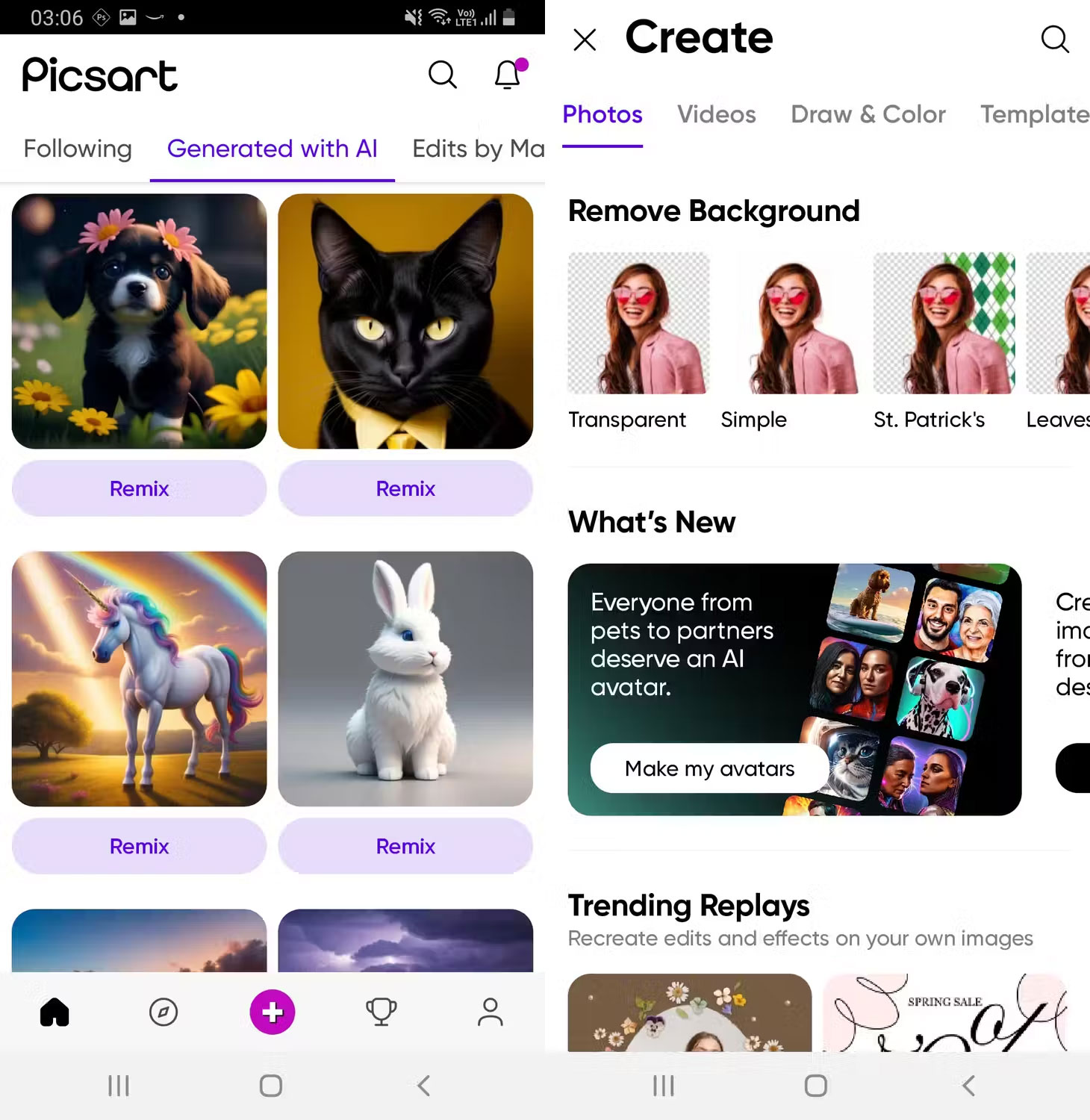
One of its standout features is Photo and Artwork Remix, which allows you to recreate photos or artwork already created by other Picsart users. Additionally, many people love the Magic Effects feature, which uses AI to apply filters to photos or artwork without requiring much effort on your part.
The only downside to this app is that it has a lot of ads, so you might want to pay for a subscription to remove them.
6. Canva: designs that combine photos and text
Social media campaigns need colorful and engaging photos and posters to capture the audience's attention. Canva does a pretty good job of this with its thousands of graphic templates and visual elements.
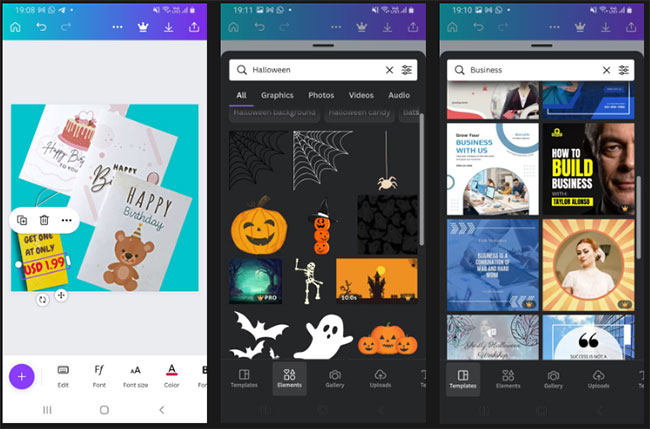
Canva templates are available and optimized for any social media platform you can think of - YouTube, TikTok, Facebook, Snapchat, Twitter, LinkedIn, Reddit, etc.
Using the app doesn't require any special skills; all you have to do is upload your photos and use Canva's many features to create a unique design in minutes. You can also collaborate with others on editing projects in a team setting across different platforms.
The free version will suffice for most cases, but upgrading will give you access to more unique elements, templates, and features such as background removal and instant resizing of existing images or projects.
You need to create an account before using Canva to access your projects on various devices. Canva is also available on iOS and the web.
7. Samsung Gallery: built-in editing on Galaxy devices
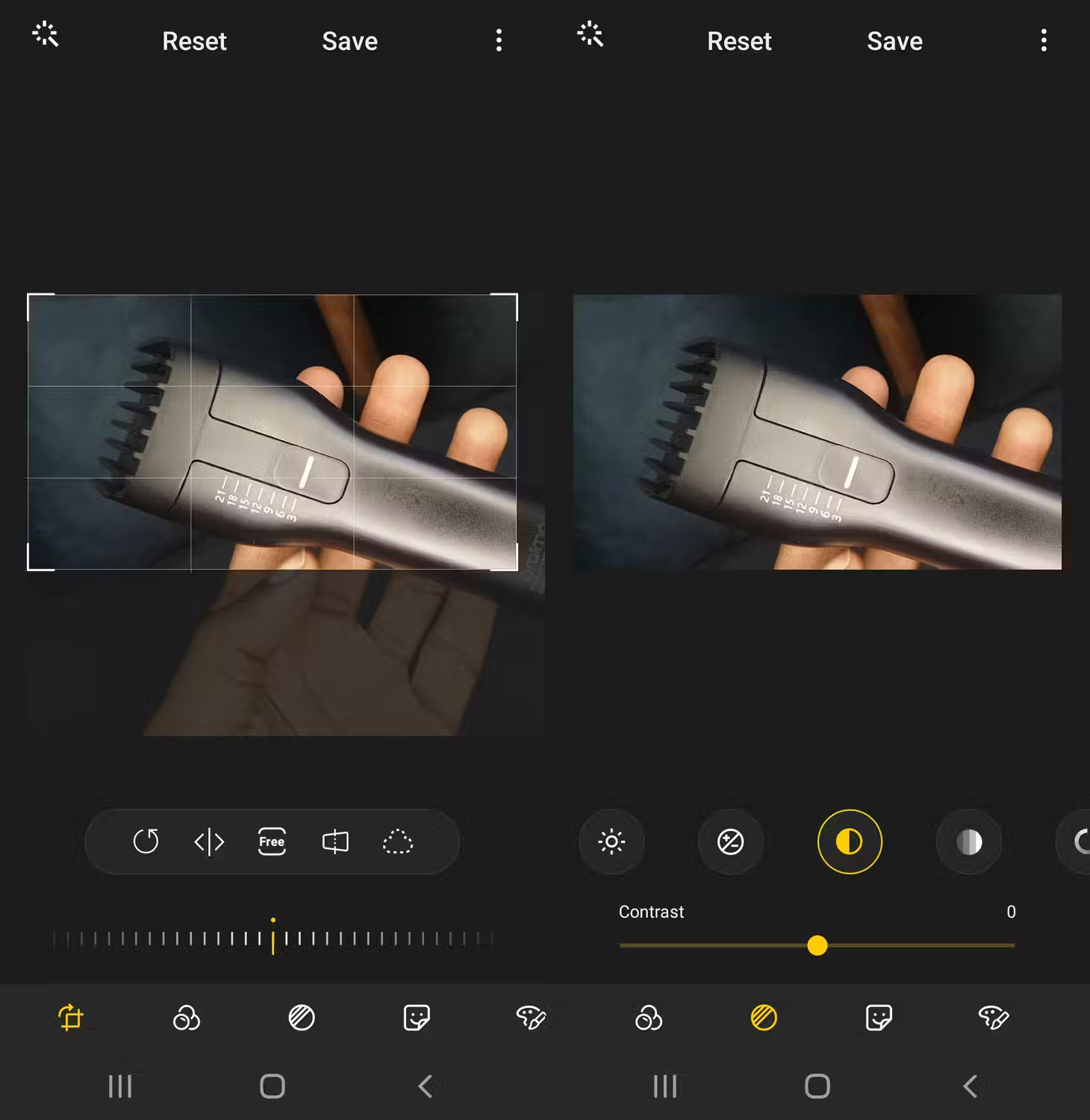
If you own a Samsung Galaxy device, you don't need to download a third-party photo editor. The Samsung Gallery app has similar photo editing features to Apple's Photos app.
To access these features, launch Samsung Gallery, open the image you want to edit, and tap the Edit tool (indicated by the pencil icon). After you've finished editing your image and tap Save, you'll be able to find the edited copy in the Gallery app along with the original image.
Samsung Gallery may not be as powerful as some of the dedicated editing apps on this list. However, its features will be sufficient if you only want to make some minor edits before sharing your photos on social media platforms.
8. Google Photos: library-based edits and device-dependent AI
Like Samsung's photo editor, Google Photos may already be pre-installed on your Android device. Google Photos is easy to use and has all the necessary tools easily accessible in one place.
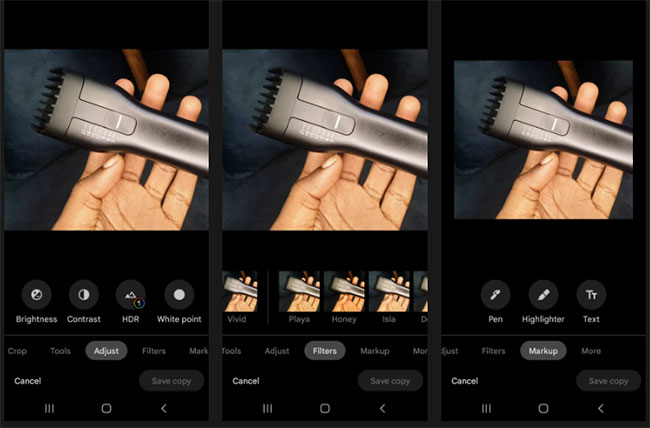
These tools include cropping, marking, filters, and settings to adjust the overall color and tone of the photo. After you've finished editing your photo on Google Photos, you can save and access it on another device using the same Google account.
9. Adobe Lightroom: RAW and advanced photo controls
Adobe Lightroom is an image and video editor for creative professionals. The mobile app doesn't have all the features of the desktop version, but that's not a problem for most Android photo editors. The app is primarily used for blurring backgrounds in images, and the experience isn't much different from on a computer.
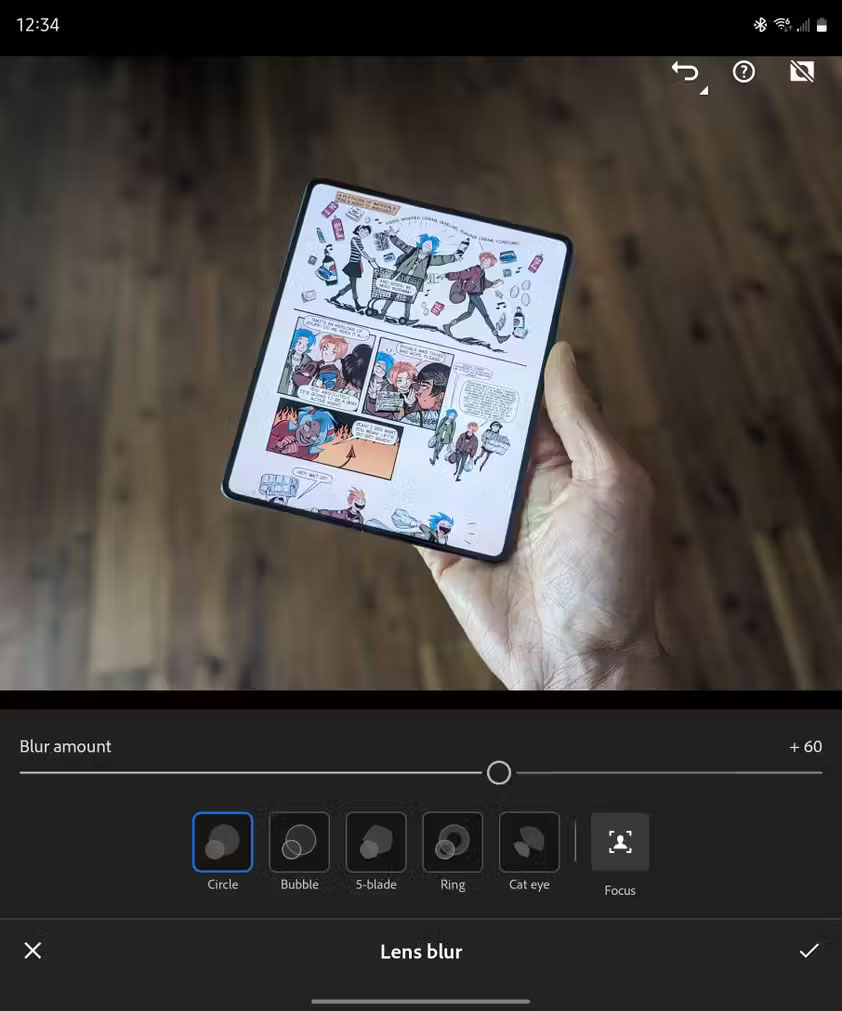
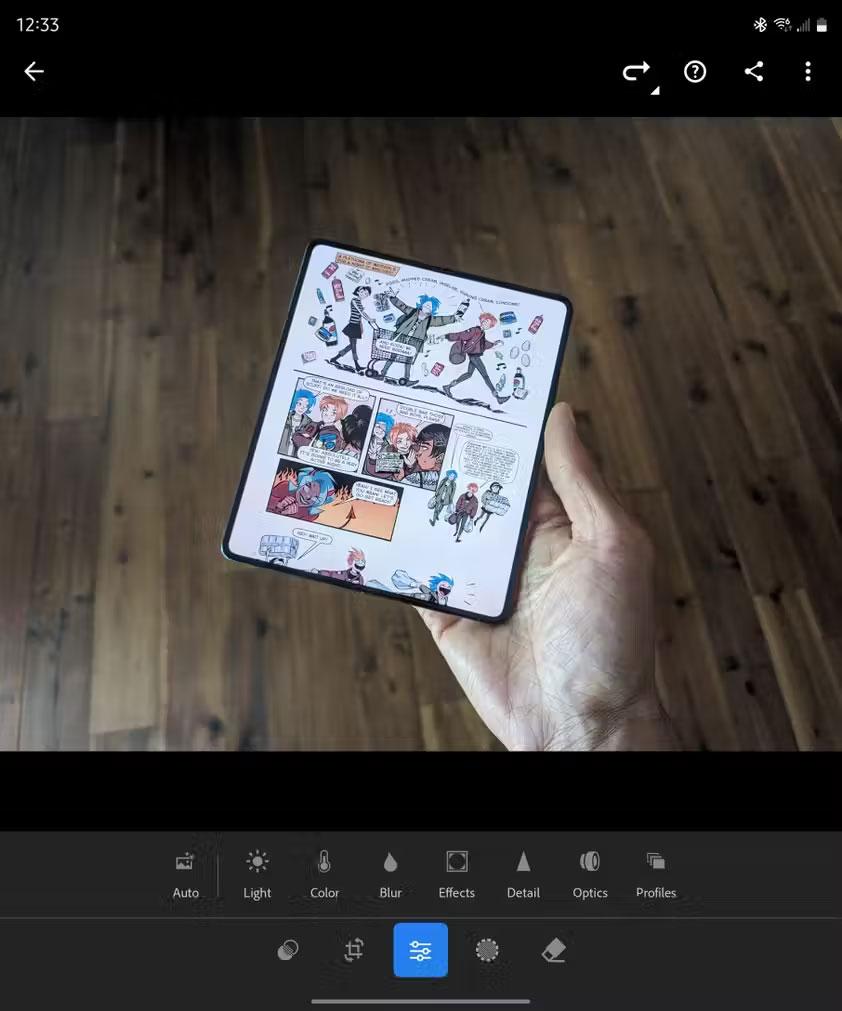
Most of the time, users only use portrait mode in their phone's camera app to create photos with a beautiful bokeh effect. However, if for any reason you forget to take a bokeh photo or are using an image taken with a different camera, Lightroom still allows you to apply the same effect later.
Lightroom works by uploading your photos to the cloud and processing them to accurately identify the subject and apply the blur. The effect isn't applied instantly and isn't perfect, but it's good enough for images that will be shared on social media or even published on a website.
Some subjects aren't processed smoothly. You might find strange, unsightly effects applied to strands of hair standing on the head, obstructing sharp outlines. But for product photography, Lightroom tends to do a good job.
10. Fossify Gallery: private local organization and basic edits
Fossify Gallery is a fork of an application called Simple Gallery, a previously open-source program that was acquired and had ads and tracking added. As the name suggests, Fossify Gallery is primarily a gallery application, but it also has a built-in image editor.
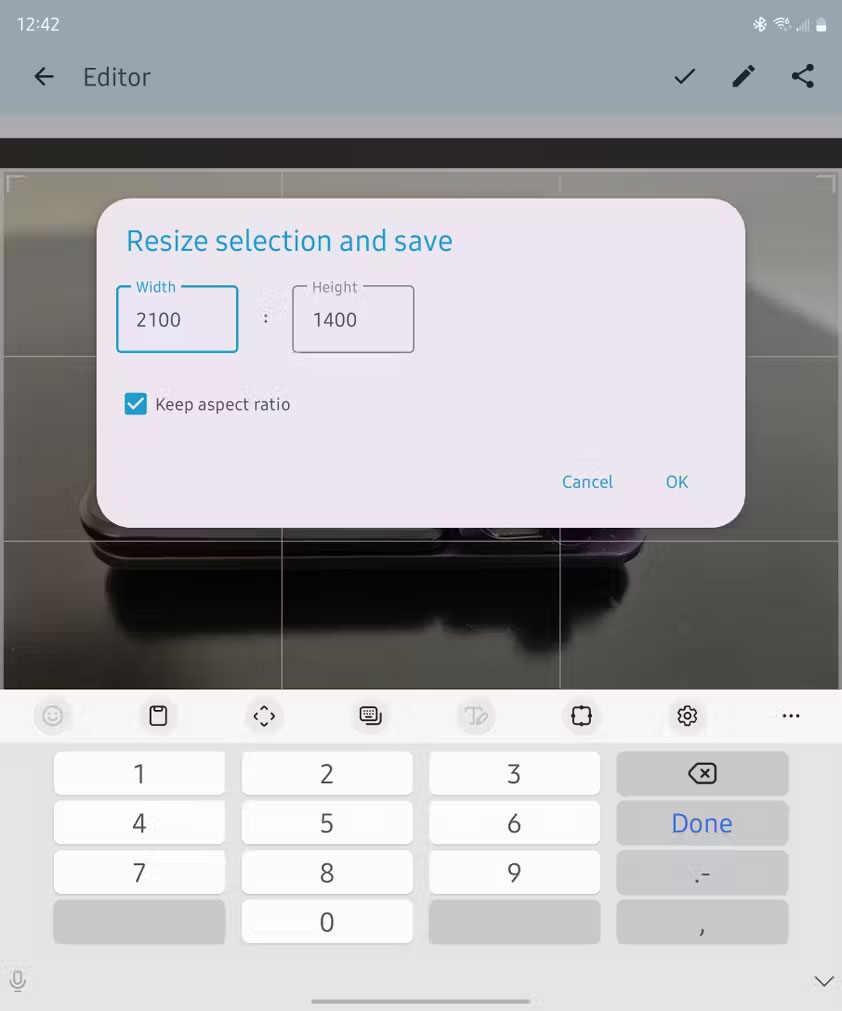
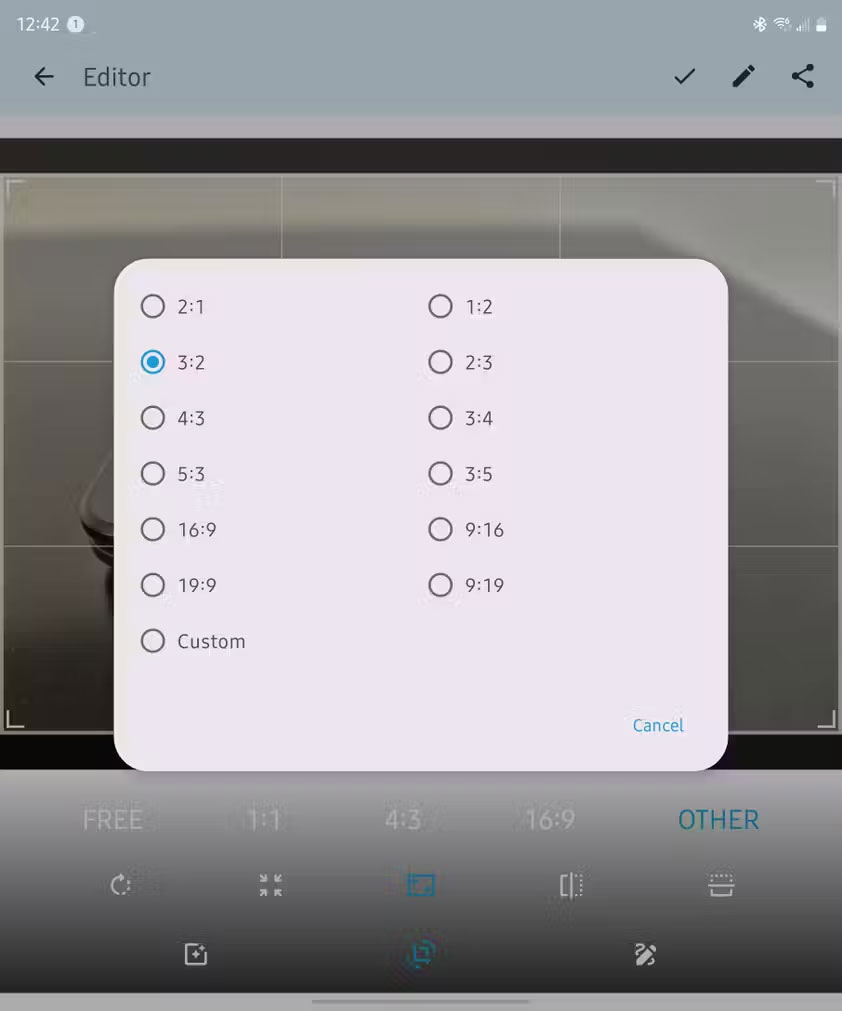
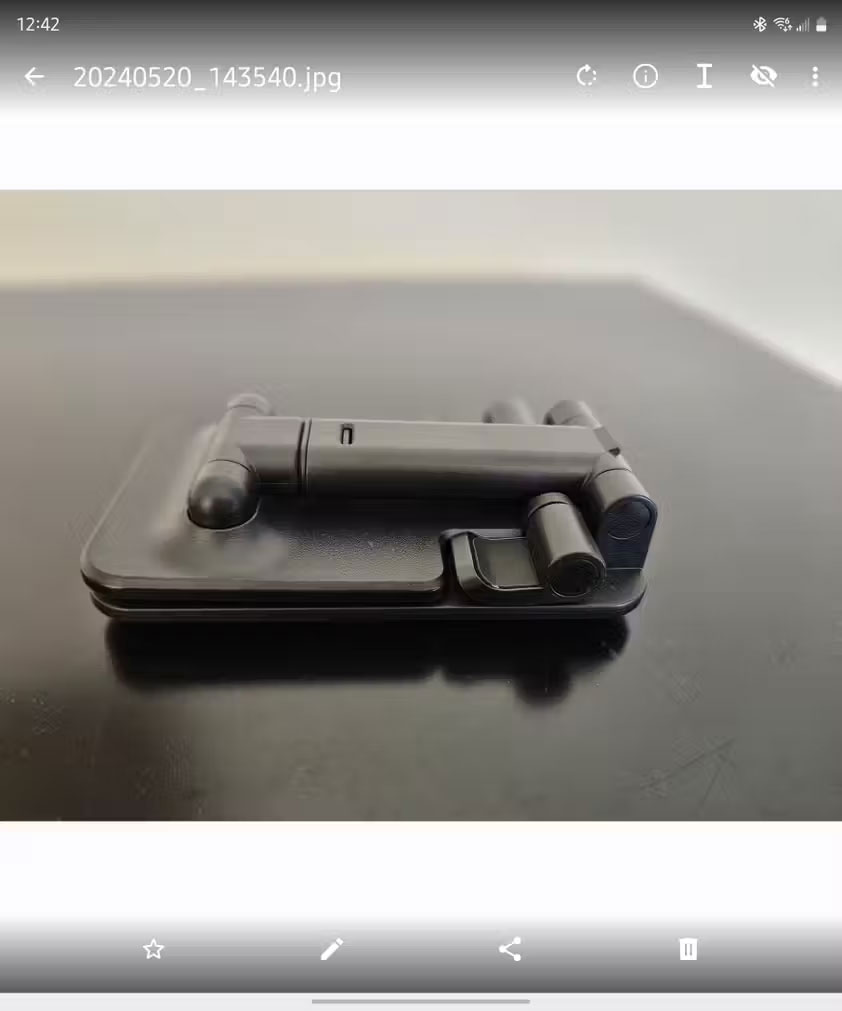
While Samsung Gallery can crop to a specific aspect ratio, it doesn't allow you to specify the exact dimensions. That's where Fossify Gallery comes in. It lets you choose the desired pixel height and width for your image.
The app's remaining image processing features are not expandable, so it's recommended to use a different app to edit the image, then transfer it to Fossify Gallery to ensure it's the correct size for publishing.
If you think there are other apps that should be on this list, please comment and share your ideas below so we can add them!
Related Articles
 Top 5 Best Simple Free Photo Editing Apps for macOS6 minutes read
 15 Best Photo Editing Apps for Android12 minutes read
 8 Top Free Photo Editing Apps for Android: Recommended Choices10 minutes read
 minutes read
 These Framed Art Apps for Phones: Photo Framing Apps5 minutes read
 Invite to Download Analog Pro, a Photo Editing Application Package4 minutes read
Reader Comments 0
Sign in with email or Google to join the discussion.