Table of Contents
10Web can generate an editable WordPress website from a business description. It creates a proposed structure, page copy, and visuals, then provides an editor for changing the result before publication. The generated site is a starting point: you still need to verify the content, configure the domain, and test privacy, accessibility, forms, and mobile layout.
1. Start a new AI website
Open 10Web's AI Website Builder, create an account, and choose the option to create a website with AI.
10Web says initial generation is free and currently offers a one-week trial for customization and publishing. Continued hosting and AI credits require a paid plan; verify the current billing cycle, renewal price, visitor limits, storage, and domain terms before subscribing.
2. Describe the site clearly
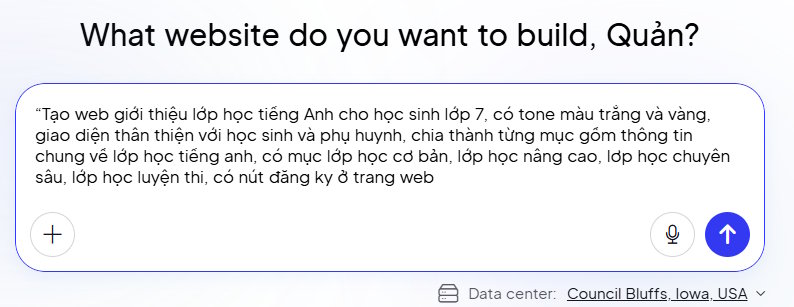
Tell the builder what the organization does, who the site is for, which pages are required, and what action visitors should take. Include brand colors and style only after the purpose and content are clear.
A useful prompt structure is:
Create a WordPress website for [business or project] serving [audience]. Include [pages and sections]. The primary action is [book, buy, register, contact]. Use [brand tone and colors]. Make pricing, contact details, and mobile navigation easy to find.
Example:
Create a friendly website for an English tutoring program for seventh-grade students and their parents. Include Overview, Beginner, Advanced, Exam Preparation, Schedule, Teacher, Pricing, and Contact sections. Use white and warm yellow, and place a clear registration button on each course page.
3. Review the proposed structure
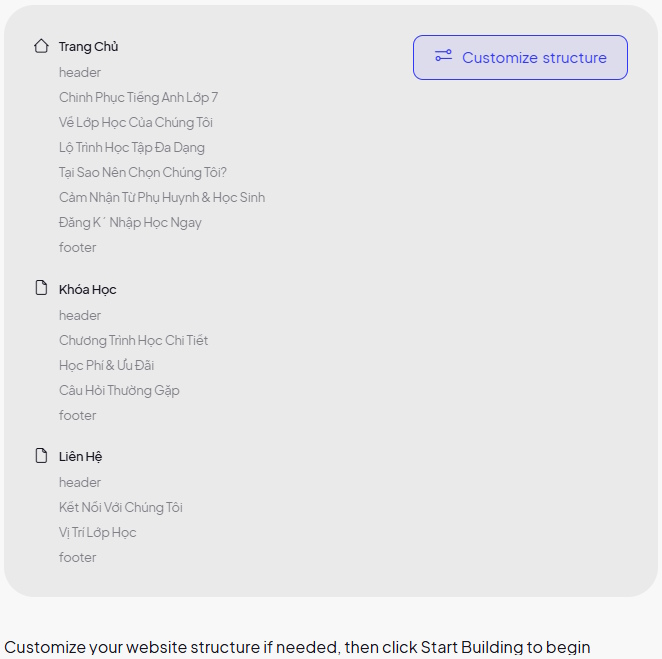
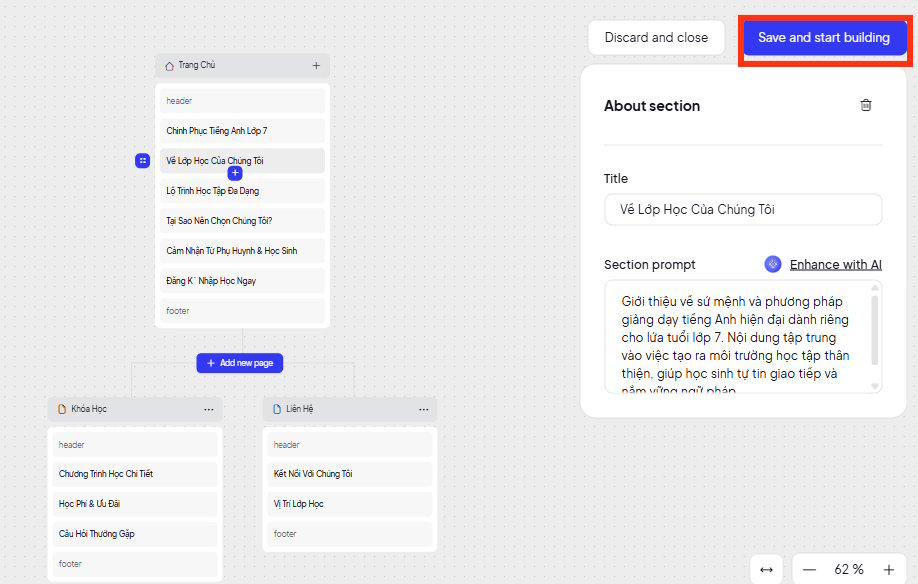
Before generation, inspect the page list and section outline. Remove duplicate pages, add missing legal or contact information, and make sure each page has one purpose. Correcting the structure now is faster than rebuilding navigation later.
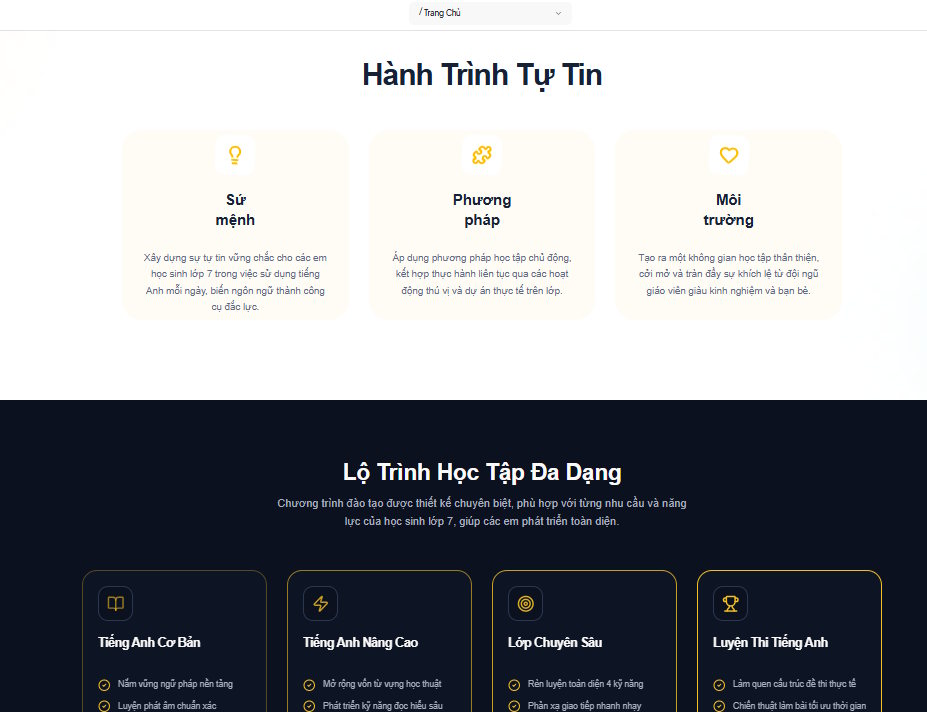
Select the site details you want to change, save the brief, and start the build. Generation time varies with the site's size and service demand.
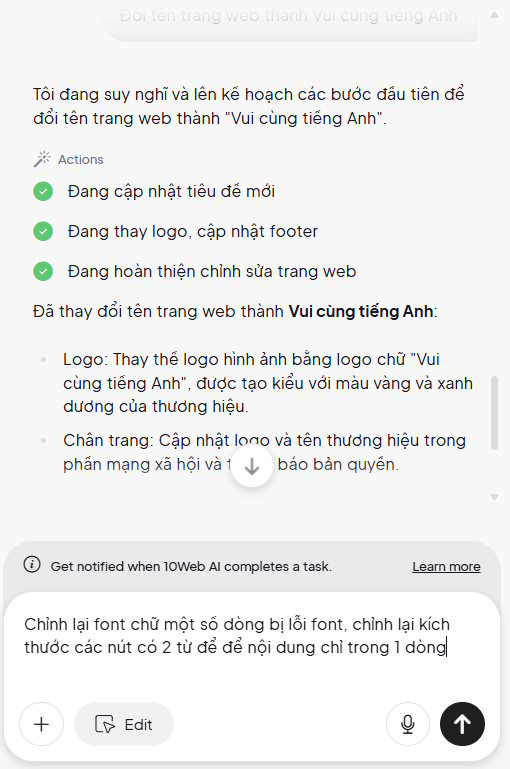
4. Edit the generated pages
Open the finished draft and review it page by page. Use the visual editor or AI editing controls to change a selected section. Check the plan's AI-credit rules rather than relying on an old fixed number of free edits.
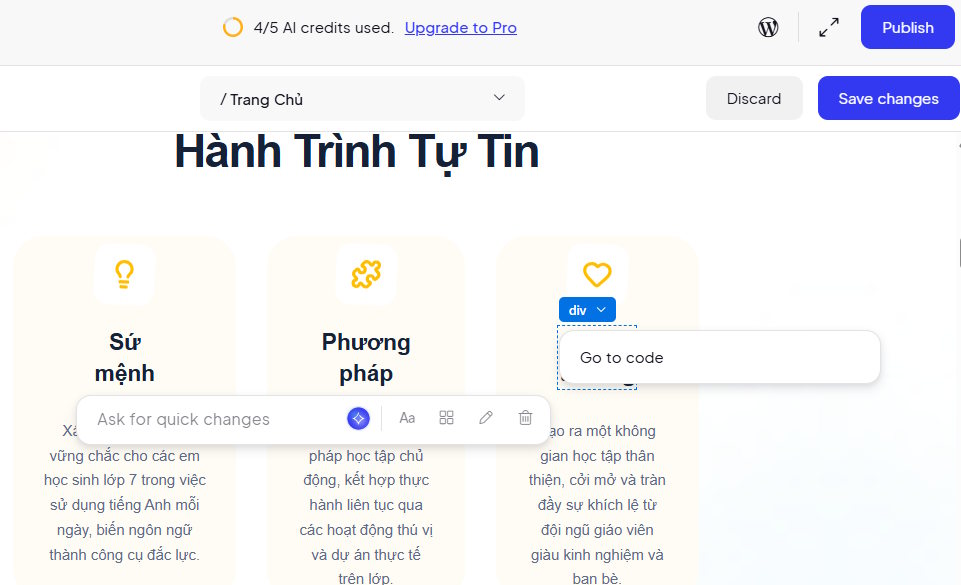
Replace every invented testimonial, statistic, address, staff biography, price, and claim. AI-generated copy can be fluent while still being inaccurate. Upload real brand assets and licensed images, and add useful alternative text to informative images.
5. Configure forms, SEO, and mobile layout
- Send each contact form to a monitored email address and submit a test entry.
- Give every page a unique title and description that matches its purpose.
- Use one clear H1 and descriptive H2 headings.
- Compress large images and check loading speed.
- Review navigation, buttons, forms, and text on phone and tablet widths.
- Add privacy, cookie, refund, and terms pages when they apply to the business.
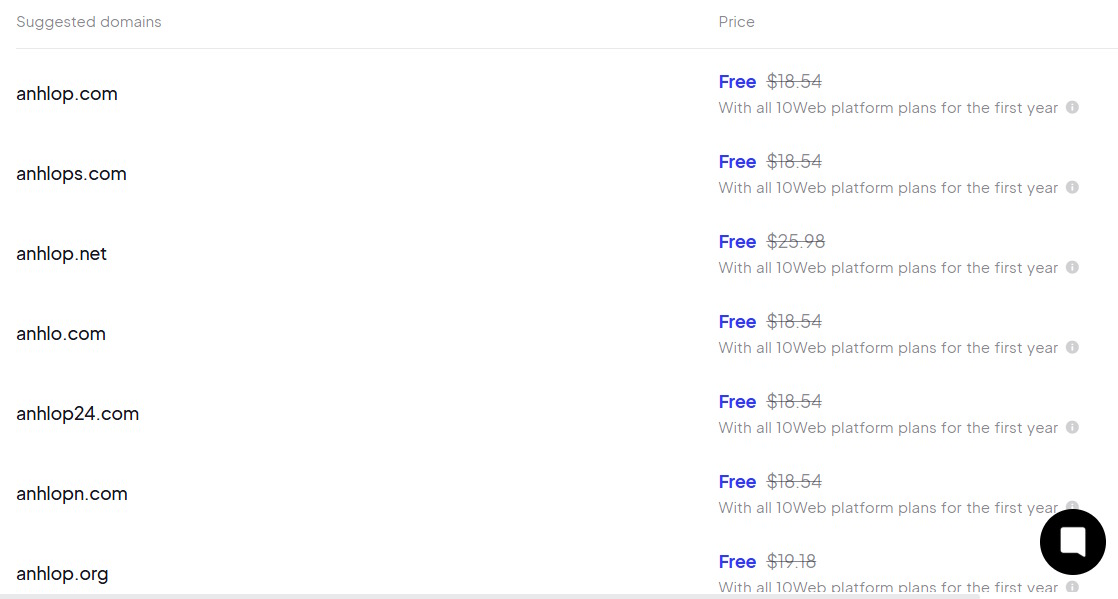
6. Connect a domain and publish
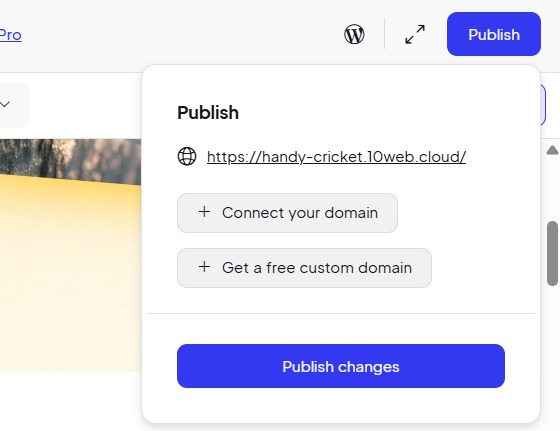
Choose the publish option, then either use the temporary address offered by 10Web or connect a domain you control. If you connect an existing domain, follow 10Web's current DNS instructions exactly and record the old values before changing them. DNS updates can take time to propagate.
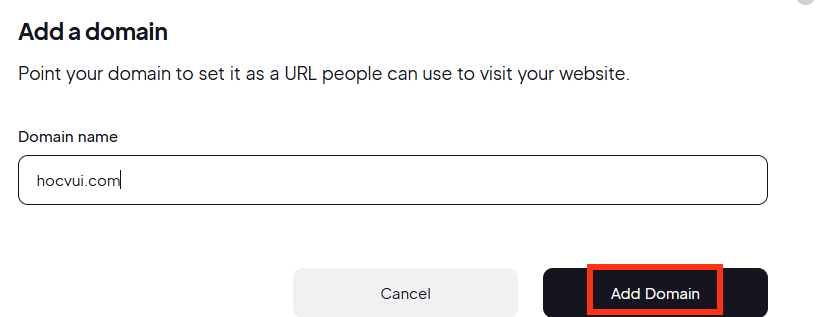
Paid annual plans may include a first-year domain credit subject to value and eligibility limits. “Free domain” usually does not mean free renewal forever, so check the renewal price and registrar ownership details.
Pre-launch checklist
- Proofread every page and verify all factual claims.
- Test menus, internal links, buttons, forms, email delivery, and checkout.
- Confirm the site uses HTTPS.
- Check mobile layout and keyboard navigation.
- Add analytics and consent controls only when needed and configured lawfully.
- Set up backups, updates, strong administrator authentication, and spam protection.
- Confirm who owns the domain and how the site can be exported or migrated.
10Web is one of several options. Compare it with these AI website builders if portability, ecommerce, pricing, or design control is more important than a managed WordPress setup.
Related Articles
 Creating a Website Is Incredibly Easy with Readdy. AI14 minutes read
 Guide to Creating a Quiz Website on Canva AI1 minutes read
 How to Create Professional Review Games with Genially AI6 minutes read
 How to Designing Learning Activities on Twitter3 minutes read
 Guide to Quickly Creating AI Quiz Questions5 minutes read
 Things to Consider Before Creating a Website8 minutes read
Reader Comments 0
Sign in with email or Google to join the discussion.