Table of Contents
Readdy AI can turn a written brief into an editable website draft, but the first result should be treated as a starting point rather than a finished site. The reliable workflow is to define the site’s audience and pages, generate a draft, correct one section at a time, test every interactive element, and only then publish it.
This tutorial follows the interface shown in the screenshots. Labels may move as the product changes, but the decisions behind each step remain useful. To compare Readdy with other options, see TipsMake’s AI website design tools and AI e-commerce website builders.
What to prepare before opening Readdy
A good generator cannot decide your business rules for you. Write down these items first:
- Purpose: for example, collect leads, present a portfolio, explain a service, or sell products.
- Audience: who the site is for and what they need to do next.
- Pages: home, services, about, contact, and any task-specific pages.
- Brand inputs: the exact business name, logo, colors, tone, and approved images.
- Required functions: forms, booking, payment, maps, analytics, language options, or integrations.
- Content constraints: claims that need evidence, legal text, privacy requirements, and material that must not be generated.
Do not upload confidential customer data, private credentials, or material you do not have permission to use. Check Readdy’s current plan and credit limits before a large project because generation, publishing, domains, and advanced functions can be plan-dependent.
1. Start a project with a focused prompt
Open Readdy and enter a description of the site you want. A useful first prompt states the site type, audience, main pages, visual direction, and primary action. Avoid asking for every feature in one sentence.
Create a responsive website for a small specialty-coffee roaster. The audience is local customers who want to order beans or visit the shop. Include Home, Shop, Our Story, Wholesale, and Contact pages. Use warm neutral colors, readable sans-serif type, product photography, and a clear “Shop beans” action. Keep the copy factual and leave prices and policies as editable placeholders.
Review the description before generating. A detailed English prompt may work well, but the decisive factor is clarity, not language alone. Preserve exact brand names, units, and required labels in the language your audience uses.
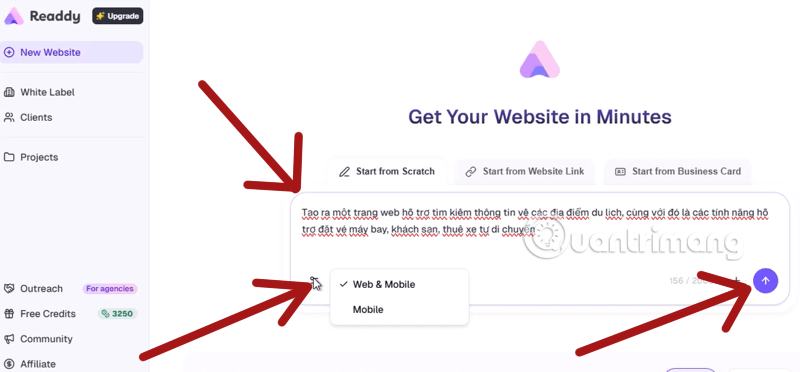
Readdy may suggest refinements after the first request. Add only requirements that belong in the initial structure, such as a contact form or a product category. Detailed visual corrections are easier after the draft exists.
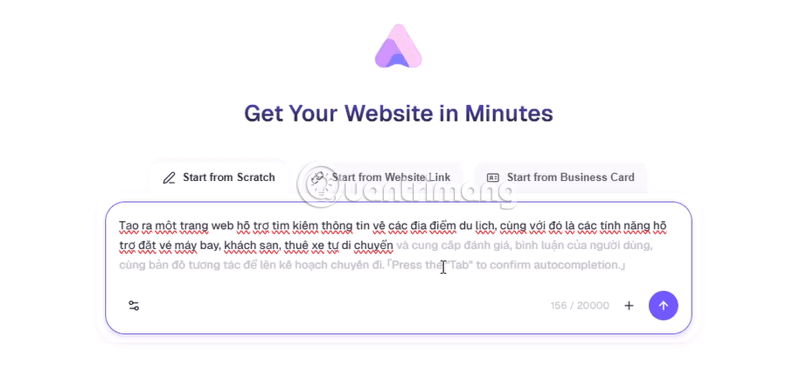
2. Choose the most appropriate starting source
The creation screen can offer more than one starting method:
- Start from scratch: best when the project has a new brief and no existing site to preserve.
- Start from a website link: useful for importing or referencing an existing site you own. Do not copy a competitor’s protected text, images, trademarks, or distinctive design.
- Start from a business card: useful for a compact profile or service site. Verify every extracted name, phone number, email address, and social link before publishing.
A URL or business card supplies reference material; it does not replace a content plan. If the source is outdated, the generated site can reproduce the same errors.
3. Review the proposed sitemap before generating pages
Readdy may propose sections such as Hero, About, Services, Testimonials, and Contact. Keep sections that directly support the user’s task. Remove empty social-proof sections rather than filling them with invented reviews, logos, statistics, or customer names.
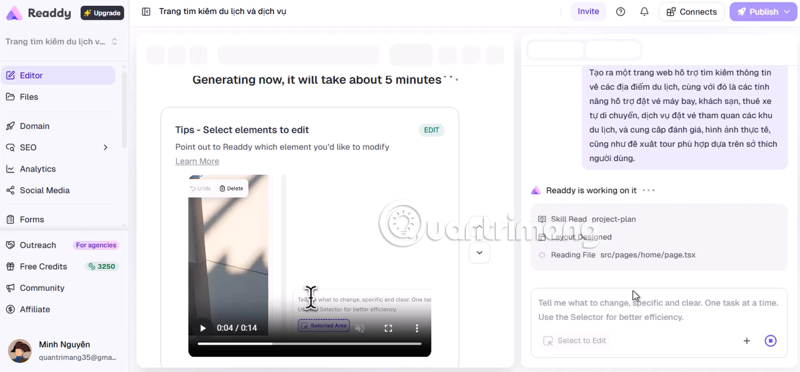
For a multi-page travel example, a practical sitemap might contain:
- /destinations for browsable destination summaries;
- /destinations/[name] for detailed destination pages;
- /flights and /hotels only if those functions are genuinely implemented;
- /about, /contact, privacy information, and relevant terms.
A visual search form is not automatically connected to live inventory. If a page promises booking, payment, or real-time availability, confirm that the required data source and transaction flow actually work.
4. Inspect the generated site in the visual editor
When the draft opens, review it from the top down. Check navigation first, then the main call to action, section order, footer, and mobile layout. Use the block or selector controls to edit one area at a time; smaller requests make it easier to see what changed.
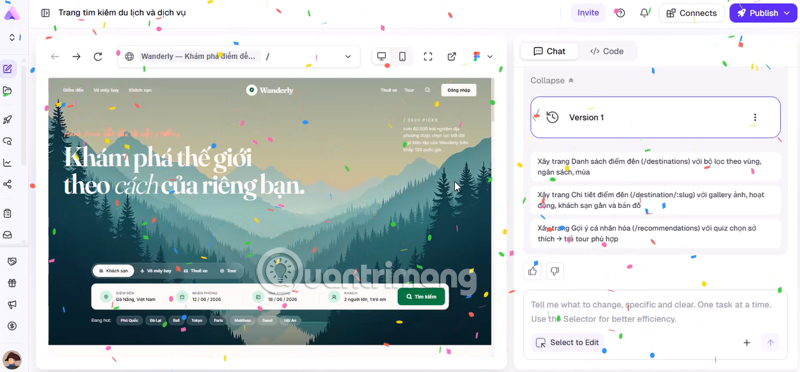
Before changing the design, remove factual errors and placeholder claims. AI-generated copy can invent awards, addresses, product benefits, prices, team members, and testimonials. Replace it with approved information or label unfinished fields clearly for internal review.
5. Refine content, pages, and links with targeted instructions
Select a specific heading, image, button, or section and describe one outcome. For example: “Shorten this heading to eight words without changing the service name,” or “Make this button link to /contact and label it Request a quote.” Verify the result rather than assuming the link or text changed correctly.
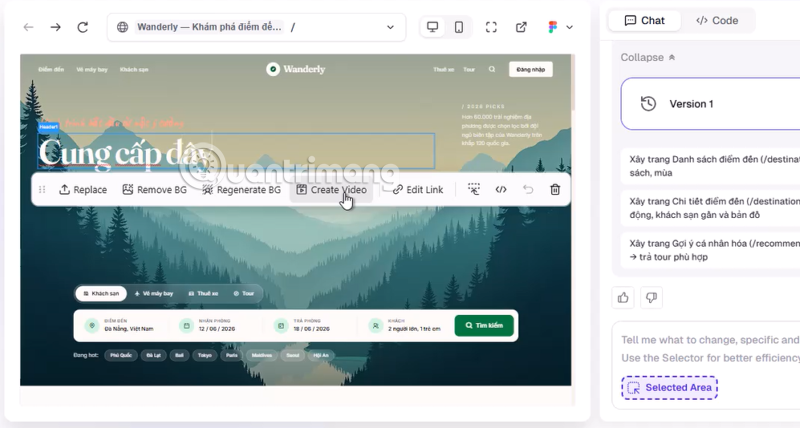
When a navigation item points to an unfinished page, open that page and generate the missing content deliberately.
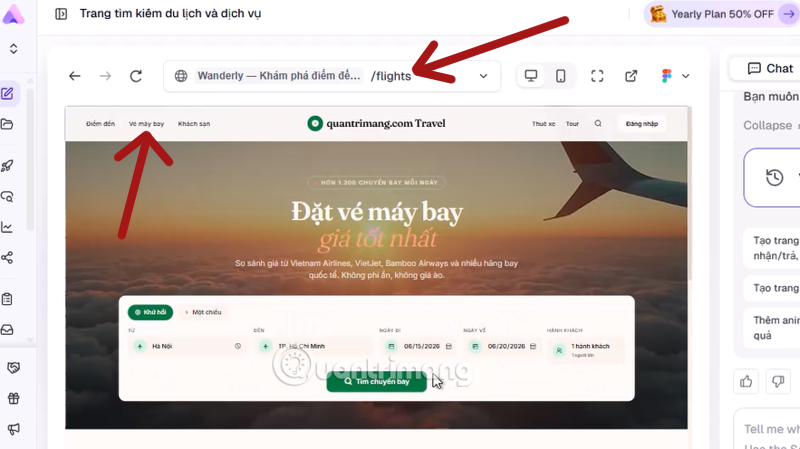
Start with a short page brief that specifies purpose and components. For a flight-search concept, for example, ask for trip type, origin, destination, dates, passengers, and a submit action—but do not imply that it searches real fares until an appropriate service is connected.
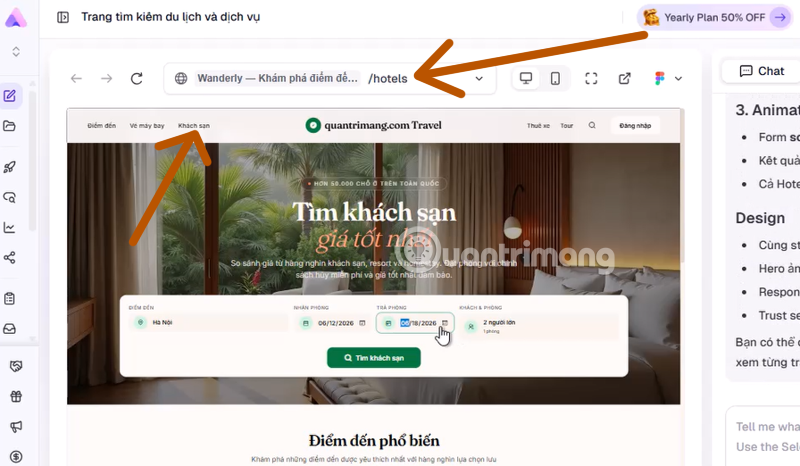
A reusable prompt structure
Use this formula: page purpose + audience + required content + actions + visual rules + responsive behavior + constraints.
Create the /hotels page for “TipsMake Travel.” It helps independent travelers compare example accommodations. Add a compact header with Hotels shown as the active item, a destination and date search form, a popular-destinations grid, sample hotel cards clearly labeled as examples, and filters for price range, rating, and amenities. Use a white and charcoal palette with a dark-green accent, accessible contrast, visible form labels, keyboard-friendly controls, and responsive one-column behavior on small screens. Do not invent live prices, availability, reviews, or partnerships.
That prompt is more useful than a long list of decorative adjectives because it defines the user task, data boundaries, and small-screen behavior. Use Readdy’s suggestions only when they support those requirements.
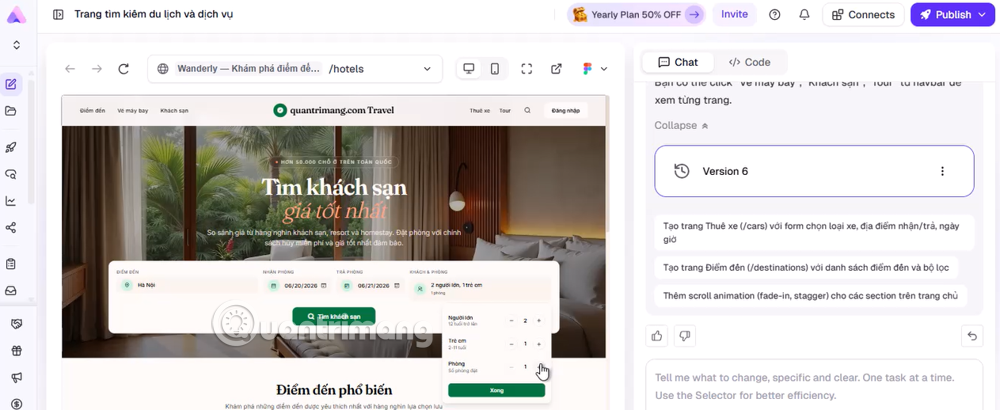
6. Change layout without losing content hierarchy
Use layout suggestions for a selected section when the information is correct but its presentation is weak. Compare alternatives by reading order, not novelty. A carousel can hide important content; a dense grid can be difficult on phones; centered text can reduce readability for long paragraphs.
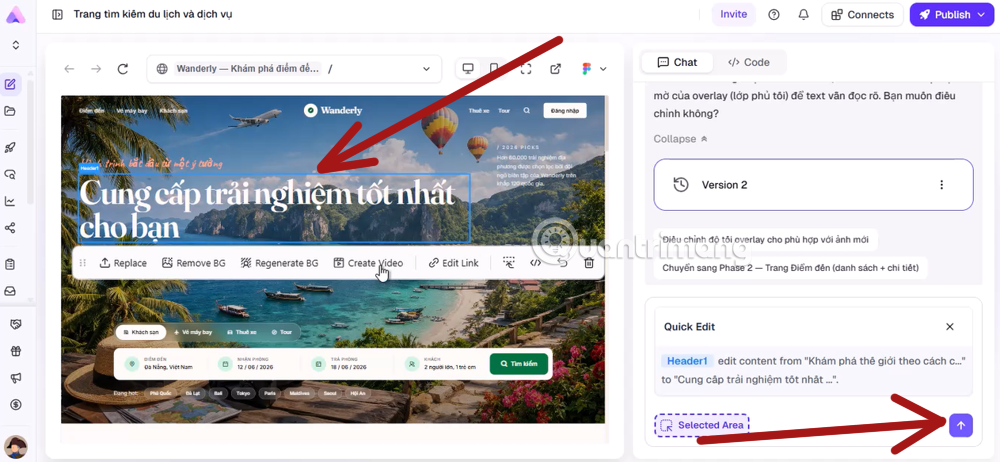
After any layout change, recheck heading order, button labels, text wrapping, image crops, and keyboard focus. Keep one primary action visually dominant.
7. Replace images and manage media responsibly
Select an image to upload an approved asset, search the available library, or generate a new visual if the interface offers that option. Provide an explicit subject, setting, composition, and aspect ratio. Then check that the result accurately represents the business and does not contain misleading text, fake products, or recognizable people used without permission.
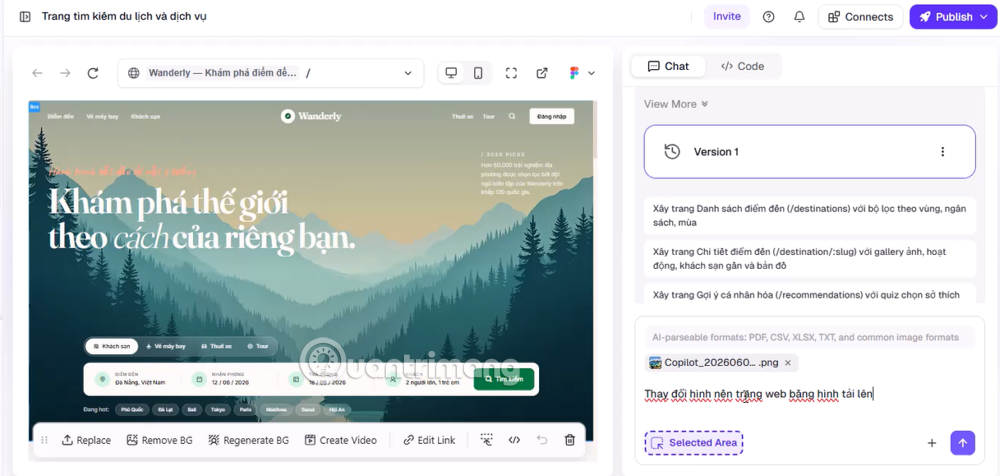
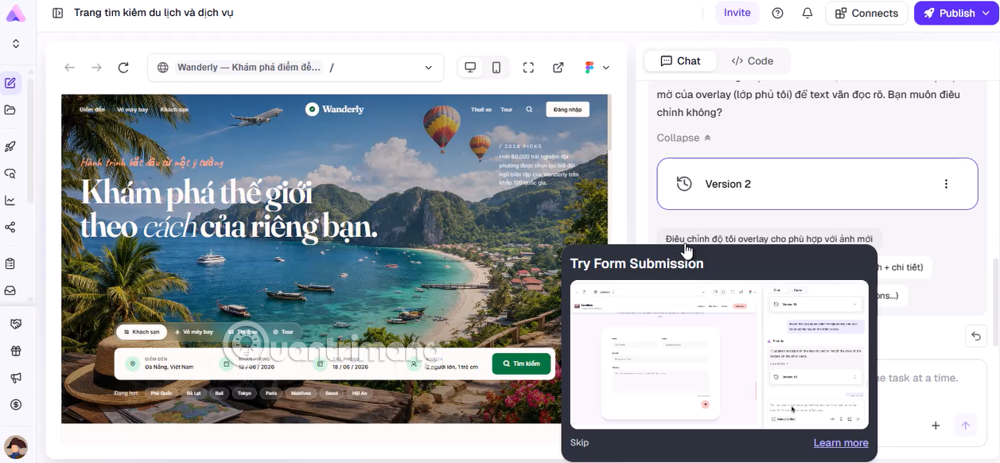
Use meaningful alternative text for informative images and empty alternative text for purely decorative ones. Compress oversized files, keep important content out of background images, and confirm that you have the right to publish each asset. “Free” and “AI-generated” do not automatically settle all usage or trademark questions.
8. Set a consistent theme
Use theme controls to set a limited color palette, body and heading fonts, button treatment, corner radius, and spacing. Global styles are easier to maintain than correcting every section separately.
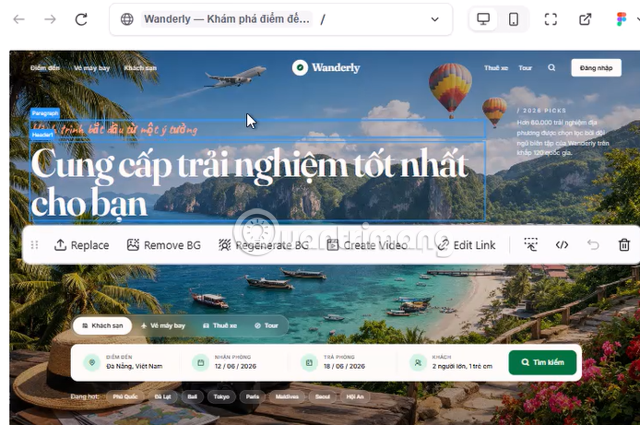
Check text and button contrast, body text size, line length, visible focus states, and zoom behavior. Do not rely on color alone to communicate errors or selected states. Review the site in a real browser as well as in the editor.
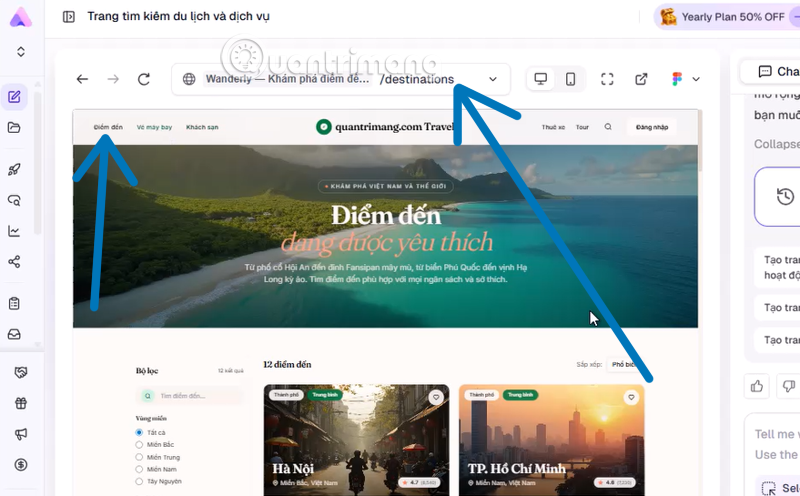
9. Preview and test before publishing
Use Preview to inspect desktop and mobile layouts, but also test the draft manually. A responsive preview shows size changes; it does not prove that forms, integrations, accessibility, or content are correct.
| Area | What to verify |
|---|---|
| Navigation | Every menu, logo, button, and footer link opens the intended destination |
| Content | Names, prices, contact details, claims, spelling, and legal text are approved |
| Mobile | No clipped text, horizontal scrolling, overlapping controls, or unreadable image crops |
| Forms | Required fields, validation, confirmation, delivery, consent, and spam controls work |
| Accessibility | Keyboard navigation, labels, focus, headings, contrast, and alternative text are usable |
| SEO | Each page has a unique title, useful meta description, clear URL, one main heading, and indexable text |
| Performance | Images are appropriately sized and the main pages load acceptably on a mobile connection |
| Analytics | Tracking is configured only with the required notice or consent for the target jurisdiction |
10. Publish on a Readdy URL or custom domain
Open the publishing controls when the checks pass. Depending on the current plan and project type, you may be able to publish to a Readdy-hosted address or connect a domain you own. Readdy’s official publishing documentation explains the current custom-domain and DNS process.
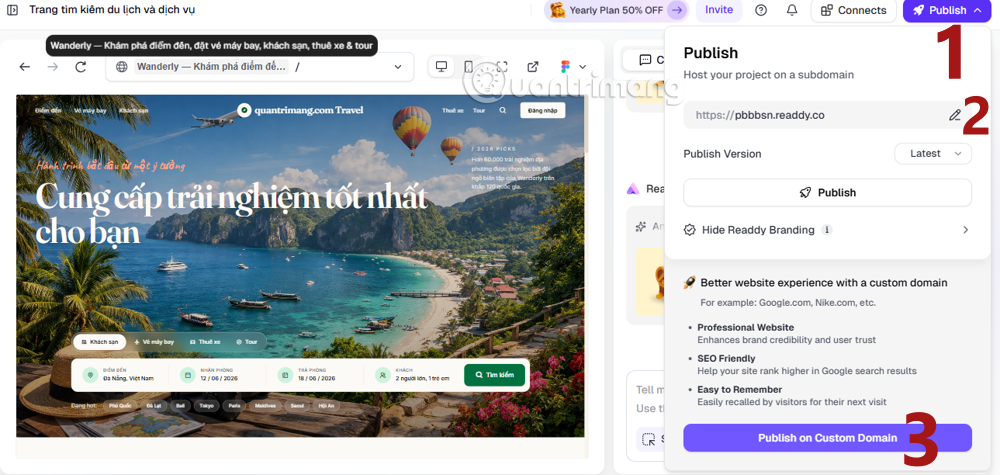
For a custom domain, enter the exact domain, add the DNS records Readdy provides at your DNS host, wait for verification, and confirm that HTTPS works. DNS changes can take time to propagate. Avoid deleting unrelated mail or verification records, and keep a copy of the previous DNS configuration before changing it.
Publishing is not the end of the process. Reopen the public site, submit its forms, test the canonical domain on both desktop and mobile, and check that search metadata is visible. If you update the project later, follow the platform’s republishing process and repeat the critical tests.
Where Readdy fits—and where it does not
Readdy is useful for producing a structured visual draft and iterating through prompts and direct edits. It can reduce setup work for a portfolio, service site, landing page, or other content-led project. It does not remove the need for approved copy, functional integrations, accessibility review, privacy decisions, domain management, or ongoing maintenance.
Compare tools on the functions your site actually needs, not claims about how many minutes a build takes. A simple informational site and an e-commerce or booking system have very different requirements. The best result is a site whose content is accurate, actions work, and owner can maintain it after launch.
Related Articles
 Don't Ignore These 10 Security Tips When Creating a New Website10 minutes read
 Top Most Effective and Easy-to-Use AI Tools for Creating Websites9 minutes read
 How to Create a Website Using 10Web AI3 minutes read
 Things to Consider Before Creating a Website8 minutes read
 TOP AI tools for creating the best e-commerce websites15 minutes read
 Anyone Can Create a Small and Simple Website with These 10 Websites10 minutes read
Reader Comments 0
Sign in with email or Google to join the discussion.